

Google Meet
In one line: Connect Google Meet so your UnleashX agent can spin up video meetings — with the right time, attendees, and a join link — without opening Calendar.
1. Overview
Google Meet is Google’s video-conferencing service. Meetings are created as Google Calendar events with a Meet conference attached, which is how the join link gets generated and shared with attendees. Once connected to UnleashX, your agent can create a meeting — setting the title, start and end time, time zone, and attendee list — and return the Meet join link. Because the meeting lands on your calendar, invitees are notified the same way they would be for any other event. Connecting Google Meet to UnleashX means scheduling becomes one step in a bigger flow: a lead replies, a ticket escalates, a form comes in — and the agent books the call without you switching apps.2. What you’ll need
1
A Google account with Meet and Calendar
Any personal Google account or a Google Workspace account with Meet enabled.
2
Permission to grant access
You must be able to complete the Google sign-in and approve the requested permissions.
3
An UnleashX agent
An agent in your UnleashX workspace where you’ll add the Google Meet connector.
On a managed Google Workspace account, your admin may need to allow UnleashX before authorization succeeds.
3. Get your credentials
Google Meet uses Google OAuth 2.0. You do not create or paste an API key. UnleashX redirects you to Google, you sign in once, and Google issues an access token to UnleashX automatically.1
Start the connection in UnleashX
In your agent’s Data Connectors, find Google Meet and click Connect (see Section 4).
2
Sign in with Google
Choose the Google account whose calendar the meetings should be created on.
3
Review and approve the requested scopes
Click Allow to grant access and return to UnleashX.
There is no key to copy. Access is granted by your Google sign-in and can be revoked anytime at your Google Account permissions page.
4. Connect on UnleashX
1
Open your agent
Sign in at https://www.tryunleashx.com and open your agent.
2
Go to Data Connectors
In the agent, open Data Connectors.
3
Find Google Meet and connect
Locate Google Meet and click Connect / Add / Configure.
4
Authorize with Google
Click Authorize, sign in with Google, and approve the requested permissions.
5
Confirm success
You’ll return to UnleashX and the connector status will show a Connected badge.
Use Google Meet in a Workflow
Once connected, you can add Google Meet to any automation from the Workflows builder. Its tools appear in the Apps panel, marked with an MCP badge.1
Add a trigger node
Open Workflows → New Workflow. On the canvas, click + Add Trigger. In the Paths panel, open the Apps tab and select Google Meet — its Triggers are listed underneath. Use the search box if you have many connectors.
2
Add an action node
Click the + below any node to add a step, then pick Google Meet again — this time the panel lists its Actions.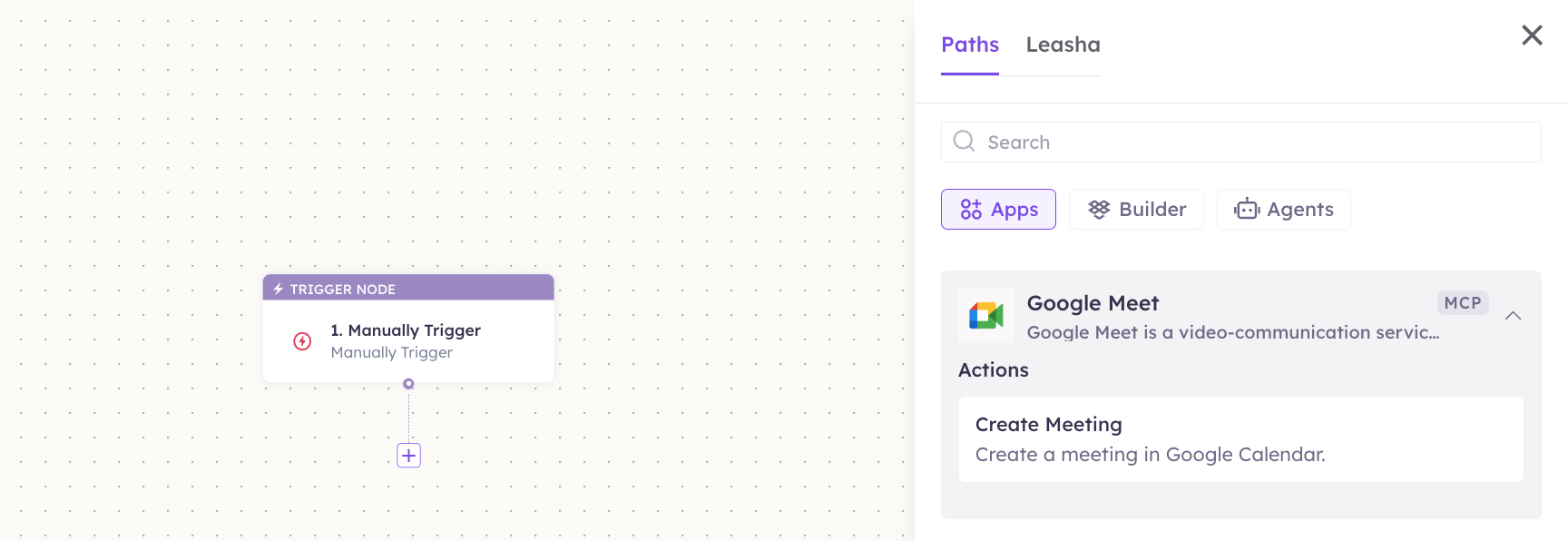
3
Configure the step
Fill in the fields for the trigger or action you picked. Required fields are marked with a red asterisk (*).
4
Add or select your account
Under Selected account, choose an already-connected account, or click Add Account to connect one now.
5
Save and test
Click Save. Use Test to verify the step, then toggle Publish when the workflow is ready.
The steps are the same for every connector. For the full workflow builder guide, see Using MCP in Workflows.
5. Available tools
6. Example usage
“Set up a 30-minute Google Meet with jane@acme.com tomorrow at 3pm IST called ‘Onboarding call’.” Runs Create Meeting and returns the Meet join link.
“When a demo request form comes in, book a 45-minute Meet with the requester for the next open slot.” A workflow chains the form trigger into Create Meeting.
7. Permissions & data access
UnleashX can:- Create meetings on the connected Google account’s calendar.
- Set the title, start/end time, time zone, and attendee list.
- Return the generated Meet join link.
- Join, record, or transcribe meetings.
- Access Gmail, Drive, or other Google services unless connected separately.
- Change your Google account settings or password.
8. Troubleshooting
For general connector issues, see /mcp/integrations.