

GREEN-API WhatsApp
In one line: Connect GREEN-API so your UnleashX agent can send WhatsApp messages, files, locations, polls and buttons from a real WhatsApp number, read the conversation back, and start a workflow when someone replies.
1. Overview
GREEN-API connects a real WhatsApp number to an HTTP API. You create an instance, link it to a phone by scanning a QR code, and from then on that number can be driven programmatically. Once connected to UnleashX, your agent can send text, files by URL, locations, contact cards, polls and interactive buttons; read chat history and the message journals; check whether a number is even on WhatsApp before messaging it; manage groups and participants; and check that the instance is still authorized. Two polling triggers let a workflow start on its own — an incoming message, or an incoming call. Connecting GREEN-API to UnleashX puts an agent on the channel customers already use, on a number they may already have saved, with none of the template approval that the official Business Platform requires.This is different from WhatsApp Business, which uses Meta’s official Cloud API with approved templates and a verified business number. GREEN-API drives an ordinary WhatsApp account. Pick based on which account you’re sending from.
2. What you’ll need
- A GREEN-API account — sign up at green-api.com.
- A WhatsApp number you can scan a QR code with, and keep online.
- An instance created in the GREEN-API console, in the authorized state.
- Its ID Instance, API Token Instance, and API URL — all three on the instance card.
3. Get your credentials
GREEN-API doesn’t use a header token. The credentials sit in the request URL, which is why there are three values instead of one, and why all three are per-instance.1
Create an instance
Sign in at console.green-api.com and create an instance on the plan you want.
2
Link your WhatsApp number
Open the instance and scan the QR code from the phone you’re sending from — WhatsApp → Linked devices → Link a device.
3
Confirm it's authorized
The instance card should show the state authorized. Anything else (
notAuthorized, blocked, starting) means no call will succeed yet.4
Copy all three values
From the instance card, copy:
The API URL is per-instance — instances are spread across hosts, so don’t copy another instance’s host. It’s printed on the same card.
4. Connect on UnleashX
1
Open your agent
Sign in at https://www.tryunleashx.com and open the agent you want to connect.
2
Open Data Connectors
In the agent, go to Data Connectors and find GREEN-API WhatsApp.
3
Enter the three values
Click Connect / Add / Configure and enter the ID Instance, API Token Instance and API URL from Section 3, plus an Account Name to label the connection.
4
Confirm
Save, then run Get State Instance once —
authorized means the number is live and ready.Use GREEN-API in a Workflow
Once connected, you can add GREEN-API WhatsApp to any automation from the Workflows builder. Its triggers and tools appear in the Apps panel, marked with an MCP badge.1
Open the Apps panel
Open Workflows → New Workflow. On the canvas, click the + below a node, then open the Apps tab in the Paths panel and select GREEN-API WhatsApp — its Actions are listed underneath. Use the search box if you have many connectors.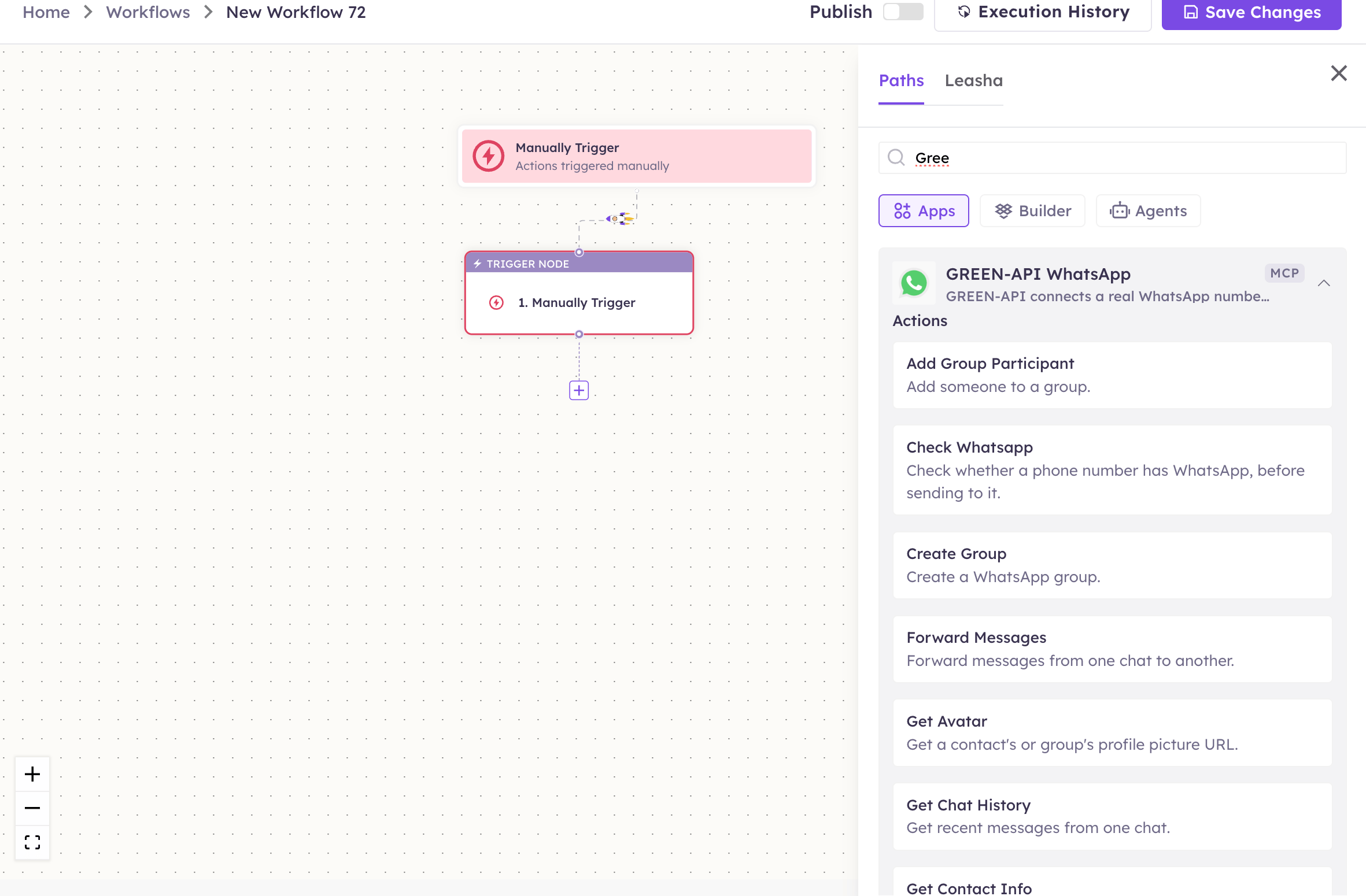
2
Pick the action and account
Choose the action from Select Action, then pick the connected account under Select Account — or click Add Account to connect one now.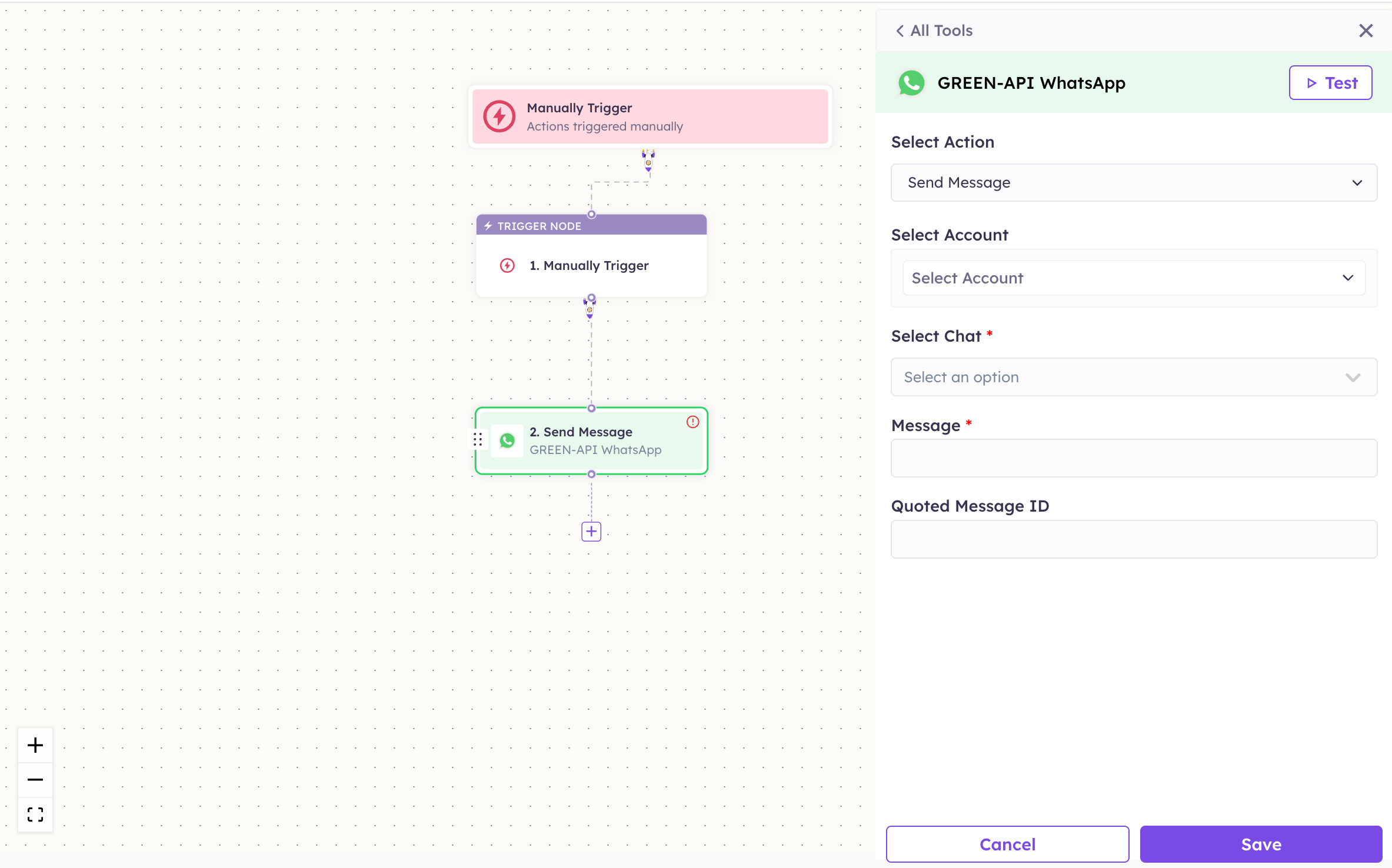
3
Fill in the fields
Required fields are marked with a red asterisk (*). Select Chat resolves the WhatsApp chat for you, so you don’t have to type a raw chat id.
4
Save and test
Click Save. Use Test to verify the step, then toggle Publish when the workflow is ready.
The steps are the same for every connector. For the full workflow builder guide, see Using MCP in Workflows.
5. Available tools
Names match the Workflows Apps panel, which lists them alphabetically; they’re grouped here by what they do. The Tool ID is what the agent calls behind the scenes. Sending
Reading
Contacts
Groups
Instance
Triggers
Triggers read the journals, not the notification queue. That matters in three ways: any number of workflows can poll the same instance without consuming each other’s messages, your own GREEN-API webhooks keep working, and nothing is destroyed by being read. The trade-off is up to about 2 minutes before a message reaches the journal — schedule these triggers at 5 minutes or slower.
6. Example usage
“Message +91 98765 43210 that their order shipped.” Runs Check Whatsapp to confirm the number, then Send Message. “Send the invoice PDF to that chat.” Runs Send File By URL with the document’s public URL. “When someone messages us on WhatsApp, look them up in the CRM and draft a reply.” A workflow starts on On New Message and chains into your CRM connector. “Ask the group to pick a slot.” Runs Send Poll with the options, or Send Interactive Buttons for up to three choices.7. Permissions & data access
UnleashX CAN:- Send messages, files, locations, contacts, polls and buttons from the linked number.
- Read chat history, message journals and delivery status.
- Manage groups and participants, and mark chats read.
- Check instance state and settings.
- Act on any WhatsApp account other than the linked instance.
- Recover messages older than the journal window.
- Bypass WhatsApp’s own rules — spam behaviour still gets the number banned.
8. Troubleshooting
For general connector issues, see /mcp/integrations.
9. Frequently asked questions
Is this the official WhatsApp API? No. It drives an ordinary WhatsApp account through GREEN-API. For Meta’s official Cloud API with approved templates, use WhatsApp Business. Does my phone need to stay on? The WhatsApp session must stay linked. Treat it like any other linked device. Can I connect more than one number? Yes. Create an instance per number and add each as its own connection. Why is my trigger slow? Journal latency is up to about two minutes by design — it’s the trade-off for triggers that don’t consume messages or break your webhooks. Do templates need approval? No. That’s a Business Platform requirement, not a GREEN-API one.10. References
- GREEN-API documentation: https://green-api.com/en/docs/
- GREEN-API console: https://console.green-api.com/
- Journal methods (LastIncomingMessages): https://green-api.com/en/docs/api/journals/LastIncomingMessages/