

Slack
In one line: Connect Slack so your UnleashX agent can send and read messages, browse channels and users, share and find files, and set reminders — all in your workspace.
1. Overview
Slack is the messaging platform where your team chats, shares files, and coordinates work across channels and direct messages. It is the day-to-day communication hub for most organizations. Once you connect Slack to UnleashX, your agent can post messages to channels and DMs, read recent conversation history, search across messages, list channels and users, upload and fetch files, and create reminders — without you switching apps. Connecting Slack to UnleashX turns your agent into a hands-on teammate: it can announce results, summarize a channel, pull a file someone shared, or nudge a colleague with a reminder — driven entirely by natural language.2. What you’ll need
- A Slack account with access to the workspace you want to connect.
- Permission to authorize apps for that workspace. Some workspaces require an admin or Owner to approve new app installations.
- The channels you care about should exist (the agent can post to public channels it can join; for private channels the app must be invited).
If you are not a workspace admin, you may see an “approval required” screen during authorization. Ask a workspace Owner/Admin to approve the UnleashX app, then retry.
3. Get your credentials
Slack uses OAuth, so you don’t copy a long-lived secret by hand — you click through Slack’s authorization screen and Slack hands UnleashX an access token. The steps below happen automatically during Connect on UnleashX (Section 4); this section explains what you are approving.1
Start the connection from UnleashX
When you click Connect on the Slack connector (Section 4), UnleashX redirects you to Slack’s official authorization page at
https://slack.com/oauth/v2/authorize.2
Pick your workspace
At the top right of the Slack screen, confirm the workspace you want UnleashX to act in. Switch it if needed.
3
Review the requested scopes and click Allow
Slack shows exactly what the app can do. Click Allow to grant access. Slack then returns an access token to UnleashX automatically — you never see or paste it.
The access token is stored securely by UnleashX. You do not manage it manually. To stop access later, disconnect in UnleashX or revoke the app from Slack → Settings & administration → Manage apps.
4. Connect on UnleashX
1
Open your agent
Sign in at https://www.tryunleashx.com and open the agent you want to give Slack access to.
2
Go to Data Connectors
In the agent, open Data Connectors.
3
Find Slack and Connect
Locate Slack in the list and click Connect / Add / Configure.
4
Authorize in Slack
You’ll be sent to Slack’s authorization page. Choose your workspace and click Allow.
5
Confirm it's connected
You’ll be returned to UnleashX and the Slack connector will show a Connected badge. You’re done.
Use Slack in a Workflow
Once connected, you can add Slack to any automation from the Workflows builder. Its triggers and tools appear in the Apps panel, marked with an MCP badge.1
Add a trigger node
Open Workflows → New Workflow. On the canvas, click + Add Trigger. In the Paths panel, open the Apps tab and select Slack — its Triggers are listed underneath. Use the search box if you have many connectors.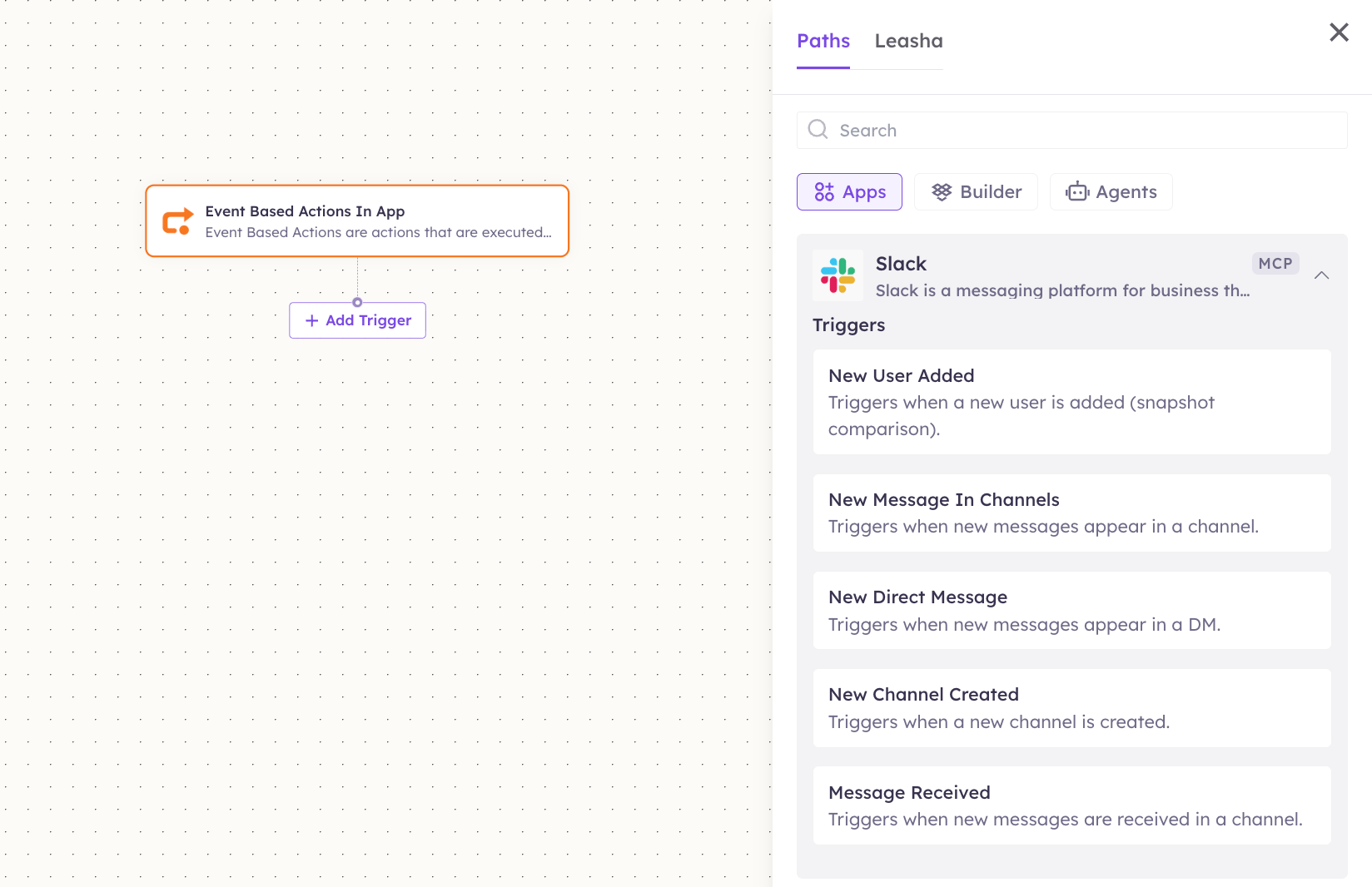
2
Add an action node
Click the + below any node to add a step, then pick Slack again — this time the panel lists its Actions.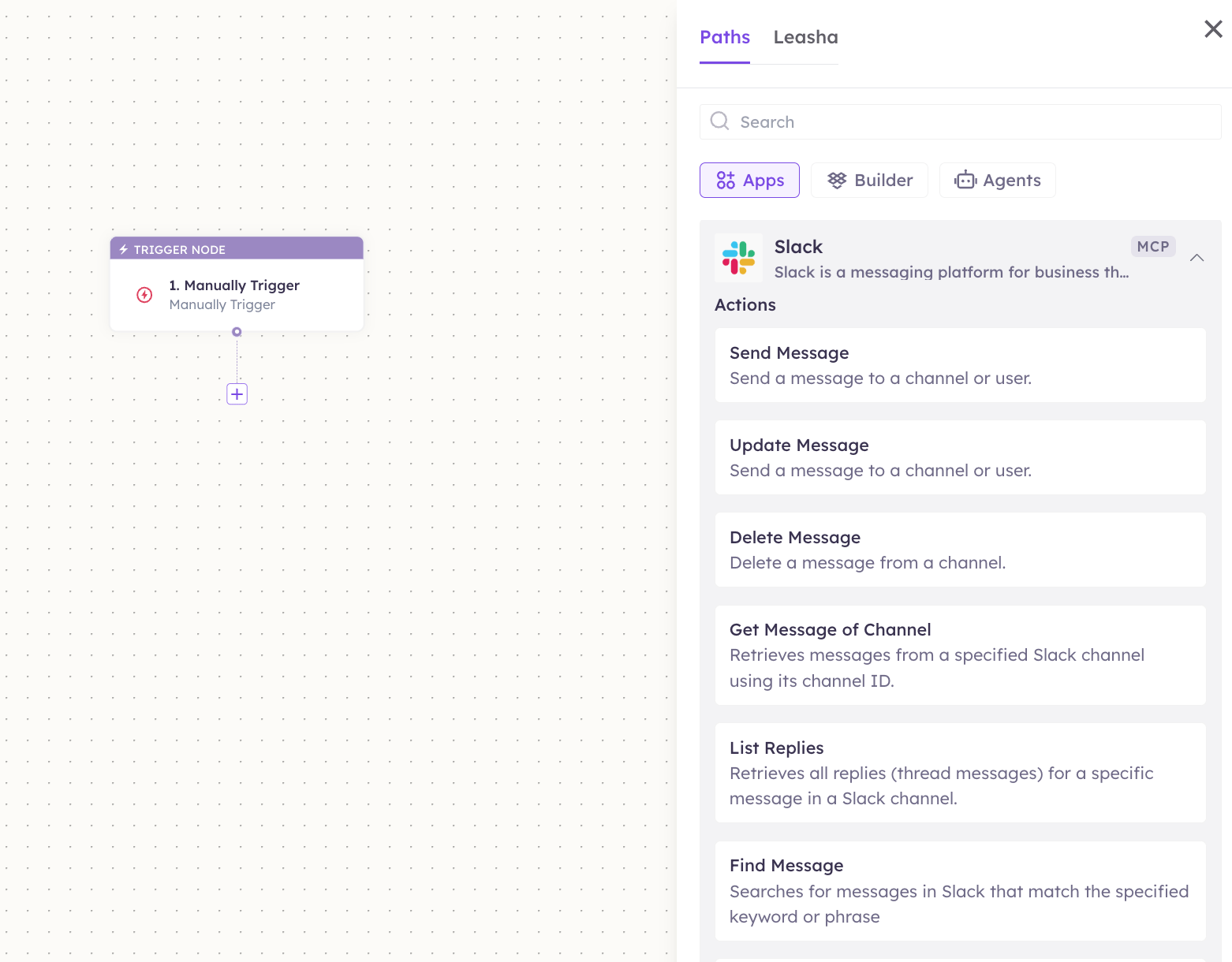
3
Configure the step
Fill in the fields for the trigger or action you picked. Required fields are marked with a red asterisk (*).
4
Add or select your account
Under Selected account, choose an already-connected account, or click Add Account to connect one now.
5
Save and test
Click Save. Use Test to verify the step, then toggle Publish when the workflow is ready.
The steps are the same for every connector. For the full workflow builder guide, see Using MCP in Workflows.
5. Available tools
6. Example usage
“Post ‘Deploy finished, all green ✅’ to the #engineering channel.” Behind the scenes: Get Channels (find the channel ID) → Send Message. “Find the message where someone shared the Q3 budget and send it to me.” Behind the scenes: Find Message (search) → Send Message (DM you the link).7. Permissions & data access
UnleashX CAN:- Send messages to channels and direct messages you have access to.
- Read recent message history and thread replies.
- Search messages, list channels and users, and read workspace info.
- Upload, fetch, and delete files; create reminders.
- Access workspaces you didn’t authorize.
- Post to private channels it hasn’t been invited to.
- Change workspace settings, billing, or admin configuration.
- Do anything outside the scopes you approved (Section 3).
8. Troubleshooting
For general connector issues, see /mcp/integrations.
9. Frequently asked questions
Is my Slack data stored by UnleashX? UnleashX reads messages and files on demand to fulfill your requests. It keeps lightweight snapshots for “new message / new user / new channel” triggers so it can detect what changed; these are tied to your session and cleared when the session ends. Can multiple team members connect Slack? Yes. Each user authorizes their own workspace access, and the agent acts with the permissions granted by whoever connected. How do I rotate or revoke access? Disconnect in UnleashX or remove the UnleashX app from Slack → Manage apps. Reconnecting issues a fresh token automatically. Why can’t the agent read a private channel? Slack requires the app to be a member of private channels. Invite the UnleashX app to the channel, then try again.10. References
- Slack API documentation: https://api.slack.com/docs
- Slack OAuth scopes reference: https://api.slack.com/scopes
- Manage installed apps: https://slack.com/apps/manage
- Create/manage Slack apps: https://api.slack.com/apps