

Using MCP in Workflows
What is a Workflow?
A workflow is a sequence of connected steps that automates a process from start to finish. Instead of performing tasks manually, a workflow executes predefined actions automatically based on a trigger or event. Think of a workflow as a digital process that moves information between different systems, makes decisions, and performs actions without human intervention. For example, when a new lead is submitted through a form, a workflow can automatically save the lead in a CRM, notify the sales team, and schedule a follow-up task. In UnleashX, every connected service appears in the workflow builder as an app marked with an MCP badge — so the same MCP servers you connect once become the building blocks of your automations.Why Use Workflows?
Workflows help organizations automate repetitive tasks, reduce manual effort, and ensure processes are executed consistently.Benefits of Workflows
- Save Time by automating repetitive tasks and reducing manual work.
- Increase Efficiency by connecting multiple tools and systems into a single automated process.
- Reduce Errors by eliminating manual data entry and repetitive actions.
- Improve Consistency by ensuring tasks are performed the same way every time.
- Scale Operations by handling large volumes of tasks without additional effort.
- Enable Intelligent Automation by combining business logic, AI capabilities, and external applications.
How to build one
This guide walks the full build, end to end, exactly as it appears in UnleashX:1. Open Workflows
Create a new workflow.
2. Add a trigger
Choose what starts the flow.
3. Trigger types
Set up each trigger type.
4. Add steps & conditions
Add actions and branch the flow.
5. Save & publish
Go live.
1. Open Workflows
1
Go to Workflows
Sign in at https://www.tryunleashx.com. In the left sidebar under BUILD, click Workflows.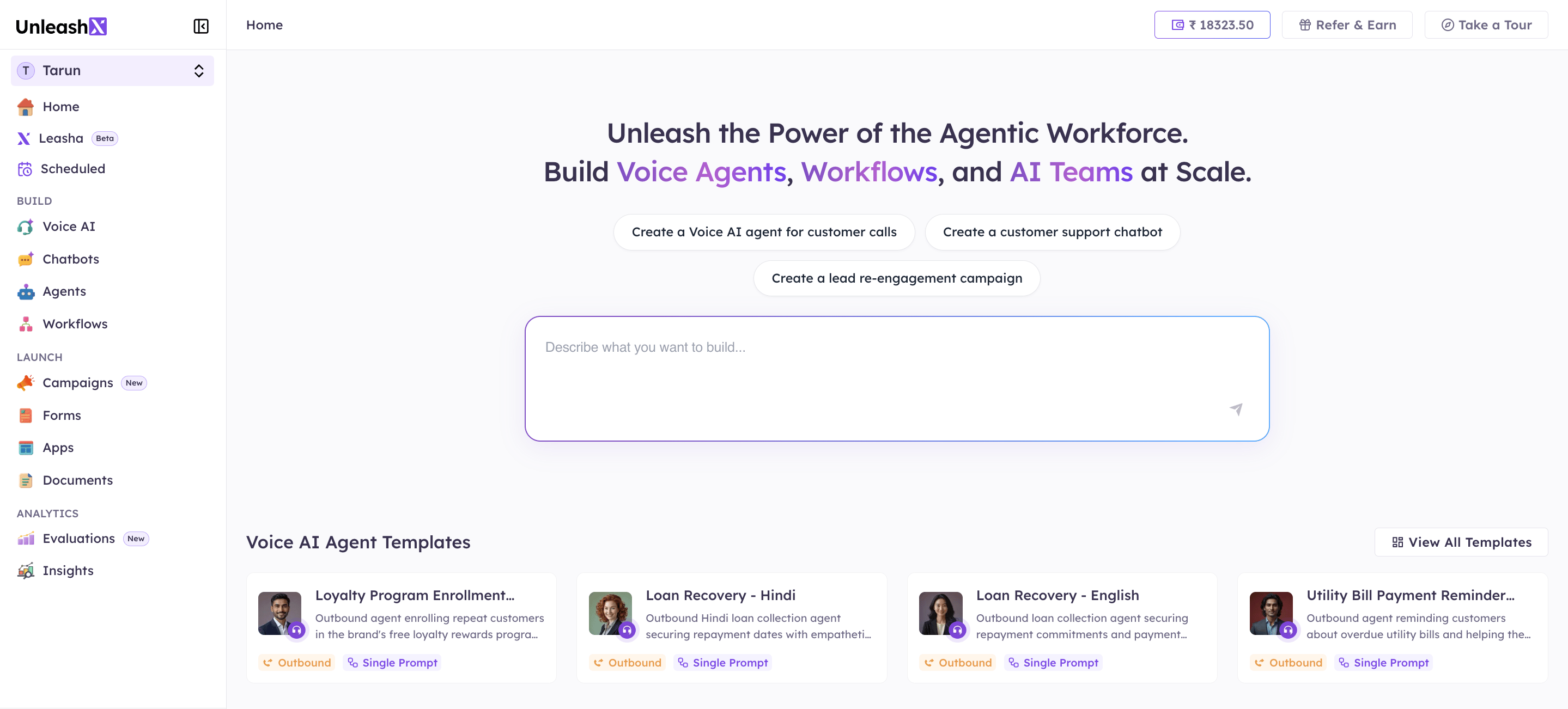
2
Create a new workflow
On the Workflows list, click + New Workflow in the top-right. (You can also filter by date or search existing workflows here, and switch to Execution History to see past runs.)
3
You're on the canvas
A blank workflow opens (named New Workflow … in the breadcrumb). The dotted area is your canvas; the + in the middle is where you add your first step. The Publish toggle and Save Changes button are in the top-right.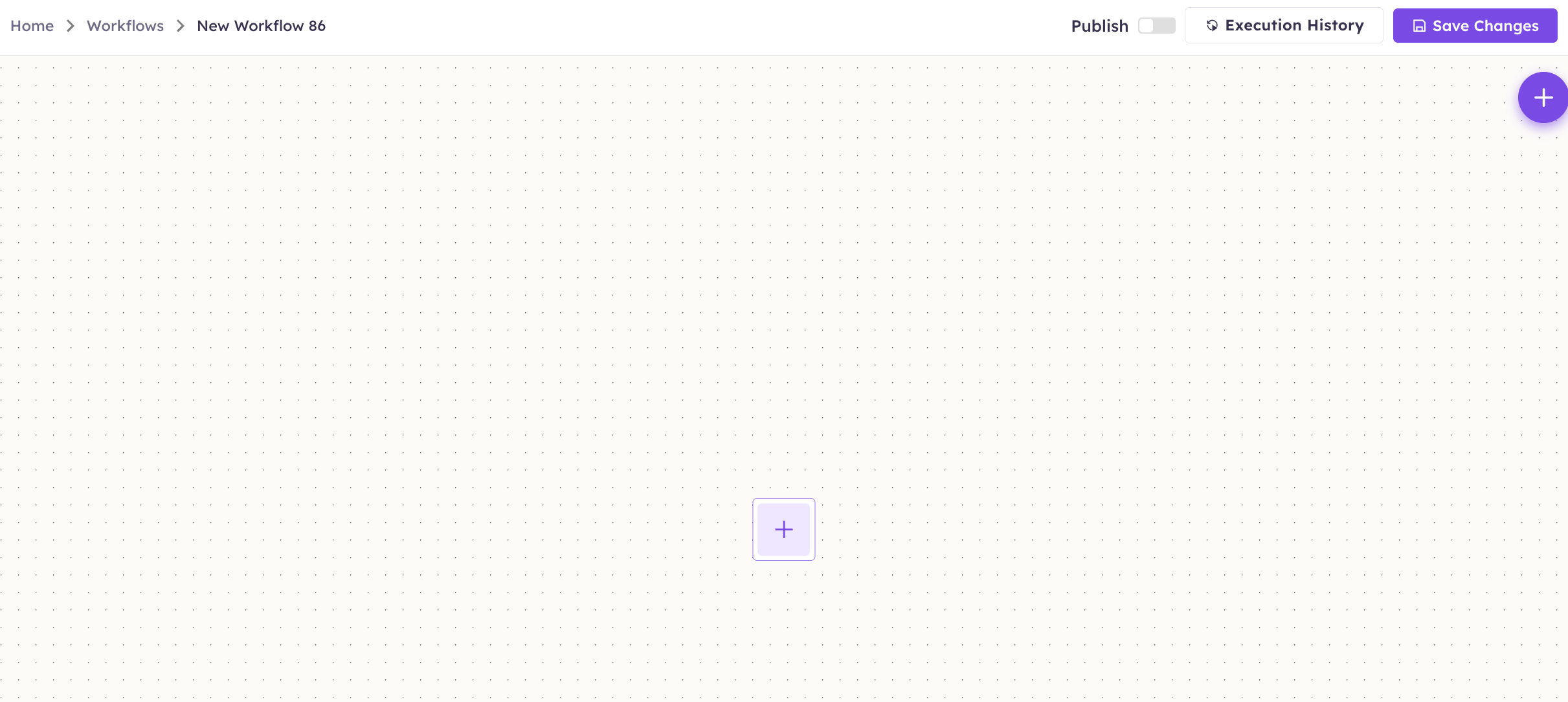
2. Add a trigger
A trigger is the event that starts your workflow.1
Click the + on the canvas
Click the + node. A menu of trigger types appears: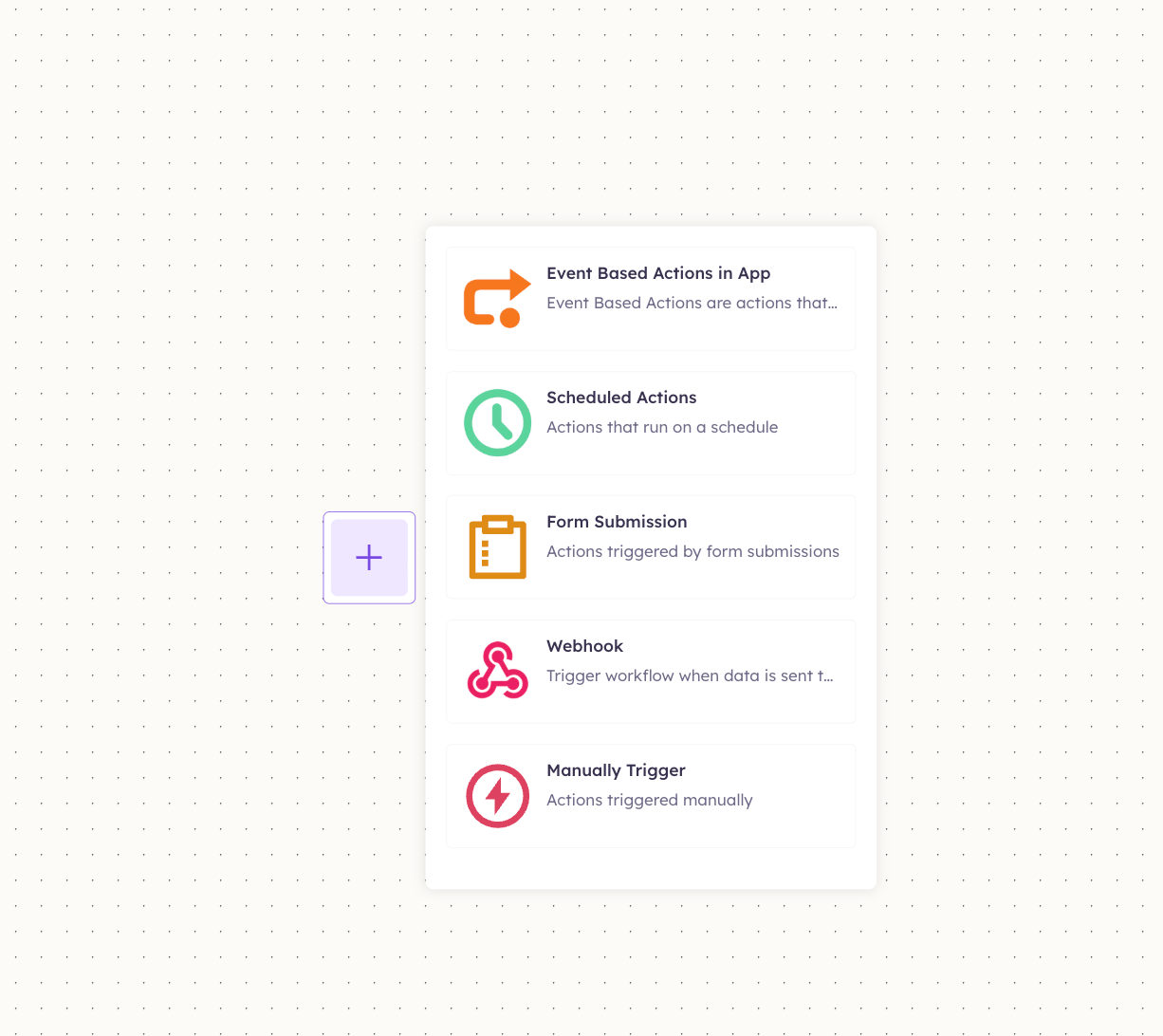
2
Pick the trigger type
Choose the type that fits your use case — Section 3 sets up each one. For example, Event Based Actions in App adds the node with a + Add Trigger button beneath it, ready to attach an MCP app.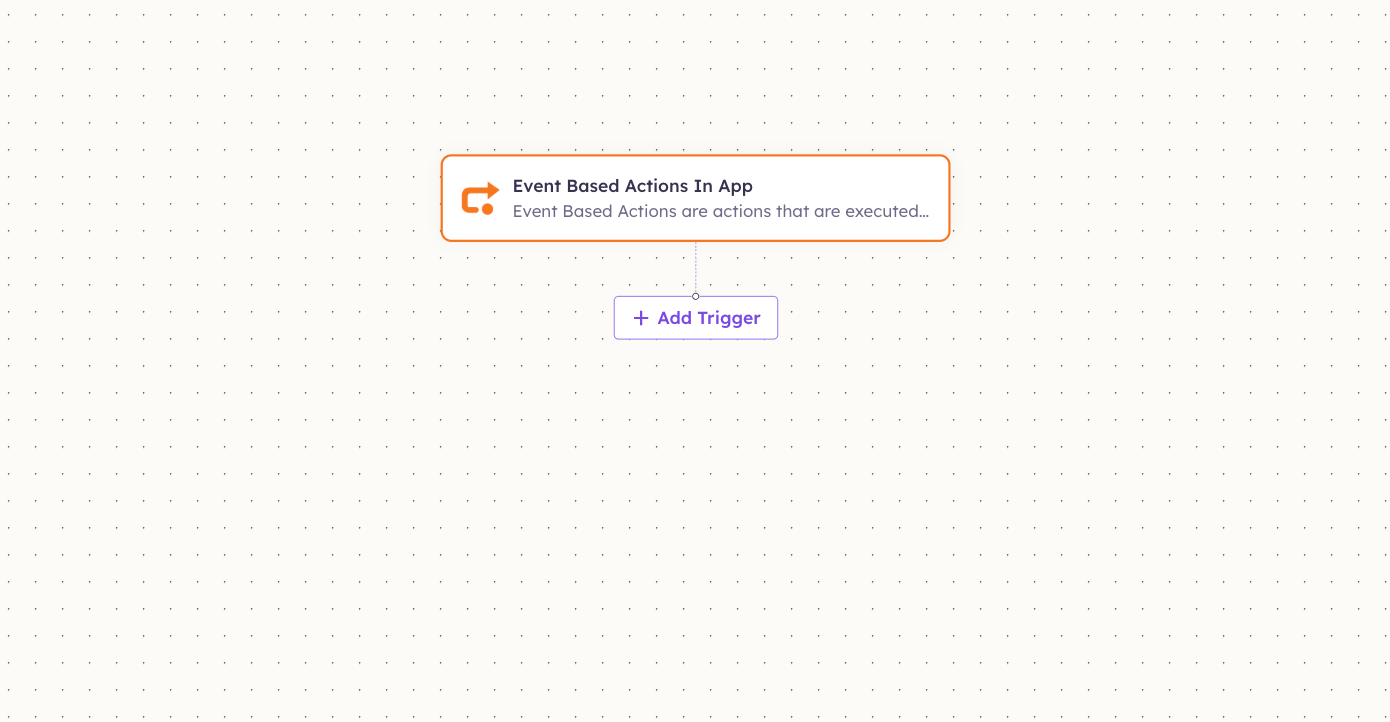
3. Trigger types in detail
Whichever trigger you pick, the rest of the build (steps, conditions, publish) is the same. Here’s how to set up each of the five types.Event Based Actions in App (MCP apps)
Start the workflow from something happening in a connected app — for example, a new row in Google Sheets.1
Open the apps panel
Click + Add Trigger. The Paths panel opens on the right with three tabs — Apps, Builder, Agents. On Apps, you’ll see every connected service; MCP servers carry an MCP badge (HubSpot, Google Sheets, Google Calendar, Slack, Gmail, Airtable, and more).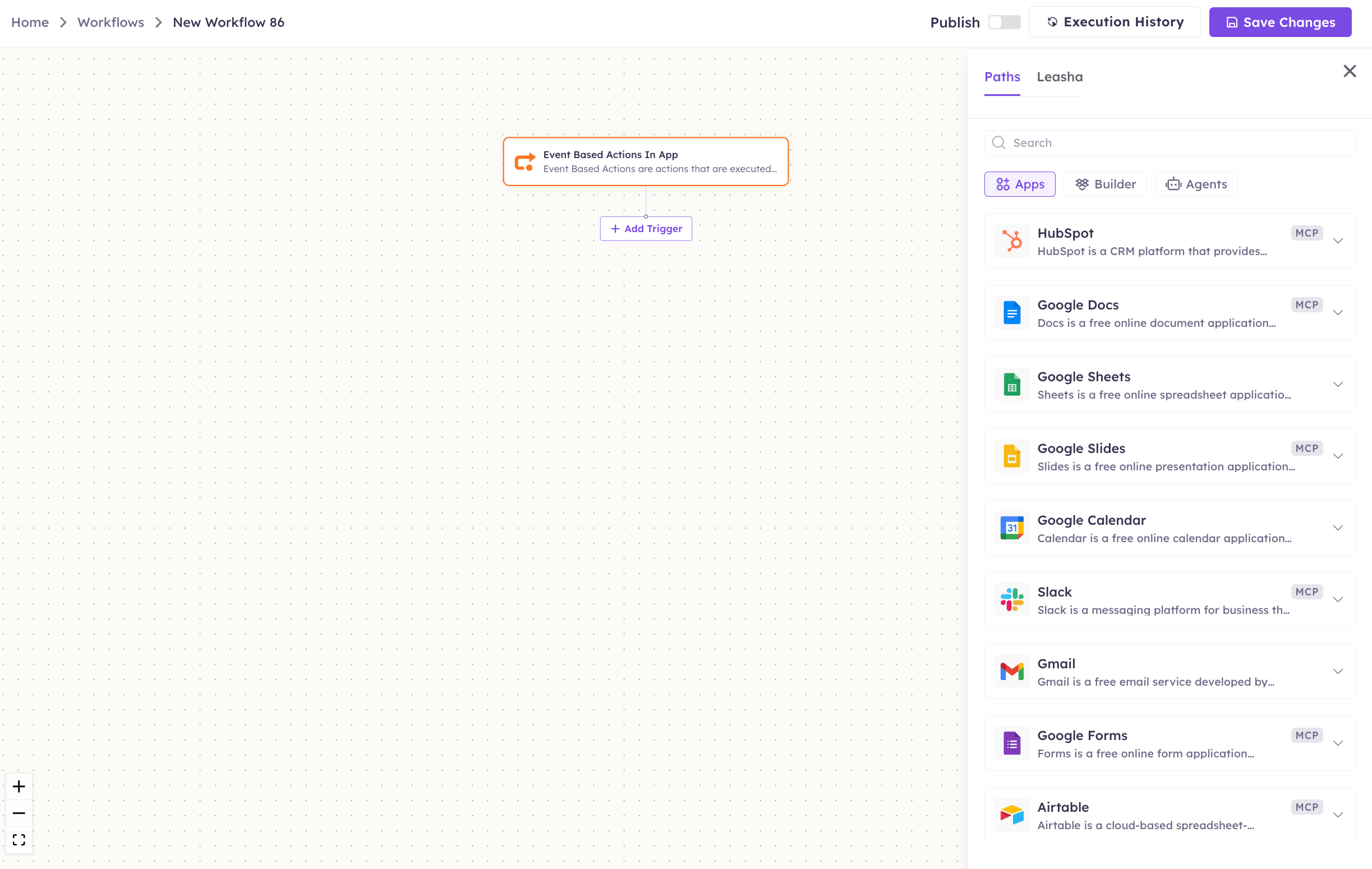
2
Choose an app and a trigger
Click an app to expand its Triggers. For Google Sheets, for example, you can start on On Row Added, On Row Updated, On Row Added Or Updated, On Row Deleted, On Cell Updated, or On Cell Value Matches Condition. Pick the one you want.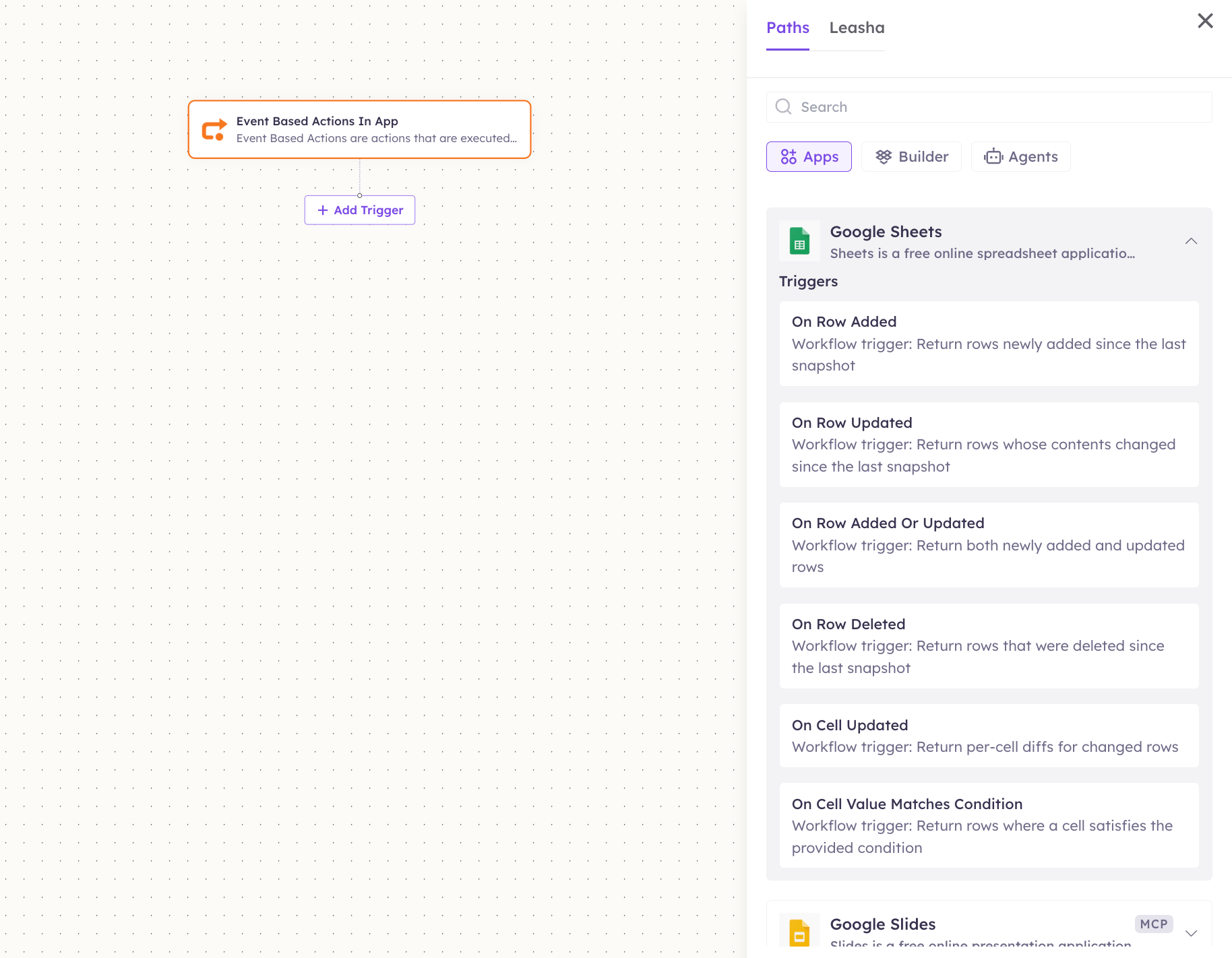
3
Configure the trigger
A configuration panel opens (with a Test button), and a Trigger Node is placed on the canvas. Fill in the fields: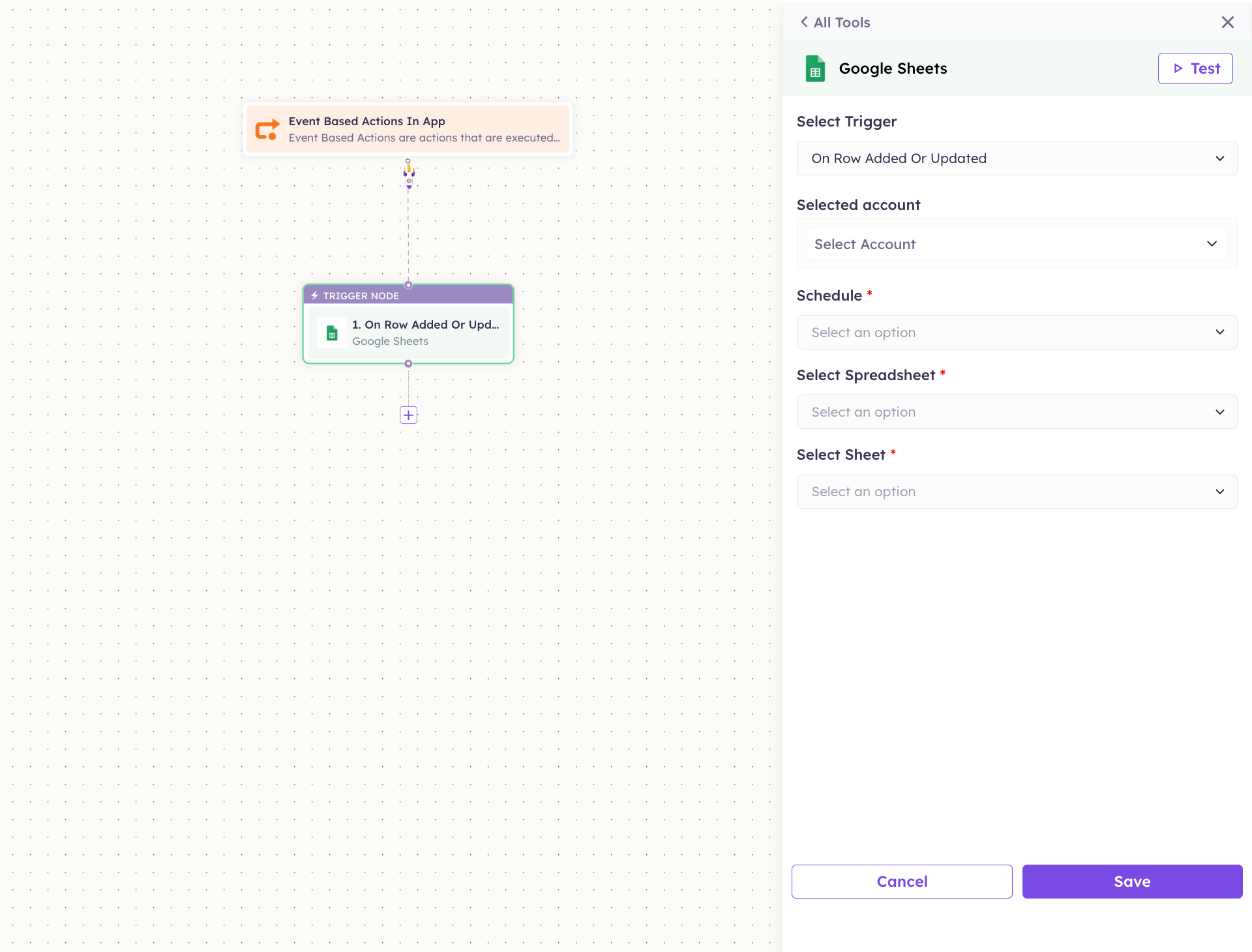
4
Pick the account
Open Selected account and choose the connected account (e.g. 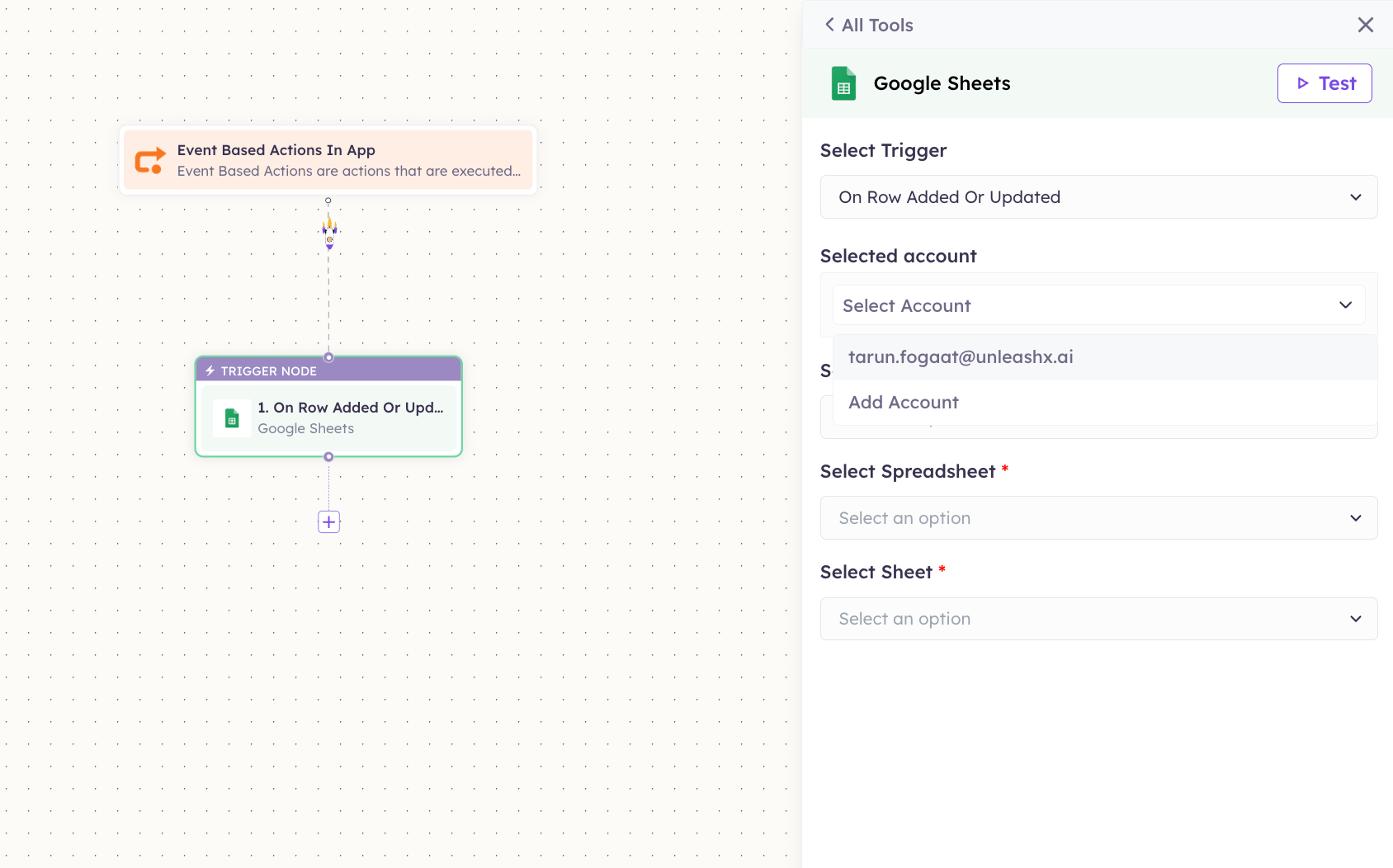
tarun.fogaat@unleashx.ai). Don’t see it? Click Add Account to connect one — this is the same OAuth connection described in the MCP Integrations catalog.5
Set the schedule
Open Schedule and choose how often to check — for near-real-time, pick Every 1 minute.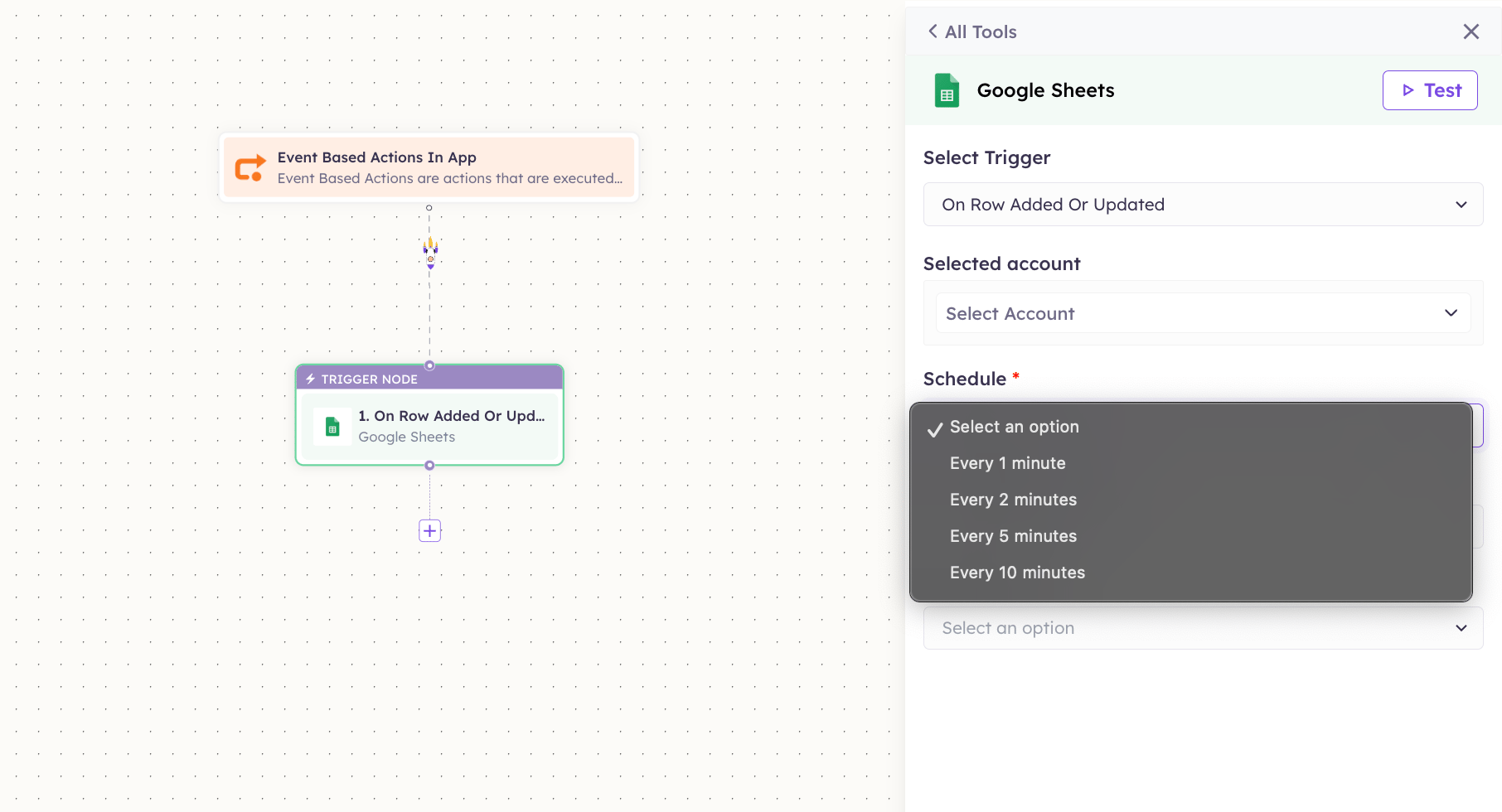
6
Save the trigger
With the account, schedule, spreadsheet, and sheet selected, click Save. Your trigger node is ready.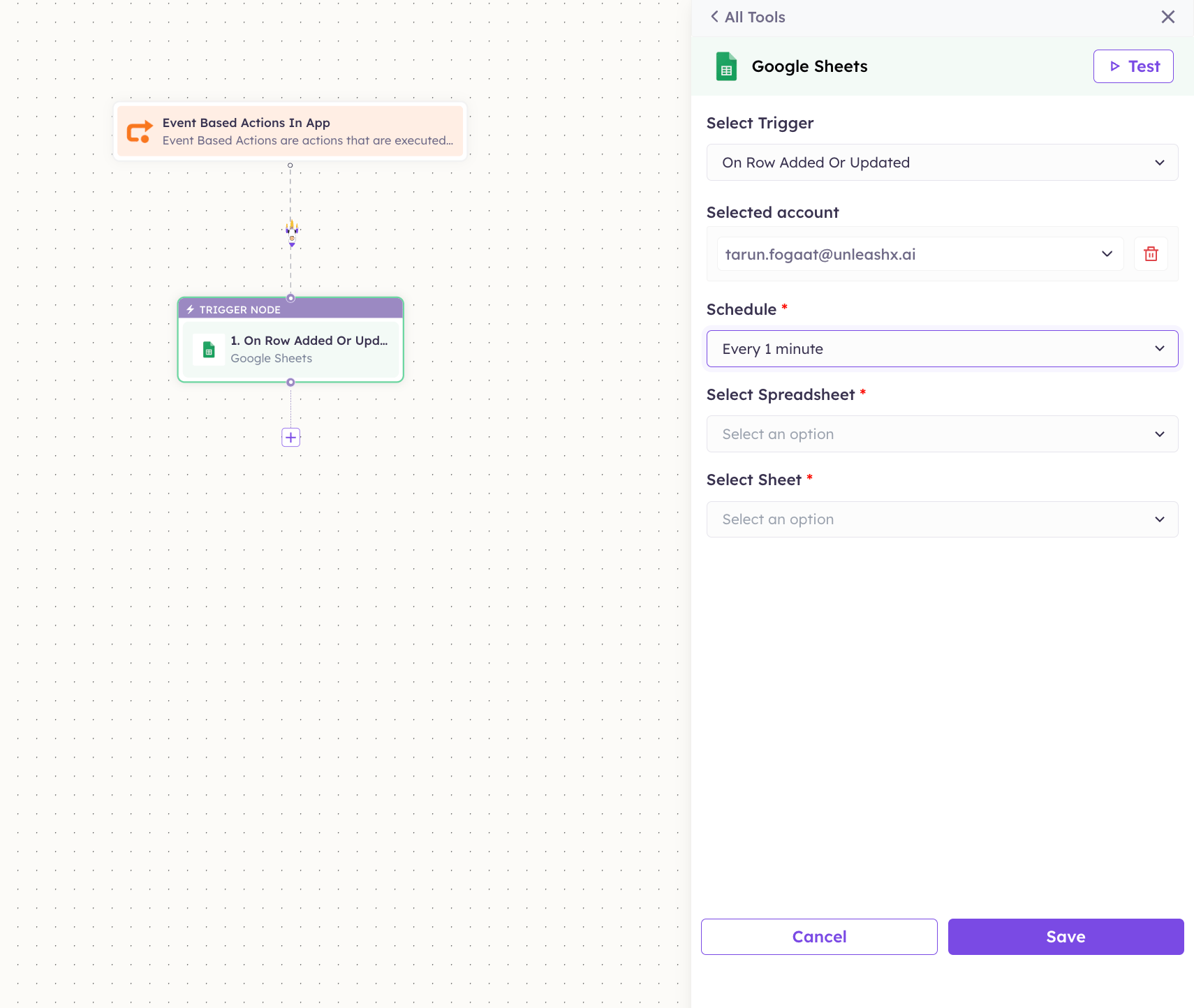
The Schedule controls how frequently UnleashX polls the app for the event. A shorter interval reacts faster but runs more often — pick the slowest interval that still feels responsive for your use case.
Scheduled Actions (time-based)
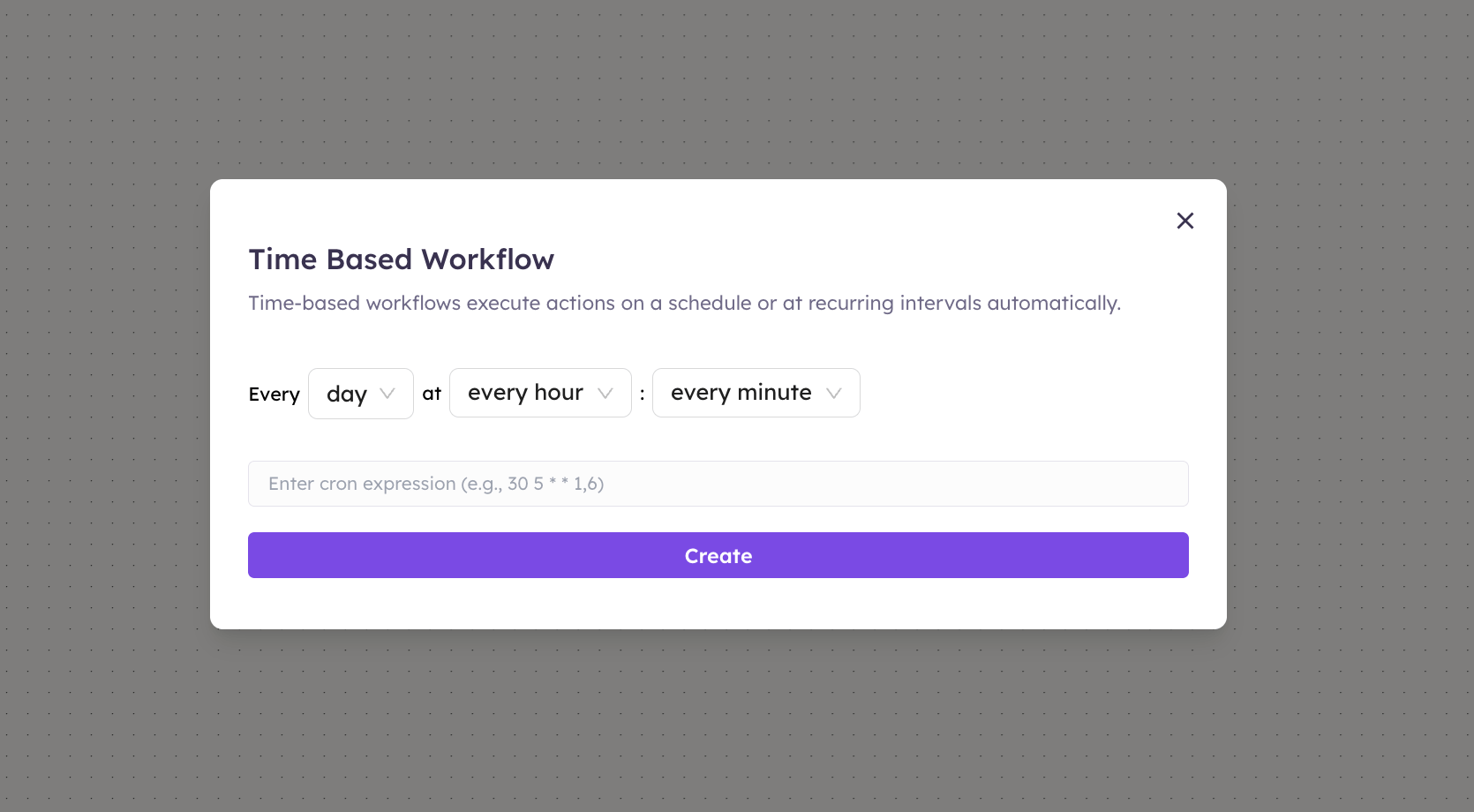
Choose Scheduled Actions to run the workflow on a clock instead of an app event — daily reports, periodic syncs, reminders. Choosing it opens the Time Based Workflow dialog. Set the schedule one of two ways:- With the dropdowns: Every
dayatevery hour:every minute. Narrow each dropdown to pick a specific day, hour, and minute (e.g. Every day at 09 : 00). - With a cron expression: type one in the box for full control, e.g.
30 5 * * 1,6(5:30 AM on Mon and Sat). The format isminute hour day-of-month month day-of-week.
Form Submission
Choose Form Submission to run the workflow whenever a UnleashX Form is submitted — ideal for lead capture or intake. In the panel, open Form ID and select the form to watch. From then on, every submission of that form starts the workflow, and the submitted fields are available to later steps (e.g. map the submitter’s email into a Send Email action).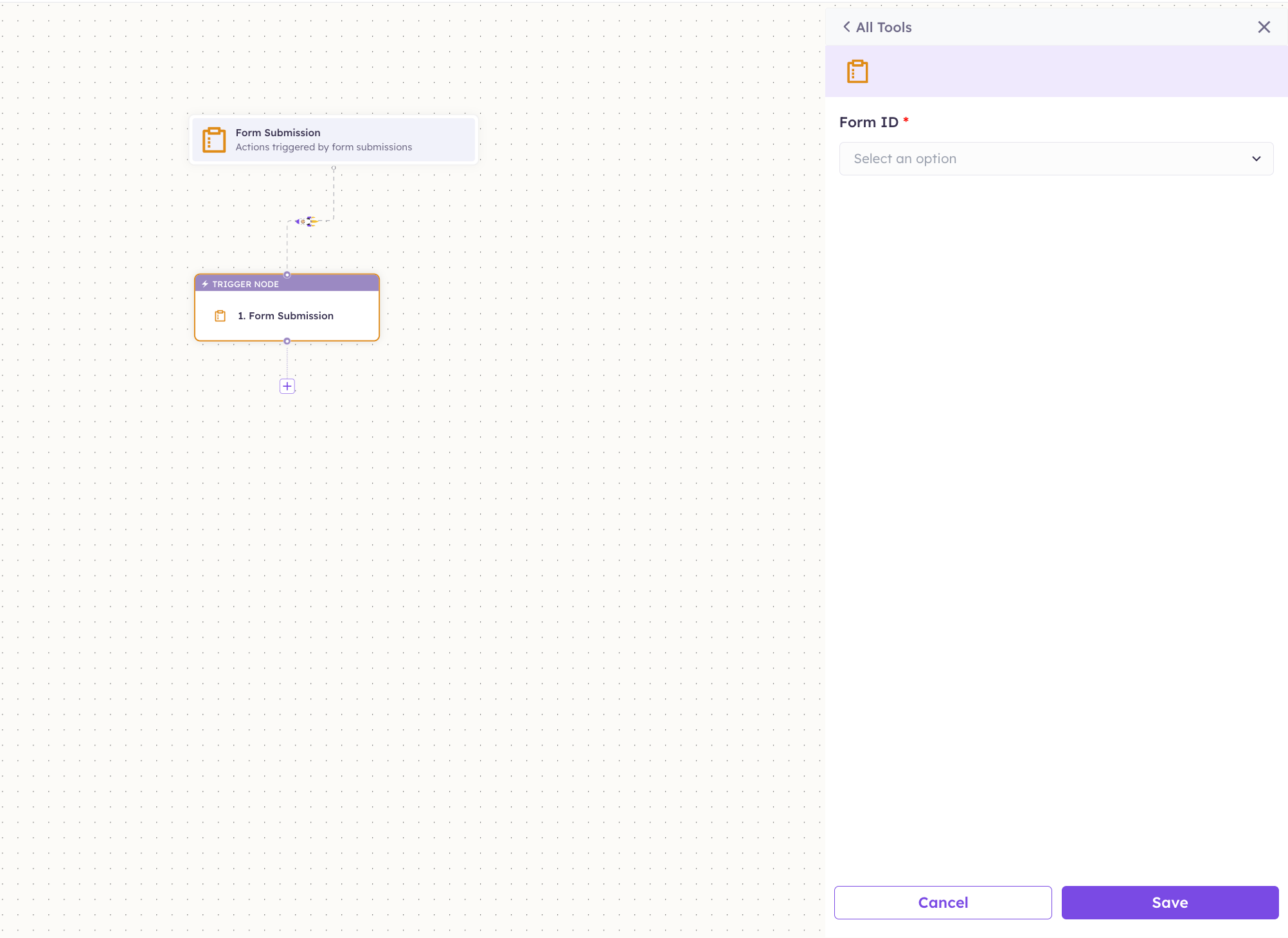
Webhook
Choose Webhook to start the workflow when any external system sends data to a URL — the most flexible way to connect third-party tools.1
Generate the webhook URL
In the panel, click + Generate URL. UnleashX creates a unique endpoint for this workflow, for example: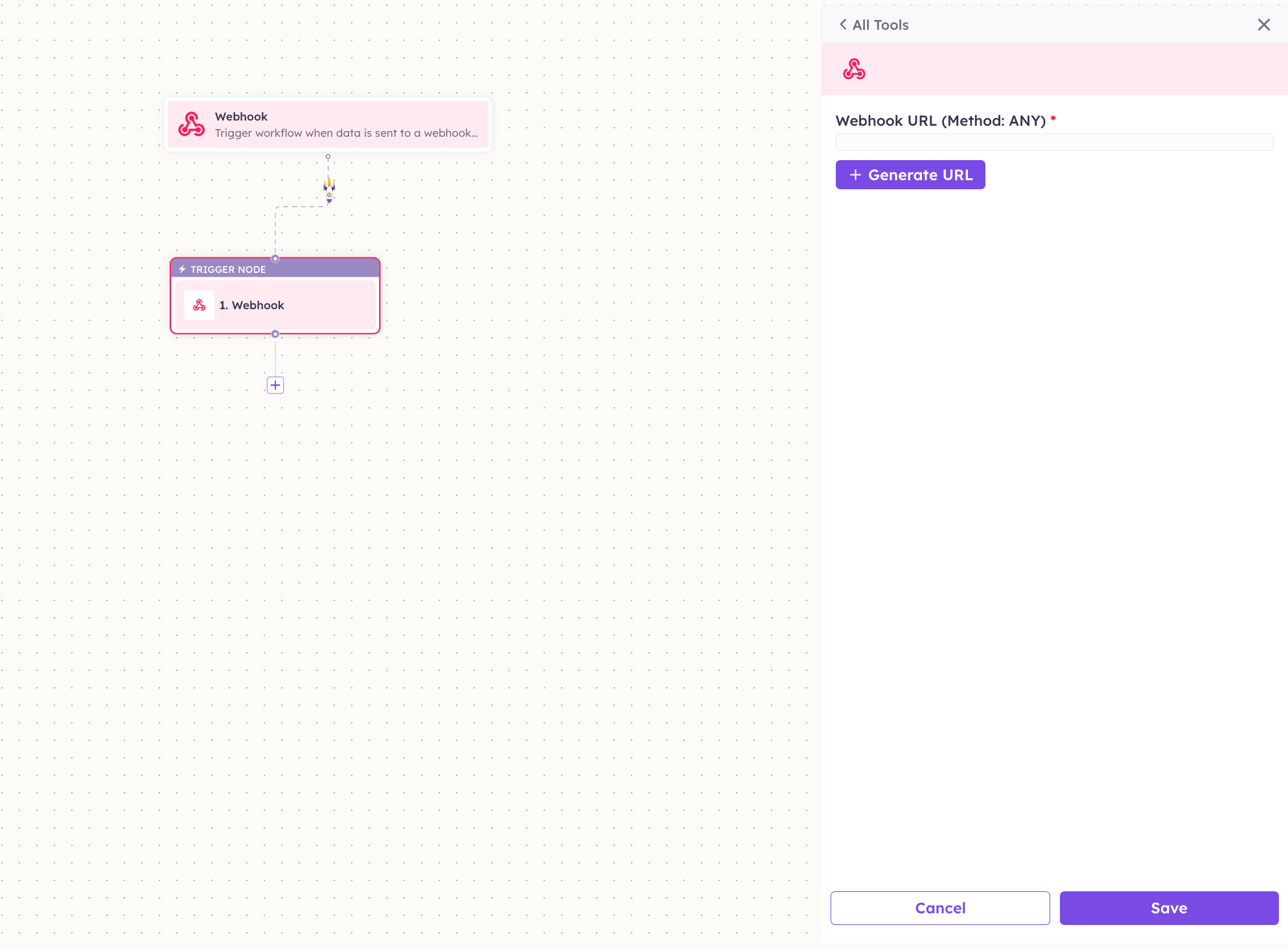
https://www.tryunleashx.com/api/webhook/33d48ae5-556e-4fb5-82f1-8377c9381f17The method is ANY, so the sender can use GET, POST, etc.2
Copy it and wire up the sender
Click the copy icon and paste the URL into the external tool/service that should trigger this workflow (your app, a third-party automation, a payment provider’s webhook settings, etc.). When that system sends a request to the URL, the workflow runs and the request payload becomes available to later steps — so you can pull fields out of it and act on them.
3
Test it
Click Test Webhook to send a sample call and confirm the workflow receives the data. Then Save.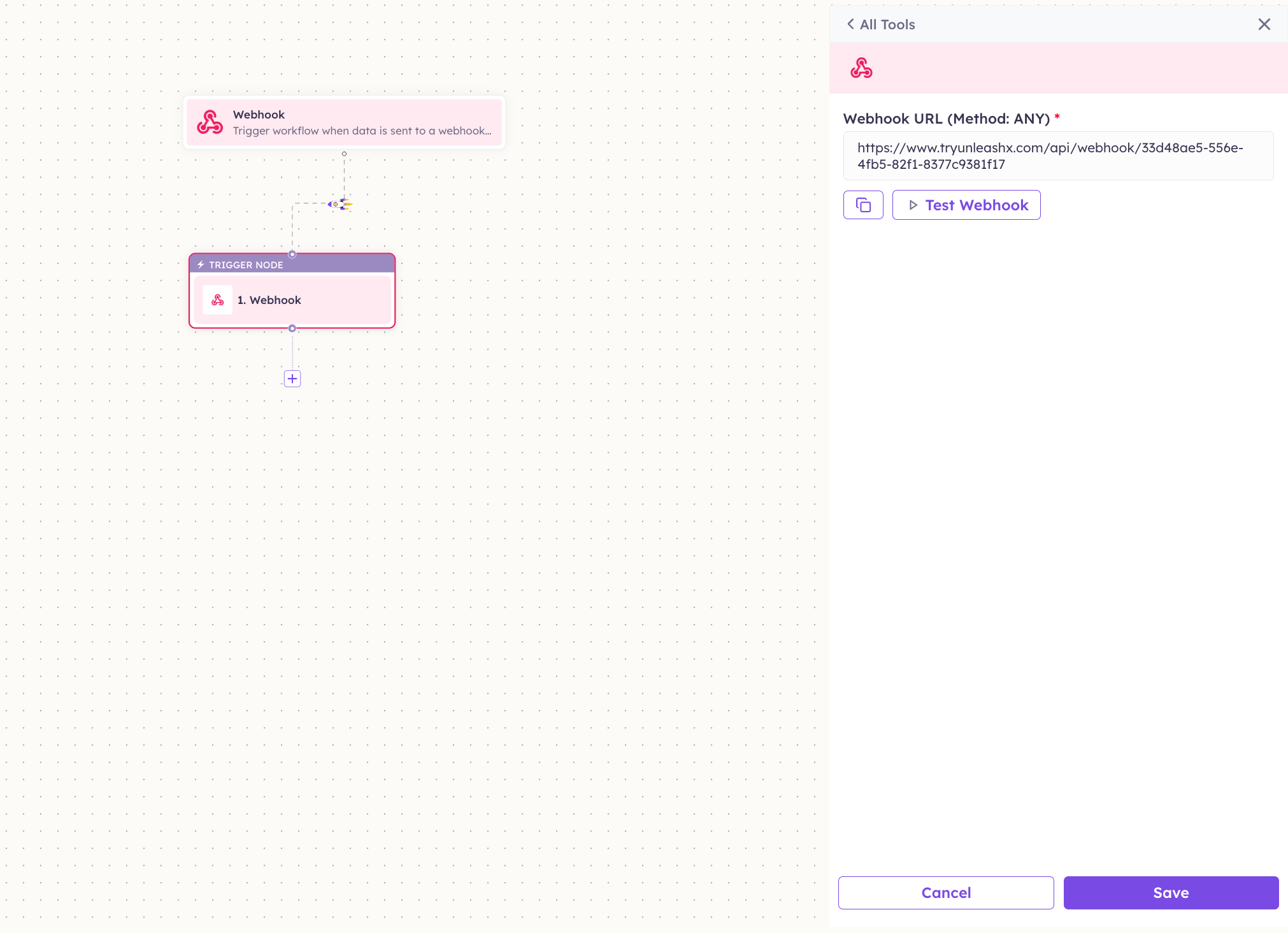
Manually Trigger
Choose Manually Trigger to run the workflow on demand — handy for one-off jobs and while you’re testing. It adds a Manually Trigger node with no configuration; just add your steps after it (from Apps, Builder, or Agents). The workflow runs only when you start it by hand.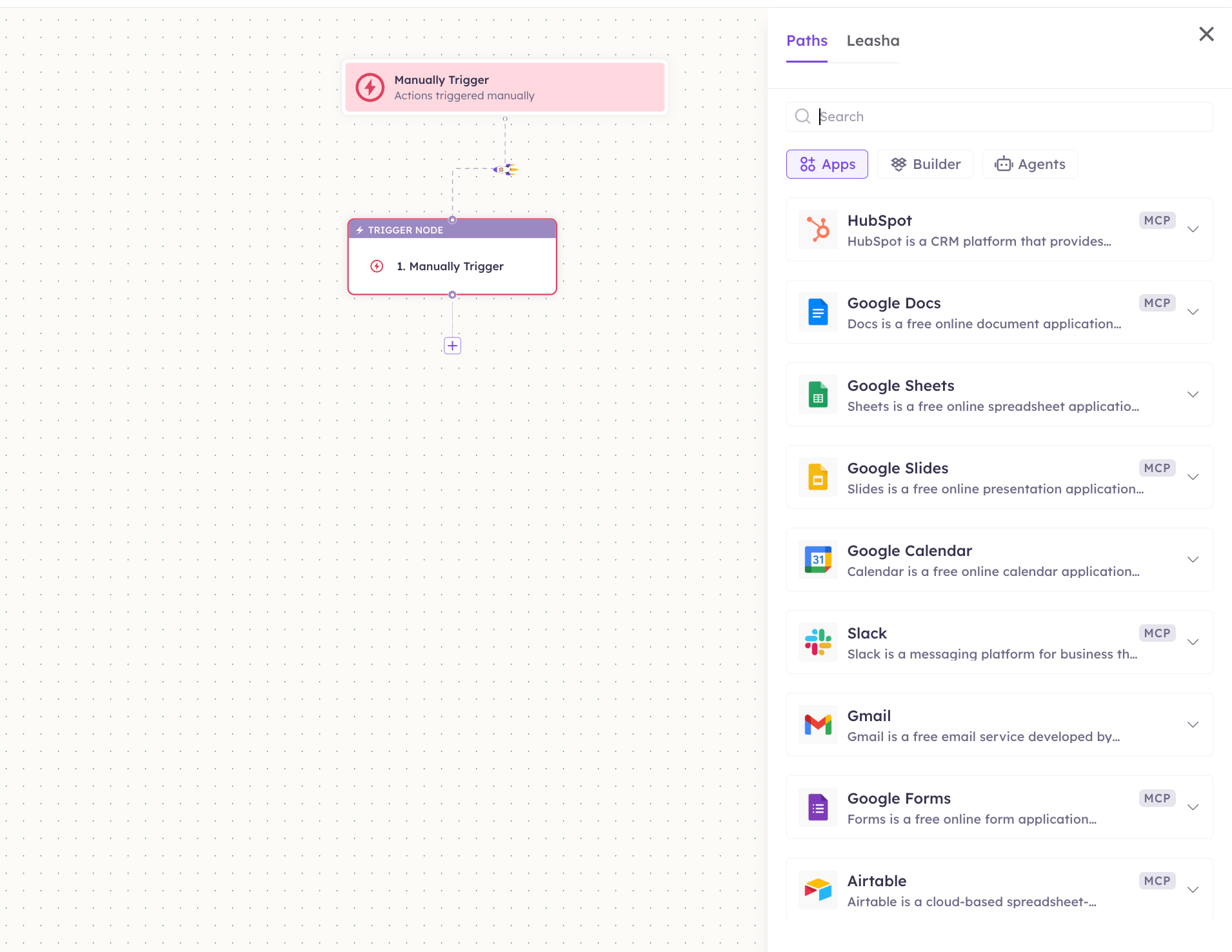
4. Add steps and conditions
With a trigger in place, click the + below the trigger node to add the next step. The panel’s tabs give you three kinds of step: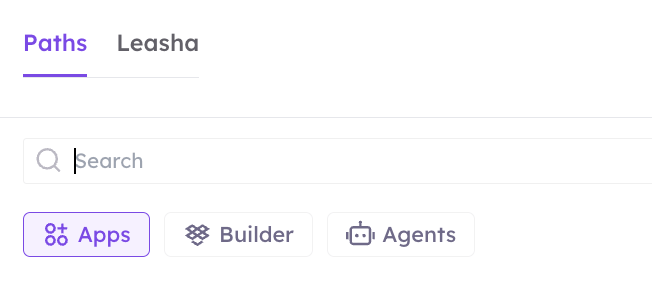
Add an action (MCP app)
On the Apps tab, pick a connected app and choose an action (for example Add Row in Google Sheets, or Send Message in WhatsApp). Map its inputs using values from earlier steps, then Save. A single workflow can mix actions from several different MCP apps.Add a condition
Conditions live under the Builder tab.1
Open Builder → Flow Control
Click the +, switch to the Builder tab, and open Flow Control.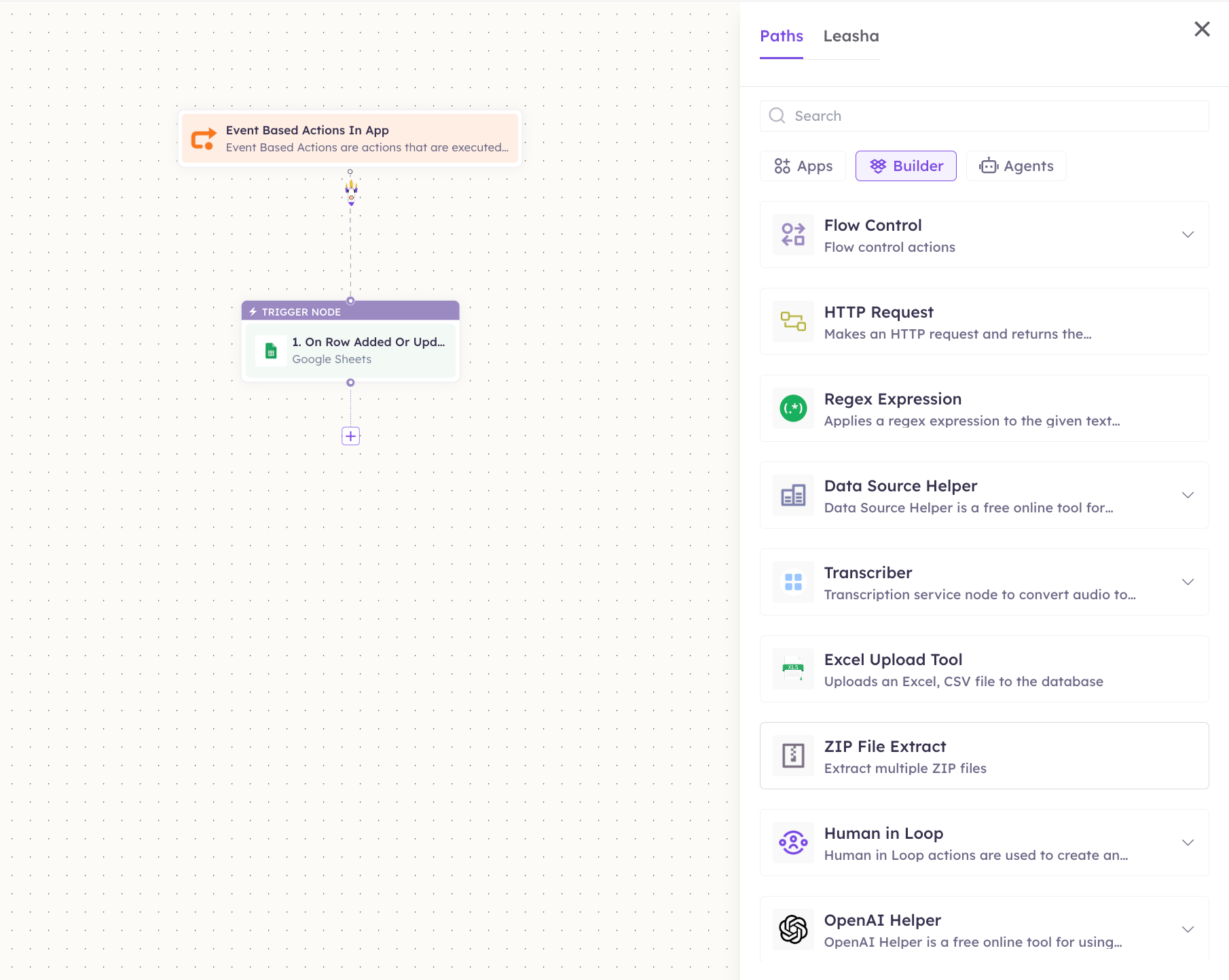
2
Choose the control you need
Flow Control gives you: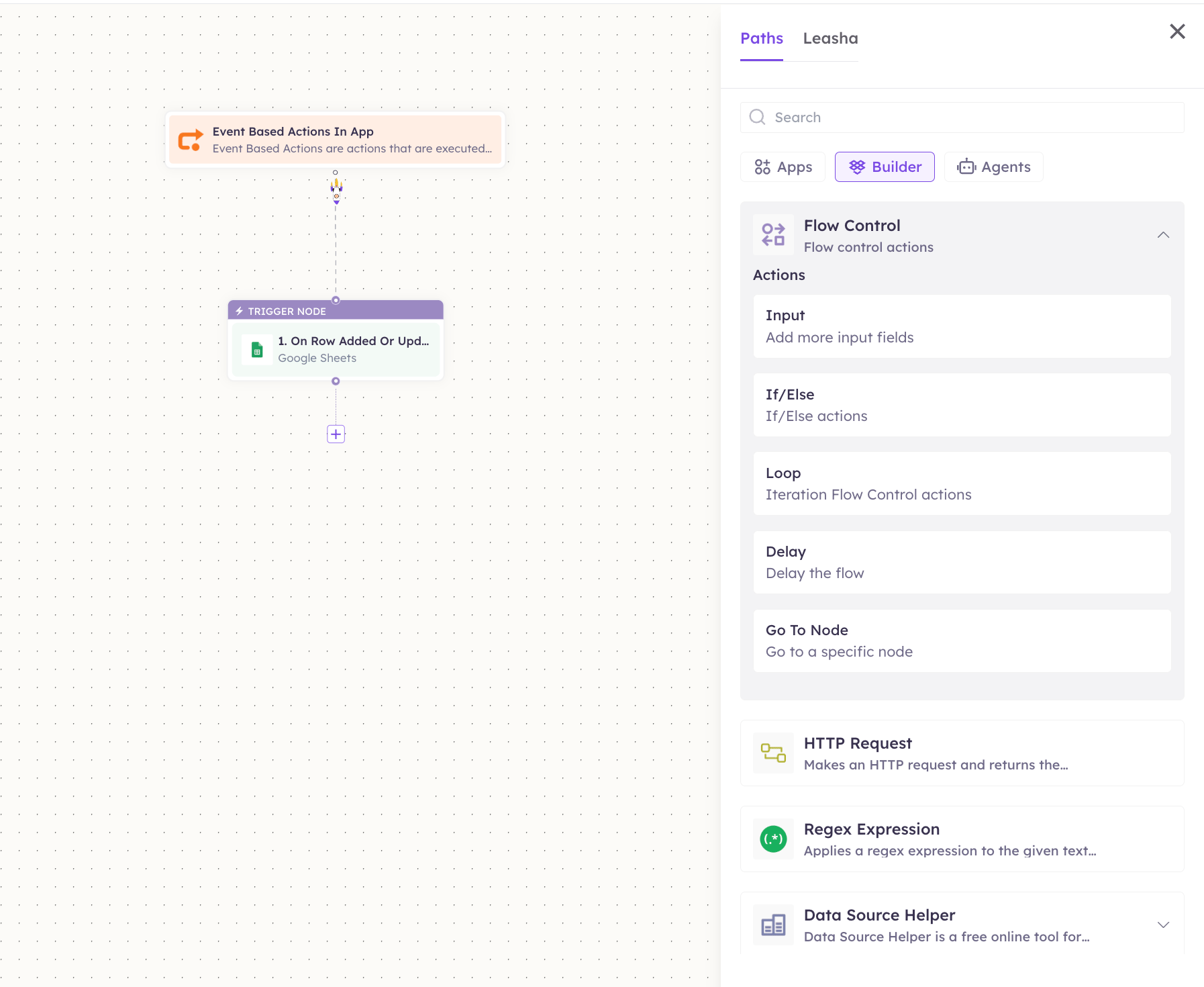
For a condition, pick If/Else.
3
Build the rule and branches
In If/Else, build a rule from a value (usually the output of an earlier step), an operator, and a comparison value — for example order status equals “shipped”. Connect the If path and the Else path to the steps that should run for each outcome.
Call any API (HTTP Request)
Need something that isn’t a built-in app action? Use Builder → HTTP Request to call any REST API. Fill in Name, Purpose, Method, URL, Authentication, optional Query Params / Headers, Content Type, and Body Type, then Save.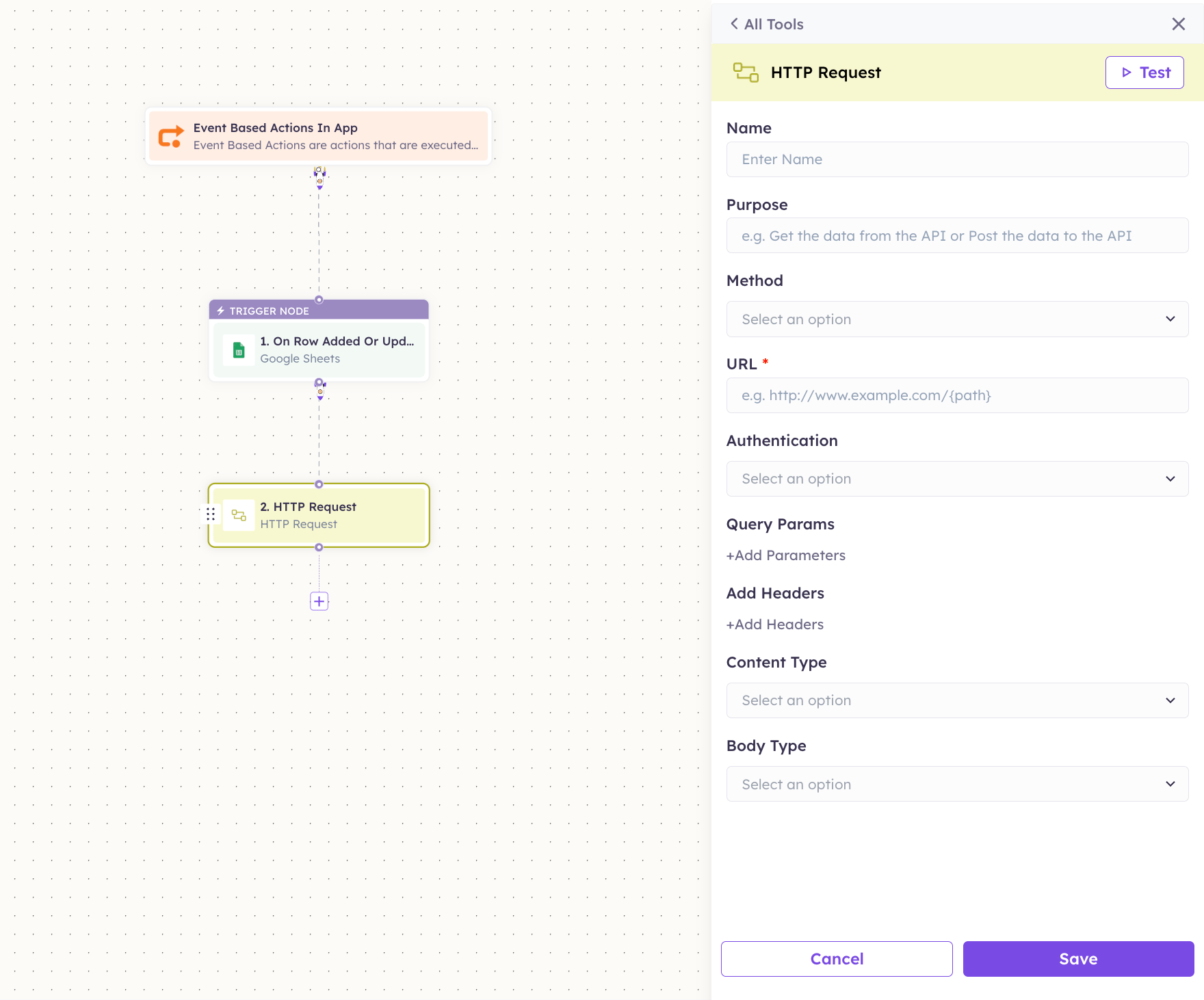
5. Save and publish
1
Save your changes
Click Save Changes (top-right) as you build. Use a node’s Test button to run just that step and check its output.
2
Publish the workflow
When you’re ready, switch the Publish toggle on. The workflow now runs automatically whenever its trigger fires.
3
Watch it run
Open Execution History (top-right, or from the Workflows list) to see each run, its steps, and their outputs — handy for confirming everything behaves as expected.
Putting it together — an example
A simple end-to-end flow using one trigger, one condition, and one action:Tips & troubleshooting
- An app isn’t in the Apps tab? It isn’t connected yet. Connect it first (see MCP Integrations), then it appears with an MCP badge.
- “Add Account” instead of your account? The app is connected for the workspace but this account isn’t linked — click Add Account and complete the sign-in.
- A step fails with
401/403? The account’s access expired or lacks permission — reconnect it and re-approve its scopes. - A trigger never fires? Check the Schedule is set and the right spreadsheet/sheet (or equivalent) is selected, then confirm the change you expect actually matches the trigger (e.g. a new row for On Row Added).
- Build incrementally: add one node, Test it, then add the next. It’s far easier to debug a 2-node flow than a finished one.
Next steps
- Browse every connectable app in the MCP Integrations catalog.
- New to MCP? Start with the Introduction.
- Connect a server (e.g. Google Sheets, Slack) and build the example above.