

Google Calendar
In one line: Connect Google Calendar so your UnleashX agent can find free time, book meetings, and manage events for you.
1. Overview
Google Calendar is Google’s scheduling service. It stores your calendars, events, attendees, and free/busy information. Once connected, your UnleashX agent can list your calendars, check availability, find open time slots, create and update events (including meetings with attendees), add quick events from plain text, and delete events. Connecting Google Calendar to UnleashX means scheduling becomes conversational: ask “when am I free Thursday afternoon?” or “book a 30-minute call with Sam tomorrow at 4pm,” and the agent reads your calendar and acts — no manual clicking through day views.2. What you’ll need
1
A Google account with Calendar
Any personal Google account or a Google Workspace account with Calendar enabled.
2
Permission to grant access
You must be able to complete the Google sign-in and approve the requested permissions.
3
An UnleashX agent
An agent in your UnleashX workspace where you’ll add the Calendar connector.
No admin access? On a managed Google Workspace account, your admin may need to allow UnleashX in the Google Admin console before authorization succeeds.
3. Get your credentials
Google Calendar uses Google OAuth 2.0. You do not create or paste an API key. UnleashX redirects you to Google, you sign in once, and Google issues an access token to UnleashX automatically.1
Start the connection in UnleashX
In your agent’s Data Connectors, find Google Calendar and click Connect (see Section 4). This launches Google’s secure sign-in page.
2
Sign in with Google
Choose the Google account whose calendar you want to connect.
3
Review and approve the requested scopes
Google shows exactly what UnleashX is asking for. Click Allow to grant access and return to UnleashX.
There is no key to copy. Access is granted by your Google sign-in and can be revoked anytime at your Google Account permissions page.
4. Connect on UnleashX
1
Open your agent
Sign in at https://www.tryunleashx.com and open your agent.
2
Go to Data Connectors
In the agent, open Data Connectors.
3
Find Google Calendar and connect
Locate Google Calendar and click Connect / Add / Configure.
4
Authorize with Google
Click Authorize, sign in with Google, and approve the requested permissions.
5
Confirm success
You’ll return to UnleashX and the connector status will show a Connected badge.
Use Google Calendar in a Workflow
Once connected, you can add Google Calendar to any automation from the Workflows builder. Its triggers and tools appear in the Apps panel, marked with an MCP badge.1
Add a trigger node
Open Workflows → New Workflow. On the canvas, click + Add Trigger. In the Paths panel, open the Apps tab and select Google Calendar — its Triggers are listed underneath. Use the search box if you have many connectors.
2
Add an action node
Click the + below any node to add a step, then pick Google Calendar again — this time the panel lists its Actions.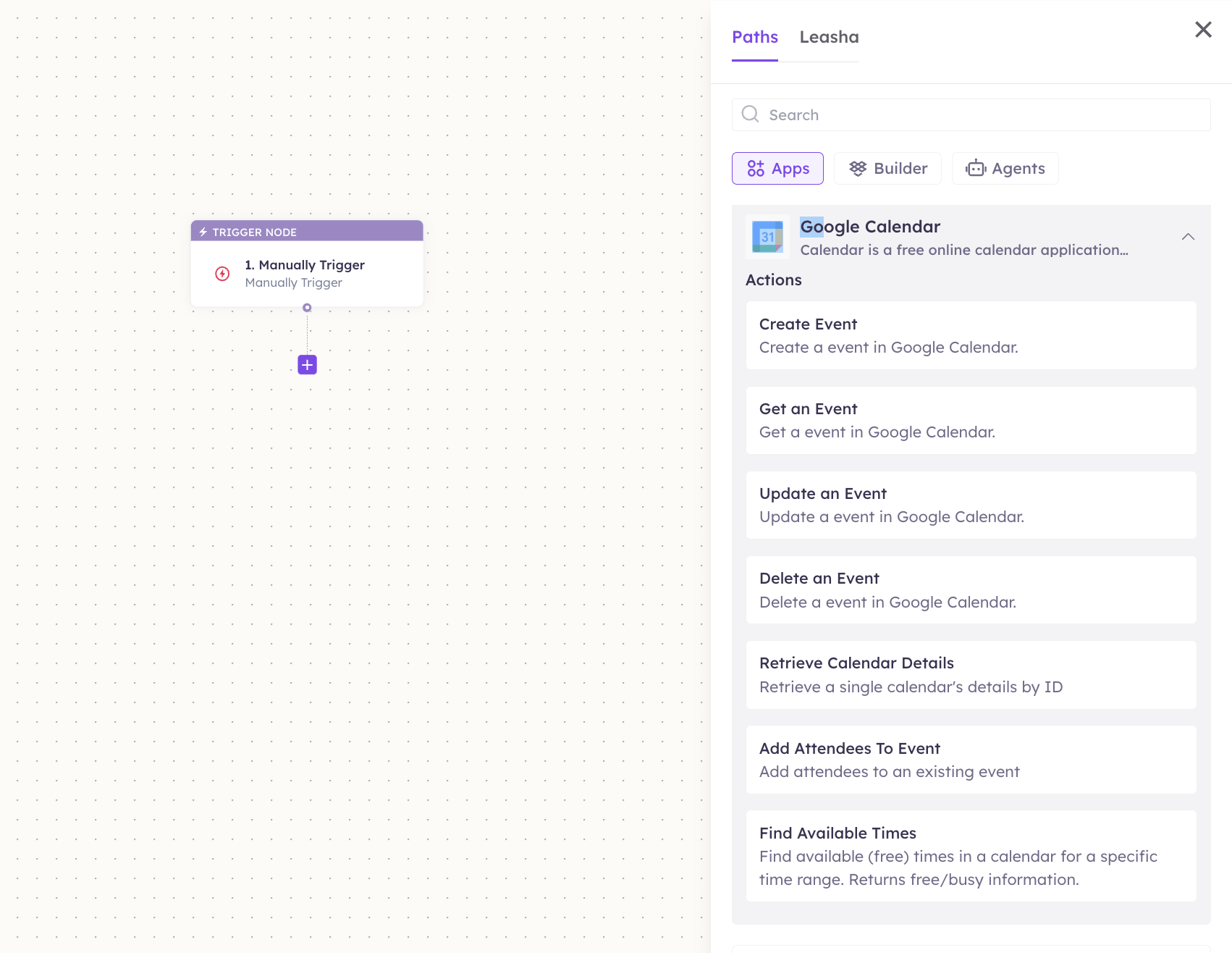
3
Configure the step
Fill in the fields for the trigger or action you picked. Required fields are marked with a red asterisk (*).
4
Add or select your account
Under Selected account, choose an already-connected account, or click Add Account to connect one now.
5
Save and test
Click Save. Use Test to verify the step, then toggle Publish when the workflow is ready.
The steps are the same for every connector. For the full workflow builder guide, see Using MCP in Workflows.
5. Available tools
6. Example usage
“Am I free Thursday between 2pm and 5pm? If so, book a 45-minute review with priya@acme.com.” Runs Find Available Times / Check Availability, then Create Meeting (with Add Attendees to Event).
“Move tomorrow’s 10am standup to 11am.” Runs List Events / Get Events to locate it, then Update Event.
7. Permissions & data access
UnleashX can:- List calendars and read events and free/busy data.
- Create, update, and delete events.
- Add attendees and create quick events from text.
- Access Gmail, Drive, or other Google services unless connected separately.
- Change your Google account settings or password.
- Act on calendars you don’t have access to.
access-token header, a google_calendar_access_token header, or an Authorization: Bearer header, falling back to your UnleashX session), refreshed automatically when it expires.
8. Troubleshooting
For general connector issues, see /mcp/integrations.