

Google Maps
In one line: Give your UnleashX agent location superpowers — find places, convert addresses to coordinates, calculate routes and travel times, and look up timezones and elevation.
1. Overview
Google Maps Platform is Google’s suite of location services. It can find places by name or keyword, turn an address into latitude/longitude (geocoding) and back again, calculate driving/walking/transit routes, estimate travel times and distances, and answer questions about timezones, roads, and ground elevation. Once you connect Google Maps to UnleashX, your agent can answer location-aware questions and enrich its workflows with real geographic data. It can find the nearest open store, confirm a customer’s address, tell a caller how long the drive will take, or look up the local time at a destination. Connecting Google Maps is great for booking, delivery, dispatch, and concierge-style agents. Instead of guessing, the agent uses Google’s live map data to give accurate places, directions, and times. All Google Maps tools here are read-only — they look things up and never change your data.2. What you’ll need
- A Google Cloud account (console.cloud.google.com).
- A Google Cloud project with billing enabled (Maps Platform requires a billing account, though it includes a generous free tier).
- Permission to create credentials (typically Editor / Owner or a role with
serviceusageand credential access). - The relevant Maps Platform APIs enabled: Places API, Geocoding API, Directions API, Distance Matrix API, Time Zone API, Roads API, and Elevation API.
If you can’t enable APIs or create keys, ask a Google Cloud project admin to create a Maps Platform API key for you. Connecting only needs the API key string.
3. Get your credentials
Google Maps MCP authenticates with a single Maps Platform API key — a string that looks likeAIzaSyXXXXXXXXXXXXXXXXXXXXXXXXXXXXX. Getting one takes five steps in the Google Cloud Console: create a project, turn on billing, enable the APIs you need, create the key, and restrict it.
Step 1 — Create or select a Google Cloud project
Sign in at the Google Cloud Console with your Google account. Click the project dropdown at the top of the page, then choose New Project.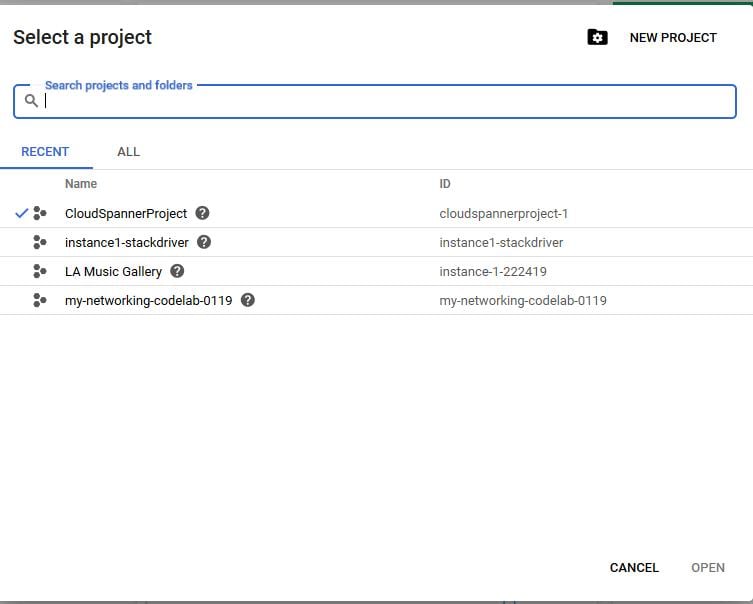
myHelloWorld or my-maps-agent). Google generates a Project ID automatically — note that it cannot be changed later. Click Create.
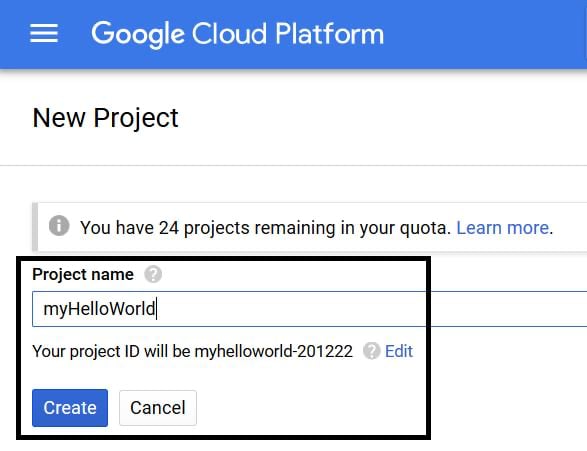
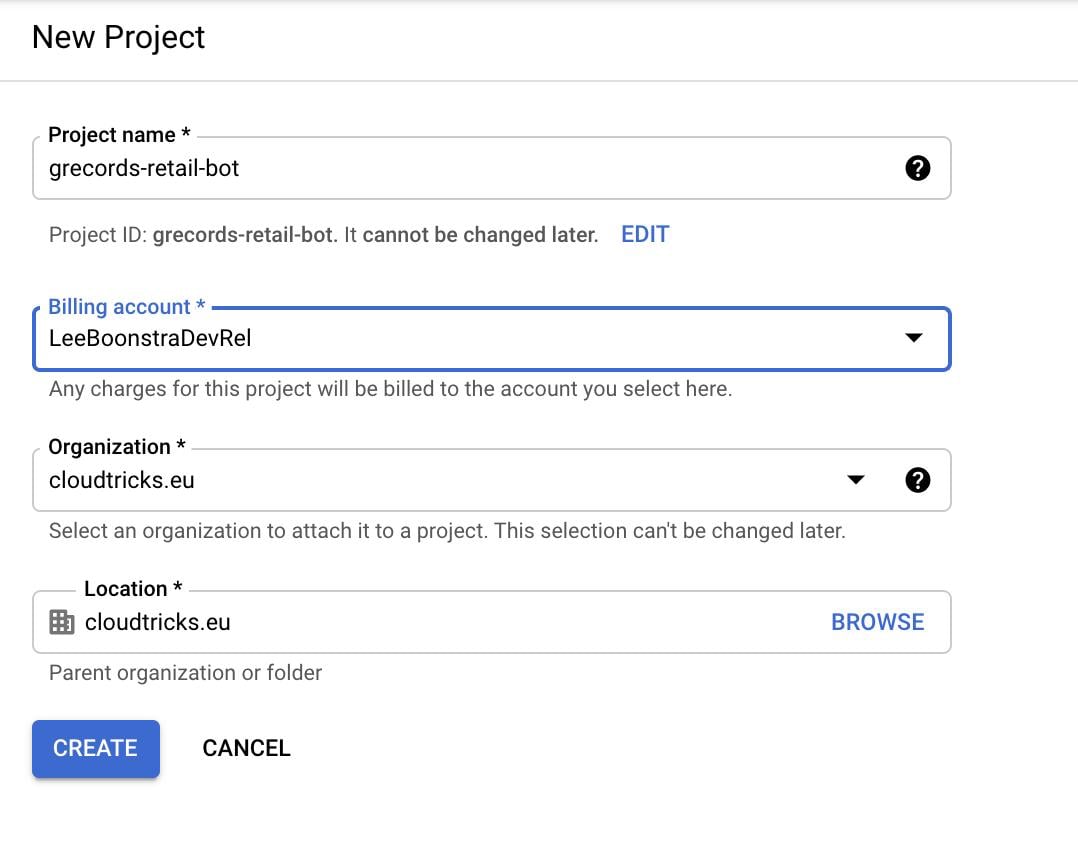
Step 2 — Enable billing
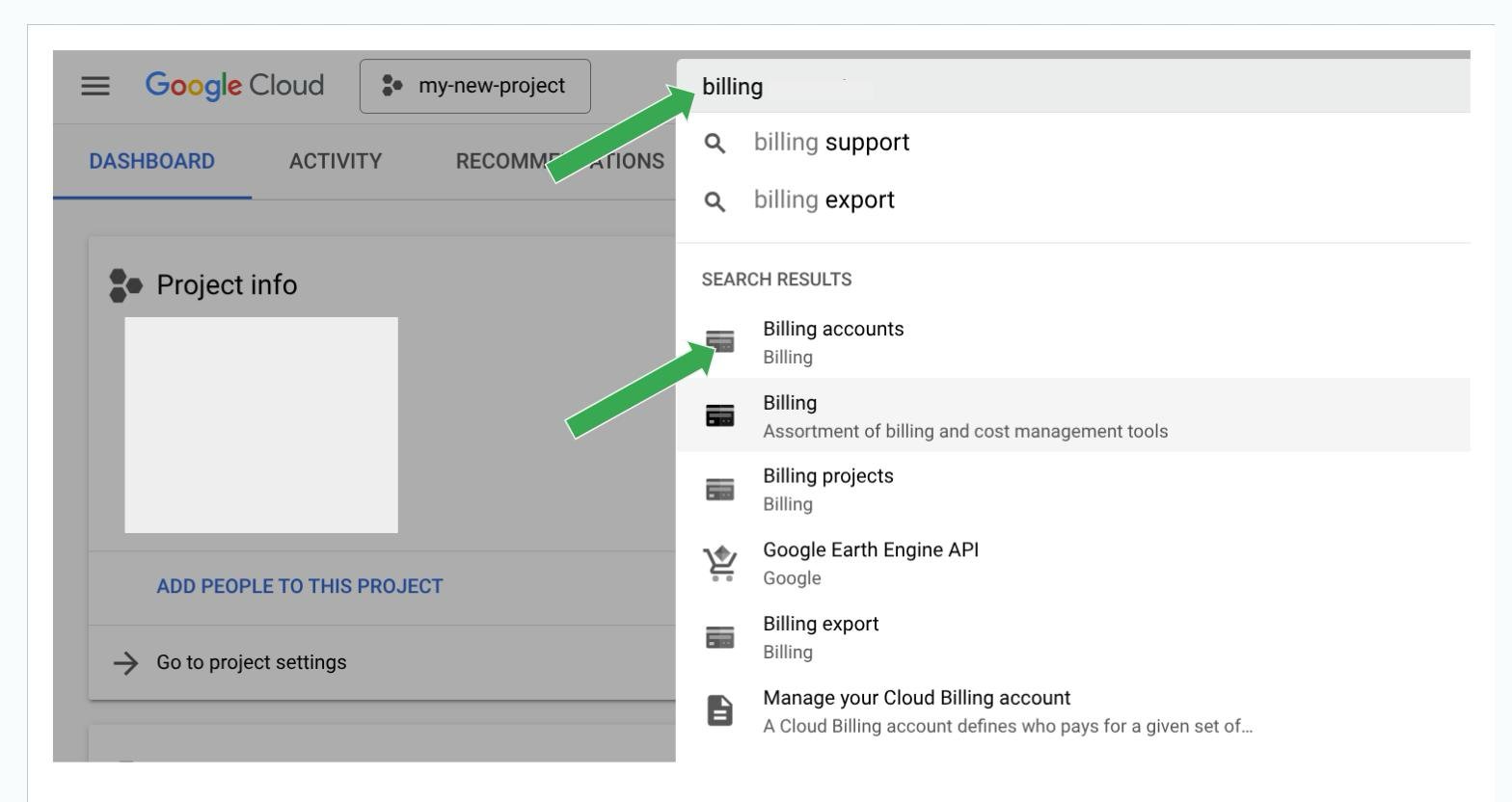
Google Maps Platform requires a billing account, even though it includes a generous monthly free credit. Open the menu (☰) and go to Billing, or just type “billing” into the search bar at the top.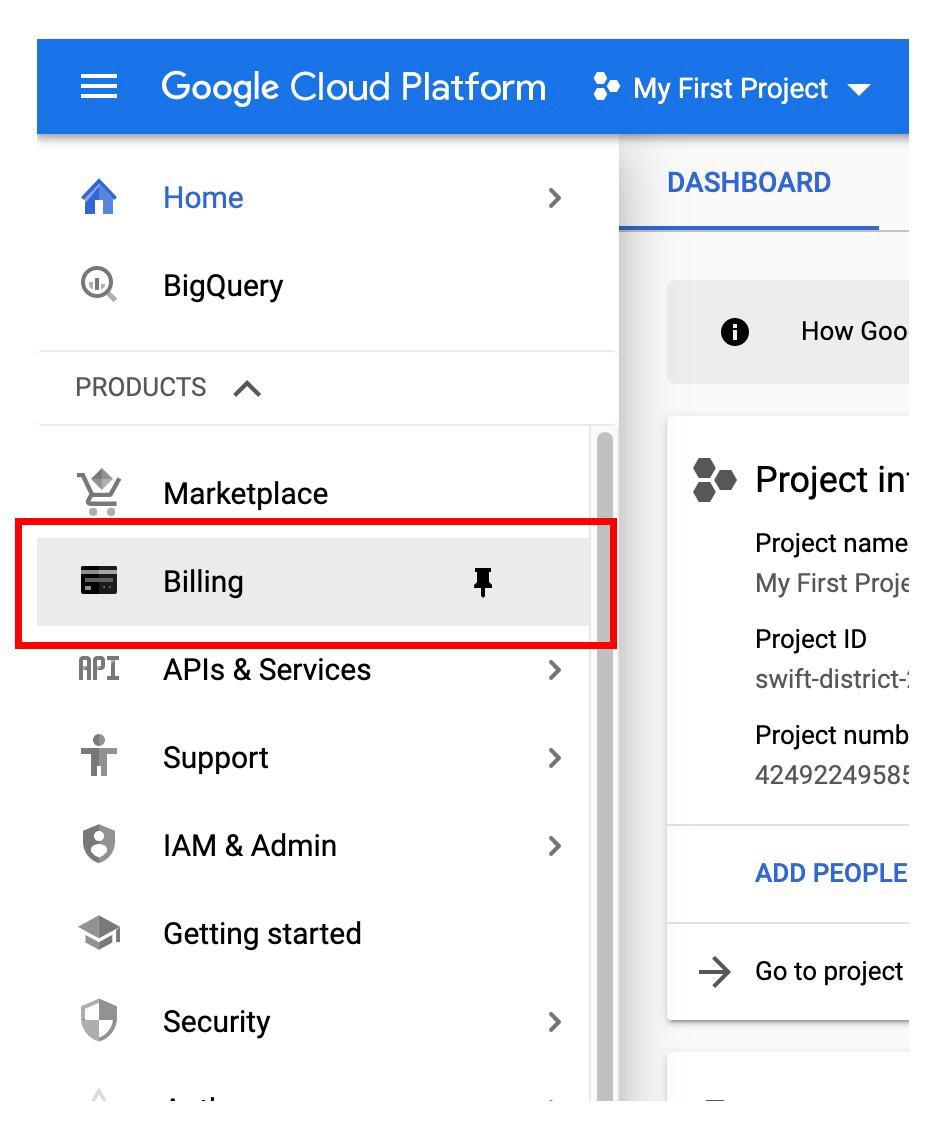
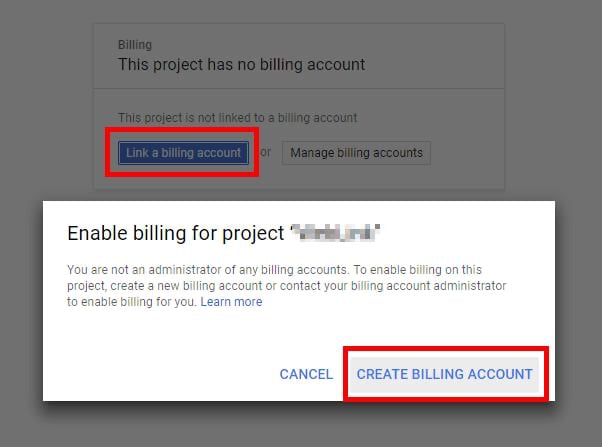
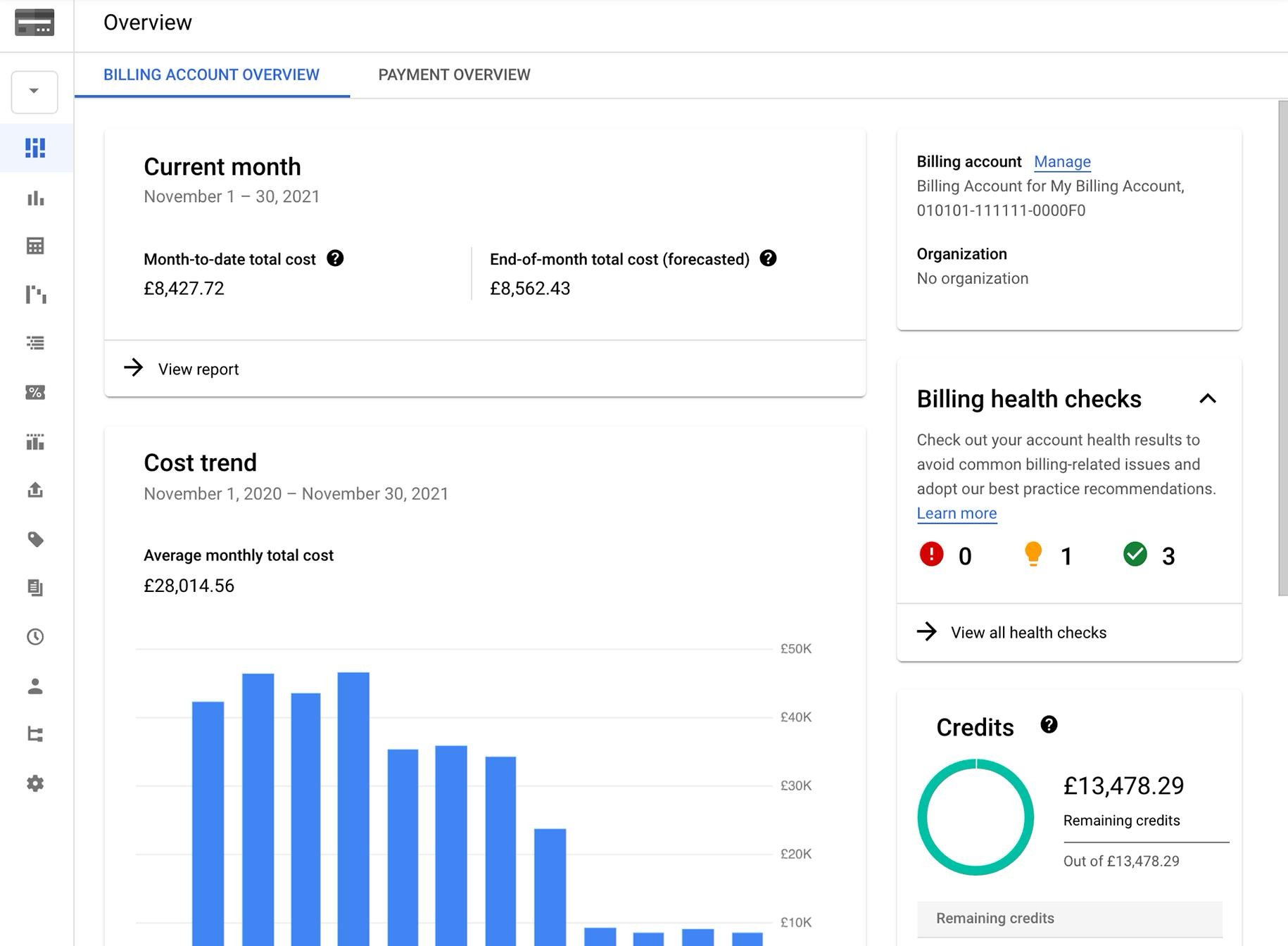
Google usually provides a monthly free usage credit, but a billing account must still be attached or every Maps API call returns
REQUEST_DENIED.Step 3 — Enable the required APIs
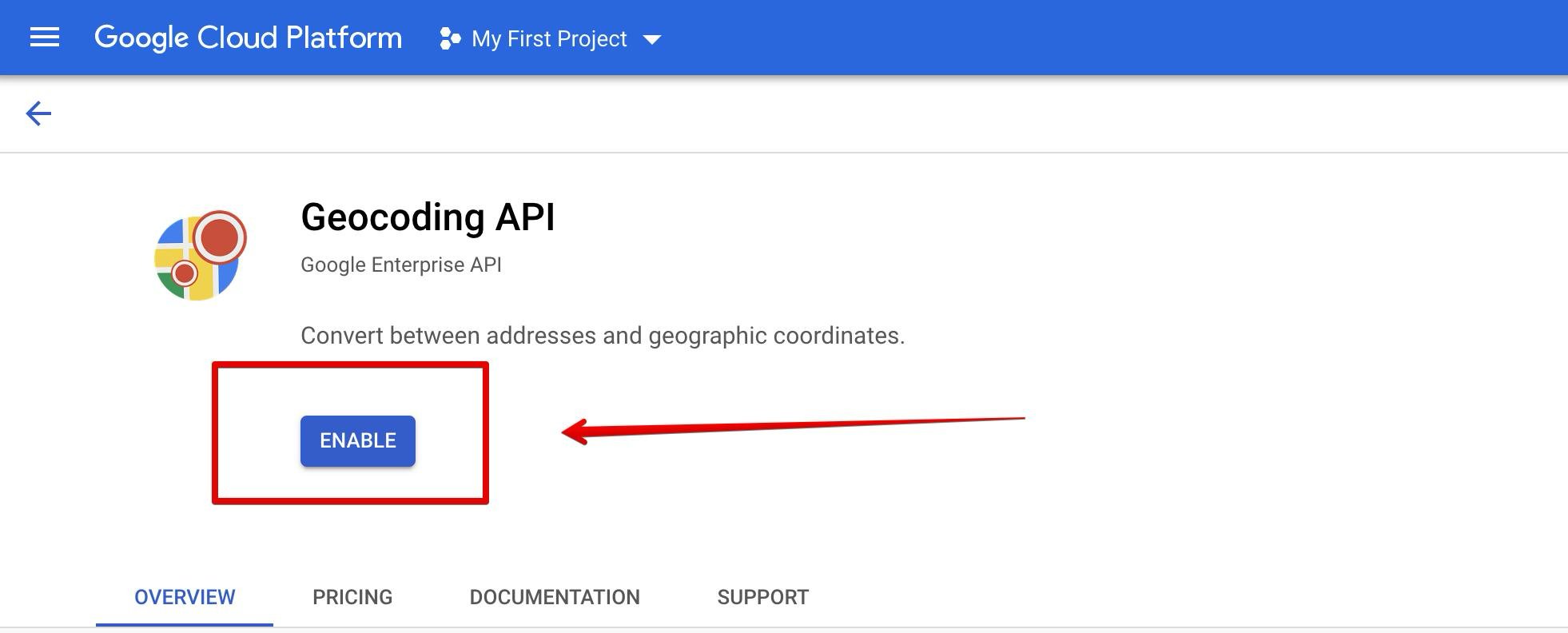
Go to APIs & Services → Library and enable each API your agent will use. Search for the API, open it, and click Enable.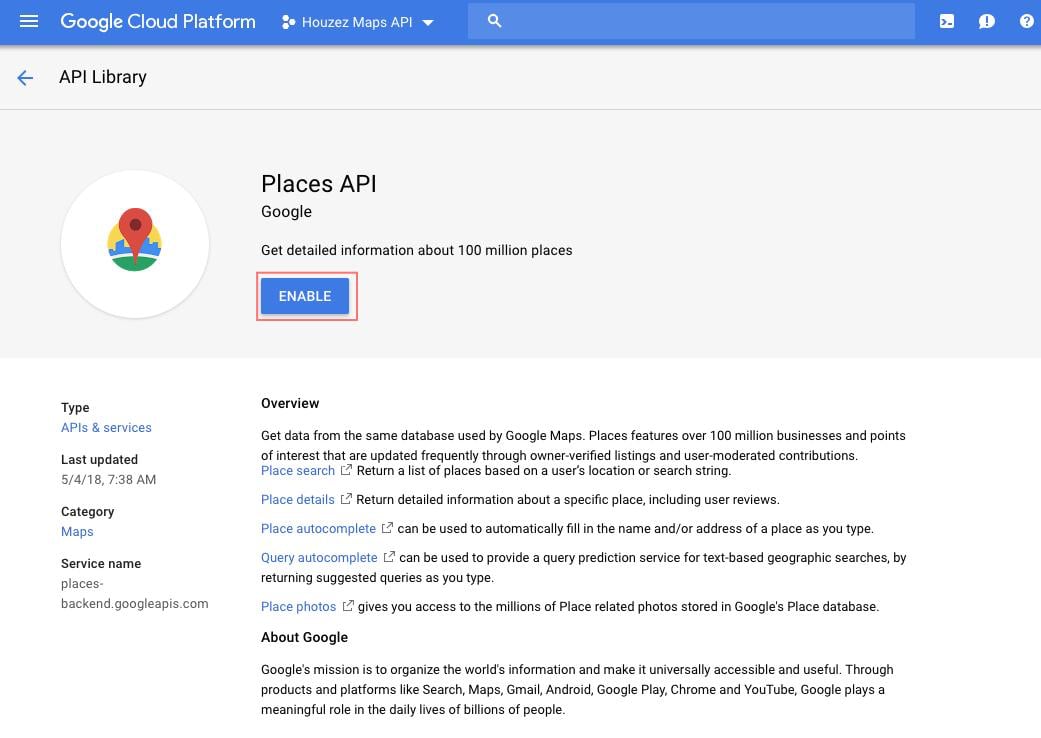
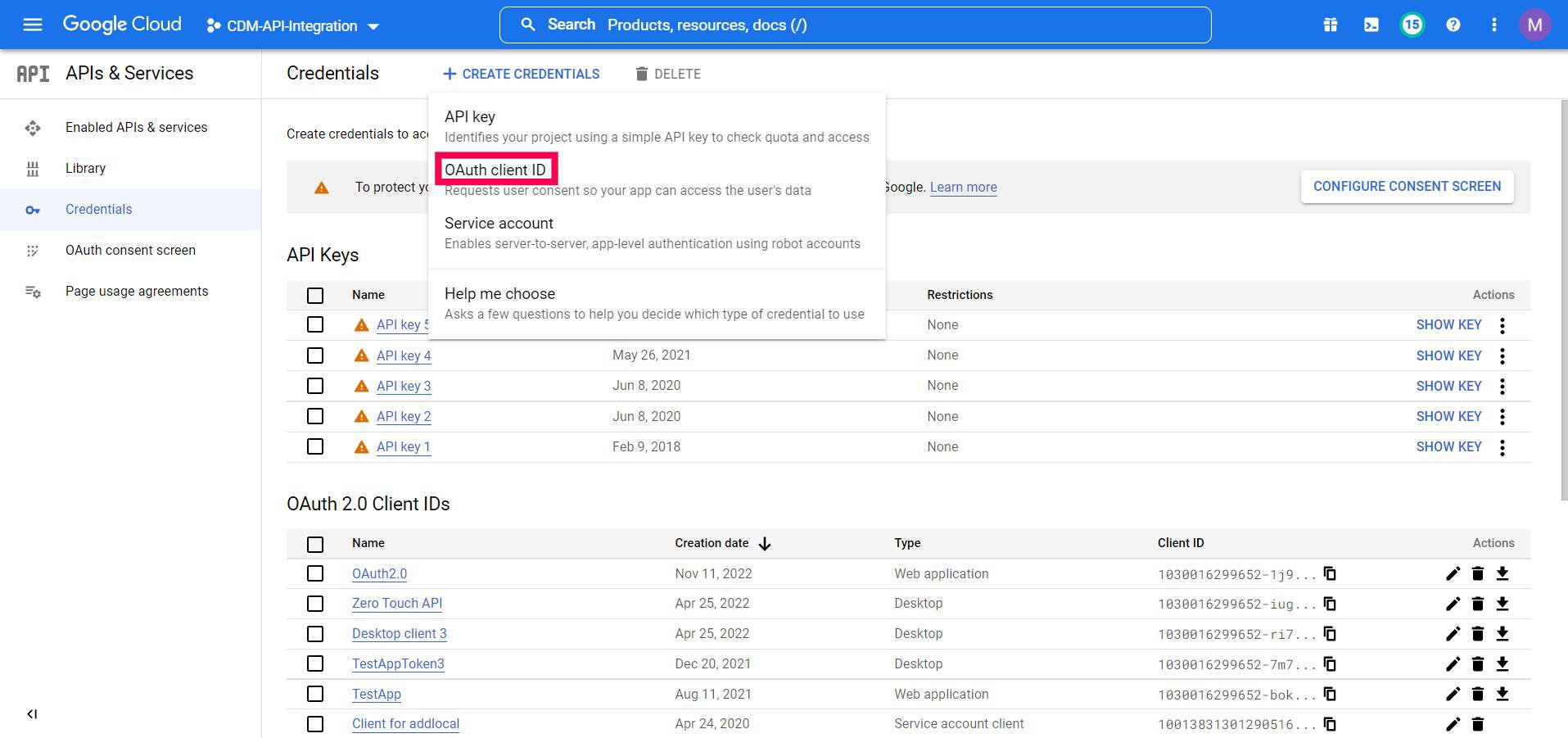
Step 4 — Create the API key
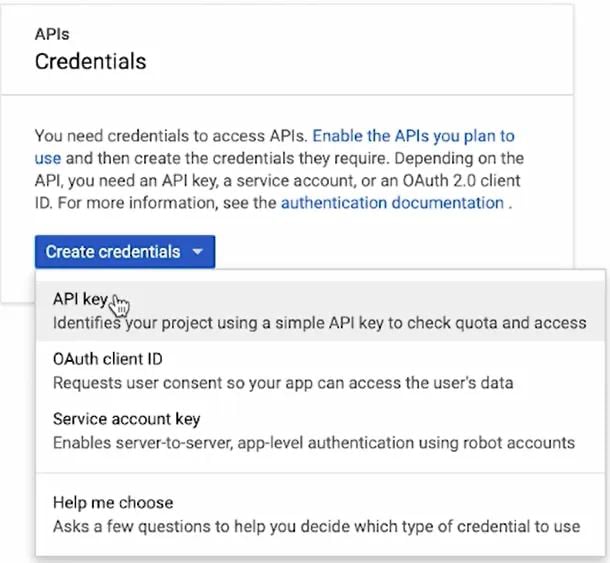
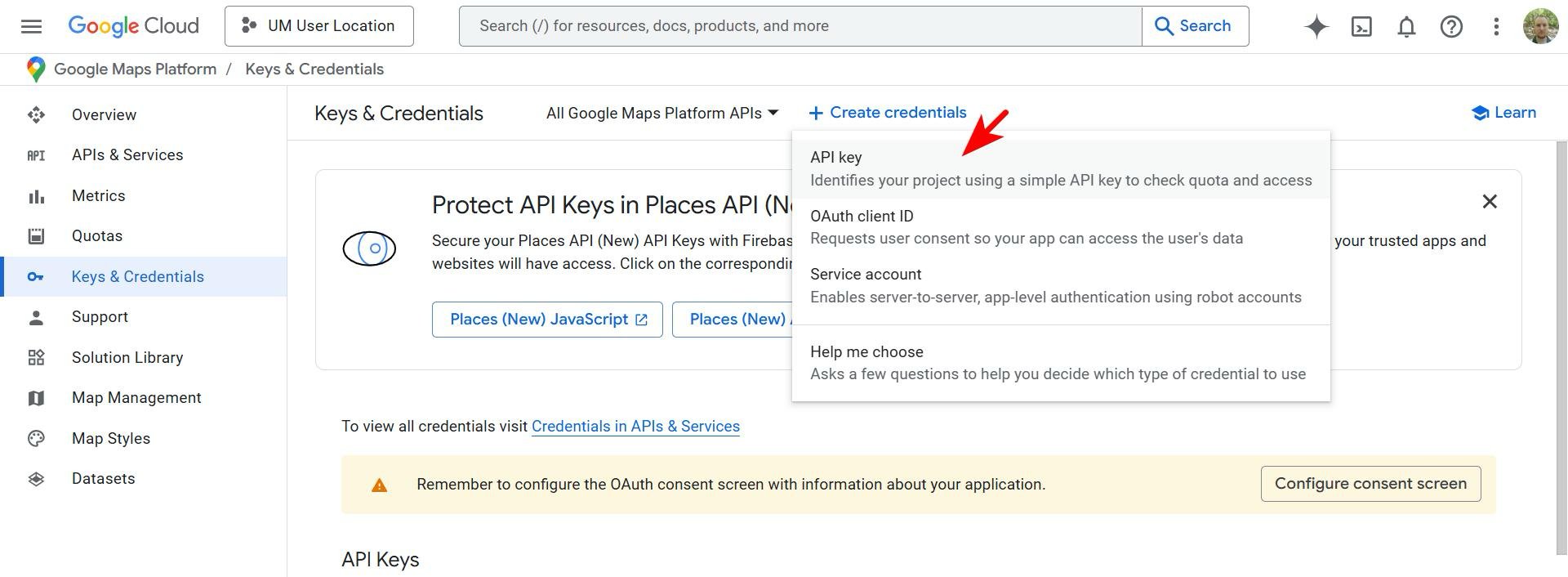
Open APIs & Services → Credentials (from the Maps Platform docs you can also click Go to the Credentials page).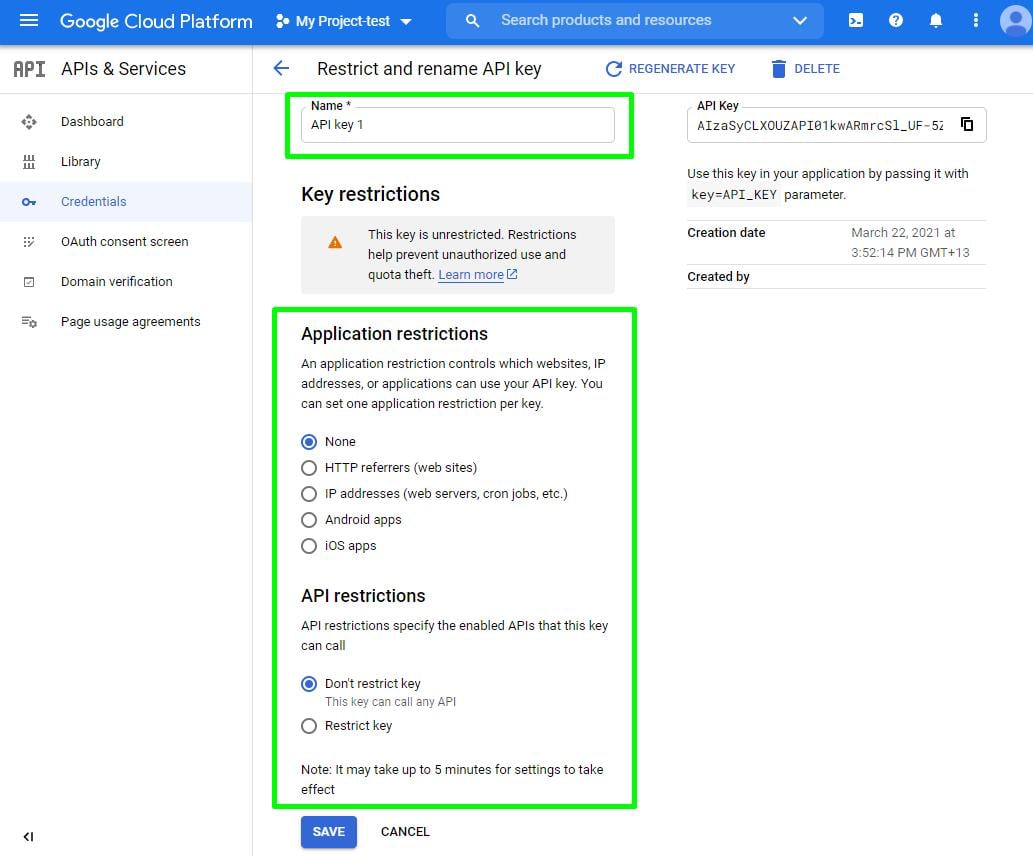
Step 5 — Restrict the key (recommended)
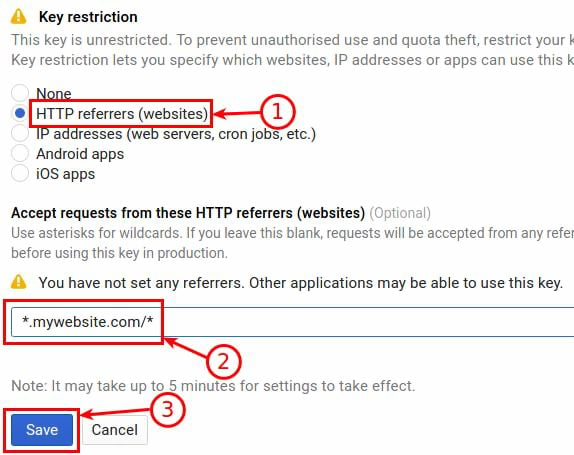
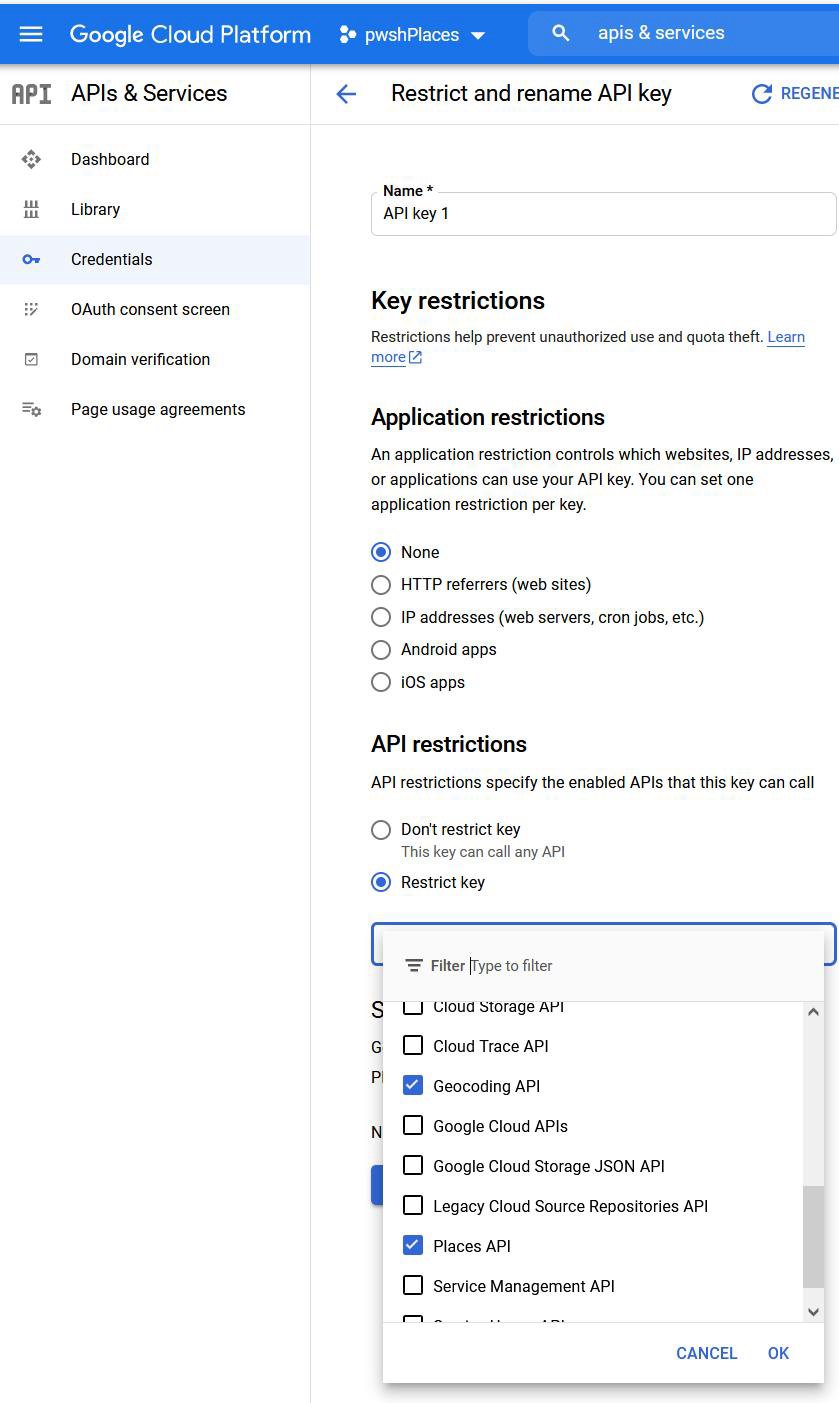
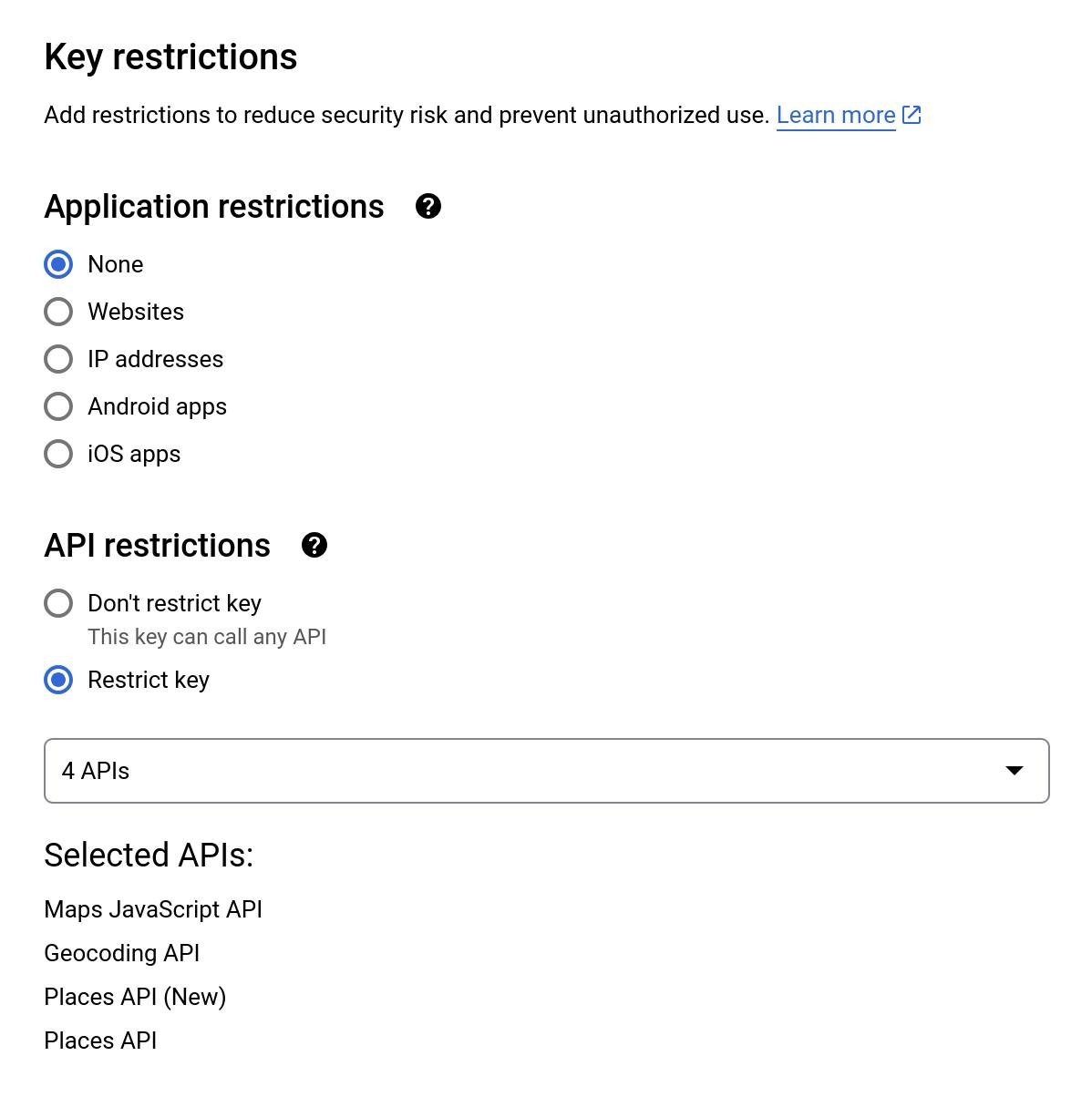
Click the newly created key to open its settings. Restrictions prevent quota theft and unauthorized use. Application restrictions — limit who can use the key:- For websites (frontend Maps JavaScript): choose HTTP referrers and add your domains, e.g.
https://yourdomain.com/*andhttps://www.yourdomain.com/*. - For backend servers (the typical UnleashX/MCP case): choose IP addresses and add your server IP. If your server IP isn’t fixed, leave it as None and rely on the API restrictions below.
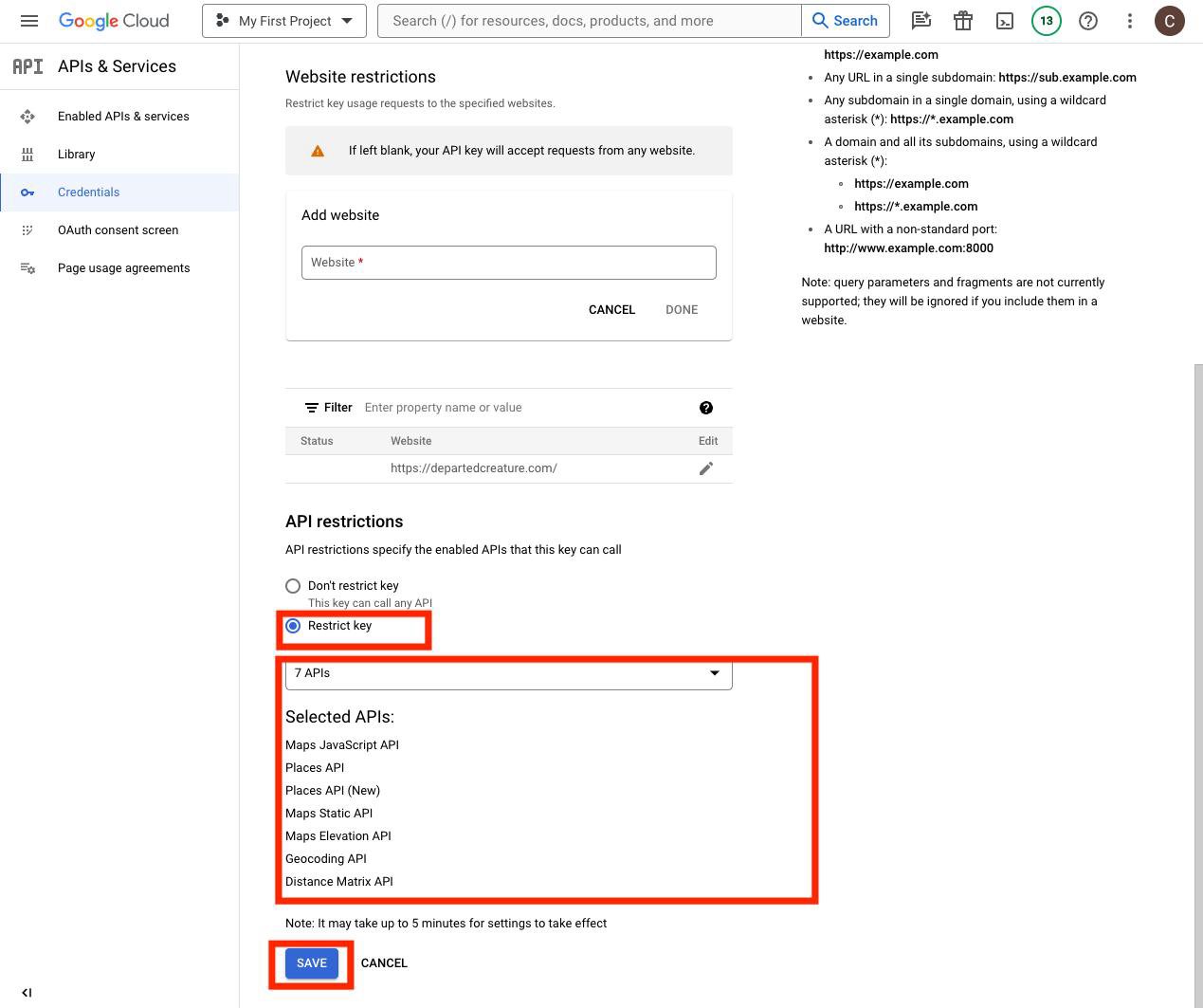
Permissions / APIs this key uses
4. Connect on UnleashX
1
Open your agent
Sign in at https://www.tryunleashx.com and open the agent you want to give Google Maps access to.
2
Go to Data Connectors
Open Data Connectors and find Google Maps in the list.
3
Connect
Click Connect / Add / Configure and paste your Maps Platform API key (sent as the
api-key / api_key credential). Authenticate once.4
Confirm success
When the key works, the status changes to a Connected badge. Your agent can now use the Google Maps tools below.
Use Google Maps in a Workflow
Once connected, you can add Google Maps to any automation from the Workflows builder. Its triggers and tools appear in the Apps panel, marked with an MCP badge.1
Add a trigger node
Open Workflows → New Workflow. On the canvas, click + Add Trigger. In the Paths panel, open the Apps tab and select Google Maps — its Triggers are listed underneath. Use the search box if you have many connectors.
2
Add an action node
Click the + below any node to add a step, then pick Google Maps again — this time the panel lists its Actions.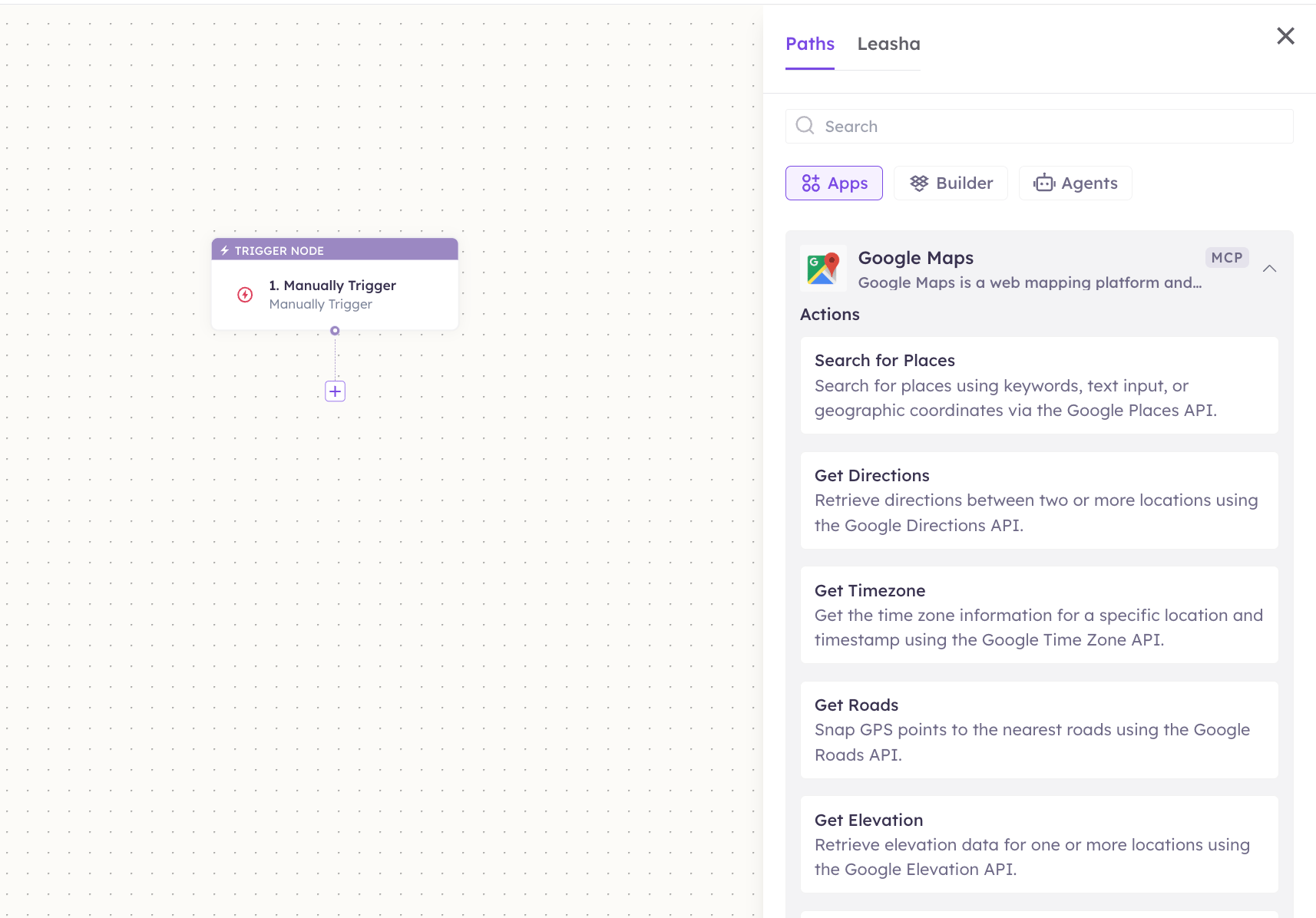
3
Configure the step
Fill in the fields for the trigger or action you picked. Required fields are marked with a red asterisk (*).
4
Add or select your account
Under Selected account, choose an already-connected account, or click Add Account to connect one now.
5
Save and test
Click Save. Use Test to verify the step, then toggle Publish when the workflow is ready.
The steps are the same for every connector. For the full workflow builder guide, see Using MCP in Workflows.
5. Available tools
This server exposes 14 tools. All Google Maps tools are read-only (they look up data and never change anything in your account).There are two families of tools with overlapping capabilities. Your agent picks whichever best fits the request — both run read-only lookups against Google Maps Platform.
6. Example usage
“Find coffee shops within 1 km of MG Road, Bengaluru that are open now and rated 4+.” → Runs Search Nearby (geocodes the location, then filters by radius, open-now, and minimum rating). “How long does it take to drive from Indiranagar to Bangalore Airport right now?” → Runs Directions (or Distance Matrix) to estimate the route and travel time.7. Permissions & data access
UnleashX can:- Search for places and fetch place details (name, address, phone, hours, rating, website).
- Geocode and reverse-geocode addresses and coordinates.
- Calculate routes, travel times, and distances.
- Look up timezones, snap points to roads, and get elevation.
- Create, edit, or delete anything in Google Maps — every tool is read-only.
- Access your personal Google Maps history, saved places, or Timeline.
- Change your Google Cloud project, billing, or API settings.
8. Troubleshooting
For general connector issues, see /mcp/integrations.