

Cal.com
In one line: Connect Cal.com so your UnleashX agent can check availability, book meetings, reschedule or cancel them, and manage webhooks automatically.
1. Overview
Cal.com is an open-source scheduling platform. You publish event types (like “30-minute intro call”), share a booking link, and invitees pick a time that fits your availability — no back-and-forth emails. Once connected, your UnleashX agent can look up your event types, check open slots, create bookings, reschedule or cancel them, and set up webhooks so other systems hear about new bookings. That lets your agent handle scheduling end to end during a call or chat. Connecting Cal.com to UnleashX is useful for sales, support, and customer teams who want to turn “let’s find a time” into a confirmed meeting instantly, without leaving the conversation.2. What you’ll need
- A Cal.com account (cloud at cal.com or your self-hosted instance).
- At least one event type set up so there’s something to book.
- A Cal.com API key.
Any Cal.com user can create an API key for their own account. The key acts as you, so the agent can only manage the bookings and event types your account owns.
3. Get your credentials
Cal.com uses an API Key.1
Open Cal.com settings
Sign in at https://app.cal.com and open Settings.
2
Go to Developer → API keys
In the sidebar, choose Developer, then API keys. (Direct link: https://app.cal.com/settings/developer/api-keys)
3
Create a key
Click Add / Create new API key, name it
UnleashX, optionally set an expiration, and confirm.4
Copy the key
Copy the generated API key.
A Cal.com API key reflects your account’s access. UnleashX only calls the endpoints needed for the tools listed in Section 5.
4. Connect on UnleashX
1
Open your agent
Go to https://www.tryunleashx.com and open the agent you want to connect.
2
Open Data Connectors
In the agent, go to Data Connectors.
3
Find Cal.com
Locate Cal.com in the list and click Connect / Add / Configure.
4
Paste your API key
Paste your Cal.com API key. UnleashX sends it as a Bearer token (
access-token / token header).5
Confirm success
Save. When the status shows a Connected badge, your agent can start scheduling with Cal.com.
Use Cal.com in a Workflow
Once connected, you can add Cal.com to any automation from the Workflows builder. Its triggers and tools appear in the Apps panel, marked with an MCP badge.1
Add a trigger node
Open Workflows → New Workflow. On the canvas, click + Add Trigger. In the Paths panel, open the Apps tab and select Cal.com — its Triggers are listed underneath. Use the search box if you have many connectors.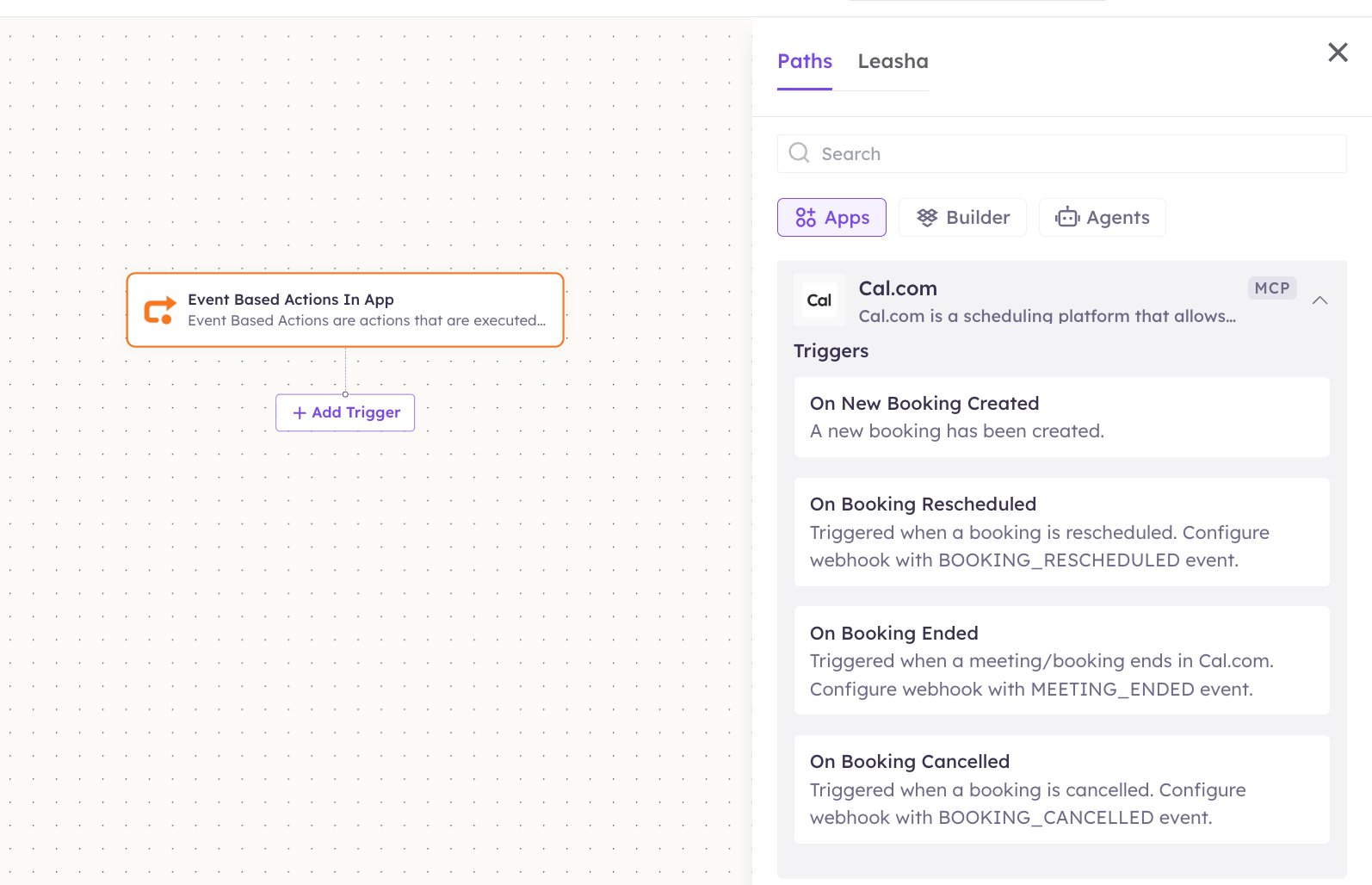
2
Add an action node
Click the + below any node to add a step, then pick Cal.com again — this time the panel lists its Actions.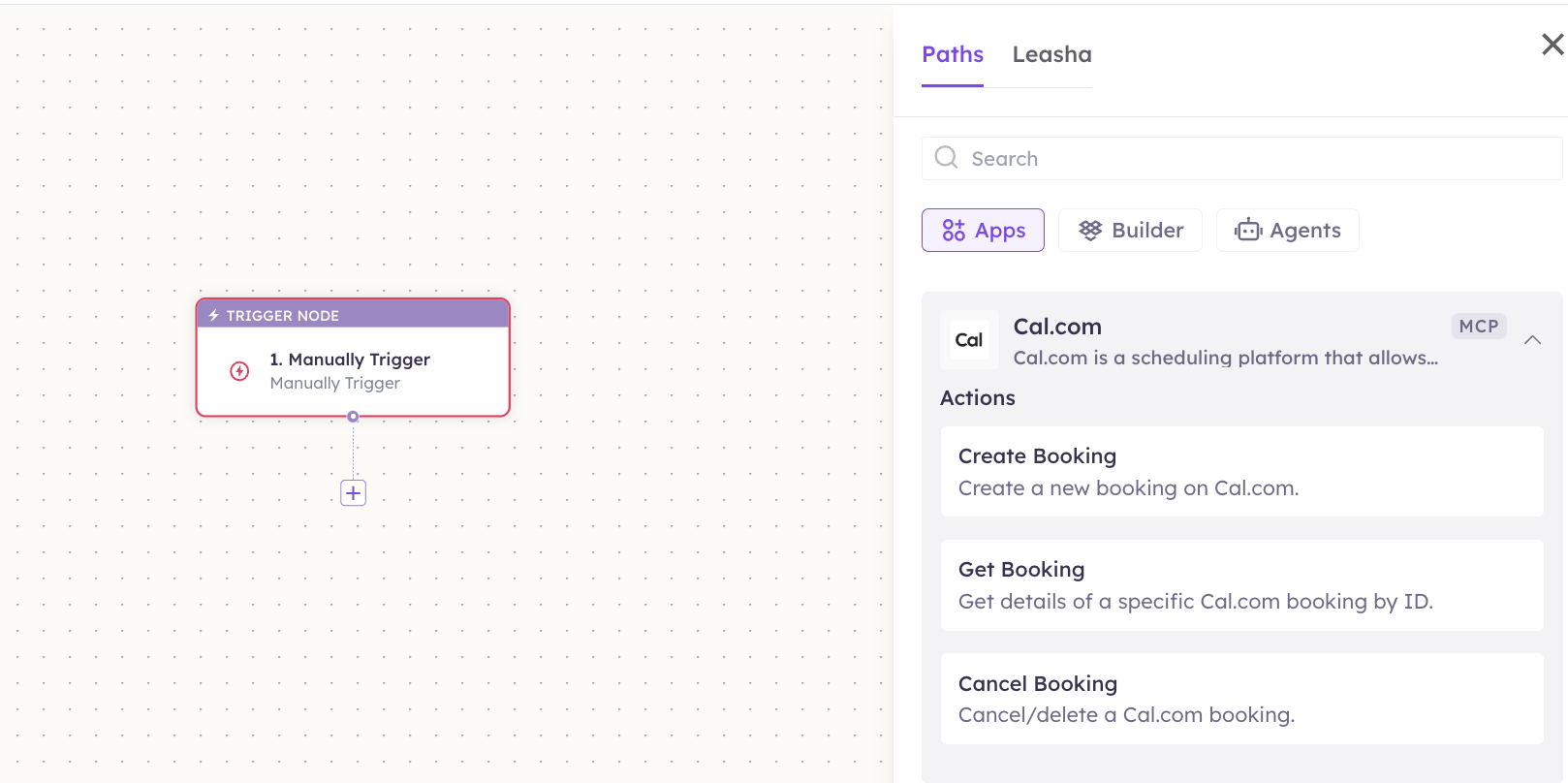
3
Configure the step
Fill in the fields for the trigger or action you picked. Required fields are marked with a red asterisk (*).
4
Add or select your account
Under Selected account, choose an already-connected account, or click Add Account to connect one now.
5
Save and test
Click Save. Use Test to verify the step, then toggle Publish when the workflow is ready.
The screenshots above use Google Sheets as an example — the steps are identical for Cal.com. For the full workflow builder guide, see Using MCP in Workflows.
5. Available tools
6. Example usage
“Book a 30-minute intro call with this lead tomorrow at 2pm.” Behind the scenes: List Event Types → Get Availability → Create Booking. “Move my 3pm meeting with Sam to Thursday morning.” Behind the scenes: List Bookings → Get Availability → Reschedule Booking.7. Permissions & data access
UnleashX CAN:- Read your event types, availability, and bookings.
- Create, reschedule, and cancel bookings.
- Create, list, and delete webhooks.
- Access another user’s Cal.com account or bookings.
- Change Cal.com account, billing, or team settings.
- Act beyond what your API key’s account can do.
8. Troubleshooting
For general connection issues, see /mcp/integrations.
9. Frequently asked questions
Is my data stored by UnleashX? UnleashX calls Cal.com live with your key when a tool runs. It doesn’t keep a separate copy of your calendar. Can multiple team members connect? Yes. Each person creates their own API key and connects it to their agent. How do I rotate my key? Create a new key in Cal.com, update it in UnleashX, then delete the old one. Access switches over immediately. Does this work with self-hosted Cal.com? Yes, as long as your instance exposes the Cal.com API and you provide a valid API key.10. References
- Cal.com API documentation: https://cal.com/docs/api-reference
- API keys page: https://app.cal.com/settings/developer/api-keys
- Cal.com developer docs: https://cal.com/docs