

monday.com
In one line: Connect monday.com so your UnleashX agent can create and update items, read and set column values, move work across groups, and post updates — all in plain language.
1. Overview
monday.com is a Work OS where teams manage projects on visual boards. Each board holds items (rows), organized into groups, with columns for status, dates, people, and more — plus updates (the comment thread on each item). Once connected to UnleashX, your agent can list your boards, create and update items, read and set column values, move items between groups, and post updates. It works against your live monday.com account using an API token, so it acts with your own permissions. Connecting monday.com to UnleashX means your boards keep themselves current as you talk. Instead of opening monday to add an item or change a status, you tell your agent and it makes the change.2. What you’ll need
- A monday.com account with access to the boards you want the agent to manage.
- Your API token (see Section 3).
- An UnleashX account with access to Data Connectors.
You paste an API token. UnleashX sends it to the monday.com GraphQL API in the
Authorization header.3. Get your credentials
monday.com MCP authenticates with your personal API token — a GraphQL API token tied to your monday.com user. As monday.com puts it on the page itself: “This GraphQL API token belongs only to you. It grants access to every query and mutation you’re allowed to perform.” You don’t create it — monday.com has already generated one for you. You just copy it.Step-by-step
1
Sign in to monday.com
Sign in with the account whose permissions you want the agent to act with. The token inherits that user’s board access exactly.
2
Open the Developer Center
Click your avatar in the top-right and choose Developers. The monday Developer Center opens in a new tab.
3
Click API token in the left sidebar
The left sidebar lists My apps at the top, then API playground, API token, and API analytics.Click API token.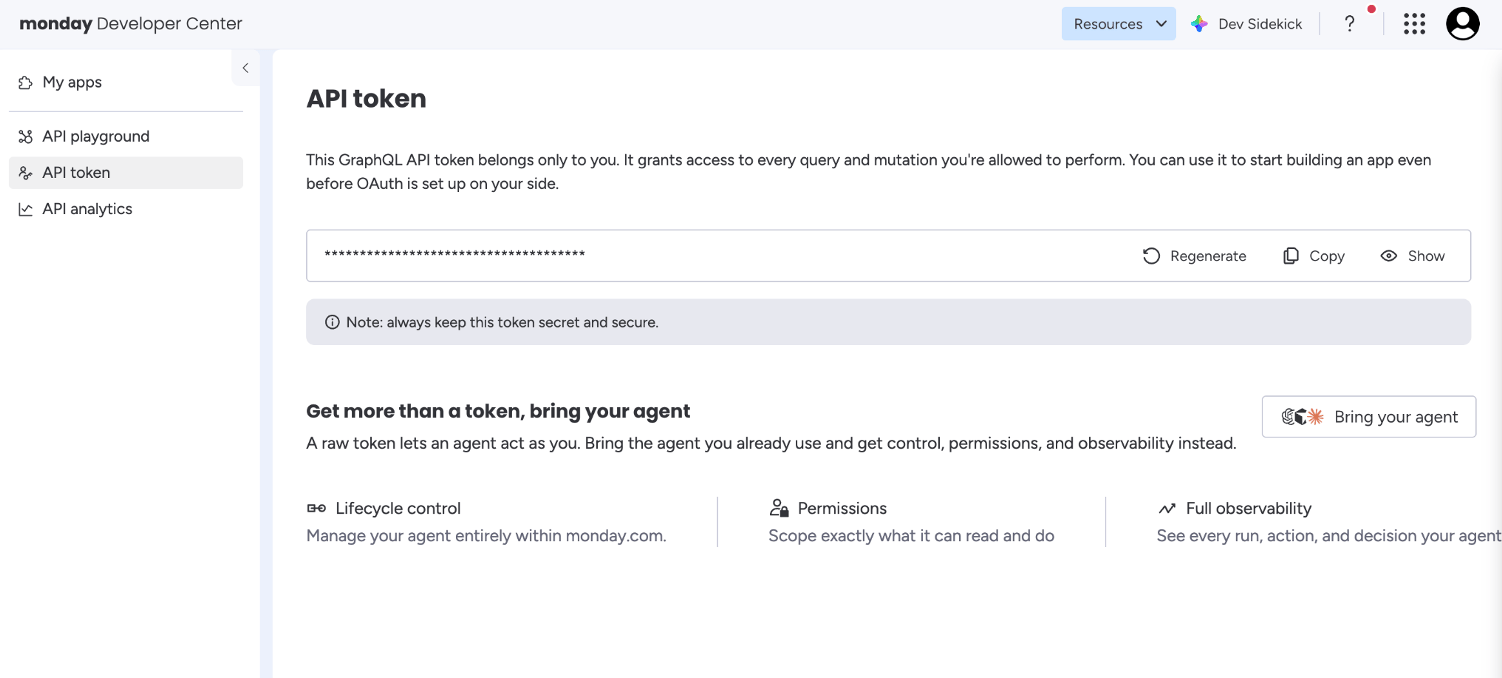
4
Copy your token
Your token sits in the field in the middle of the page, masked by default. Three controls sit to its right:
- Show — reveals the token so you can read it.
- Copy — copies the full value to your clipboard (use this one).
- Regenerate — replaces the token. Don’t click this unless you intend to invalidate the current one.
5
Paste it into UnleashX
Head to Data Connectors → monday.com in UnleashX and paste the token (full walkthrough in Section 4). UnleashX validates it on save, so a bad paste shows up right away.
Good to know
Your token doesn’t expire and can be viewed again any time. Unlike connectors that reveal a secret only once, monday.com keeps your token on this page permanently — so if you lose it, come back to Developer Center → API token and hit Copy again.
The “Get more than a token, bring your agent” panel lower on the page is monday.com’s own agent platform — separate from the UnleashX connector. You don’t need it here; the API token above is all UnleashX requires.
Permissions this token grants UnleashX
4. Connect on UnleashX
1
Open your agent
Go to https://www.tryunleashx.com and open the agent you want to connect.
2
Open Data Connectors
Inside the agent, go to Data Connectors.
3
Find monday.com
Locate monday.com and click Connect (or Add / Configure).
4
Paste your token
Paste your API token and click Connect.
5
Confirm success
UnleashX validates the token and the monday.com connector shows a Connected badge.
Use monday.com in a Workflow
Once connected, you can add monday.com to any automation from the Workflows builder. Its triggers and tools appear in the Apps panel, marked with an MCP badge.1
Add a trigger node
Open Workflows → New Workflow. On the canvas, click + Add Trigger. In the Paths panel, open the Apps tab and select monday.com — its Triggers are listed underneath. Use the search box if you have many connectors.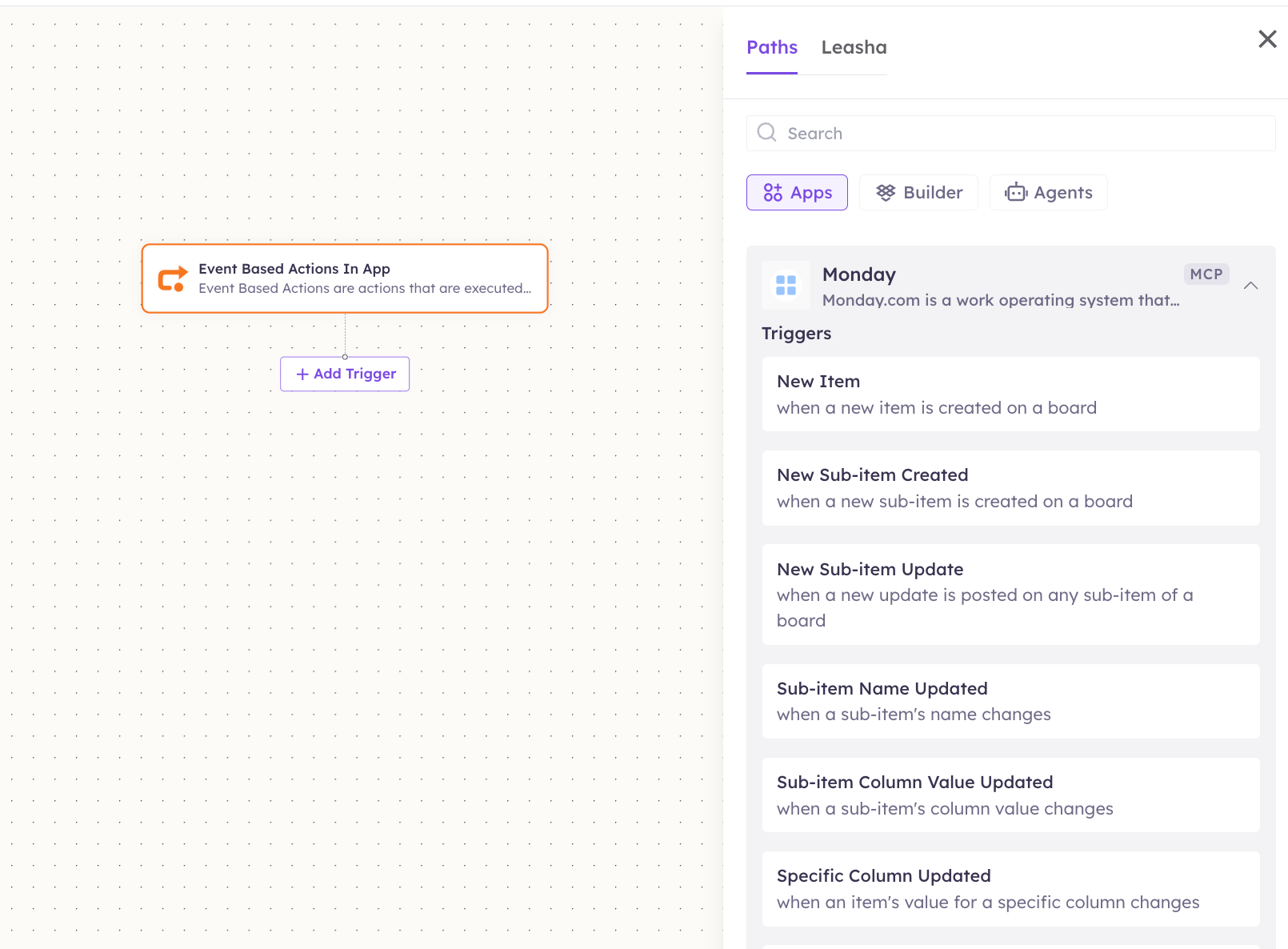
2
Add an action node
Click the + below any node to add a step, then pick monday.com again — this time the panel lists its Actions.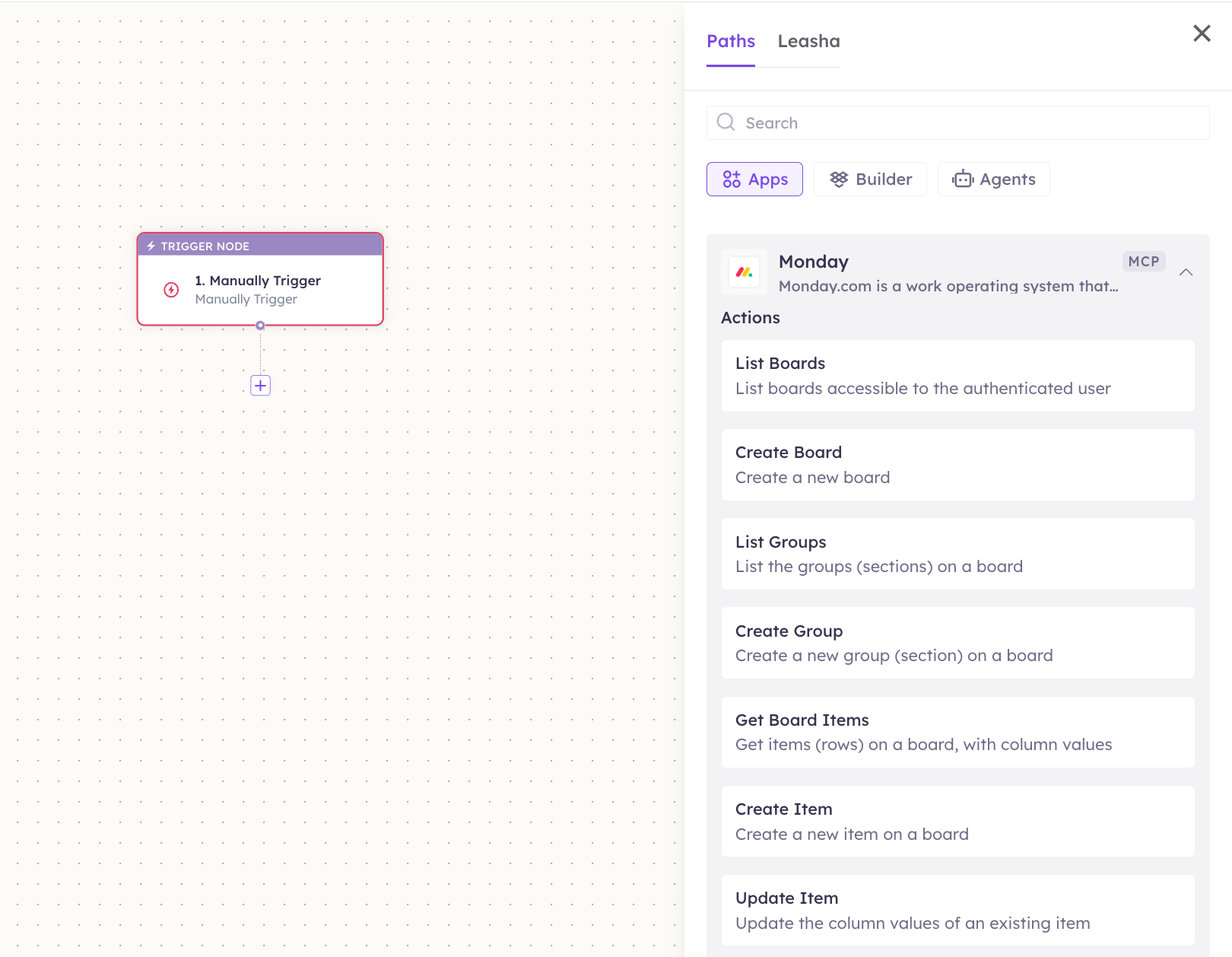
3
Configure the step
Fill in the fields for the trigger or action you picked. Required fields are marked with a red asterisk (*).
4
Add or select your account
Under Selected account, choose an already-connected account, or click Add Account to connect one now.
5
Save and test
Click Save. Use Test to verify the step, then toggle Publish when the workflow is ready.
The steps are the same for every connector. For the full workflow builder guide, see Using MCP in Workflows.
5. Available tools
6. Example usage
“Add an item ‘Renew SSL cert’ to the DevOps board, set status to Working on it, and assign it to me.” → Runs Create Item on the board, then Change Column Value for status and person. “Which items on the Sales board are stuck? Post an update on each asking for a status.” → Runs List Items (filtering by status), then Create Update on each matching item.7. Permissions & data access
UnleashX can:- List and read boards, groups, columns, items, and updates.
- Create and update items, set column values, and move items.
- Post updates and create groups/boards.
- Delete items where your permissions allow (marked ⚠️).
- Access boards your account can’t see.
- Change monday.com admin, billing, or account settings.
8. Troubleshooting
For general MCP issues, see /mcp/integrations.
9. Frequently asked questions
Is my monday.com data stored by UnleashX? No. UnleashX reads and writes live through the monday.com API per request; it doesn’t keep a copy. Can the agent delete items? Yes — tools marked ⚠️ make permanent changes and only work if your permissions allow it. Use them deliberately. Can multiple team members connect monday.com? Yes. Each person uses their own API token, so the agent acts with that user’s access.10. References
- monday.com API documentation: https://developer.monday.com/api-reference/docs
- Get your API token: https://developer.monday.com/api-reference/docs/authentication
- Rate limits & complexity: https://developer.monday.com/api-reference/docs/rate-limits