

Zoho CRM
In one line: Connect your Zoho CRM so your UnleashX agent can look up and update leads, contacts, accounts, and deals, log activity, and keep your pipeline moving — all in plain language.
1. Overview
Zoho CRM is Zoho’s customer relationship management platform. It’s the system of record for your sales pipeline — leads, contacts, accounts, deals, tasks, notes, and the activity history that ties them together. Once connected to UnleashX, your agent can find and update records, create new leads and contacts, convert leads into deals, log calls and notes, attach files, and manage custom modules. It works against your live Zoho CRM data using your own Zoho sign-in, so it respects your role and permissions. Connecting Zoho CRM to UnleashX means your CRM updates itself as you talk. Instead of opening Zoho to log a call or move a deal forward, you tell your agent and it makes the change — keeping records current without the manual data entry.2. What you’ll need
- A Zoho CRM account (any paid edition; some API features require Standard or above).
- A user role with permission to view and edit the records and modules you want the agent to manage.
- An UnleashX account with access to Data Connectors.
No API key to paste. Zoho CRM uses OAuth — you click Authorize and sign in with Zoho.
3. Get your credentials
There’s no key to copy. Authentication runs through Zoho’s secure OAuth sign-in.1
Start the connection in UnleashX
Connecting Zoho CRM (Section 4) opens a Zoho Authorize window.
2
Sign in with Zoho
Sign in with your Zoho account at
https://accounts.zoho.com (use the matching data center — e.g. .eu, .in, .com.au — if your org is hosted there). Complete two-factor authentication if prompted.3
Review and accept the scopes
Zoho shows the access UnleashX is requesting (see the scopes table). Click Accept.
4
Return to UnleashX
Zoho redirects you back automatically and the connector links to your CRM. Behind the scenes UnleashX calls Zoho with a
Zoho-oauthtoken authorization header — you never handle the token yourself.Zoho OAuth scopes are granular. UnleashX requests only what these tools need, and Zoho — not UnleashX — enforces the limits.
4. Connect on UnleashX
1
Open your agent
Go to https://www.tryunleashx.com and open the agent you want to connect.
2
Open Data Connectors
Inside the agent, go to Data Connectors.
3
Find Zoho CRM
Locate Zoho CRM and click Connect (or Add / Configure).
4
Authorize with Zoho
Click Authorize, sign in with Zoho, and accept the scopes.
5
Confirm success
You return to UnleashX and the Zoho CRM connector shows a Connected badge.
Use Zoho CRM in a Workflow
Once connected, you can add Zoho CRM to any automation from the Workflows builder. Its triggers and tools appear in the Apps panel, marked with an MCP badge.1
Add a trigger node
Open Workflows → New Workflow. On the canvas, click + Add Trigger. In the Paths panel, open the Apps tab and select Zoho CRM — its Triggers are listed underneath. Use the search box if you have many connectors.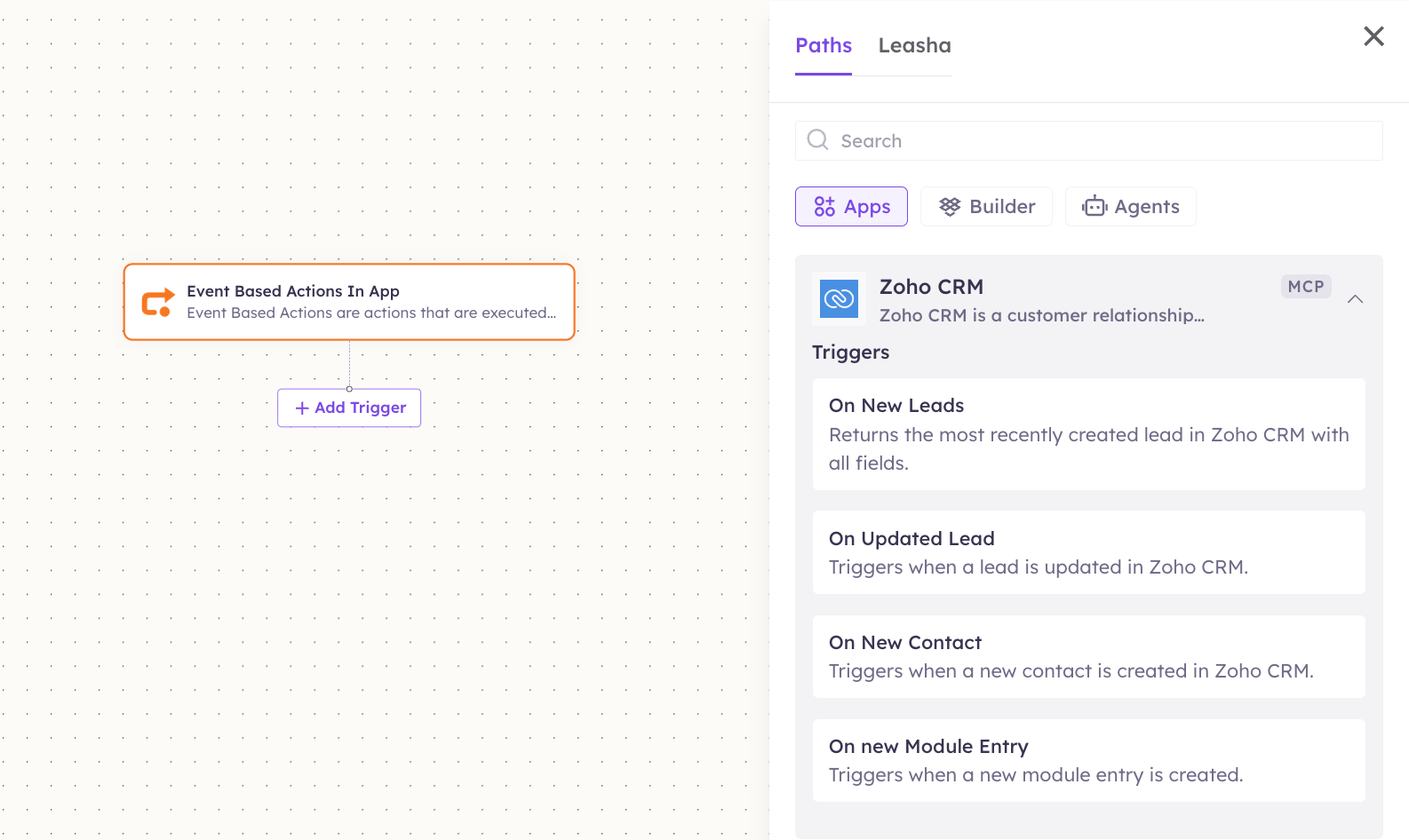
2
Add an action node
Click the + below any node to add a step, then pick Zoho CRM again — this time the panel lists its Actions.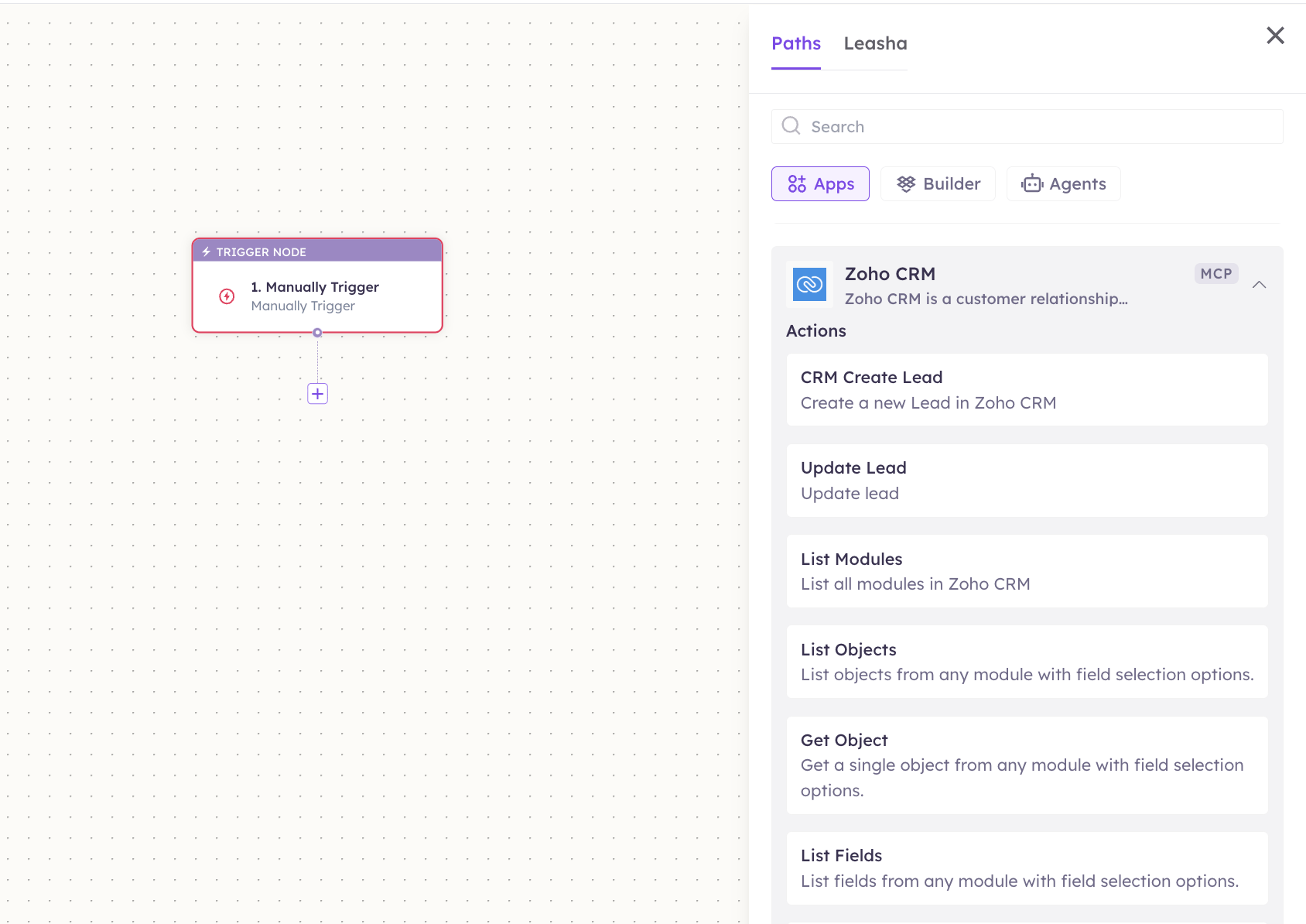
3
Configure the step
Fill in the fields for the trigger or action you picked. Required fields are marked with a red asterisk (*).
4
Add or select your account
Under Selected account, choose an already-connected account, or click Add Account to connect one now.
5
Save and test
Click Save. Use Test to verify the step, then toggle Publish when the workflow is ready.
The steps are the same for every connector. For the full workflow builder guide, see Using MCP in Workflows.
5. Available tools
6. Example usage
“Create a lead for Jordan Lee at Acme Corp, then log that I just had an intro call with them.” → Runs Create Lead to add the lead, then Log Call to record the call activity. “Find the deal with Globex and move it to the Negotiation stage with a note about the new pricing.” → Runs Search Records (or Search Global) to find the deal, Update Deal to change the stage, and Add Note to attach the pricing note.7. Permissions & data access
UnleashX can:- Read, search, and list leads, contacts, accounts, deals, tasks, notes, and custom records.
- Create and update records, convert leads, log calls, and upload attachments.
- Read module and field metadata and list users.
- Delete records and users where your role allows (these tools are clearly marked ⚠️).
- Do anything your Zoho role and profile don’t permit.
- Access other Zoho products (Zoho Desk, Zoho Mail, Books) — those are separate connectors.
- Change your Zoho account password or org-wide security settings.
https://accounts.zoho.com/home#sessions/usersession (Connected Apps). Disconnecting revokes access immediately.
8. Troubleshooting
For general MCP issues, see /mcp/integrations.
9. Frequently asked questions
Is my CRM data stored by UnleashX? No. UnleashX reads and writes your records live through the Zoho CRM API per request; it doesn’t keep a copy of your CRM. Can multiple team members connect Zoho CRM? Yes. Each user authorizes their own Zoho account, so the agent acts with that user’s own role and permissions. Can the agent really delete records? Yes — tools marked ⚠️ (delete record/user) make permanent changes in Zoho. They only work if your role allows deletion. Use them deliberately. Which data center should I use? Use the one your Zoho org lives in (US.com, EU .eu, India .in, Australia .com.au, etc.). Signing in at the wrong one causes auth errors.
10. References
- Zoho CRM API documentation: https://www.zoho.com/crm/developer/docs/api/v6/
- Zoho OAuth overview & scopes: https://www.zoho.com/crm/developer/docs/api/v6/scopes.html
- Zoho Connected Apps / revoke access: https://accounts.zoho.com/home#sessions/usersession
- Zoho sign-in: https://accounts.zoho.com