

WordPress
In one line: Connect WordPress so your UnleashX agent can create and update posts, manage categories and users, set featured images, and even generate AI cover art.
1. Overview
WordPress is the world’s most popular content management system, used to run blogs, marketing sites, and online publications. Content is organized into posts, grouped by categories, and managed by users with different roles. Once connected, your UnleashX agent can create and edit posts, search existing content, manage categories and users, attach featured images, and generate AI cover images — all through the WordPress REST API. That lets you turn an idea or briefing into a published (or drafted) post without logging into wp-admin. Connecting WordPress to UnleashX is useful for content marketers and site managers who want to speed up publishing, keep categories tidy, and handle routine site administration through conversation.2. What you’ll need
- A self-hosted WordPress site (or one where you control the REST API) reachable over HTTPS.
- Your site’s base URL (e.g.
https://yourblog.com). - A WordPress user account with a role that can do what you need (Author/Editor to post; Administrator to manage users).
- An Application Password for that account.
Application Passwords require WordPress 5.6+ and an HTTPS site. If you don’t see the option, an administrator may have disabled it, or your hosting may need it enabled. Managing other users requires an Administrator account.
3. Get your credentials
WordPress uses an Application Password with the REST API over Basic auth.1
Open your WordPress profile
Sign in to your site’s admin (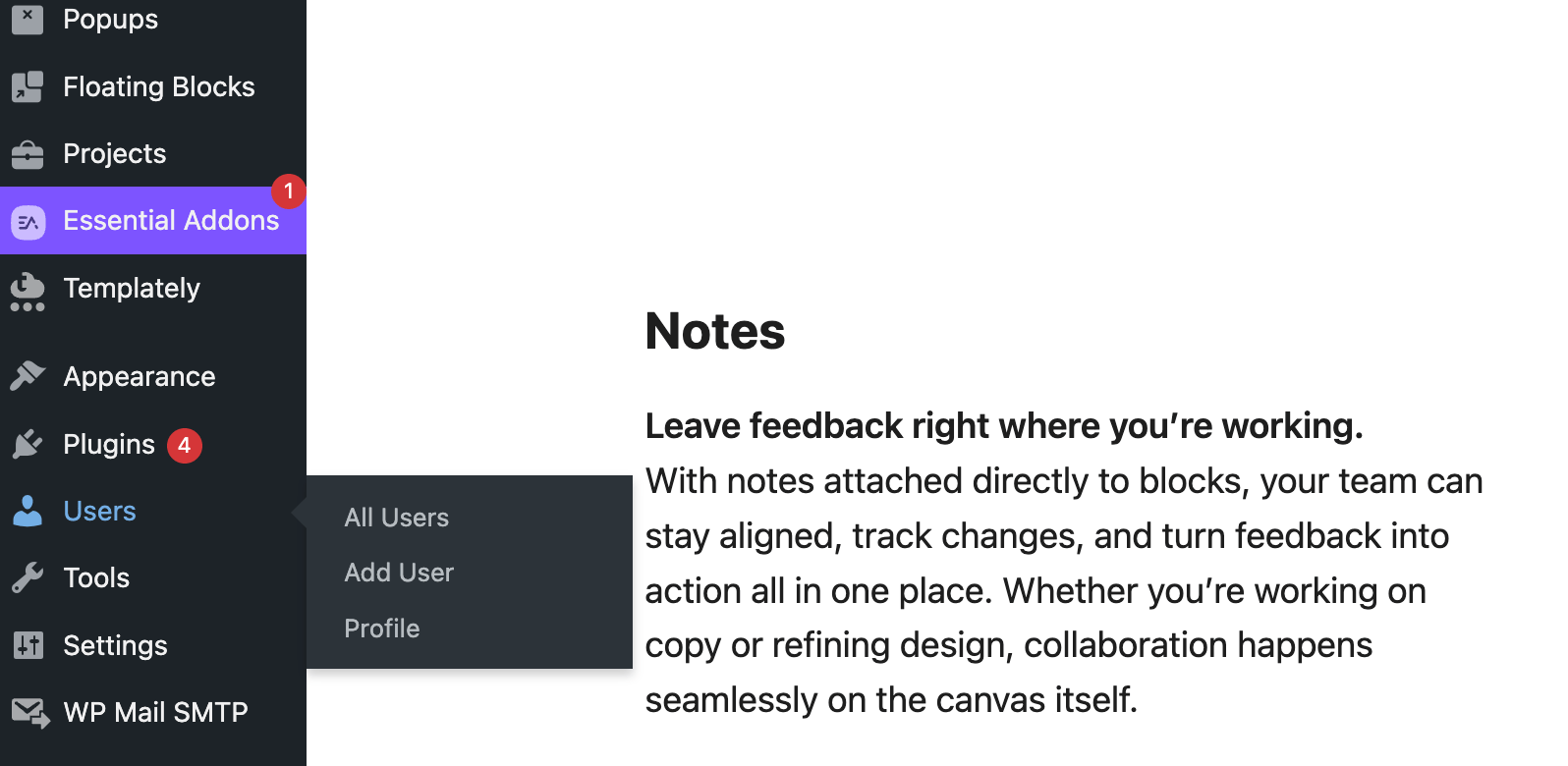
https://yoursite.com/wp-admin). In the left sidebar, go to Users, then open Profile (your own account).2
Scroll to Application Passwords
On the profile page, scroll past Account Management to the Application Passwords section.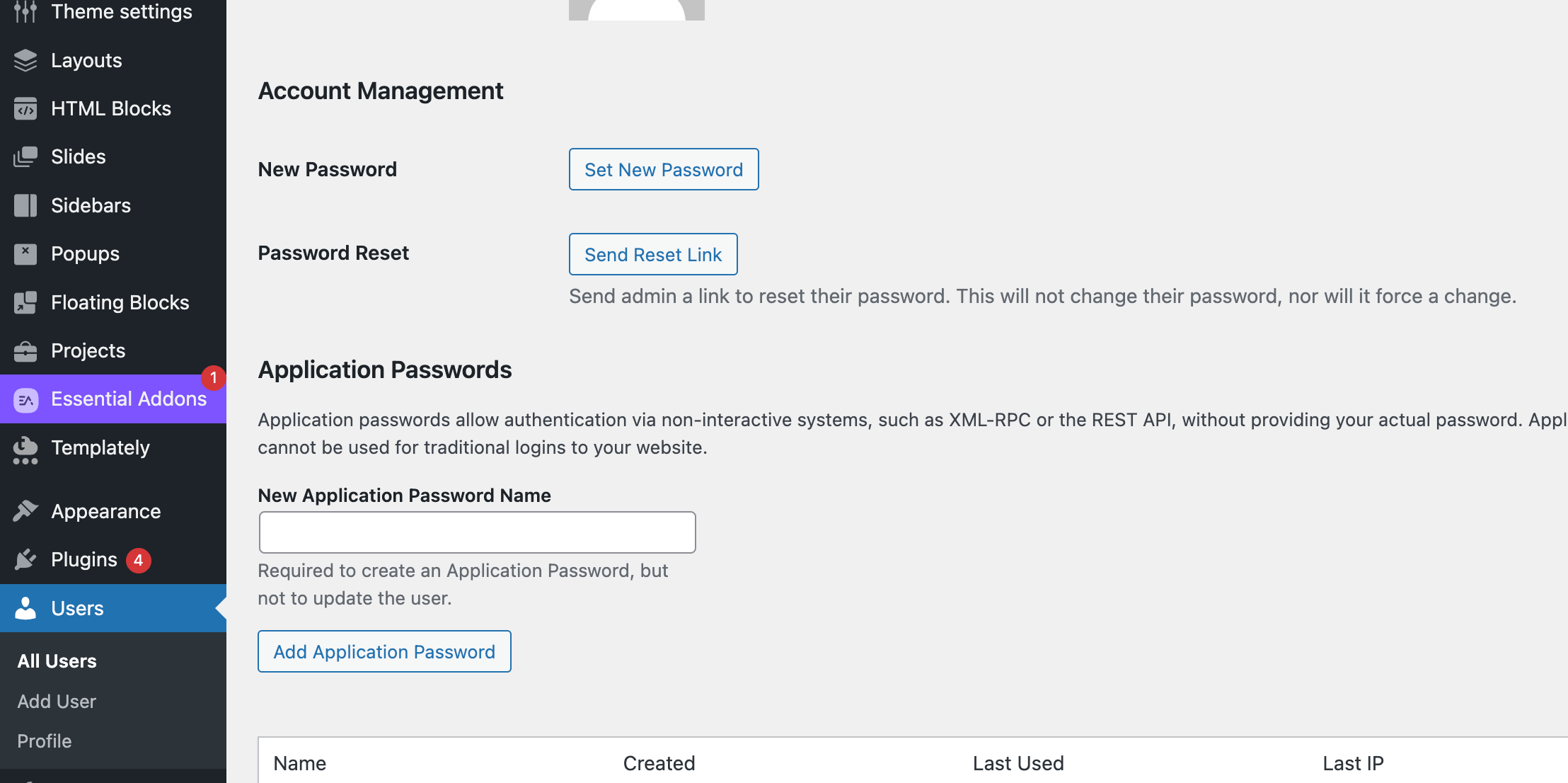
3
Name the password
In the New Application Password Name field, type a name you’ll recognize — for example,
UnleashX.4
Add the Application Password
Click Add Application Password. WordPress generates a password that looks like
xxxx xxxx xxxx xxxx xxxx xxxx.5
Note your username and site URL
You’ll need three things to connect: your WordPress username, this Application Password, and your site URL (e.g.
https://yoursite.com).Don’t see an Application Passwords section? It’s built into WordPress 5.6+ but is hidden on sites served over plain HTTP or where a security plugin has disabled it. Use HTTPS, or enable Application Passwords, then refresh the profile page.
An Application Password inherits the role of the user it belongs to. To manage users you must create it on an Administrator account; for posting only, an Author/Editor account is enough.
4. Connect on UnleashX
1
Open your agent
Go to https://www.tryunleashx.com and open the agent you want to connect.
2
Open Data Connectors
In the agent, go to Data Connectors.
3
Find WordPress
Locate WordPress in the list and click Connect / Add / Configure. A form opens with four fields.
4
Fill in the four fields
UnleashX combines WP Username + WP App Password as HTTP Basic auth against your site’s REST API.
5
Add the tool
Click Add Tool. When the status shows a Connected badge, your agent can start working with WordPress.
Use WordPress in a Workflow
Once connected, you can add WordPress to any automation from the Workflows builder. Its triggers and tools appear in the Apps panel, marked with an MCP badge.1
Add a trigger node
Open Workflows → New Workflow. On the canvas, click + Add Trigger. In the Paths panel, open the Apps tab and select WordPress — its Triggers are listed underneath. Use the search box if you have many connectors.
2
Add an action node
Click the + below any node to add a step, then pick WordPress again — this time the panel lists its Actions.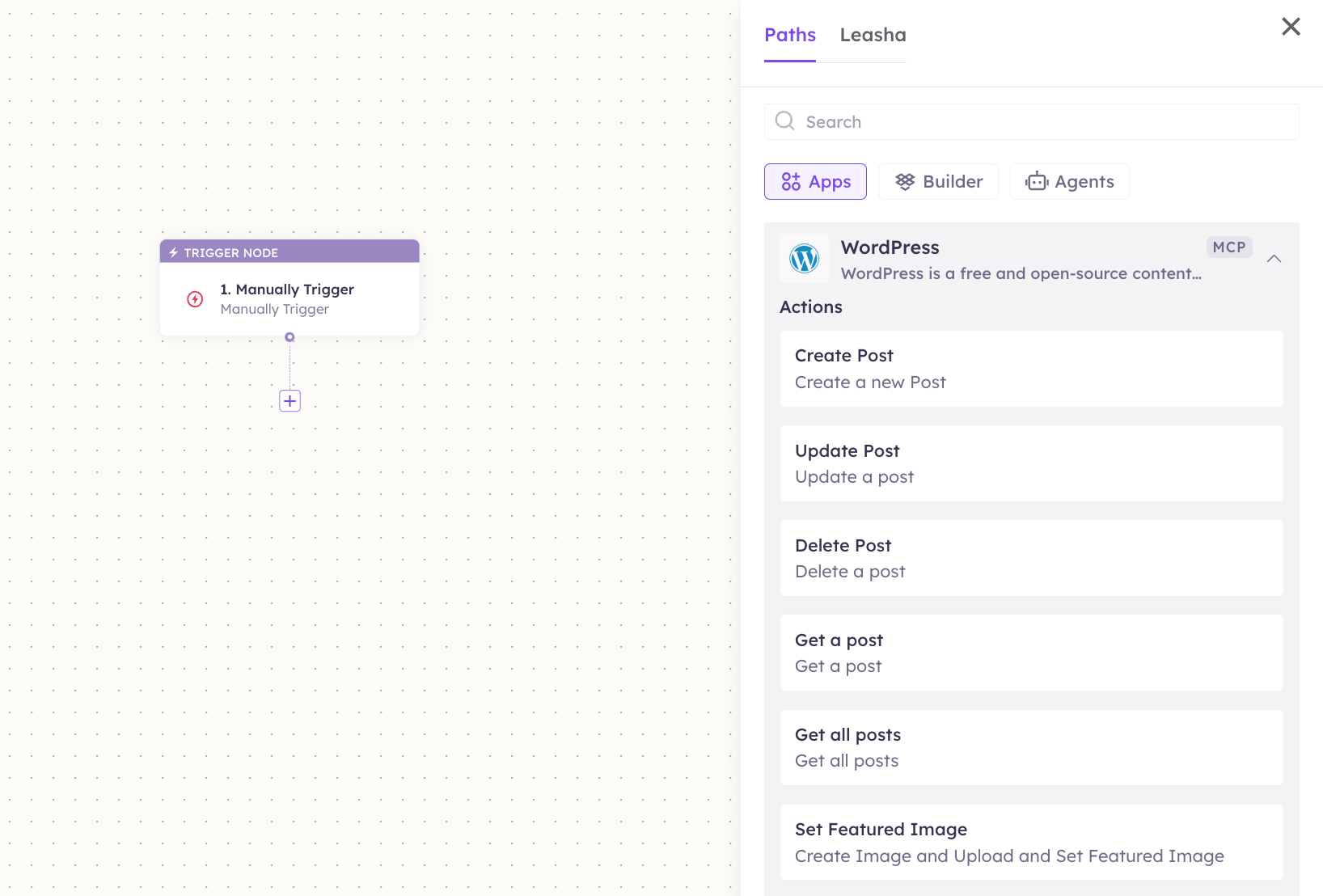
3
Configure the step
Fill in the fields for the trigger or action you picked. Required fields are marked with a red asterisk (*).
4
Add or select your account
Under Selected account, choose an already-connected account, or click Add Account to connect one now.
5
Save and test
Click Save. Use Test to verify the step, then toggle Publish when the workflow is ready.
The steps are the same for every connector. For the full workflow builder guide, see Using MCP in Workflows.
5. Available tools
6. Example usage
“Draft a blog post titled ‘Spring Sale Tips’ in the Marketing category and generate a cover image.” Behind the scenes: Search Categories → Create Post → Generate AI Image (sets it as featured). “Find all draft posts by Maria and publish the one about onboarding.” Behind the scenes: Search Users → Search Posts → Update Post.7. Permissions & data access
UnleashX CAN:- Read, create, update, and delete posts and categories.
- Search posts, categories, and users.
- Manage users (when connected with an Administrator account).
- Upload media, set featured images, and generate AI cover images.
- Do anything the connected user’s role doesn’t permit.
- Change WordPress core settings, themes, or plugins.
- Access sites other than the one you connected.
8. Troubleshooting
For general connection issues, see /mcp/integrations.
9. Frequently asked questions
Is my data stored by UnleashX? UnleashX calls your WordPress REST API live with your credentials when a tool runs. It doesn’t keep a separate copy of your site content. Can multiple team members connect? Yes. Each person creates their own Application Password on their own WordPress account, and each connection inherits that user’s role. How do I rotate my key? Create a new Application Password in Users → Profile, update it in UnleashX, then revoke the old one. Access switches over immediately. Does the AI image tool need anything extra? Generate AI Image generates images via OpenAI, so an OpenAI API key must be supplied (passed in or configured at the platform level).10. References
- WordPress REST API handbook: https://developer.wordpress.org/rest-api/
- Application Passwords reference: https://developer.wordpress.org/rest-api/using-the-rest-api/authentication/#application-passwords
- REST API authentication overview: https://developer.wordpress.org/rest-api/using-the-rest-api/authentication/