

Firebase
In one line: Let your UnleashX agent read, create, update, and delete records in your Firebase Firestore and Realtime Database projects.
1. Overview
Firebase is Google’s app-development platform. Two of its most-used pieces are Cloud Firestore (a flexible, document-based database) and the Realtime Database (a fast JSON tree that syncs live across clients). Together they store the day-to-day data behind millions of web and mobile apps — users, orders, bookings, chat messages, sensor readings, and more. Once you connect Firebase to UnleashX, your agent can work directly with that data. It can look up a customer record, list everything in a collection, file a new support ticket as a Firestore document, push a live event into the Realtime Database, or clean up stale entries — all from a normal conversation, with no code. Connecting Firebase to UnleashX turns your existing app database into something your voice or automation agent can act on. Instead of manually checking the Firebase Console, your agent reads and writes the same records your app uses, so answers and updates stay accurate and current.2. What you’ll need
- A Google account with access to the Firebase / Google Cloud project you want to connect.
- The project ID of that Firebase project (visible in the Firebase Console or Google Cloud Console).
- Permission to view and edit the relevant Firestore database and/or Realtime Database (typically Editor or Owner, or a custom role with Datastore / Firebase Database access).
- A way to obtain a Google OAuth access token for the project (see Section 3).
If you don’t have admin access to the Firebase project, ask whoever owns it (often an engineer or the project Owner) to either grant you access or generate the access token for you. Connecting only needs a valid token — you do not need to be the project Owner yourself.
3. Get your credentials
Firebase MCP authenticates with a Google OAuth 2.0 access token that has access to your Firebase project. The token is sent to Google’s APIs as a Bearer token (and, for the Realtime Database, as anaccess_token query parameter behind the scenes).
1
Open your Firebase project
Go to the Firebase Console and select the project whose data you want to connect. Note its Project ID — you’ll provide this to your agent.
2
Confirm the APIs are enabled
In the Google Cloud Console for the same project, make sure the Cloud Firestore API and Firebase Realtime Database are enabled under APIs & Services → Library.
3
Generate an OAuth access token
Obtain a Google OAuth 2.0 access token for the project with the scopes below (for example via the Google OAuth flow, the gcloud CLI
gcloud auth print-access-token, or your service’s OAuth integration). UnleashX uses this token as a Bearer credential.Scopes UnleashX requests for Firebase:Permissions this token grants UnleashX
4. Connect on UnleashX
1
Open your agent
Sign in at https://www.tryunleashx.com and open the agent you want to give Firebase access to.
2
Go to Data Connectors
In the agent, open Data Connectors and find Firebase in the list.
3
Connect
Click Connect / Add / Configure next to Firebase and authenticate once with your Google / Firebase OAuth access token (header
access-token or Authorization: Bearer …).4
Confirm success
When the connection is valid, the status changes to a Connected badge. Your agent can now use the Firebase tools below.
Use Firebase in a Workflow
Once connected, you can add Firebase to any automation from the Workflows builder. Its triggers and tools appear in the Apps panel, marked with an MCP badge.1
Add a trigger node
Open Workflows → New Workflow. On the canvas, click + Add Trigger. In the Paths panel, open the Apps tab and select Firebase — its Triggers are listed underneath. Use the search box if you have many connectors.
2
Add an action node
Click the + below any node to add a step, then pick Firebase again — this time the panel lists its Actions.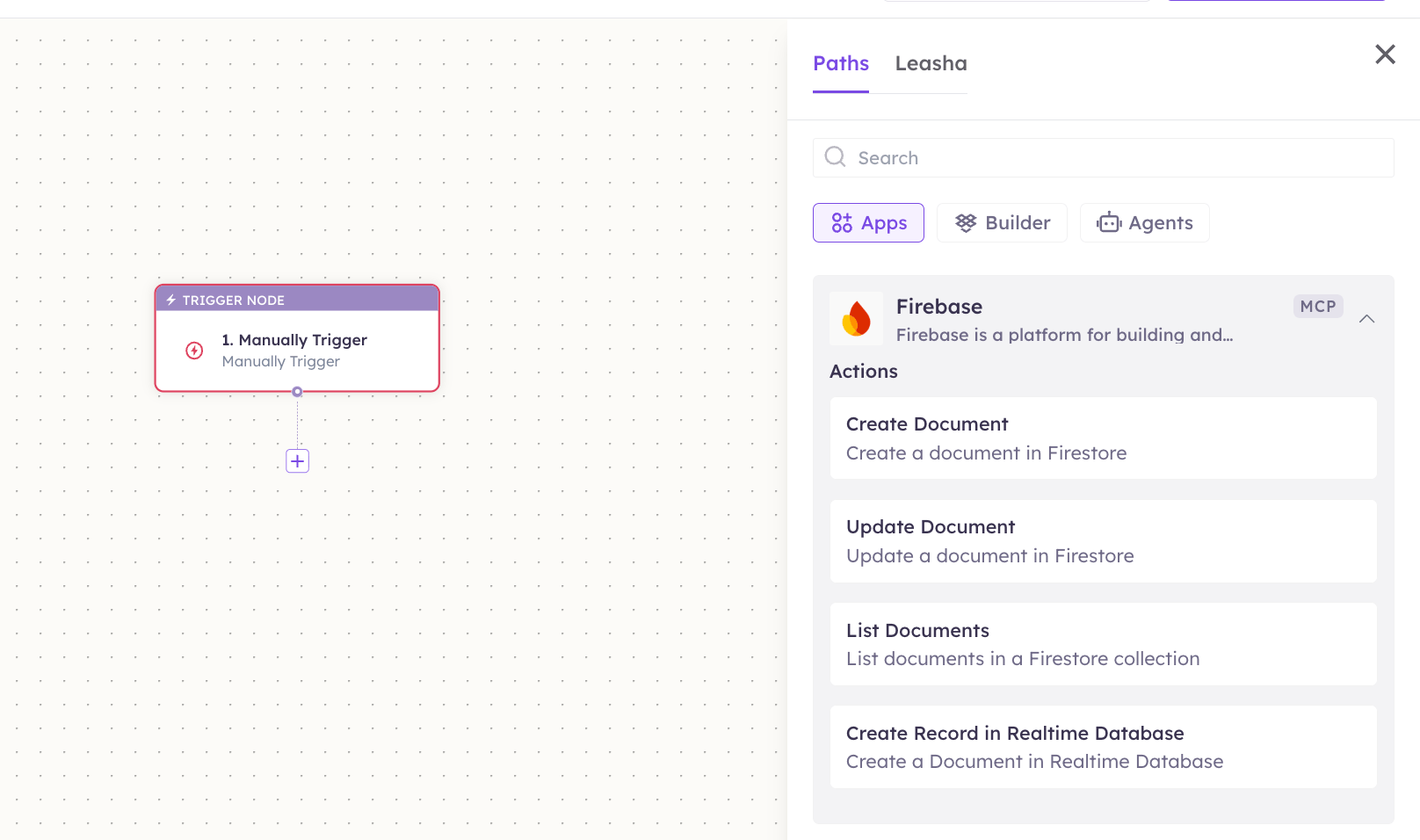
3
Configure the step
Fill in the fields for the trigger or action you picked. Required fields are marked with a red asterisk (*).
4
Add or select your account
Under Selected account, choose an already-connected account, or click Add Account to connect one now.
5
Save and test
Click Save. Use Test to verify the step, then toggle Publish when the workflow is ready.
The steps are the same for every connector. For the full workflow builder guide, see Using MCP in Workflows.
5. Available tools
This server exposes 21 tools covering project discovery, Firestore, and the Realtime Database.6. Example usage
“Look up the order with IDord_8841 in my orders collection and tell me its status.”
→ Runs Firestore: Get Document (or Firestore: Query Documents) against the orders collection.
“Log a new support ticket in the tickets collection: subject ‘Login issue’, priority high, status open.”
→ Runs Firestore: Create Document to add a new document with those fields.
7. Permissions & data access
UnleashX can:- List your accessible Firebase projects and their Firestore / Realtime databases.
- Read, query, create, update, and delete Firestore documents in the connected project.
- Read, query, set, update, push, and delete data in the Realtime Database.
- Access Firebase projects the connected token doesn’t have permission for.
- Change Firebase security rules, billing, or project configuration.
- Touch Firebase Authentication users, Cloud Functions, or Storage buckets (only Firestore and Realtime Database are exposed).
8. Troubleshooting
For general connector issues, see /mcp/integrations.