

Dropbox
In one line: Connect Dropbox so your UnleashX agent can find a file, put a new one where it belongs, share it with a link, restore last week’s version, and start a workflow the moment something lands in a folder.
1. Overview
Dropbox is cloud file storage. Everything is addressed by path (/Clients/Acme/contract.pdf), files keep a revision history, and access is granted with shared links or by inviting members.
Once connected to UnleashX, your agent can list and search the account, read metadata, create folders, move, copy and delete, upload from a URL, download small files inline, fetch thumbnails and temporary download links, list and restore revisions, create and revoke shared links, invite people to files, share folders, and report the account and its storage usage.
One trigger fires when files are added or changed in a folder.
Connecting Dropbox to UnleashX means the agent can treat your file store as part of a workflow: a signed contract arrives, gets filed under the right client, and a shareable link goes back to the team.
2. What you’ll need
- A Dropbox account (personal or Business).
- Permission to authorize UnleashX against it.
- An UnleashX agent where you’ll add the connector.
On a Dropbox Business team, an admin may need to allow third-party apps before authorization will succeed.
3. Get your credentials
Dropbox uses OAuth 2.0. There’s no key to create or paste — UnleashX sends you to Dropbox, you sign in once, and Dropbox issues a token that UnleashX refreshes automatically.1
Start the connection in UnleashX
In your agent’s Data Connectors, find Dropbox and click Connect (see Section 4).
2
Sign in with Dropbox
Choose the Dropbox account whose files the agent should work with.
3
Review and approve access
Approve the requested permissions and you’ll be returned to UnleashX.
There’s no key to copy. Access can be revoked at any time from Dropbox → Settings → Connected apps.
Access this grants UnleashX
4. Connect on UnleashX
1
Open your agent
Sign in at https://www.tryunleashx.com and open the agent you want to connect.
2
Open Data Connectors
In the agent, go to Data Connectors and find Dropbox.
3
Authorize
Click Connect, sign in with Dropbox, and approve access.
4
Confirm
You’ll return to UnleashX and the connector will show a Connected badge.
Use Dropbox in a Workflow
Once connected, you can add Dropbox to any automation from the Workflows builder. Its trigger and tools appear in the Apps panel, marked with an MCP badge.1
Open the Apps panel
Open Workflows → New Workflow. On the canvas, click the + below a node, then open the Apps tab in the Paths panel and select Dropbox — its Actions are listed underneath. Use the search box if you have many connectors.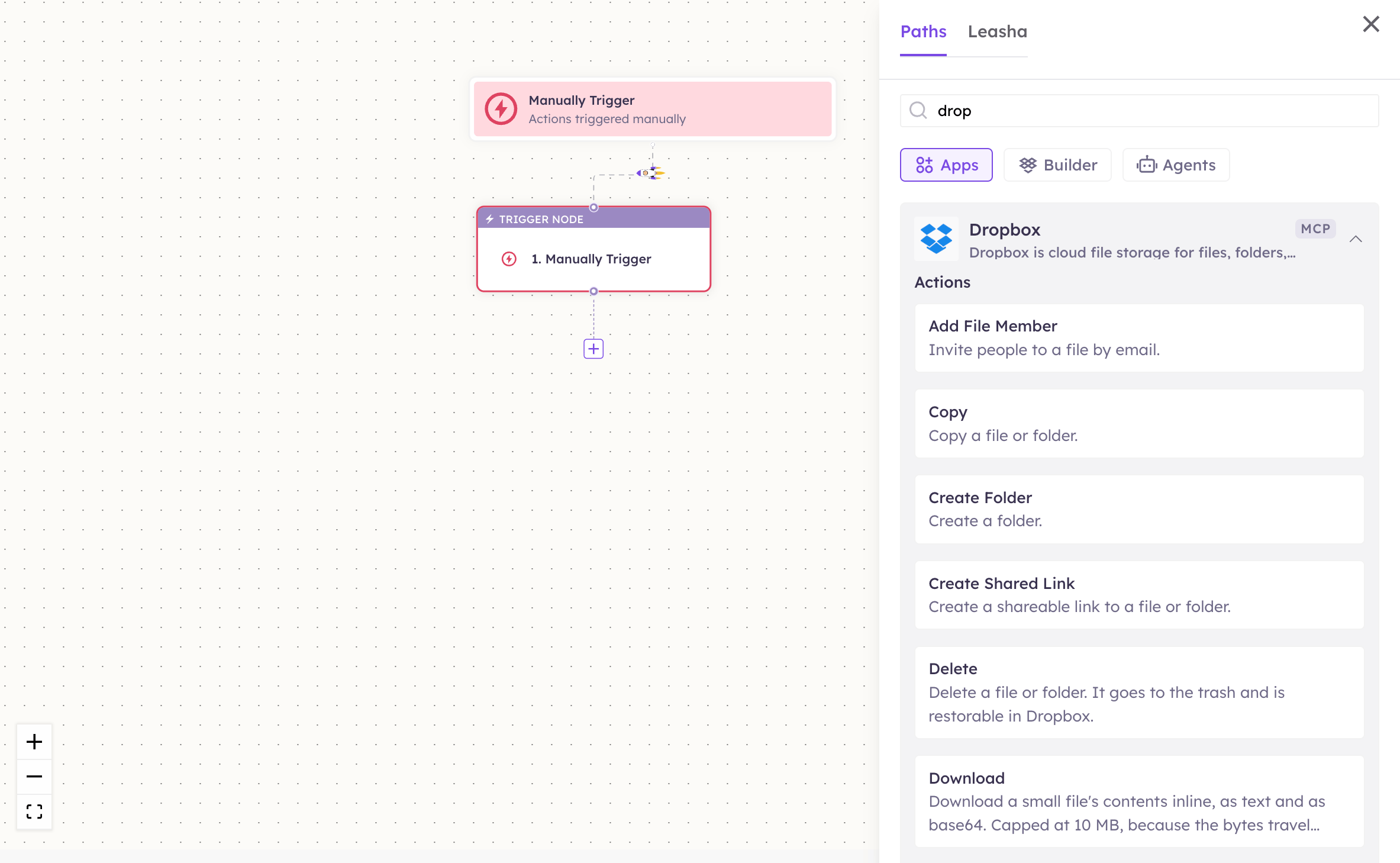
2
Pick the action and account
Choose the action from Select Action, then pick the connected account under Select Account — or click Add Account to authorize one now.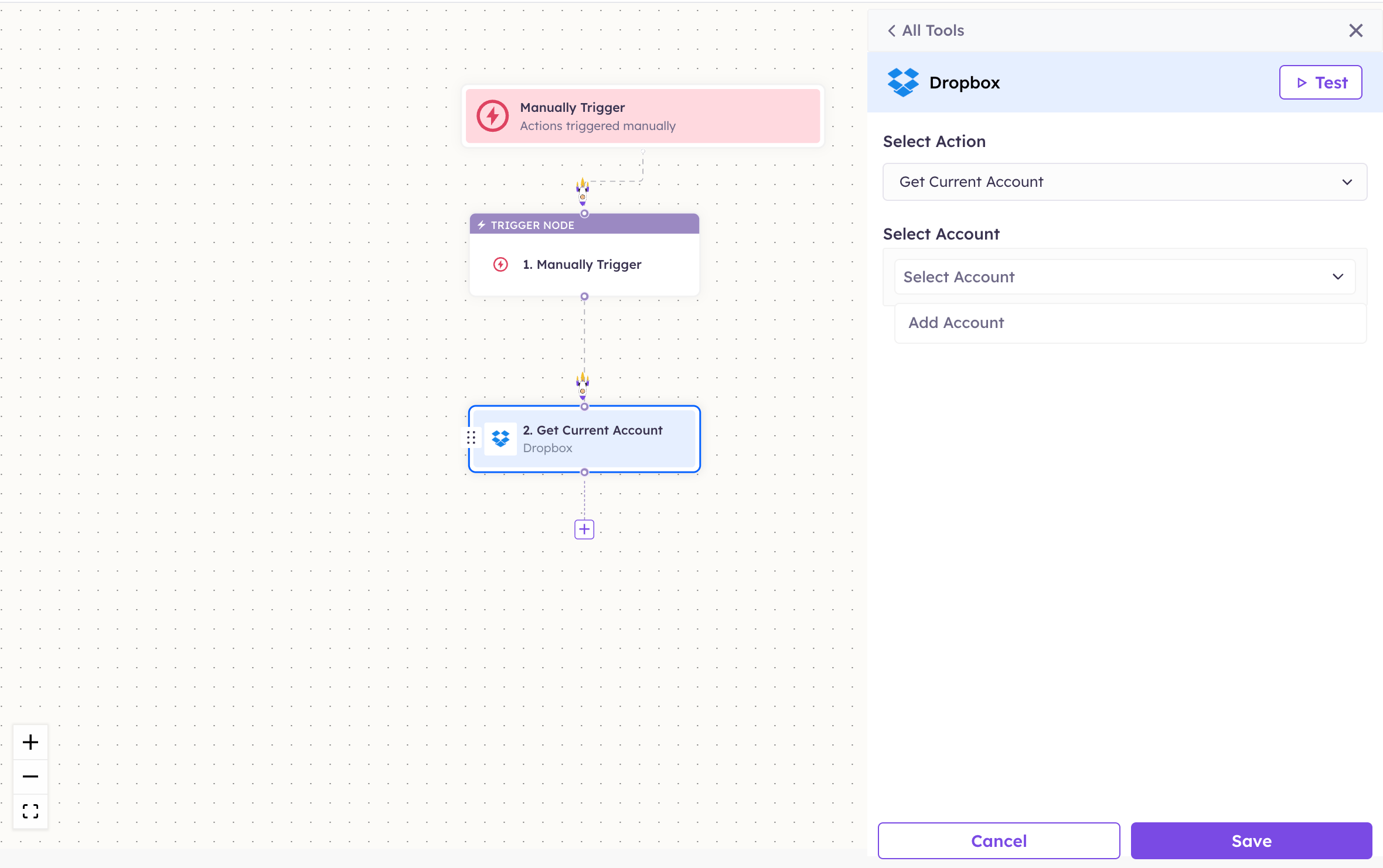
3
Fill in the fields
Required fields are marked with a red asterisk (*). Most tools take a path like
/Clients/Acme/contract.pdf.4
Save and test
Click Save. Use Test to verify the step, then toggle Publish when the workflow is ready.
The steps are the same for every connector. For the full workflow builder guide, see Using MCP in Workflows.
5. Available tools
Paths start at the account root and use forward slashes —/Invoices/2026/march.pdf. An empty path means the root folder.
Names match the Workflows Apps panel, which lists them alphabetically; they’re grouped here by what they do. The Tool ID is what the agent calls behind the scenes.
Browsing and organising
Getting files in and out
Versions
Sharing
Account
Triggers
On New File is exact, not a re-scan. Dropbox has a real cursor model, so the trigger asks “what changed since this cursor” rather than re-listing the folder and diffing. Nothing is missed between polls and nothing is reported twice. Each watched folder keeps its own cursor, so two workflows watching different paths don’t interfere.
6. Example usage
“File this signed contract under the Acme folder and send me a link.” Runs Save URL into/Clients/Acme/, then Create Shared Link.
“Find the March invoice.”
Runs Search, then Get Temporary Link for a direct download.
“Someone overwrote the pricing sheet — put back Friday’s version.”
Runs List Revisions → Restore with the right rev.
“When a file lands in /Inbox, extract the data and log it.”
A workflow starts on On New File and chains into PDF.co or OCR.
7. Permissions & data access
UnleashX CAN:- List, search and read files and folders in the connected account.
- Create, upload, move, copy, delete and restore.
- Create, list and revoke shared links, invite file members, and share folders.
- Report the connected account and its storage usage.
- Reach any Dropbox account other than the one you authorized.
- Permanently erase anything — deletes go to the Dropbox trash.
- Act beyond the scopes granted at authorization.
8. Troubleshooting
For general connector issues, see /mcp/integrations.
9. Frequently asked questions
Does UnleashX store my files? No. Tools call the Dropbox API live. Only Download returns file contents, and only inline into that workflow run. Can it upload a file from my computer? Not directly — Upload and Save URL both take a publicly reachable URL. Put the bytes somewhere fetchable first, or pass a link produced by an earlier workflow step. Are deletes permanent? No. They go to the Dropbox trash and can be restored from Dropbox. Can I connect more than one account? Yes. Authorize each account as its own connection. Does it work with Dropbox Business team folders? It works with what the authorized account can see. Team-wide admin operations aren’t covered.10. References
- Dropbox API v2 reference: https://www.dropbox.com/developers/documentation/http/documentation
- OAuth scopes: https://developers.dropbox.com/oauth-guide
- Connected apps: https://www.dropbox.com/account/connected_apps