

PDF.co
In one line: Connect PDF.co so your UnleashX agent can turn a PDF into text, CSV, JSON or images, build a PDF from a web page or HTML, merge, split, redact, password-protect, and pull structured data out of invoices and receipts.
1. Overview
PDF.co is a document-processing API. You hand it a file URL and an operation; it does the work on its own infrastructure and hands back a URL to the result. Once connected to UnleashX, your agent gets the whole document toolbox: convert a PDF to plain text, CSV, JSON, HTML or images; generate a PDF from raw HTML, a live web page, an Office file, or an image; merge, split, rotate, or delete pages; fill forms, add text or stamps at exact coordinates, and find-and-replace text; add or strip passwords; generate and read barcodes and QR codes; and parse an invoice or receipt into structured fields. Connecting PDF.co to UnleashX is what lets a document actually enter a workflow — an invoice lands, the agent parses it into fields, and the next step files the data where it belongs. Or the other direction: a workflow finishes and hands the customer a generated PDF.2. What you’ll need
- A PDF.co account — the free tier is enough to test with.
- Your PDF.co API key from the dashboard.
- An UnleashX agent where you’ll add the connector.
PDF.co operations consume credits from your account balance. Conversions of large documents cost more than small ones. Use Get Account Balance to check what’s left.
3. Get your credentials
PDF.co authenticates with a single API key. There’s no OAuth flow and nothing to install.1
Sign in to PDF.co
Go to app.pdf.co and sign in, or create an account if you don’t have one.
2
Open the API key section
Your API key is shown on the dashboard’s API section. Unlike most services, PDF.co lets you re-read this key later — it isn’t a one-time reveal.
3
Copy the key
Copy it and keep it somewhere safe. If it’s ever exposed, regenerate it from the same screen — the old value stops working immediately.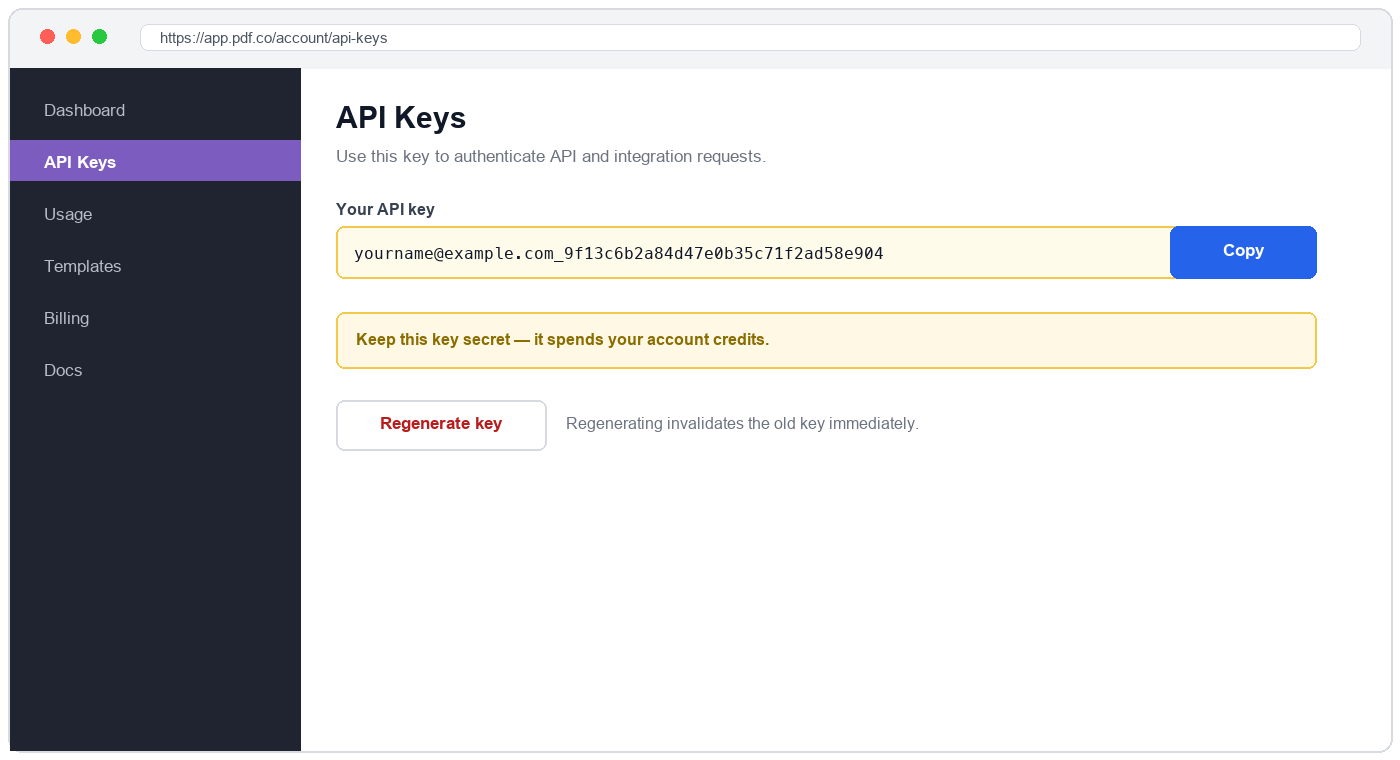
4
Paste it into UnleashX
Add it in Data Connectors → PDF.co (full walkthrough in Section 4).
Permissions this key grants UnleashX
Uploaded files live in PDF.co’s temporary storage and are auto-deleted after one hour. Output URLs are equally temporary — download or forward the result within the same workflow rather than storing the link for later.
4. Connect on UnleashX
1
Open your agent
Sign in at https://www.tryunleashx.com and open the agent you want to connect.
2
Open Data Connectors
In the agent, go to Data Connectors and find PDF.co.
3
Add your key
Click Connect / Add / Configure, paste your API key, and give the connection an Account Name — a label for your own reference inside UnleashX.
4
Confirm
Save. The status will switch to a Connected badge.
Use PDF.co in a Workflow
Once connected, you can add PDF.co to any automation from the Workflows builder. Its tools appear in the Apps panel, marked with an MCP badge.1
Open the Apps panel
Open Workflows → New Workflow. On the canvas, click the + below a node, then open the Apps tab in the Paths panel and select PDF.co — its Actions are listed underneath. Use the search box if you have many connectors.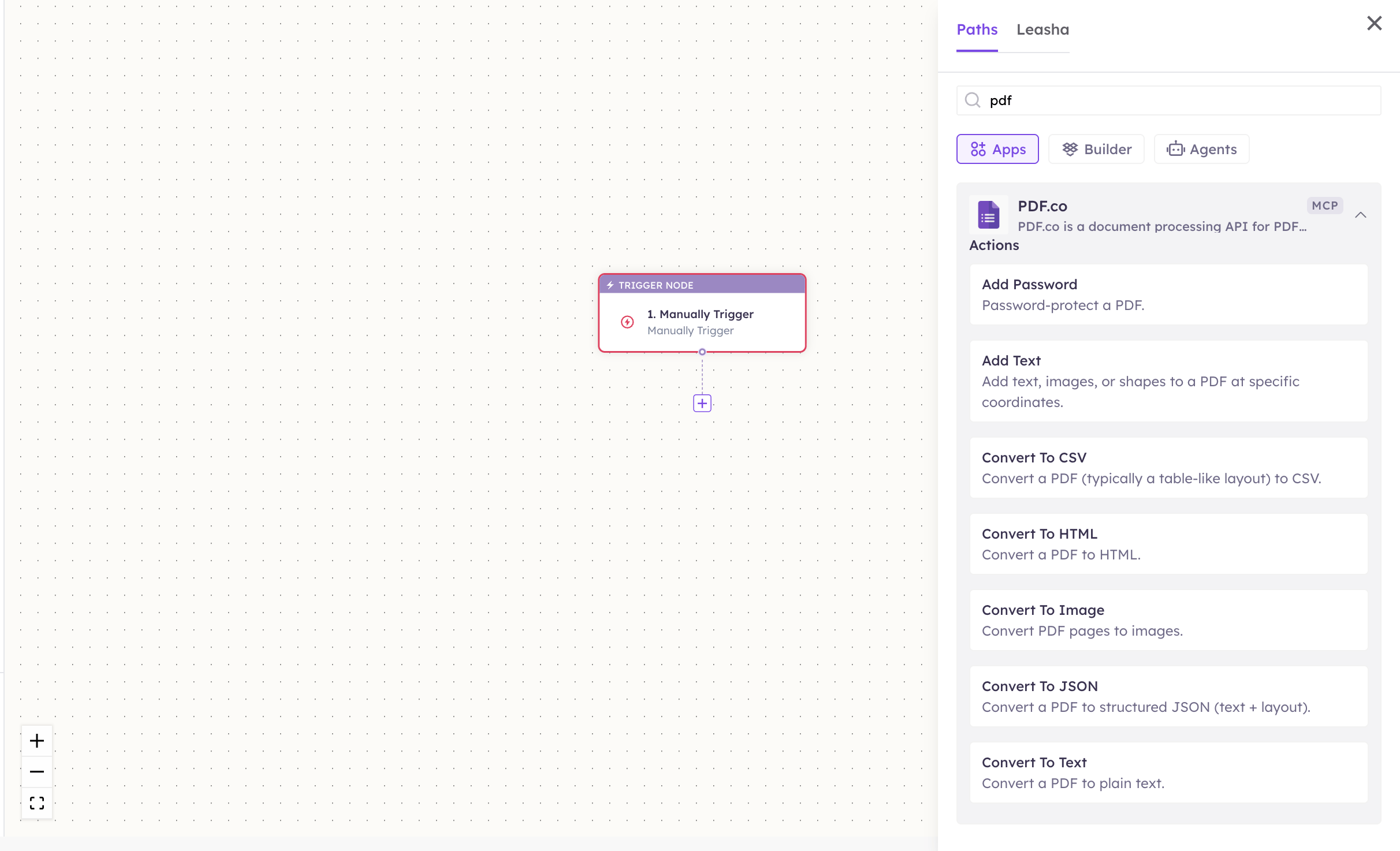
2
Pick the action
Choose the action from Select Action, then pick the connected account under Select Account — or click Add Account to connect one now.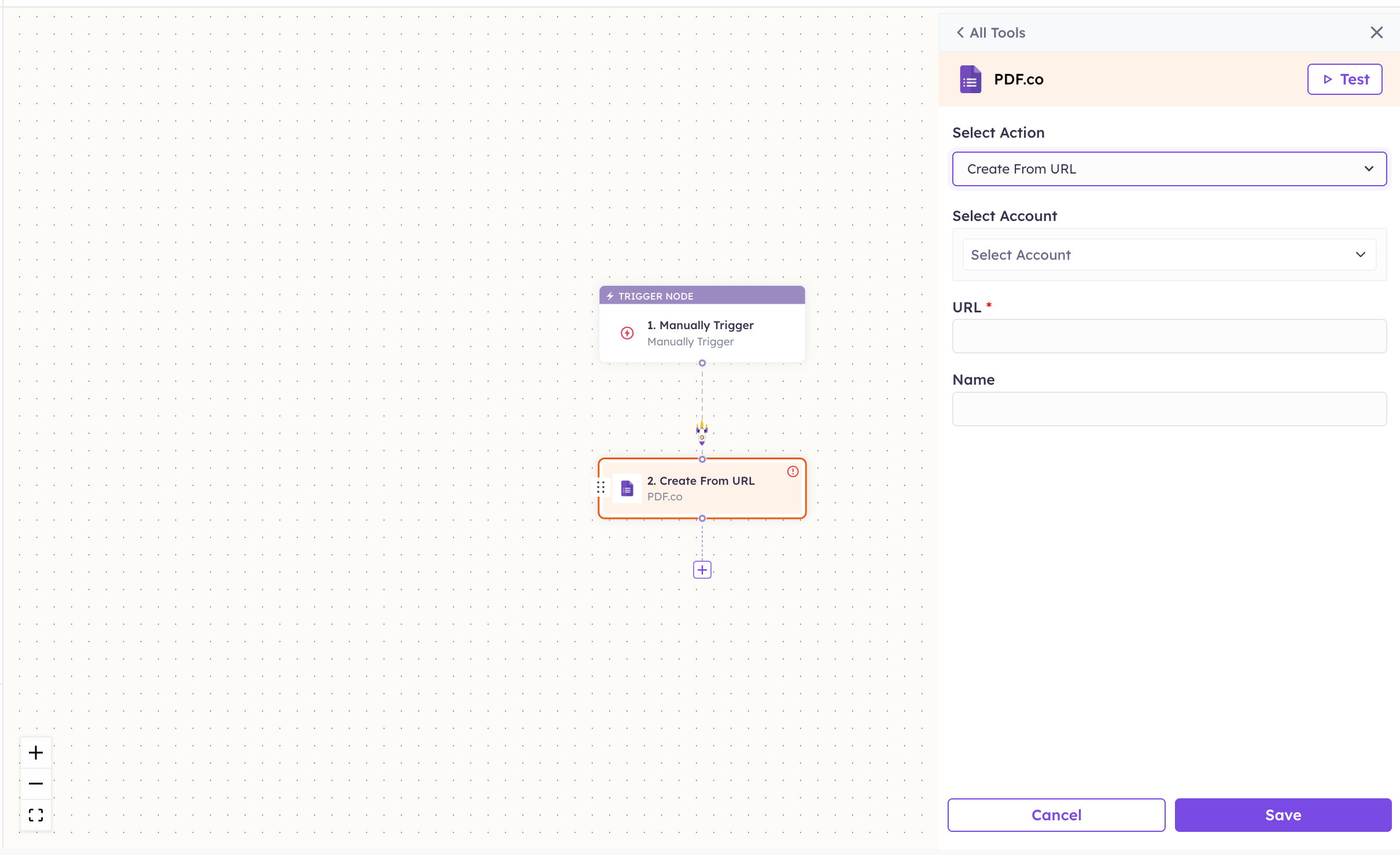
3
Fill in the fields
Complete the fields for the action you picked. Required fields are marked with a red asterisk (*).
4
Save and test
Click Save. Use Test to verify the step, then toggle Publish when the workflow is ready.
PDF.co is an actions-only connector — it has no triggers, because the PDF.co API has nothing to poll for new records. Start these workflows from another trigger (a new email with an attachment, a form submission, a schedule) and use PDF.co as a step.
The steps are the same for every connector. For the full workflow builder guide, see Using MCP in Workflows.
5. Available tools
Every PDF.co operation takes a file URL, not a file. If your file isn’t already on a public URL, run Upload File or Upload File From URL first and pass the URL it returns into the next step. Names match the Workflows Apps panel, which lists them alphabetically; they’re grouped here by what they do. The Tool ID is what the agent calls behind the scenes. Getting a file in
Converting a PDF to something else
Creating a PDF
Editing a PDF
Security
Barcodes
Reading and account
6. Example usage
“Pull the line items out of this invoice and put them in the sheet.” Runs Upload File From URL → Parse Document, then hands the fields to your Google Sheets step. “Turn our pricing page into a PDF and email it to the customer.” Runs Create From URL on the page, then passes the result URL to your email connector. “Split this 200-page report into one file per section and password-protect each one.” Runs Split with page ranges → Add Password on each output. “Read the QR code on this scanned delivery note.” Runs Read Barcode on the uploaded scan.7. Permissions & data access
UnleashX CAN:- Upload files to PDF.co’s temporary storage and run operations on them.
- Convert, generate, edit, merge, split, and redact documents.
- Add and remove PDF passwords, and generate or read barcodes.
- Parse documents into structured data and read your credit balance.
- Reach files that aren’t uploaded or publicly accessible by URL.
- Change your PDF.co account settings, plan, or billing.
- Recover a document whose temporary URL has expired.
8. Troubleshooting
For general connector issues, see /mcp/integrations.
9. Frequently asked questions
Does UnleashX store my documents? No. Files go to PDF.co’s temporary storage and are deleted automatically after an hour. UnleashX passes URLs through; it doesn’t keep copies. Can I process a file that isn’t public? Yes — use Upload File to push it into PDF.co’s storage first, then use the URL it returns. Why are there no triggers? PDF.co is a stateless request/response API with nothing to poll for new records, so there’s no “on new document” event. Start the workflow from whatever delivers the document — an inbox, a form, a schedule. What does a run cost? It consumes PDF.co credits, priced by operation and document size. Check the balance with Get Account Balance. Is this the same as OCR? No. PDF.co reads text that’s already in the file and can parse structured documents. For scanned images with no text layer, see the OCR connector.10. References
- PDF.co API documentation: https://developer.pdf.co/
- PDF.co dashboard: https://app.pdf.co/
- Document parser templates: https://developer.pdf.co/api/document-parser/