

Integrate Vonage with UnleashX for Smarter Voice Automation
Connect Vonage with UnleashX to power your voice workflows. Manage inbound and outbound calls while keeping full control of your telephony setup. Link your Vonage account in a few steps and start building flexible, AI-powered calling experiences.What does Vonage integration mean in UnleashX?
Vonage is a global cloud communications platform, and UnleashX fully supports it. With the Vonage integration, you can:- Place outbound calls with intelligent AI agents
- Answer inbound calls with automated, real-time responses
- Use your own Vonage account, so you keep full ownership of your numbers and infrastructure
Getting Started with Vonage in UnleashX
Make outbound calls Let UnleashX agents place calls from your Vonage numbers. Handle incoming calls Route calls on your Vonage numbers to UnleashX agents, which answer right away. Connect your Vonage account Link your existing Vonage application and start managing calls through UnleashX.Why Use Vonage with UnleashX?
Global Coverage Reach customers worldwide through Vonage’s international network. Enterprise-Grade Reliability Count on stable connections and clear, high-quality audio. Seamless Call Control Transfer calls to live agents or end them right from your AI workflows. Keep Your Existing Setup Keep your current Vonage numbers and configuration as they are.Securely Connect Your Vonage Account to UnleashX
Linking your Vonage account with UnleashX is quick and secure. Once connected, you can import your phone numbers and assign them to AI agents for both inbound and outbound calling.Step-by-Step Setup
1
Log in
Sign in to your UnleashX account.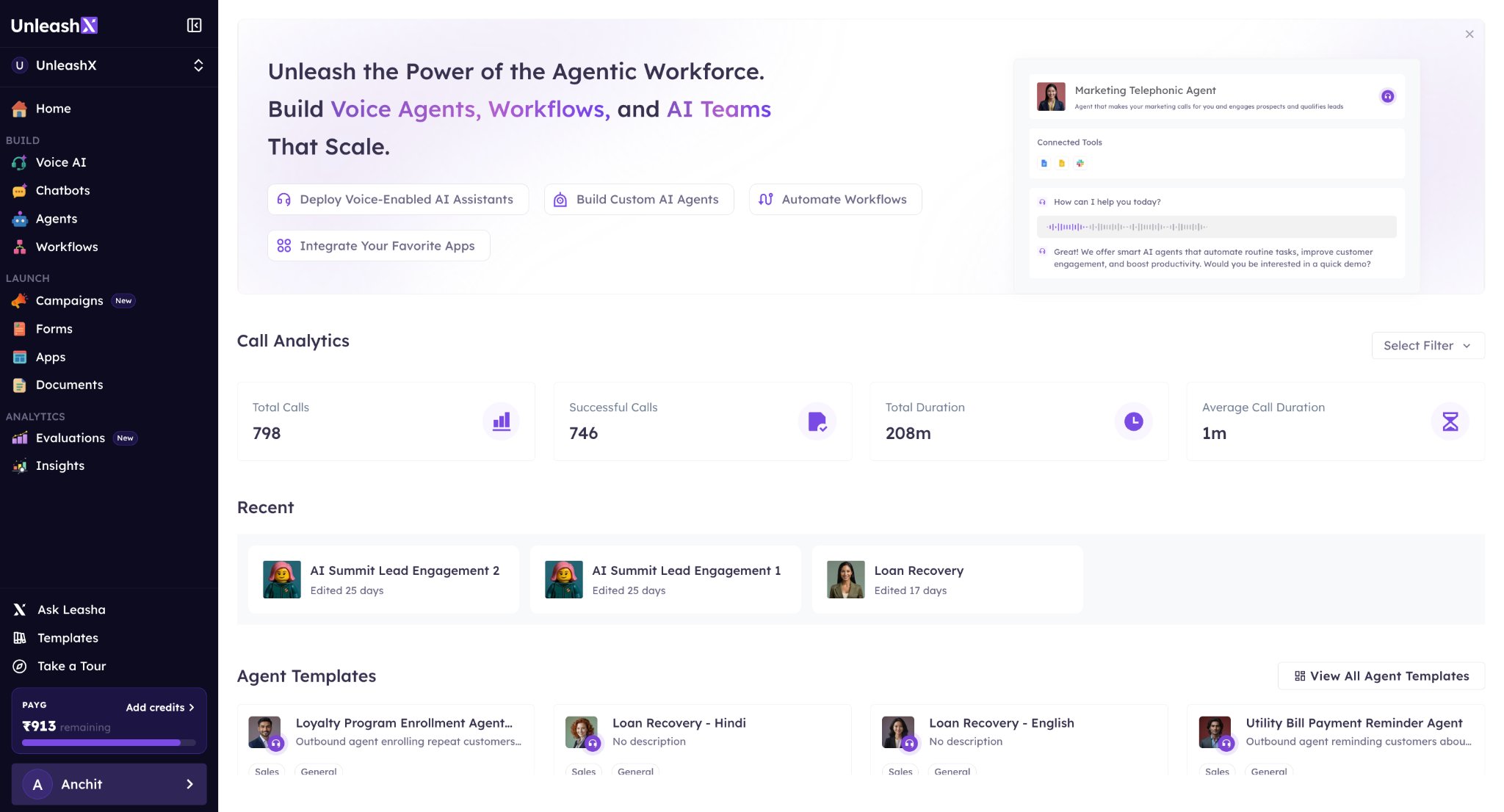
2
Navigate to Voice AI
From the sidebar, open the Voice AI section.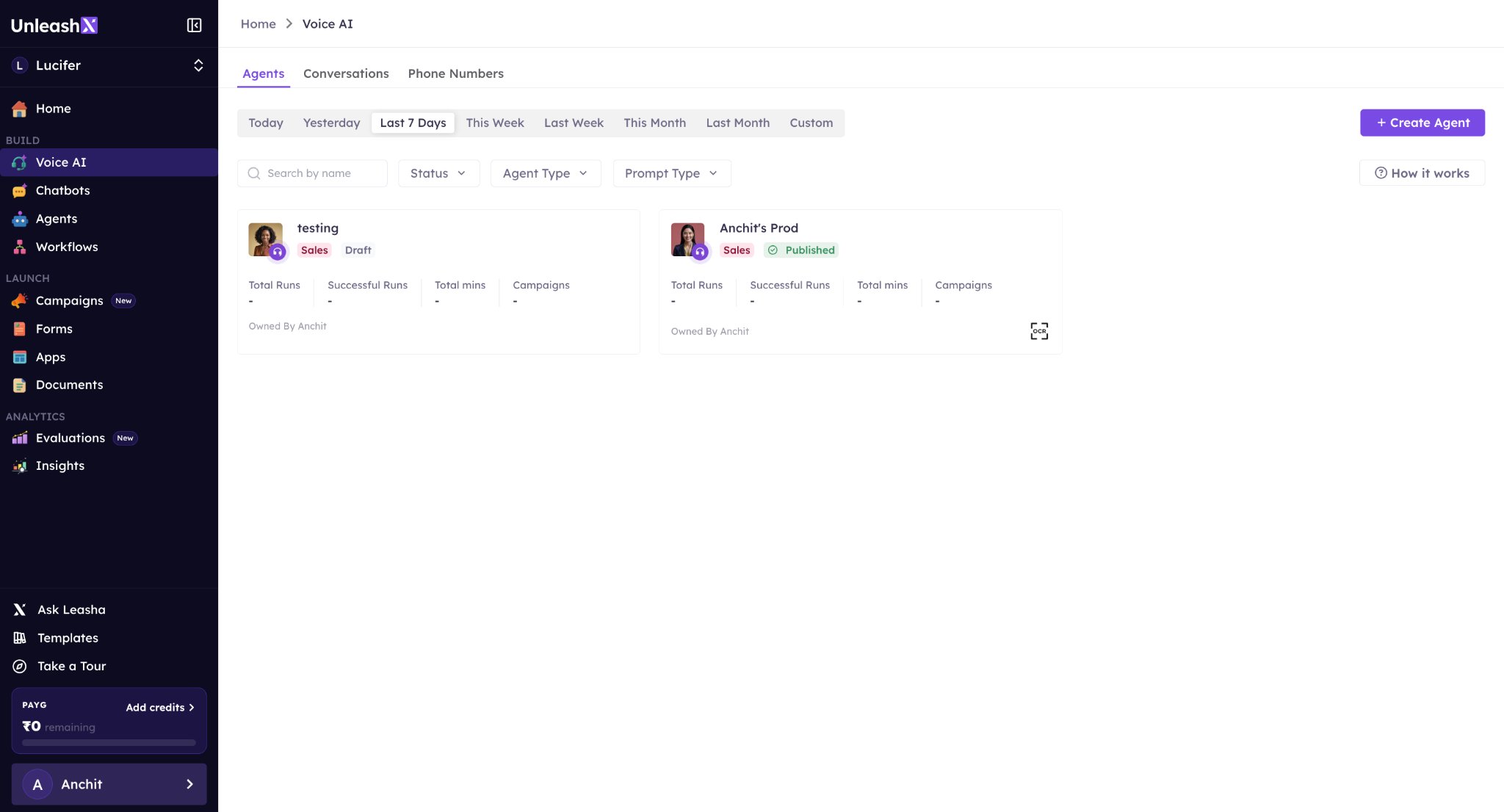
3
Open Phone Numbers
Go to the Phone Numbers tab from the top navigation bar.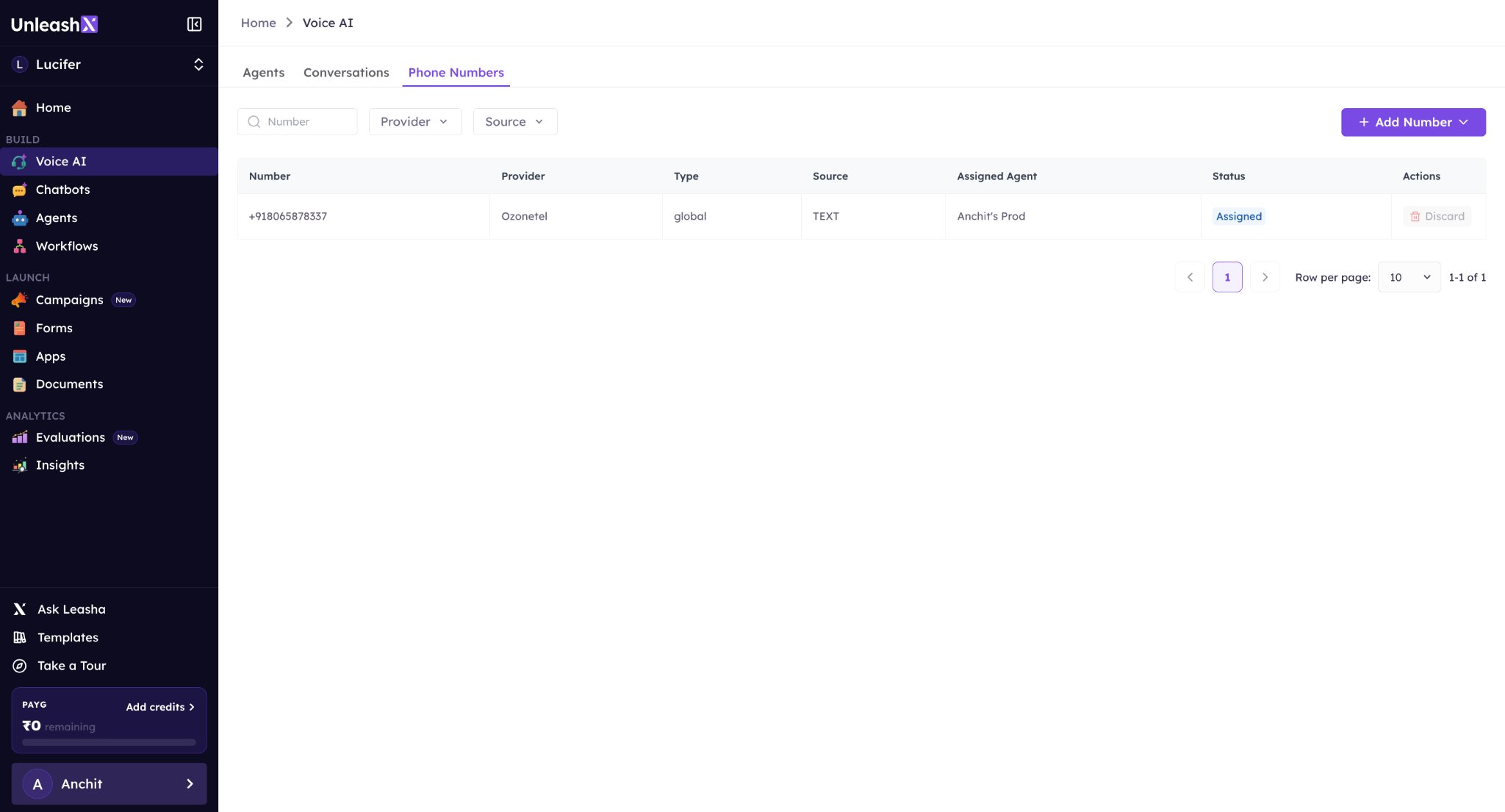
4
Add a Number
Click on Add Number and choose Import Number.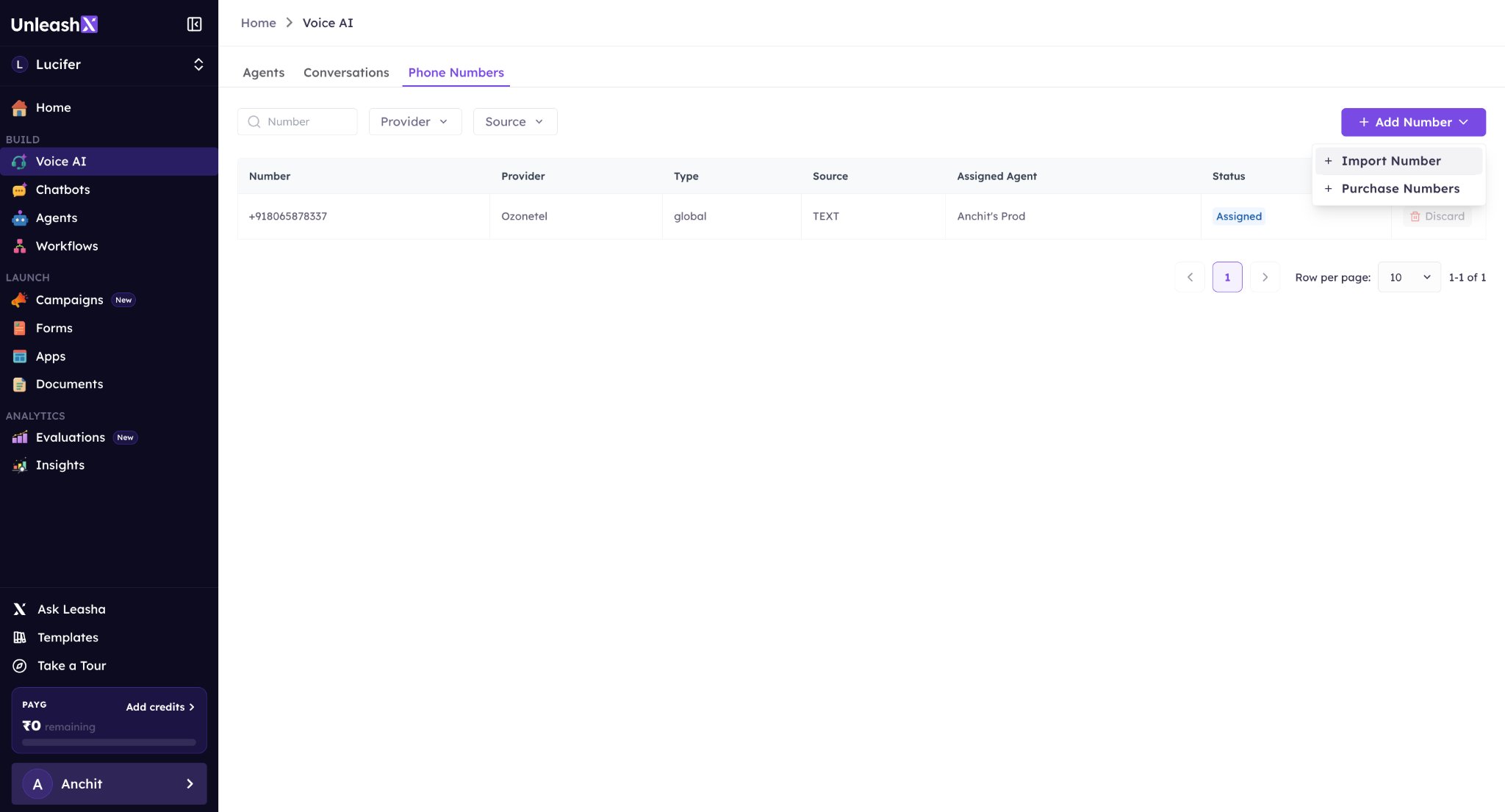
5
Select Vonage
Pick Vonage from the available options and click Continue.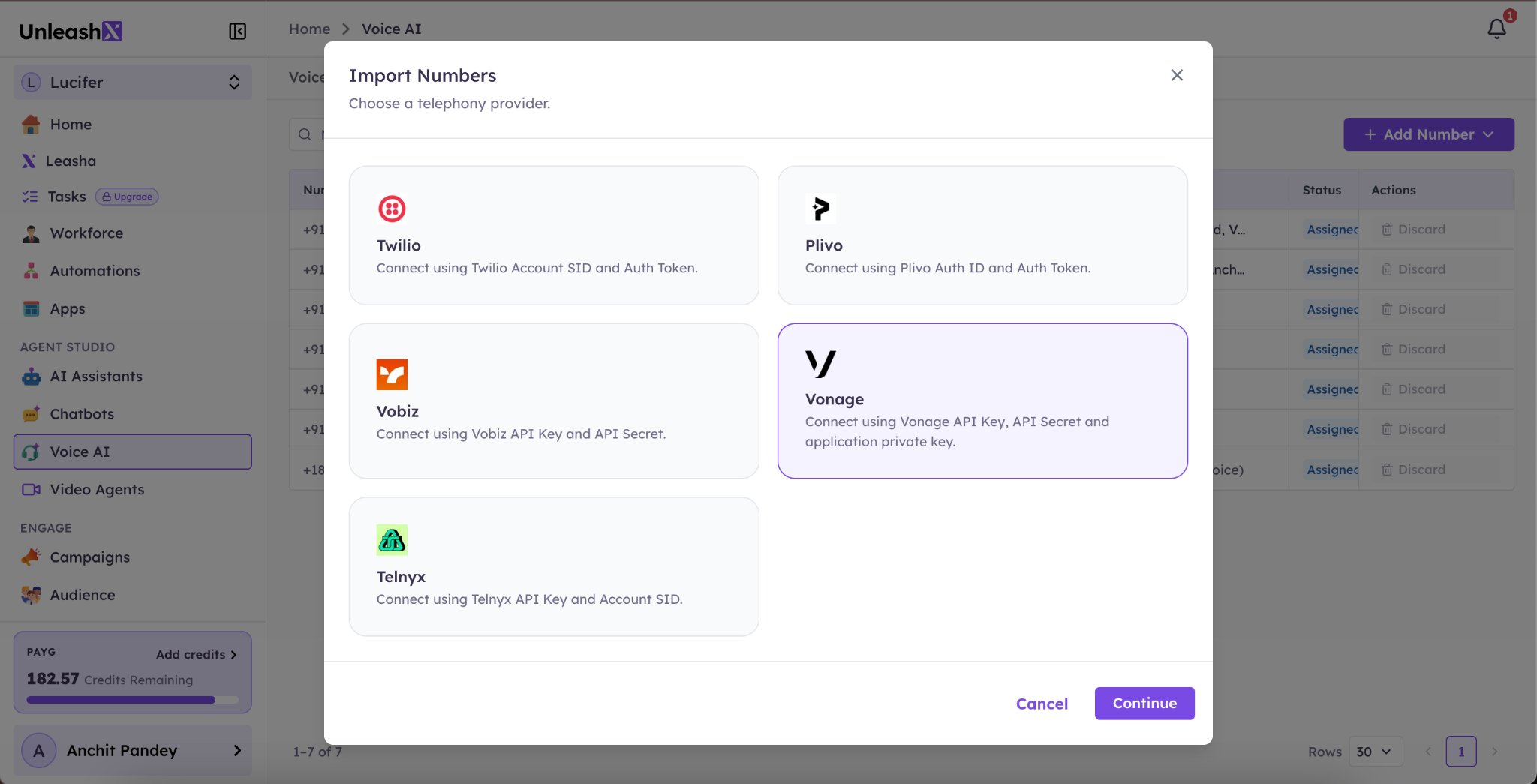
6
Verify Credentials
Enter your API Key, API Secret and Application ID, upload your Application Private Key file, then click Verify & Proceed.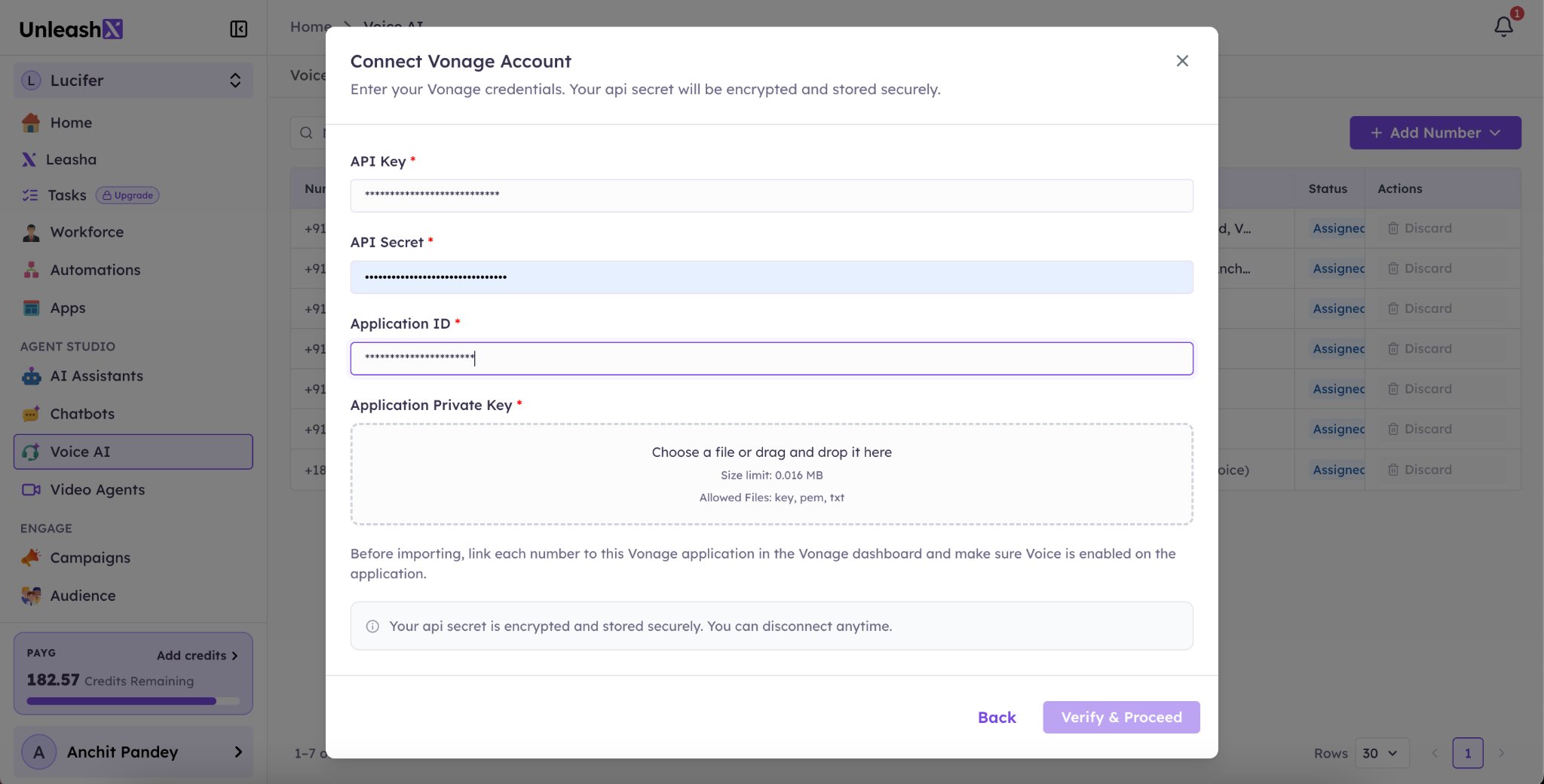
Before importing, link each number to this Vonage application in the Vonage dashboard and make sure Voice is enabled on the application.
7
Import Number
Select the phone number you want to import and click Import.
8
Assign to Agent
Go to any agent, open the Edit Agent section, and select the imported number. Your agent is now ready to handle calls using that number.