

Integrate Telnyx with UnleashX for Smarter Voice Automation
Connect Telnyx with UnleashX to run voice workflows on a fast, carrier-grade network. Manage inbound and outbound calls while keeping full control of your telephony setup. Link your Telnyx account in a few steps and start building highly customizable calling experiences.What does Telnyx integration mean in UnleashX?
Telnyx is a global communications platform that runs its own private IP network, and UnleashX fully supports it. With the Telnyx integration, you can:- Place outbound calls with intelligent AI agents
- Answer inbound calls with automated, real-time responses
- Use your own Telnyx account, so you keep full ownership of your numbers and infrastructure
Getting Started with Telnyx in UnleashX
Make outbound calls Let UnleashX agents place calls from your Telnyx numbers. Handle incoming calls Route calls on your Telnyx numbers to UnleashX agents, which answer right away. Connect your Telnyx account Link your existing Telnyx account and start managing calls through UnleashX.Why Use Telnyx with UnleashX?
Private Global Network Calls run over Telnyx’s own private backbone for low latency and clear audio. Carrier-Grade Reliability Count on a licensed carrier built for high uptime and high call volumes. Real-Time Call Control Transfer or end calls right from your AI workflows. Cost-Effective Scaling Grow your call volume with transparent, usage-based pricing.Securely Connect Your Telnyx Account to UnleashX
Linking your Telnyx account with UnleashX is quick and secure. Once connected, you can import your phone numbers and assign them to AI agents for both inbound and outbound calling.Step-by-Step Setup
1
Log in
Sign in to your UnleashX account.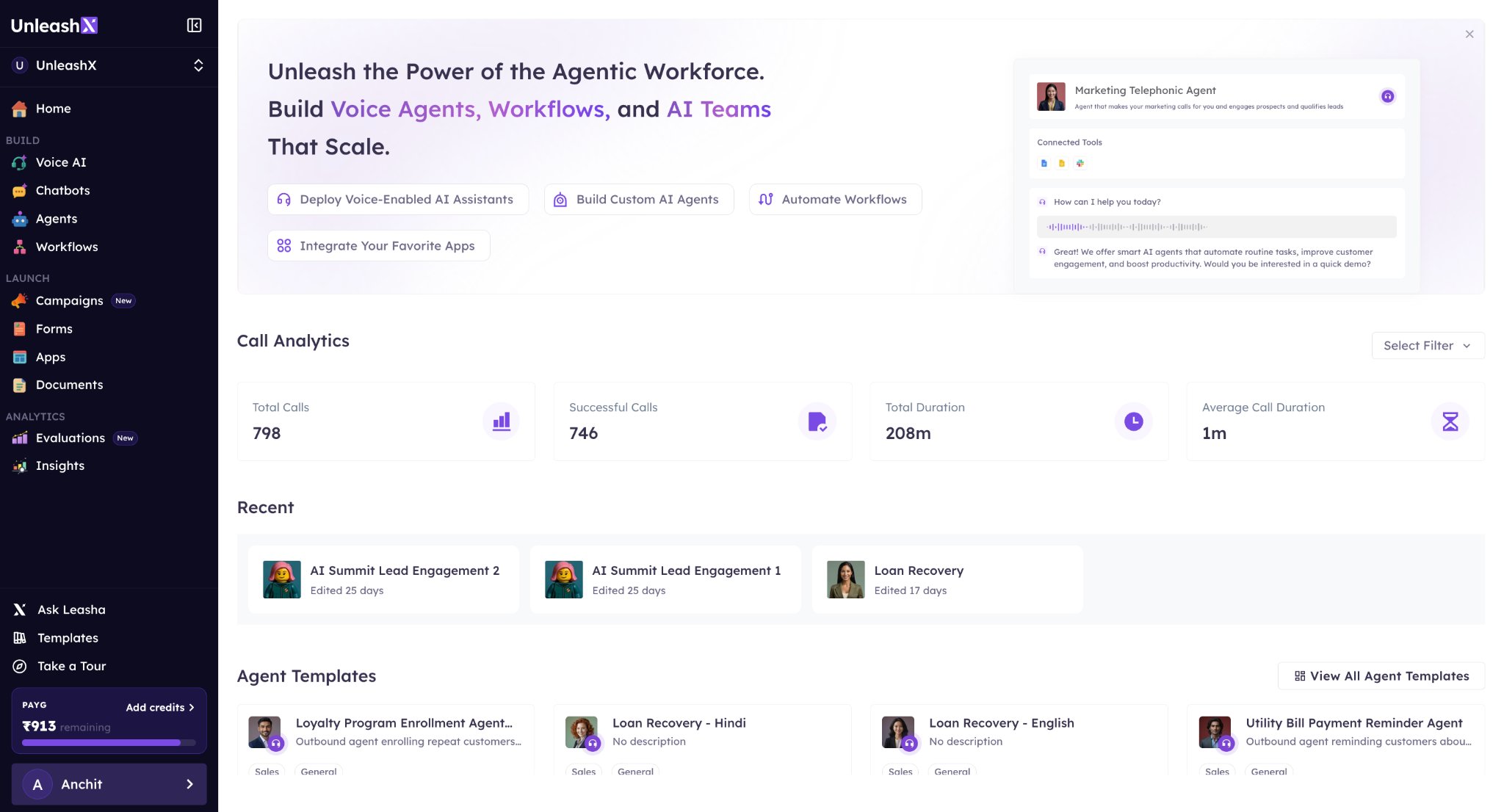
2
Navigate to Voice AI
From the sidebar, open the Voice AI section.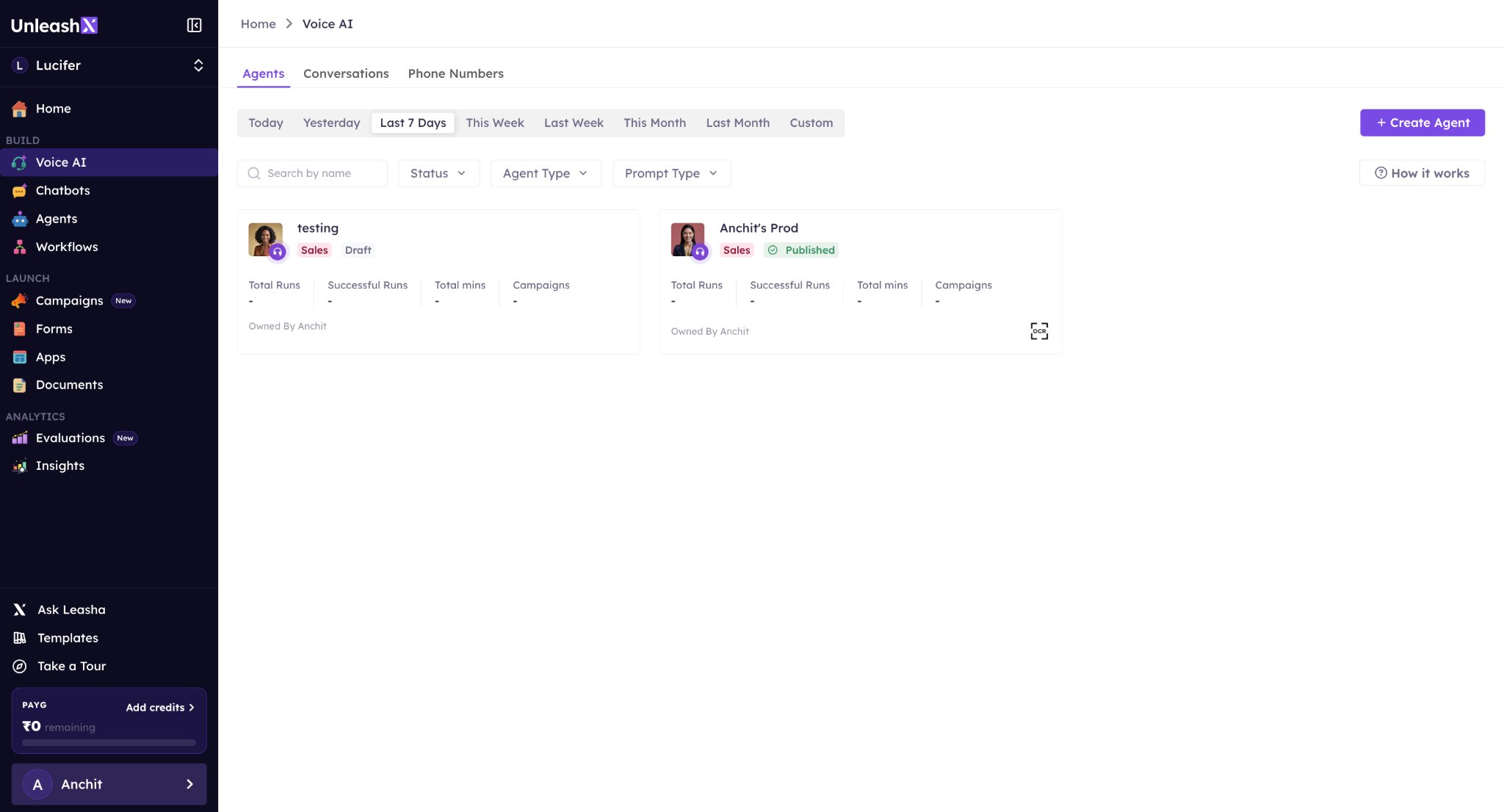
3
Open Phone Numbers
Go to the Phone Numbers tab from the top navigation bar.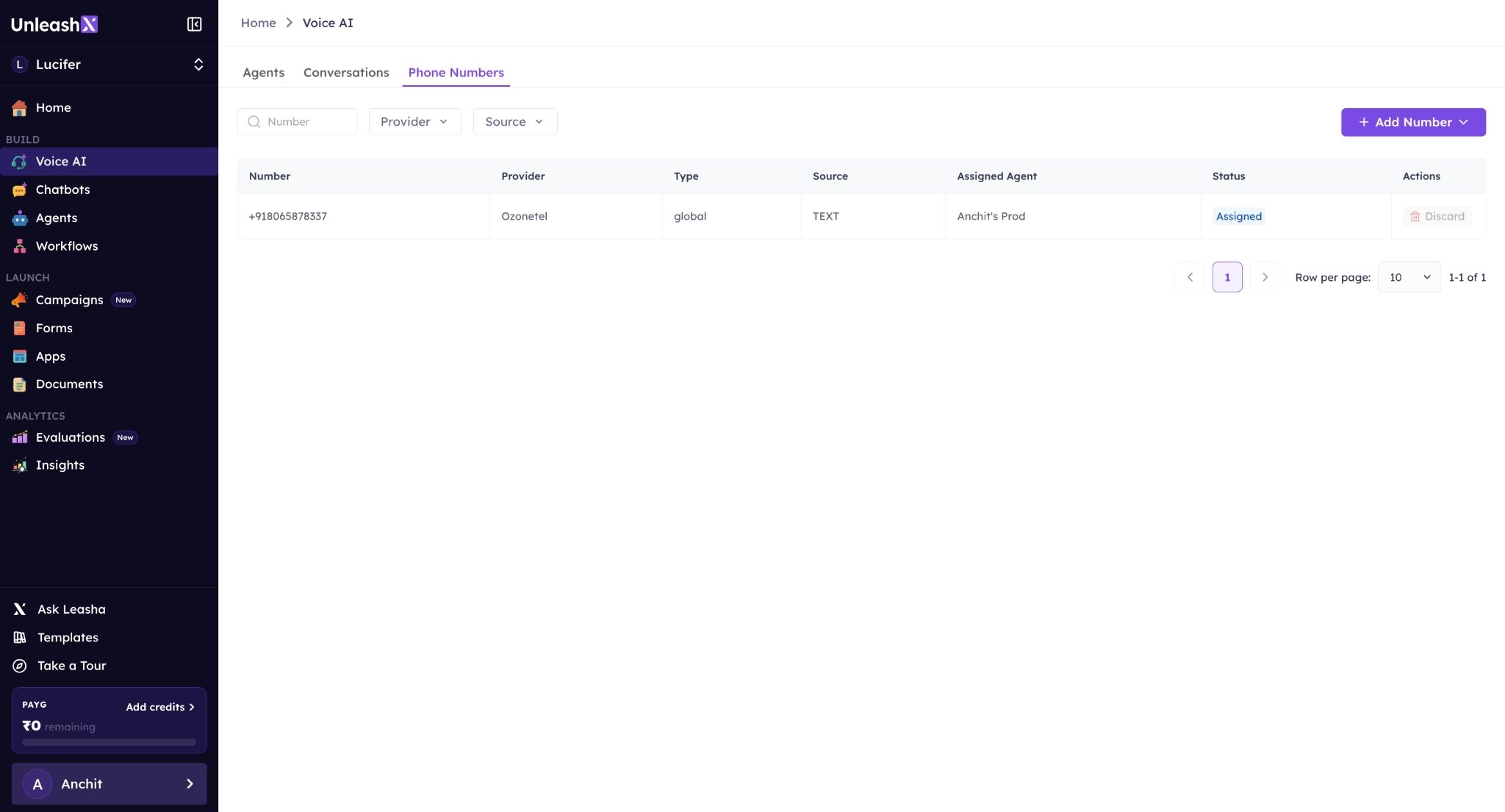
4
Add a Number
Click on Add Number and choose Import Number.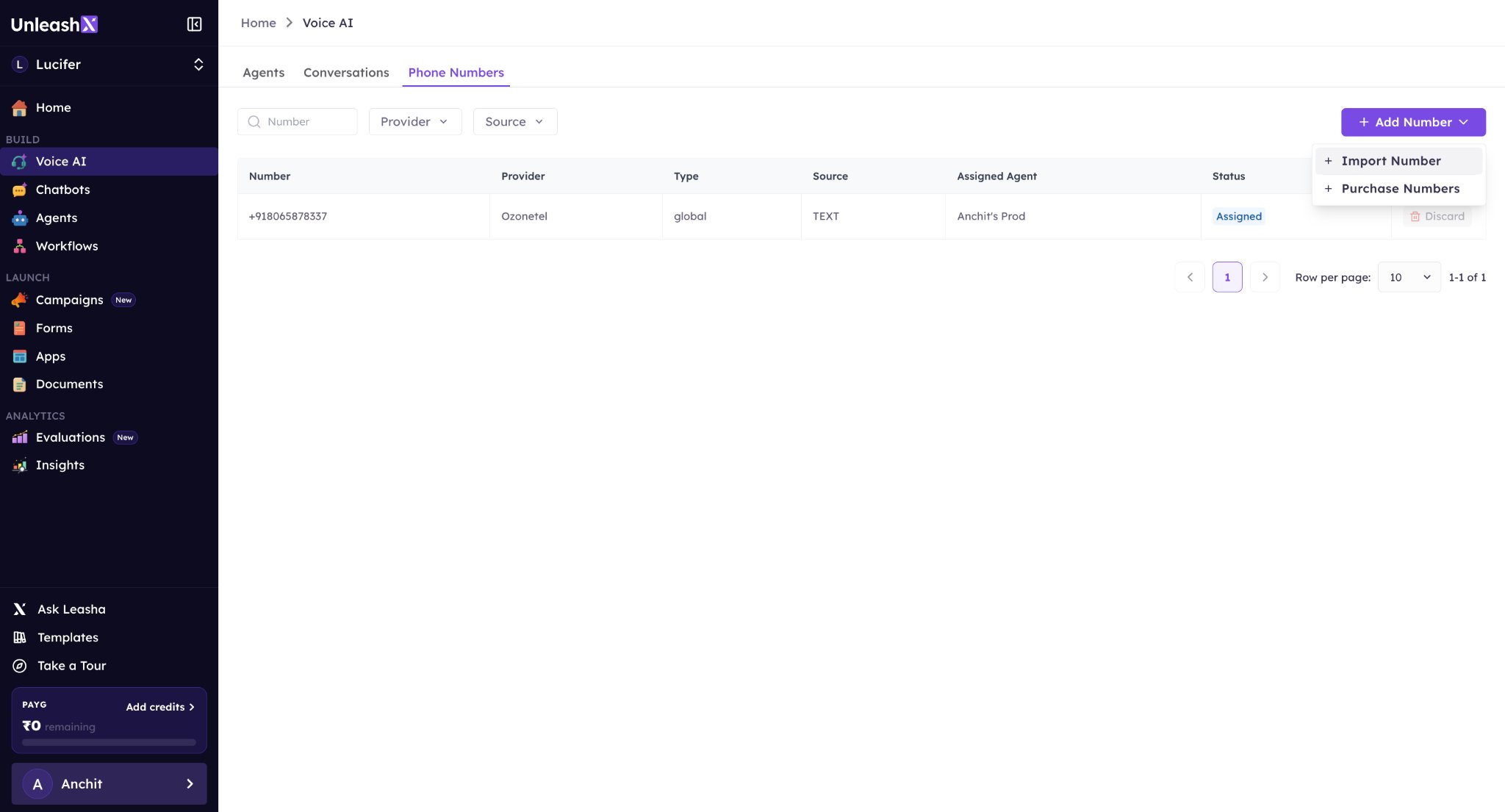
5
Select Telnyx
Pick Telnyx from the available options and click Continue.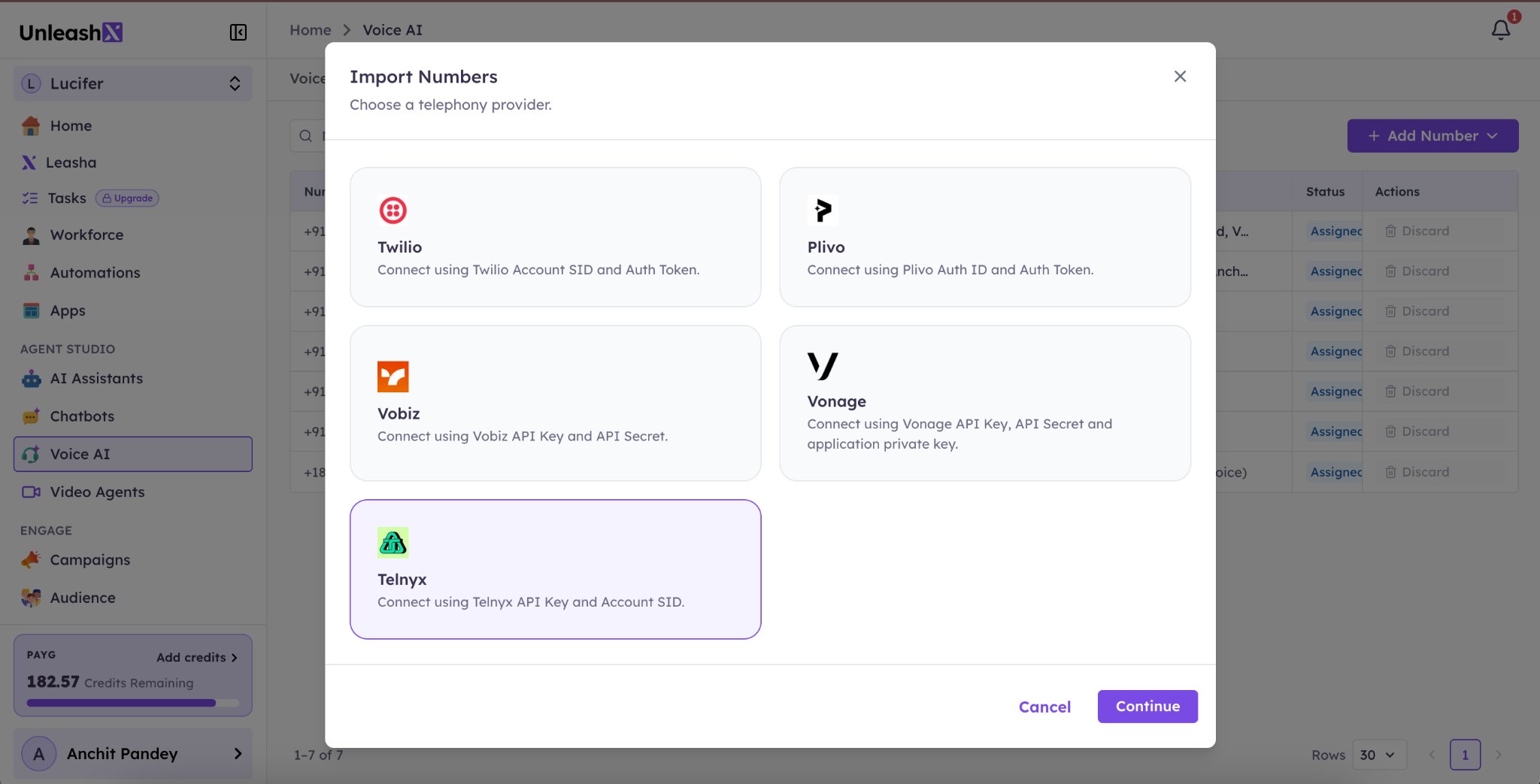
6
Verify Credentials
Enter your API Key and Account SID, choose your Region, then click Verify & Proceed.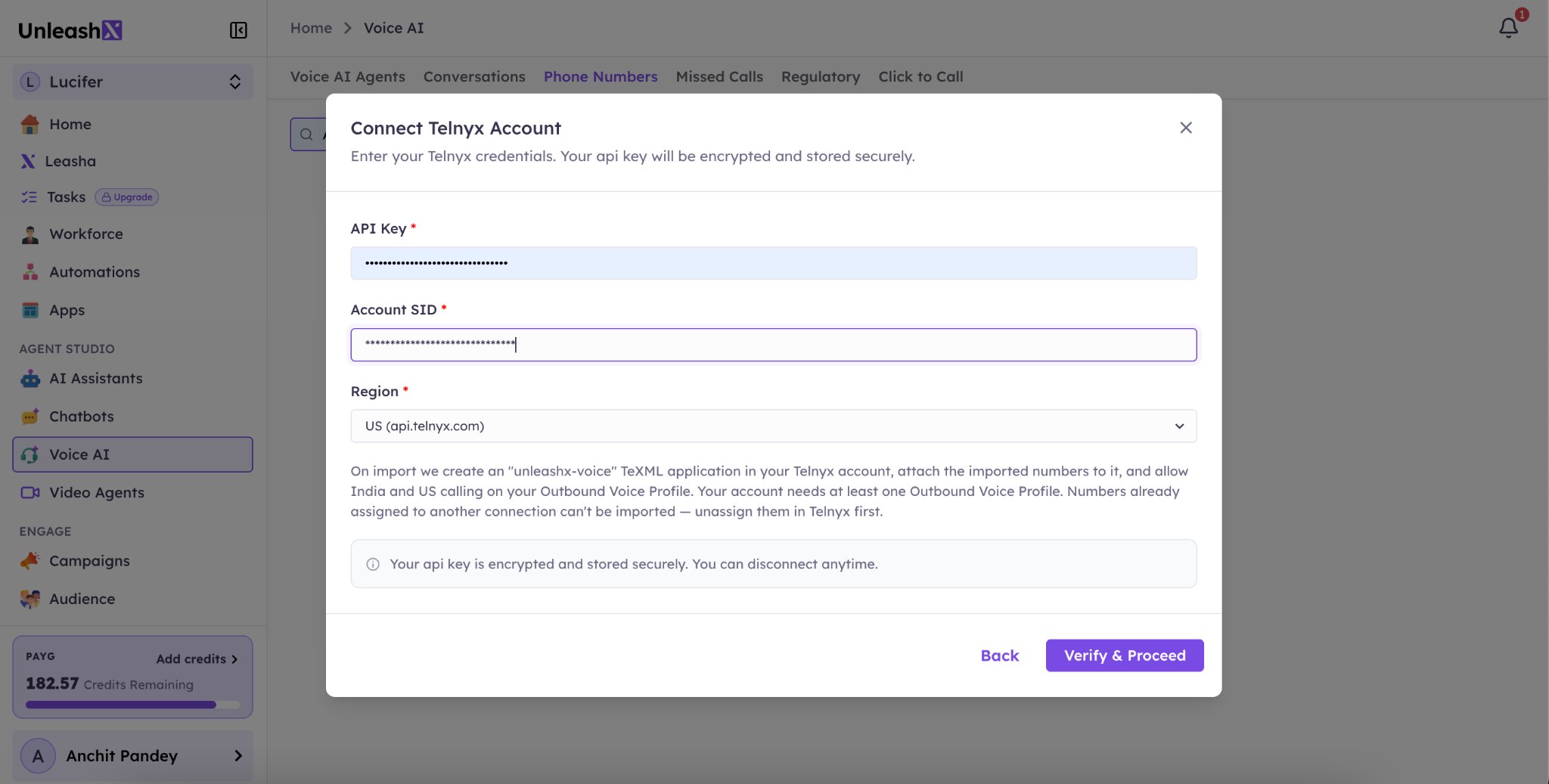
7
Import Number
Select the phone number you want to import and click Import. UnleashX creates an app in your Telnyx account and attaches the selected number to it.
8
Assign to Agent
Go to any agent, open the Edit Agent section, and select the imported number. Your agent is now ready to handle calls using that number.