

Integrate Plivo with UnleashX for Smarter Voice Automation
Enhance your voice workflows by connecting Plivo with UnleashX. Seamlessly manage inbound and outbound calls while maintaining full control over your telephony setup. Follow a simple setup process to link your Plivo account and unlock highly customizable calling experiences.What does Plivo integration mean in UnleashX?
Plivo is a globally trusted cloud communications platform, fully supported within UnleashX. By integrating Plivo, you can:- Initiate outbound calls using intelligent AI agents
- Handle inbound calls with automated, real-time responses
- Use your own Plivo account for complete ownership of numbers and infrastructure
Getting Started with Plivo in UnleashX
Make outbound calls Deploy UnleashX agents to place calls using your Plivo numbers. Handle incoming calls Receive calls on your Plivo numbers and let UnleashX agents respond instantly. Connect your Plivo account Easily link your existing Plivo account to start managing calls through UnleashX.Why Use Plivo with UnleashX?
Global Reach Connect with users across 100+ countries effortlessly. High Reliability Benefit from industry-leading uptime and superior call quality. Full Flexibility Continue using your existing Plivo setup without disruption. Advanced Capabilities Leverage Plivo’s rich feature set alongside UnleashX’s AI-driven automation.Securely Connect Your Plivo Account to UnleashX
Linking your Plivo account with UnleashX is quick and secure. Once connected, you can import your phone numbers and assign them to AI agents for both inbound and outbound calling.Step-by-Step Setup
1
Log in
Sign in to your UnleashX account.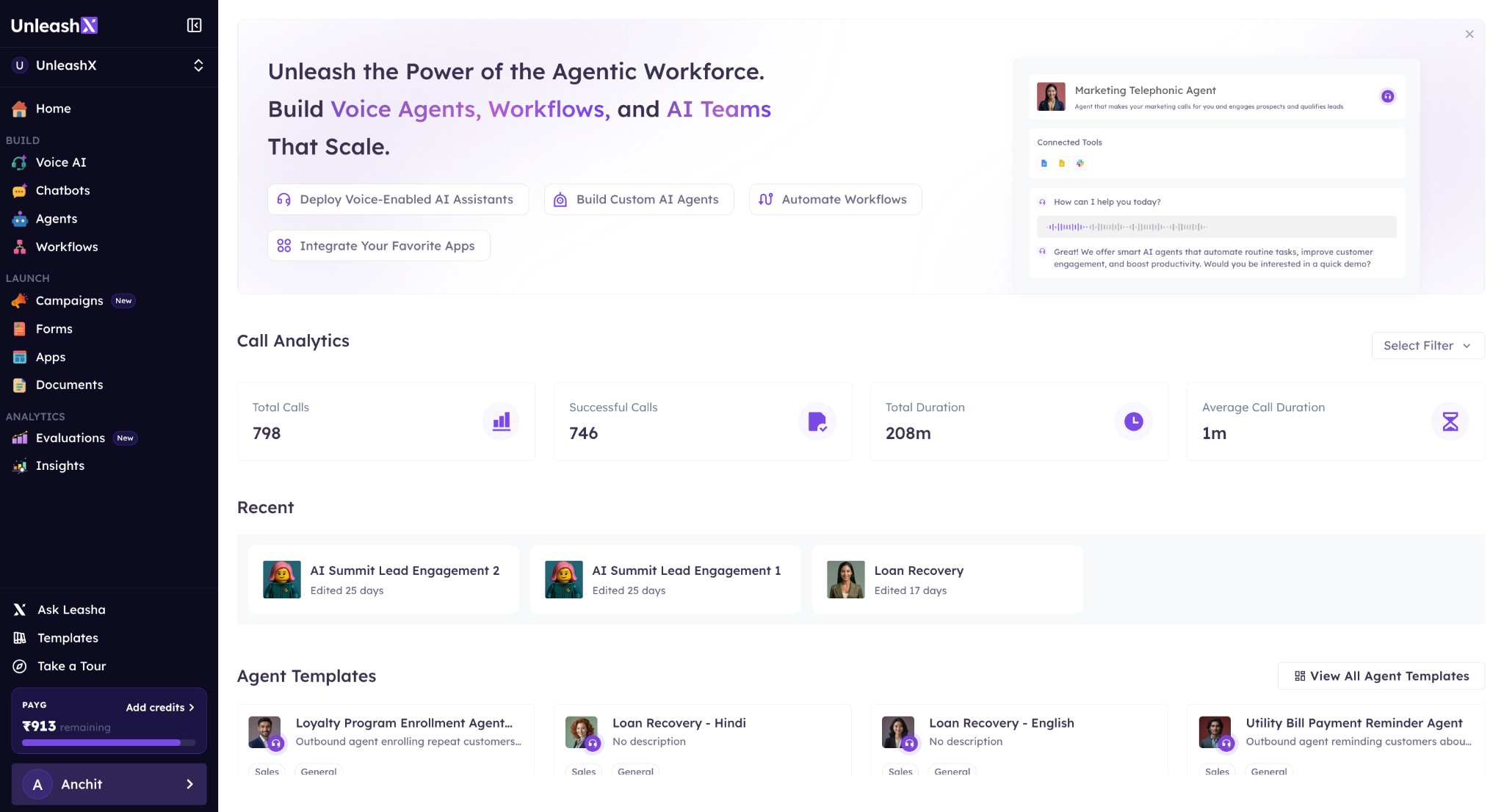
2
Navigate to Voice AI
From the sidebar, open the Voice AI section.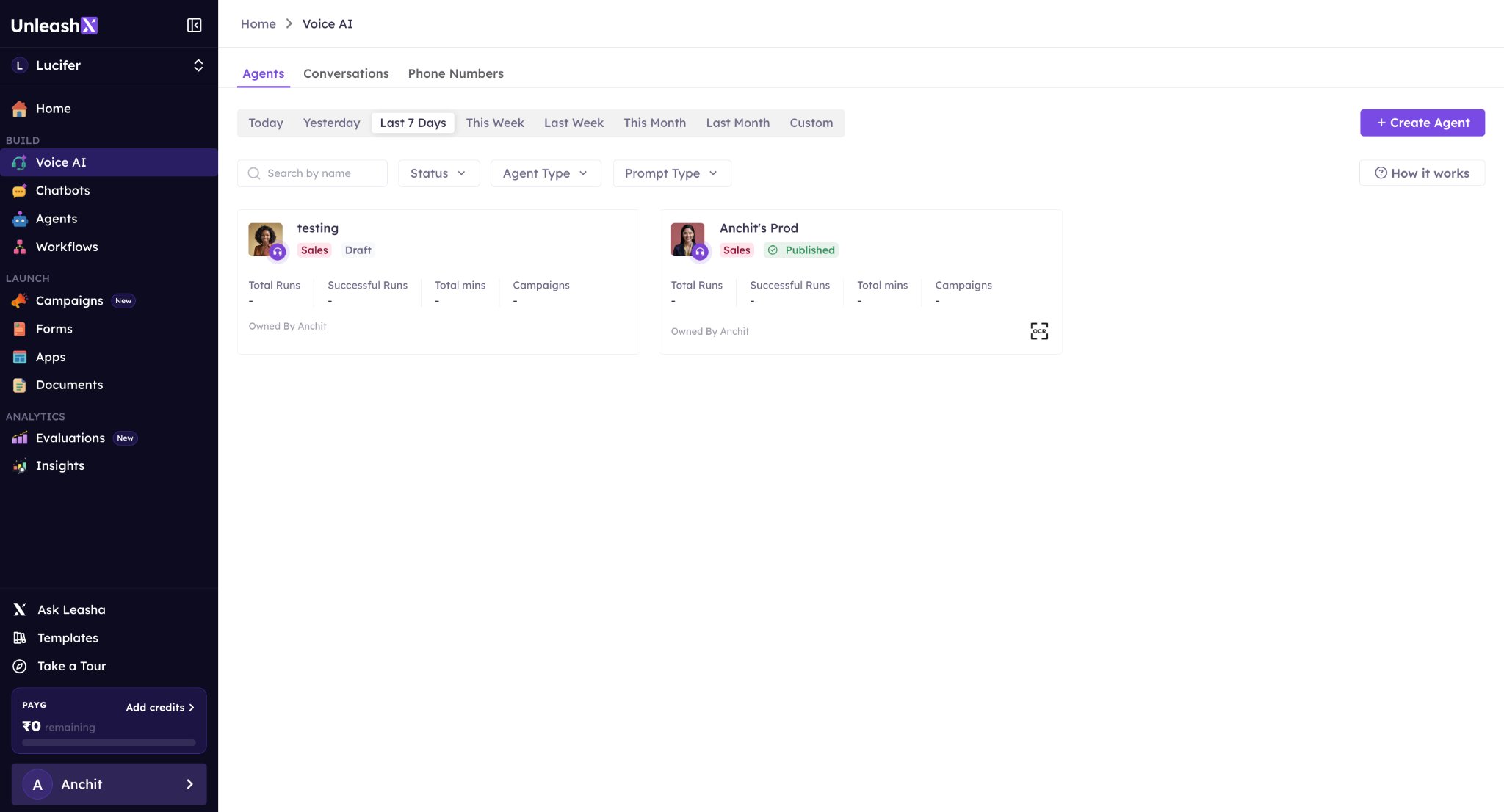
3
Open Phone Numbers
Go to the Phone Numbers tab from the top navigation bar.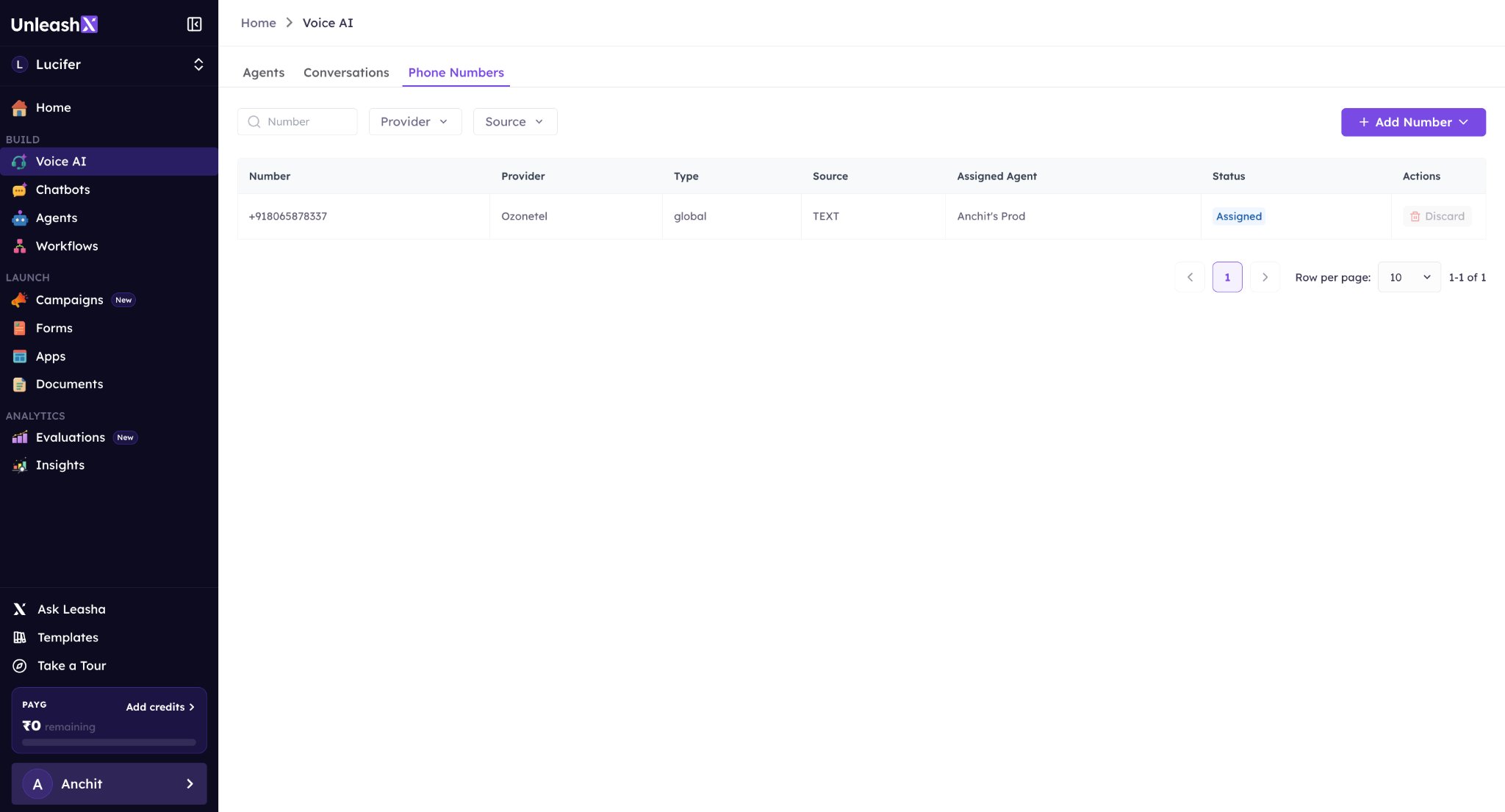
4
Add a Number
Click on Add Number and choose Import Number.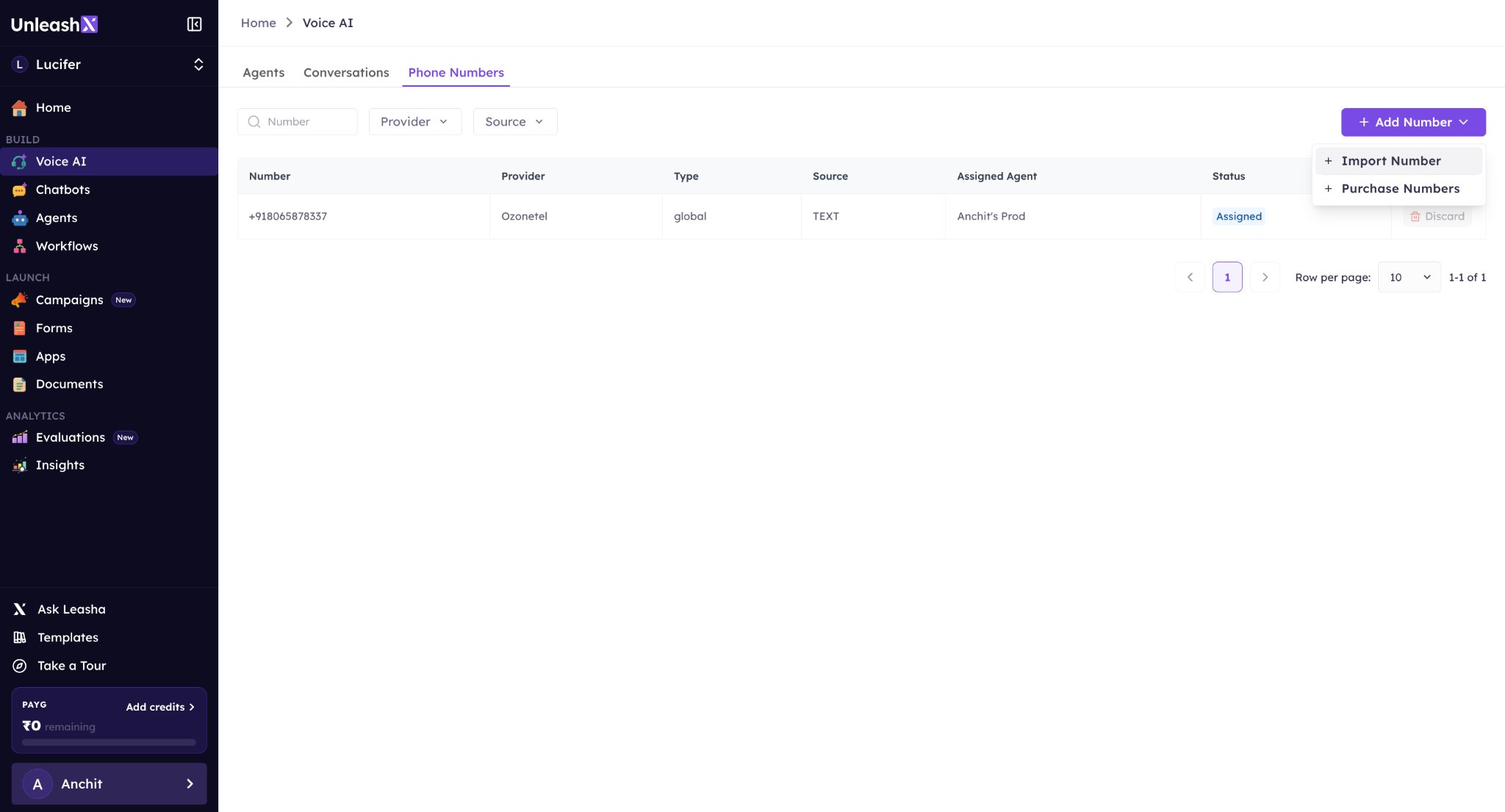
5
Select Plivo
Pick Plivo from the available options and click Continue.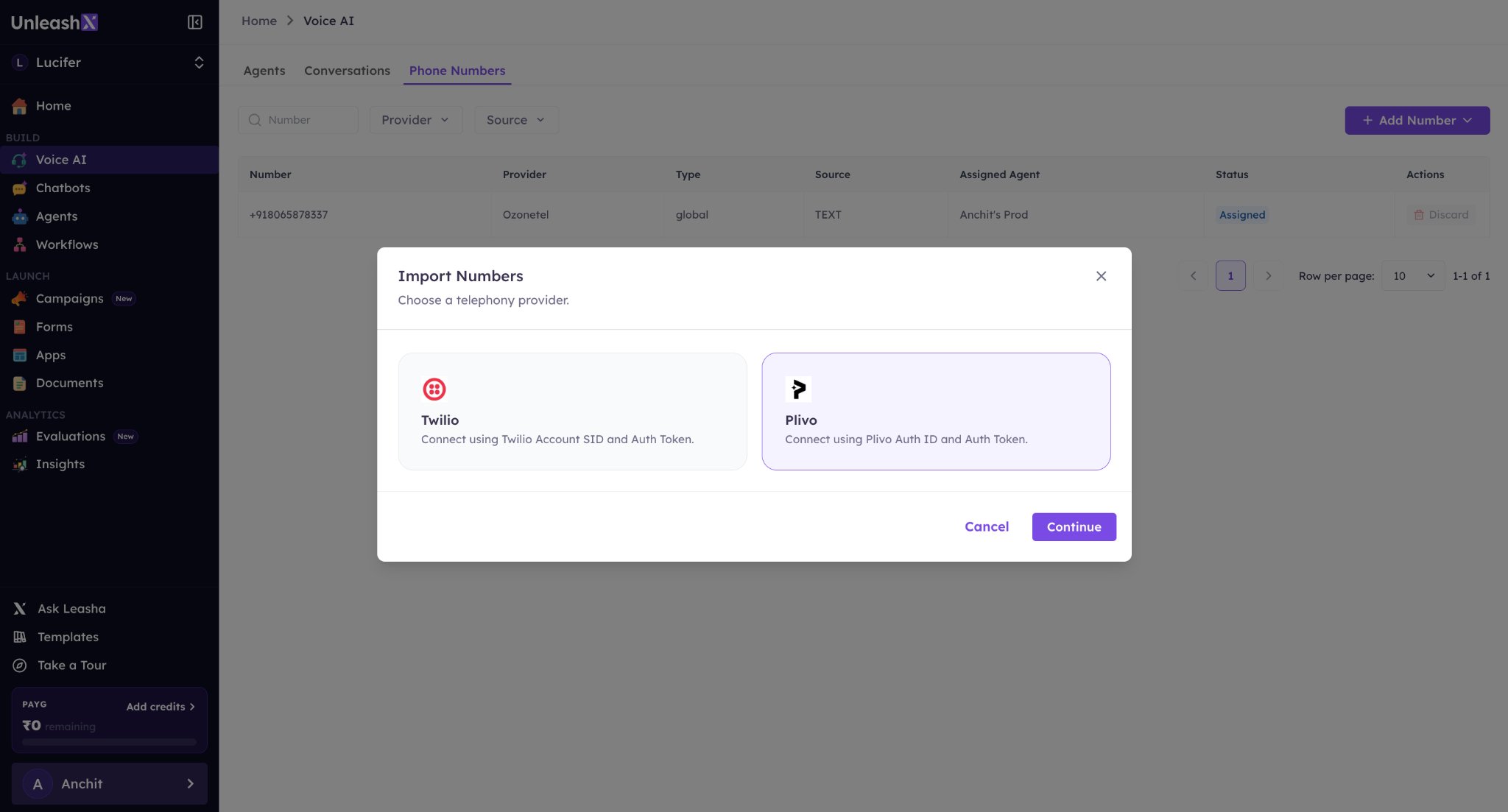
6
Verify Credentials
Enter your Auth ID and Auth Token, then click Verify & Proceed.
7
Import Number
Select the phone number you want to import and click Import.
8
Assign to Agent
Go to any agent, open the Edit Agent section, and select the imported number. Your agent is now ready to handle calls using that number.