

Nano Banana
In one line: Let your UnleashX agent create images from a written description — or edit an existing image by describing the change.
1. Overview
Nano Banana is Google’s advanced image generation and editing model, available through the Gemini API. Describe what you want and it produces the image; supply an existing image with an instruction and it edits that image instead of starting over. Once connected, your agent can generate an image from a prompt and return a ready-to-use image URL. Generated images are saved to UnleashX media storage, so the link works in downstream steps — attach it to an email, post it, or drop it into a document. Connecting Nano Banana to UnleashX means visuals stop being a bottleneck: a campaign brief becomes a hero image, a product description becomes a mockup, without a designer in the loop for every draft.2. What you’ll need
Nano Banana is built into UnleashX. There is no Google Cloud or Gemini account for you to create and no API key for you to manage.
- An active UnleashX account.
- The image-generation feature enabled on your workspace/plan.
- A clear text prompt (and, for editing, a source image by URL, path, or base64).
- Permission to edit the agent (admin or editor role). Without it, ask a workspace admin to enable the feature.
3. Get your credentials
There are no credentials to create. Nano Banana is platform-managed — UnleashX provisions and rotates the underlying Google Gemini key and handles media storage. You never see or handle an API key.
4. Connect on UnleashX
1
Open your agent
Go to https://www.tryunleashx.com and open the agent that should generate images.
2
Open Data Connectors
In the agent, click Data Connectors.
3
Find Nano Banana and add it
Locate Nano Banana and click Connect / Add. It’s platform-managed — no key to paste, it activates immediately.
4
Confirm it's connected
The Nano Banana tool should now show a Connected badge.
Use Nano Banana in a Workflow
Once connected, you can add Nano Banana to any automation from the Workflows builder. Its tools appear in the Apps panel, marked with an MCP badge.1
Add a trigger node
Open Workflows → New Workflow. On the canvas, click + Add Trigger. In the Paths panel, open the Apps tab and select Nano Banana — its Triggers are listed underneath. Use the search box if you have many connectors.
2
Add an action node
Click the + below any node to add a step, then pick Nano Banana again — this time the panel lists its Actions.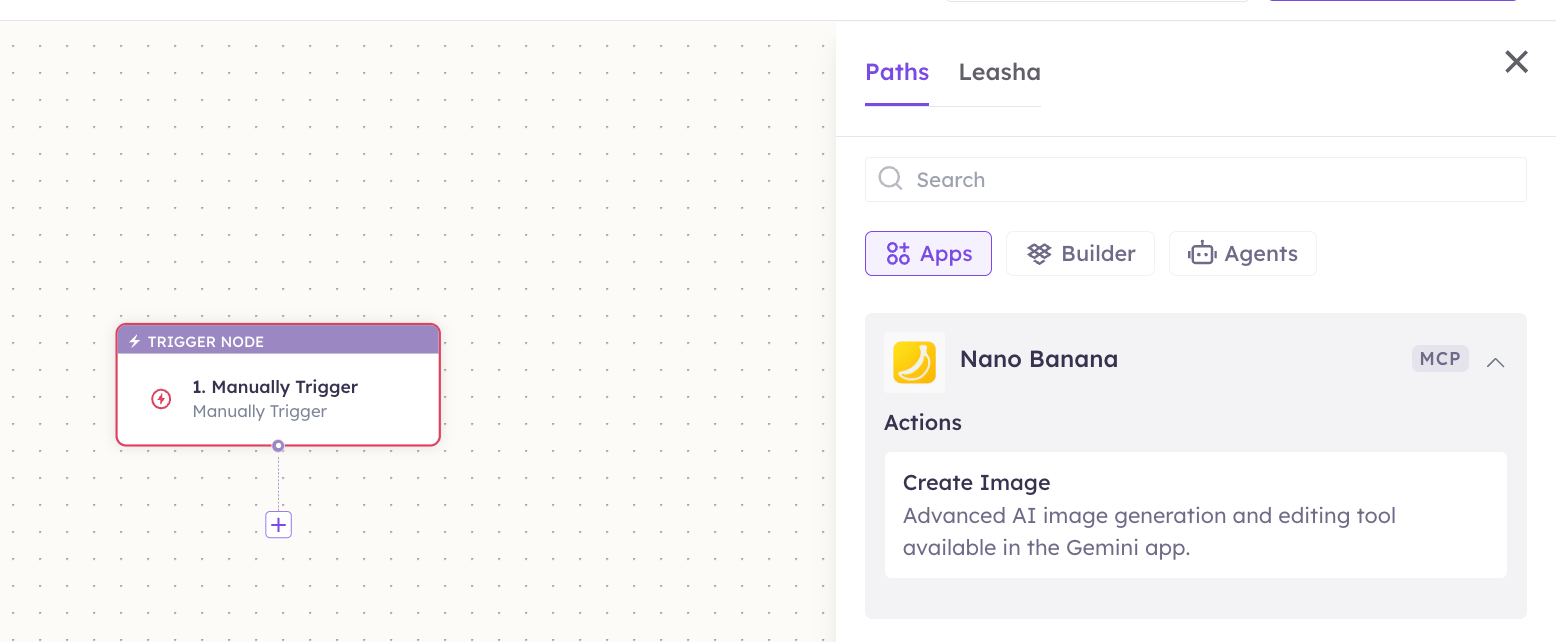
3
Configure the step
Fill in the fields for the trigger or action you picked. Required fields are marked with a red asterisk (*).
4
Add or select your account
Under Selected account, choose an already-connected account, or click Add Account to connect one now.
5
Save and test
Click Save. Use Test to verify the step, then toggle Publish when the workflow is ready.
The steps are the same for every connector. For the full workflow builder guide, see Using MCP in Workflows.
5. Available tools
Create Image is marked ✏️ Yes because it creates a new image file and saves it to UnleashX media storage. It does not modify or delete any existing data — editing a source image produces a new file rather than overwriting the original.
6. Example usage
“Generate a product shot of a matte black water bottle on a marble counter, soft daylight.” Runs Create Image and returns an image URL.
“Take this logo and put it on a dark background with a subtle glow.” Runs Create Image with the source image and an edit instruction.
7. Permissions & data access
UnleashX can:- Send your prompt (and optional source image) to the model and generate an image.
- Save the generated image to UnleashX media storage and return a link.
- Generate images from content you don’t provide.
- Edit or delete images you created elsewhere.
- Access your device or cloud storage on its own.
8. Troubleshooting
For general connector issues, see /mcp/integrations.
9. Frequently asked questions
Is my prompt or source image stored? The generated image is saved to UnleashX media storage so you can access it. Your input image is used to produce the result and is not retained as part of the integration. Do I need a Google or Gemini account? No. Nano Banana is platform-managed — UnleashX provides and rotates the underlying key. Can it edit an existing image, or only create new ones? Both. Supply a source image with an instruction and it edits that image; supply only a prompt and it generates from scratch. How is this different from the Image connector? Nano Banana is a specific Google model exposed as its own connector. Pick whichever produces the style you want.10. References
- Google Gemini image generation docs
- UnleashX dashboard
- UnleashX integrations help: /mcp/integrations