

Typeform
In one line: Connect Typeform so your UnleashX agent can list your forms, pull responses, and create or update forms — all in plain language.
1. Overview
Typeform is a form and survey builder known for its conversational, one-question-at-a-time experience. Your account holds the forms you’ve built and every response people submit. Once connected to UnleashX, your agent can list your forms, read a form’s structure, pull and summarize responses, create new forms, and manage webhooks so downstream automations fire when a response arrives. It works against your live Typeform account using a personal access token, so it acts with your own permissions. Connecting Typeform to UnleashX turns your forms into a live data source your agent can act on. Instead of exporting a spreadsheet to see what people submitted, you ask your agent to pull the latest responses or summarize the results.2. What you’ll need
- A Typeform account.
- A personal access token generated from your account settings (see Section 3).
- An UnleashX account with access to Data Connectors.
You paste a personal access token. UnleashX sends it to the Typeform API as a
Bearer credential.3. Get your credentials
Typeform MCP authenticates with a personal access token.1
Open the admin portal
Sign in to Typeform and go to the admin portal.
2
Open Account Settings
On the top right, click your profile icon → Account Settings.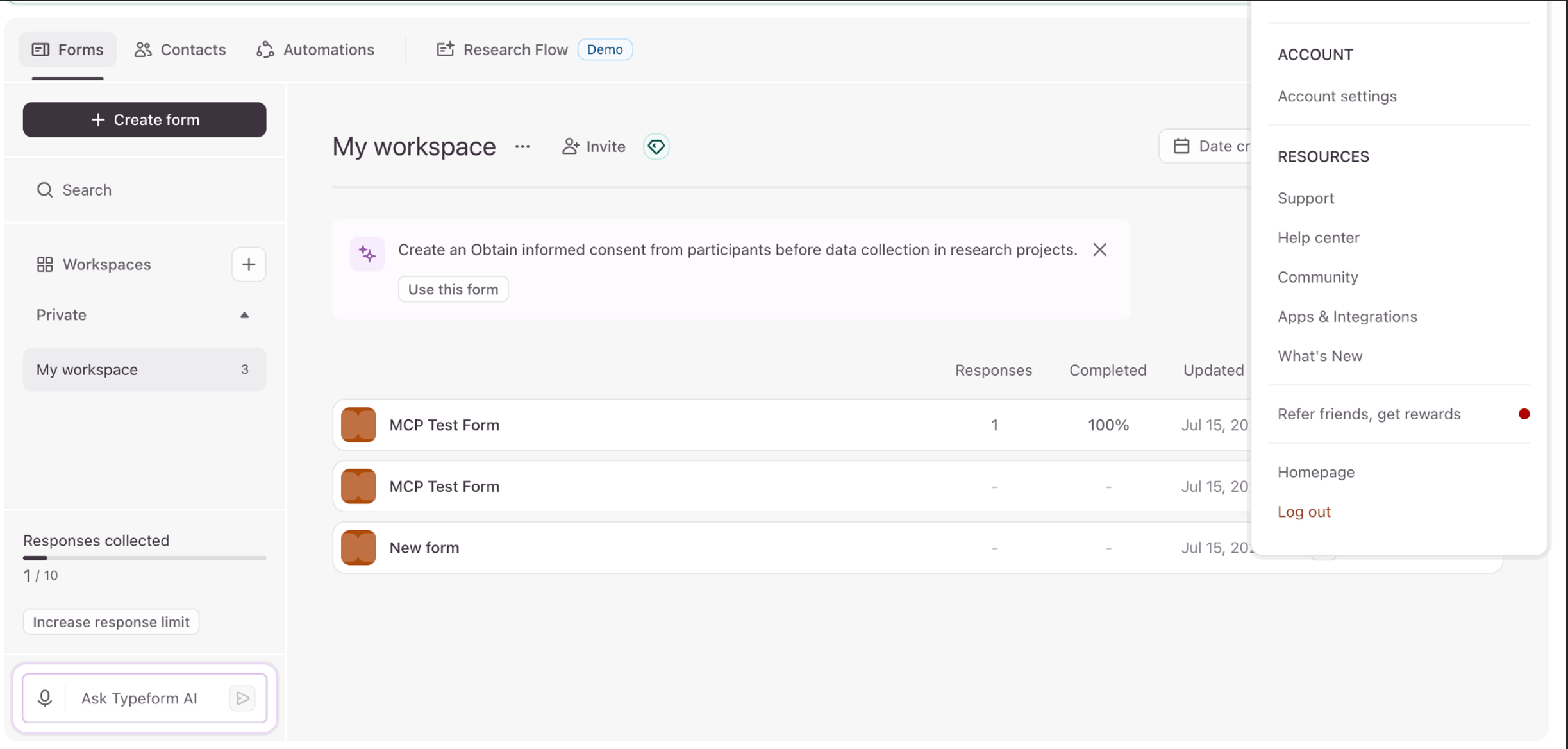
3
Open Personal Tokens
In the left sidebar, click Personal Tokens.
4
Generate a new token
Click Generate a new token, give it a name (e.g. “UnleashX”), choose the scopes you want it to have, and generate it. Copy the token now — Typeform shows it only once.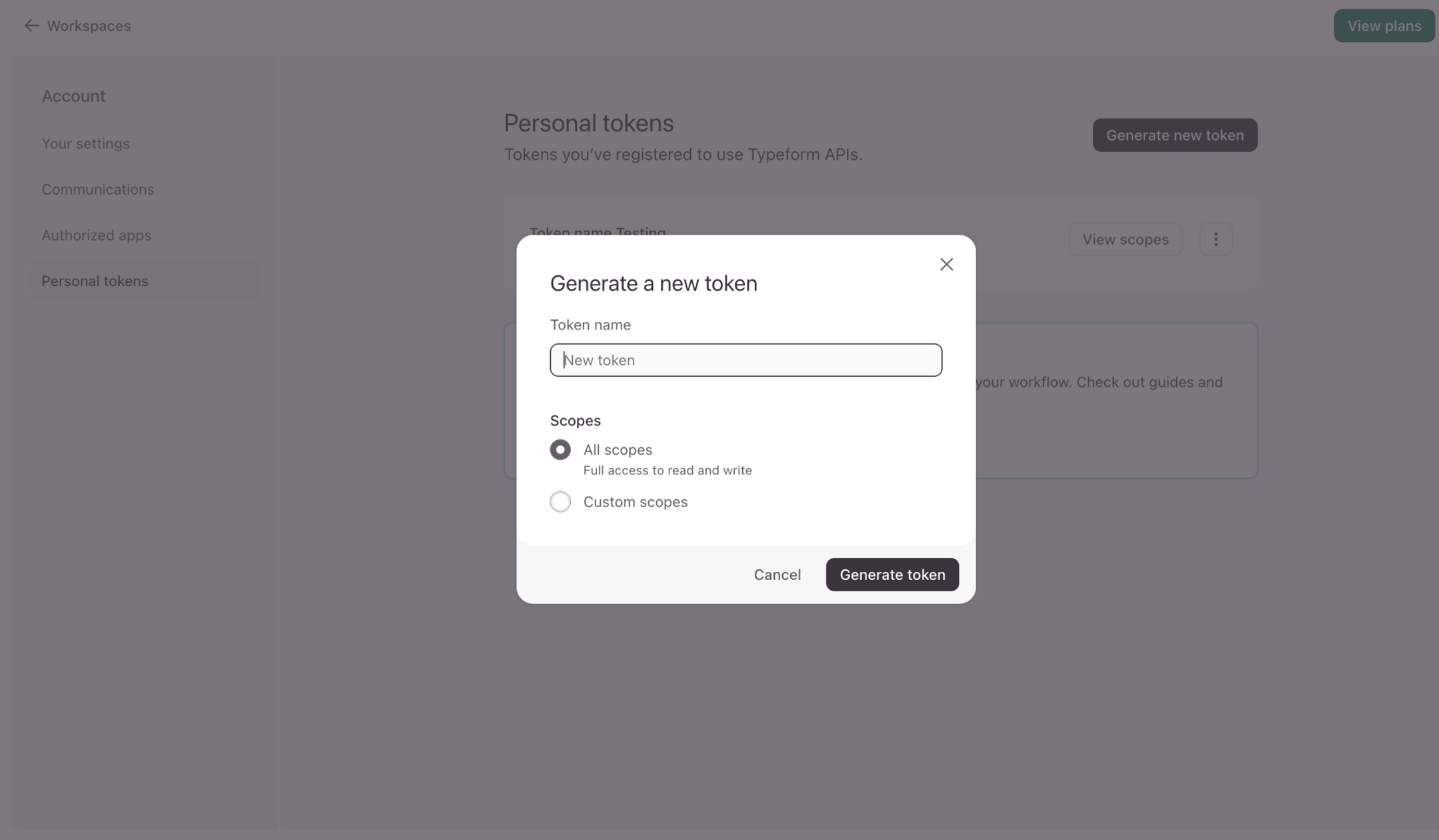
5
Paste it into UnleashX
Paste the token when connecting (Section 4).
Permissions this token grants UnleashX
4. Connect on UnleashX
1
Open your agent
Go to https://www.tryunleashx.com and open the agent you want to connect.
2
Open Data Connectors
Inside the agent, go to Data Connectors.
3
Find Typeform
Locate Typeform and click Connect (or Add / Configure).
4
Paste your token
Paste your personal access token and click Connect.
5
Confirm success
UnleashX validates the token and the Typeform connector shows a Connected badge.
Use Typeform in a Workflow
Once connected, you can add Typeform to any automation from the Workflows builder. Its triggers and tools appear in the Apps panel, marked with an MCP badge.1
Add a trigger node
Open Workflows → New Workflow. On the canvas, click + Add Trigger. In the Paths panel, open the Apps tab and select Typeform — its Triggers are listed underneath. Use the search box if you have many connectors.
2
Add an action node
Click the + below any node to add a step, then pick Typeform again — this time the panel lists its Actions.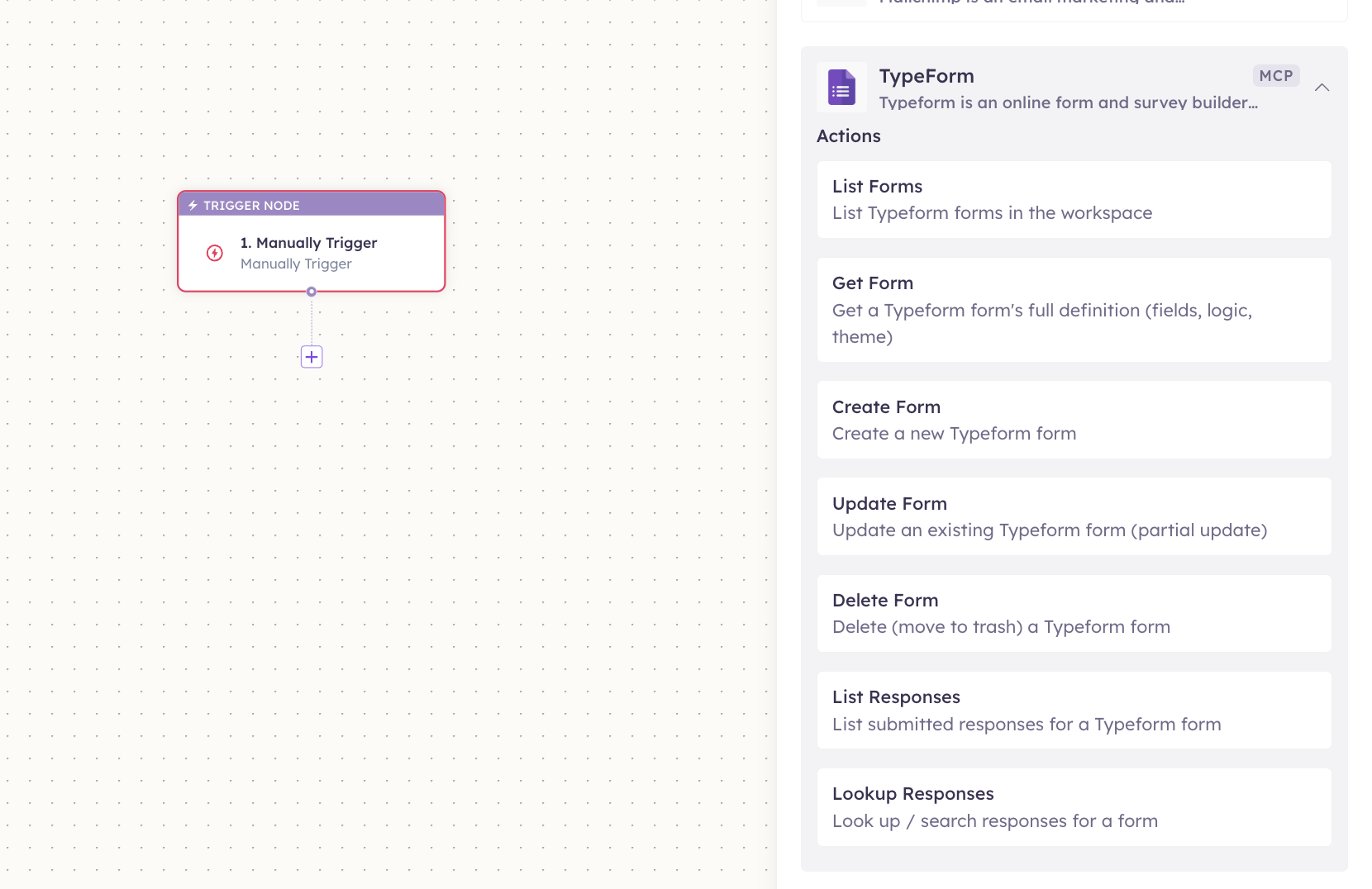
3
Configure the step
Fill in the fields for the trigger or action you picked. Required fields are marked with a red asterisk (*).
4
Add or select your account
Under Selected account, choose an already-connected account, or click Add Account to connect one now.
5
Save and test
Click Save. Use Test to verify the step, then toggle Publish when the workflow is ready.
The steps are the same for every connector. For the full workflow builder guide, see Using MCP in Workflows.
5. Available tools
6. Example usage
“How many people completed our onboarding survey this week? Summarize what they said.” → Runs List Responses on the form, then summarizes the submissions. “Create a webhook on the contact form so my workflow runs whenever someone submits it.” → Runs Create Webhook on the form pointing at your workflow.7. Permissions & data access
UnleashX can:- List and read your forms, fields, and responses.
- Create, update, and delete forms (with write scopes).
- Manage webhooks on your forms.
- Access forms or workspaces your token isn’t scoped for.
- Change your Typeform account or billing settings.
8. Troubleshooting
For general MCP issues, see /mcp/integrations.
9. Frequently asked questions
Is my form data stored by UnleashX? No. UnleashX reads and writes through the Typeform API live per request; it doesn’t keep a copy of your forms or responses. Can the agent delete forms or responses? Yes — tools marked ⚠️ make permanent changes and only work if your token has write scopes. Use them deliberately. Can multiple people connect Typeform? Yes. Each person generates their own personal access token and connects separately.10. References
- Typeform API reference: https://www.typeform.com/developers/
- Create a personal access token: https://www.typeform.com/developers/get-started/personal-access-token/
- Responses API: https://www.typeform.com/developers/responses/
- Webhooks: https://www.typeform.com/developers/webhooks/