> ## Documentation Index
> Fetch the complete documentation index at: https://docs.unleashx.ai/llms.txt
> Use this file to discover all available pages before exploring further.
# Zoho Meet
> Let your UnleashX agent create Zoho Meeting sessions and webinars, and look up attendees and join links.
# Zoho Meet
> **In one line:** Connect Zoho Meet so your UnleashX agent can schedule meetings and webinars, pull the registration URL, and check who's attending — all in plain language.
| | |
| ------------------ | ------------------------------------------------------------------------------------------------- |
| **Category** | Communication |
| **Authentication** | OAuth (Zoho sign-in) |
| **Setup time** | \~3 minutes |
| **Difficulty** | Easy |
| **Best for** | Teams running webinars and customer calls on Zoho Meeting who want scheduling handled by an agent |
## 1. Overview
Zoho Meet (Zoho Meeting) is Zoho's online meeting and webinar service. It covers both quick internal calls and registration-based webinars with attendee tracking.
Once connected to UnleashX, your agent can create a meeting, create a webinar, retrieve a webinar's join or registration URL, and look up the attendees registered for a session. It works against your live Zoho Meeting account, so it respects your plan's participant and session limits.
Connecting Zoho Meet to UnleashX turns scheduling into a step in a workflow: a lead qualifies, a campaign launches, a support case escalates — and the agent creates the session and hands back the link.
## 2. What you'll need
* A Zoho account with **Zoho Meeting** enabled.
* Permission to authorize third-party apps for your Zoho organization.
* An UnleashX account with access to **Data Connectors**.
Zoho is region-partitioned (`.com`, `.in`, `.eu`, `.com.au`, and others). Sign in on the same data center your Zoho Meeting account lives on, or authorization will succeed but API calls will fail.
Webinar features — registration URLs and attendee lists — depend on your Zoho Meeting plan. On a meetings-only plan, the webinar tools will return an error rather than creating anything.
## 3. Get your credentials
Zoho Meet uses **Zoho OAuth 2.0**. You do **not** create or paste an API key. UnleashX redirects you to Zoho, you sign in once, and Zoho issues an access token to UnleashX automatically.
In your agent's **Data Connectors**, find **Zoho Meet** and click **Connect** (see Section 4).
Choose the Zoho account that hosts your meetings. Make sure you're on the correct regional domain.
Click **Accept** to grant access and return to UnleashX.
There is no key to copy. Access is granted by your Zoho sign-in and can be revoked anytime under **Zoho Accounts → Security → Connected Apps**.
**Scopes UnleashX requests for Zoho Meet:**
| Scope | Why UnleashX needs it |
| ---------------------------- | ---------------------------------------------------------- |
| `ZohoMeeting.meeting.CREATE` | Create meetings. |
| `ZohoMeeting.webinar.CREATE` | Create webinars. |
| `ZohoMeeting.webinar.READ` | Read webinar details, including the registration/join URL. |
| `ZohoMeeting.attendee.READ` | List registrants and attendees for a session. |
| `AaaServer.profile.READ` | Identify which Zoho account is connected. |
## 4. Connect on UnleashX
Sign in at [https://www.tryunleashx.com](https://www.tryunleashx.com) and open your agent.
In the agent, open **Data Connectors**.
Locate **Zoho Meet** and click **Connect** / **Add** / **Configure**.
Click **Authorize**, sign in to Zoho, and approve the requested permissions.
You'll return to UnleashX and the connector status will show a **Connected** badge.
### Use Zoho Meet in a Workflow
Once connected, you can add **Zoho Meet** to any automation from the **Workflows** builder. Its tools appear in the Apps panel, marked with an **MCP** badge.
Open **Workflows → New Workflow**. On the canvas, click **+ Add Trigger**. In the **Paths** panel, open the **Apps** tab and select **Zoho Meet** — its **Triggers** are listed underneath. Use the search box if you have many connectors.
Click the **+** below any node to add a step, then pick **Zoho Meet** again — this time the panel lists its **Actions**.
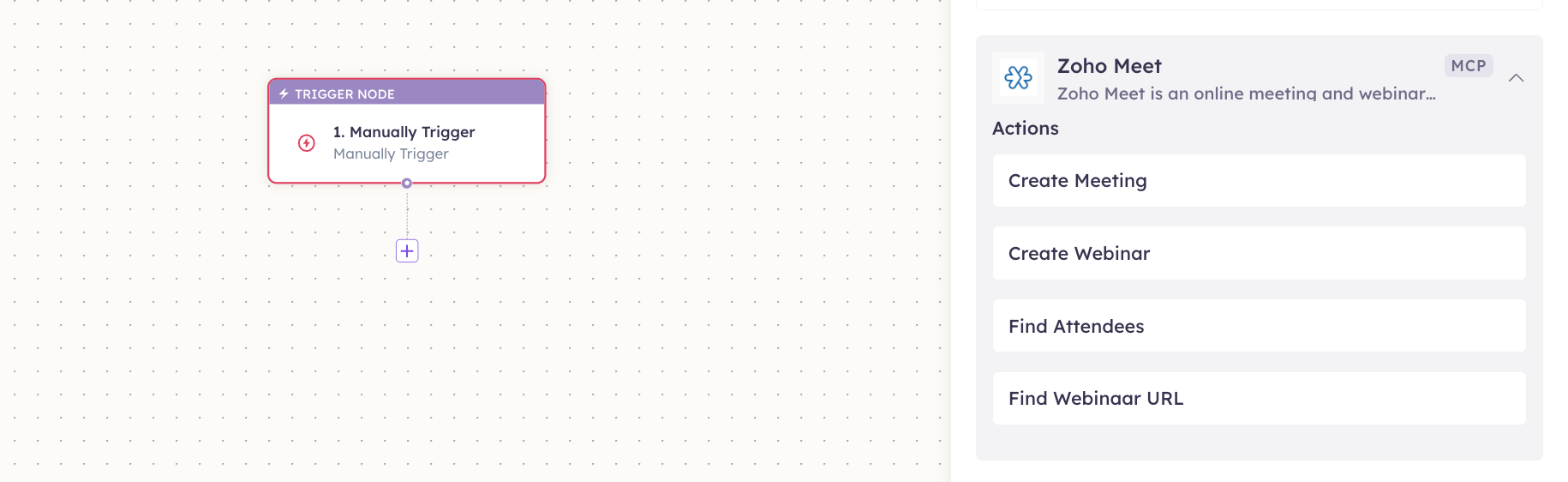 Fill in the fields for the trigger or action you picked. Required fields are marked with a red asterisk (\*).
Under **Selected account**, choose an already-connected account, or click **Add Account** to connect one now.
Click **Save**. Use **Test** to verify the step, then toggle **Publish** when the workflow is ready.
The steps are the same for every connector. For the full workflow builder guide, see [Using MCP in Workflows](/mcp/workflows).
## 5. Available tools
| Tool | What it does | Changes data? |
| ---------------- | ------------------------------------------------------------ | ------------- |
| Create Meeting | Creates a Zoho meeting with a title, time, and participants. | ✏️ Yes |
| Create Webinar | Creates a Zoho webinar session. | ✏️ Yes |
| Find Attendees | Lists the registrants/attendees for a session. | No |
| Find Webinar URL | Retrieves the join or registration URL for a webinar. | No |
## 6. Example usage
> **"Create a Zoho webinar called 'Product Launch' next Thursday at 4pm and give me the registration link."**
>
> Runs **Create Webinar**, then **Find Webinar URL**.
> **"Who's registered for the Product Launch webinar?"**
>
> Runs **Find Attendees**.
## 7. Permissions & data access
**UnleashX can:**
* Create meetings and webinars on the connected Zoho account.
* Read a webinar's join/registration URL.
* List registrants and attendees for a session.
**UnleashX cannot:**
* Join, record, or transcribe sessions.
* Exceed your Zoho Meeting plan's participant or session limits.
* Access Zoho CRM, Desk, or Mail unless connected separately.
* Change your Zoho account settings or billing.
**To disconnect:** In UnleashX, open **Data Connectors → Zoho Meet → Disconnect**. Then revoke under **Zoho Accounts → Security → Connected Apps**. Disconnecting and revoking removes access immediately.
## 8. Troubleshooting
| Problem | What it means | How to fix it |
| --------------------------------- | ----------------------------------------------------------------------- | ---------------------------------------------------------------------- |
| `401 Unauthorized` | The access token is missing or expired. | Reconnect Zoho Meet in **Data Connectors**. |
| `403 Forbidden` | A required scope wasn't granted, or your plan doesn't include webinars. | Re-authorize all scopes; check your Zoho Meeting plan. |
| **`INVALID_OAUTH` on every call** | You authorized on a different Zoho data center than your account. | Reconnect using the correct regional domain (`.com`, `.in`, `.eu`, …). |
| **Webinar URL is empty** | The session was created as a meeting, not a webinar. | Use **Create Webinar** for registration-based sessions. |
| **Attendee list is empty** | Nobody has registered yet, or you passed a meeting ID. | Confirm the session ID and that registration is open. |
For general connector issues, see [/mcp/integrations](/mcp/integrations).
## 9. Frequently asked questions
**Does UnleashX store my attendee data?**
No. It reads attendees through the Zoho API per request; it doesn't keep a copy.
**What's the difference between a meeting and a webinar here?**
Meetings are direct-join sessions for participants you invite. Webinars support registration, which is why they have a registration URL and an attendee list.
**Can the agent cancel or reschedule a session?**
Not with these tools — they create and read only. Cancel or reschedule in Zoho Meeting directly.
**Can multiple team members connect Zoho Meet?**
Yes. Each person authorizes their own Zoho account, and sessions are created under that account.
## 10. References
* [Zoho Meeting API documentation](https://www.zoho.com/meeting/api-integration.html)
* [Zoho OAuth 2.0 overview](https://www.zoho.com/accounts/protocol/oauth.html)
* [Zoho Meeting app](https://meeting.zoho.com/)
Fill in the fields for the trigger or action you picked. Required fields are marked with a red asterisk (\*).
Under **Selected account**, choose an already-connected account, or click **Add Account** to connect one now.
Click **Save**. Use **Test** to verify the step, then toggle **Publish** when the workflow is ready.
The steps are the same for every connector. For the full workflow builder guide, see [Using MCP in Workflows](/mcp/workflows).
## 5. Available tools
| Tool | What it does | Changes data? |
| ---------------- | ------------------------------------------------------------ | ------------- |
| Create Meeting | Creates a Zoho meeting with a title, time, and participants. | ✏️ Yes |
| Create Webinar | Creates a Zoho webinar session. | ✏️ Yes |
| Find Attendees | Lists the registrants/attendees for a session. | No |
| Find Webinar URL | Retrieves the join or registration URL for a webinar. | No |
## 6. Example usage
> **"Create a Zoho webinar called 'Product Launch' next Thursday at 4pm and give me the registration link."**
>
> Runs **Create Webinar**, then **Find Webinar URL**.
> **"Who's registered for the Product Launch webinar?"**
>
> Runs **Find Attendees**.
## 7. Permissions & data access
**UnleashX can:**
* Create meetings and webinars on the connected Zoho account.
* Read a webinar's join/registration URL.
* List registrants and attendees for a session.
**UnleashX cannot:**
* Join, record, or transcribe sessions.
* Exceed your Zoho Meeting plan's participant or session limits.
* Access Zoho CRM, Desk, or Mail unless connected separately.
* Change your Zoho account settings or billing.
**To disconnect:** In UnleashX, open **Data Connectors → Zoho Meet → Disconnect**. Then revoke under **Zoho Accounts → Security → Connected Apps**. Disconnecting and revoking removes access immediately.
## 8. Troubleshooting
| Problem | What it means | How to fix it |
| --------------------------------- | ----------------------------------------------------------------------- | ---------------------------------------------------------------------- |
| `401 Unauthorized` | The access token is missing or expired. | Reconnect Zoho Meet in **Data Connectors**. |
| `403 Forbidden` | A required scope wasn't granted, or your plan doesn't include webinars. | Re-authorize all scopes; check your Zoho Meeting plan. |
| **`INVALID_OAUTH` on every call** | You authorized on a different Zoho data center than your account. | Reconnect using the correct regional domain (`.com`, `.in`, `.eu`, …). |
| **Webinar URL is empty** | The session was created as a meeting, not a webinar. | Use **Create Webinar** for registration-based sessions. |
| **Attendee list is empty** | Nobody has registered yet, or you passed a meeting ID. | Confirm the session ID and that registration is open. |
For general connector issues, see [/mcp/integrations](/mcp/integrations).
## 9. Frequently asked questions
**Does UnleashX store my attendee data?**
No. It reads attendees through the Zoho API per request; it doesn't keep a copy.
**What's the difference between a meeting and a webinar here?**
Meetings are direct-join sessions for participants you invite. Webinars support registration, which is why they have a registration URL and an attendee list.
**Can the agent cancel or reschedule a session?**
Not with these tools — they create and read only. Cancel or reschedule in Zoho Meeting directly.
**Can multiple team members connect Zoho Meet?**
Yes. Each person authorizes their own Zoho account, and sessions are created under that account.
## 10. References
* [Zoho Meeting API documentation](https://www.zoho.com/meeting/api-integration.html)
* [Zoho OAuth 2.0 overview](https://www.zoho.com/accounts/protocol/oauth.html)
* [Zoho Meeting app](https://meeting.zoho.com/)