> ## Documentation Index
> Fetch the complete documentation index at: https://docs.unleashx.ai/llms.txt
> Use this file to discover all available pages before exploring further.
# Webflow
> Let your UnleashX agent manage Webflow CMS items, pages, forms, assets, and site publishing.
# Webflow
> **In one line:** Connect Webflow so your UnleashX agent can create and update CMS items, edit page content, read form submissions, manage assets, and publish the site — without opening the Designer.
| | |
| ------------------ | ---------------------------------------------------------------------------------------------------------------- |
| **Category** | Dev Tools & Automation |
| **Authentication** | Site API token |
| **Setup time** | \~4 minutes |
| **Difficulty** | Medium |
| **Best for** | Marketing and content teams who want an agent to keep a Webflow site's CMS current and react to form submissions |
## 1. Overview
Webflow is a visual web development platform. Sites are built in the Designer, dynamic content lives in **CMS collections**, and everything goes live through a **publish** step.
Once connected to UnleashX, your agent works against the Webflow Data API v2: list sites, pages, and collections; create, update, delete, and publish CMS items; read a page's content DOM and write text back to it; list forms and their submissions; register and upload assets; read ecommerce products and SKUs; manage webhooks; and publish the site.
Two polling triggers let a workflow start on its own — when a CMS item is created, or when a form submission arrives.
Connecting Webflow to UnleashX means the site stops being a manual step: a new blog post gets drafted straight into the CMS, a form submission lands in your CRM, and the site publishes itself when the content is ready.
## 2. What you'll need
* A **Webflow site** you have access to, on a plan that includes the **CMS** if you want to use collection tools.
* Permission to generate a **site API token** — you must be the site owner or have admin access to the site's settings.
* The **site API token** itself, with the scopes listed in Section 3.
This connector uses a **site API token**, not the OAuth app flow. A token is scoped to one site — connect each site as its own account.
## 3. Get your credentials
Webflow authenticates with a **site API token** sent as a bearer token against the Data API v2.
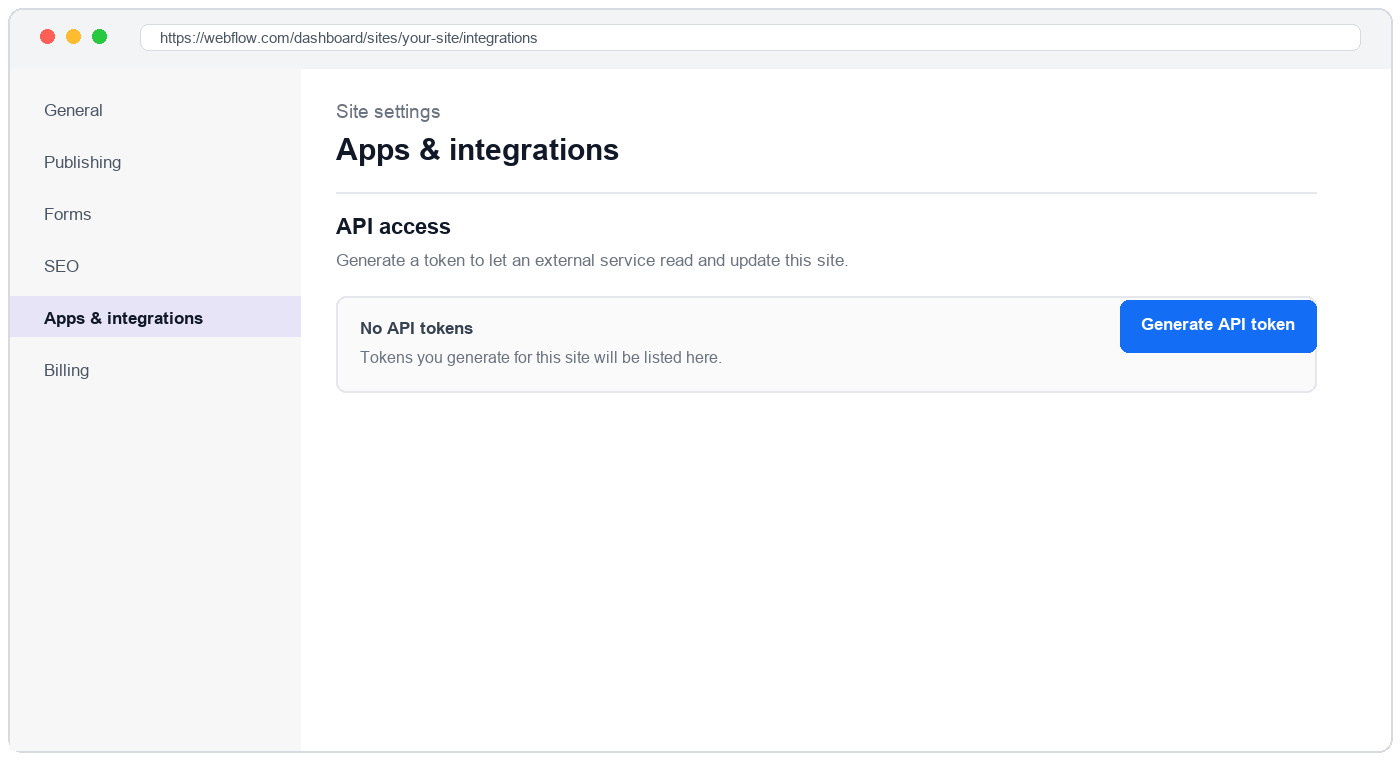
In the Webflow Dashboard, open the site, then go to **Site settings → Apps & integrations**.
Scroll to the **API access** section, which lists any tokens already generated for this site.
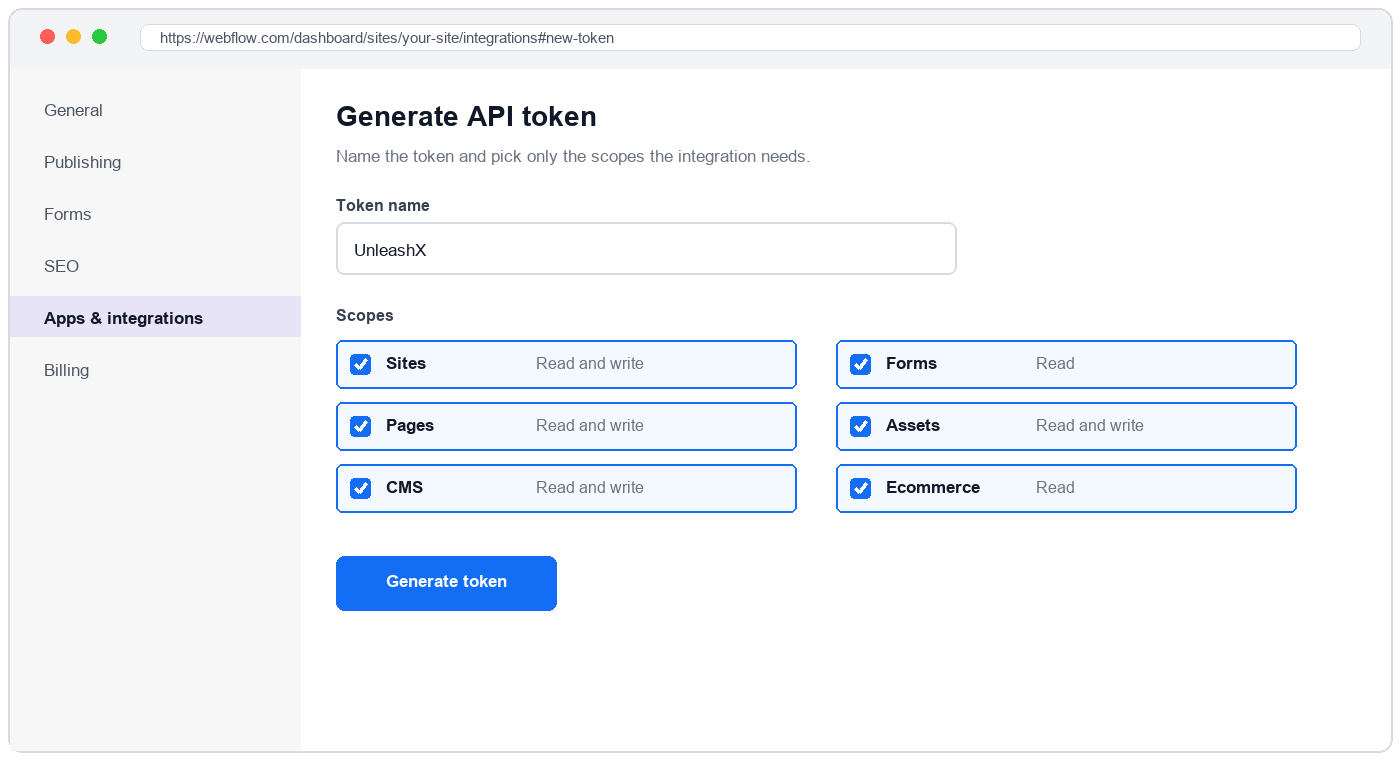
Click **Generate API token**. Give it a name you'll recognise later — for example "UnleashX".
 Tick the scopes the connector needs (see the table below). A missing scope doesn't fail at connect time — it fails later, on the one tool that needs it.
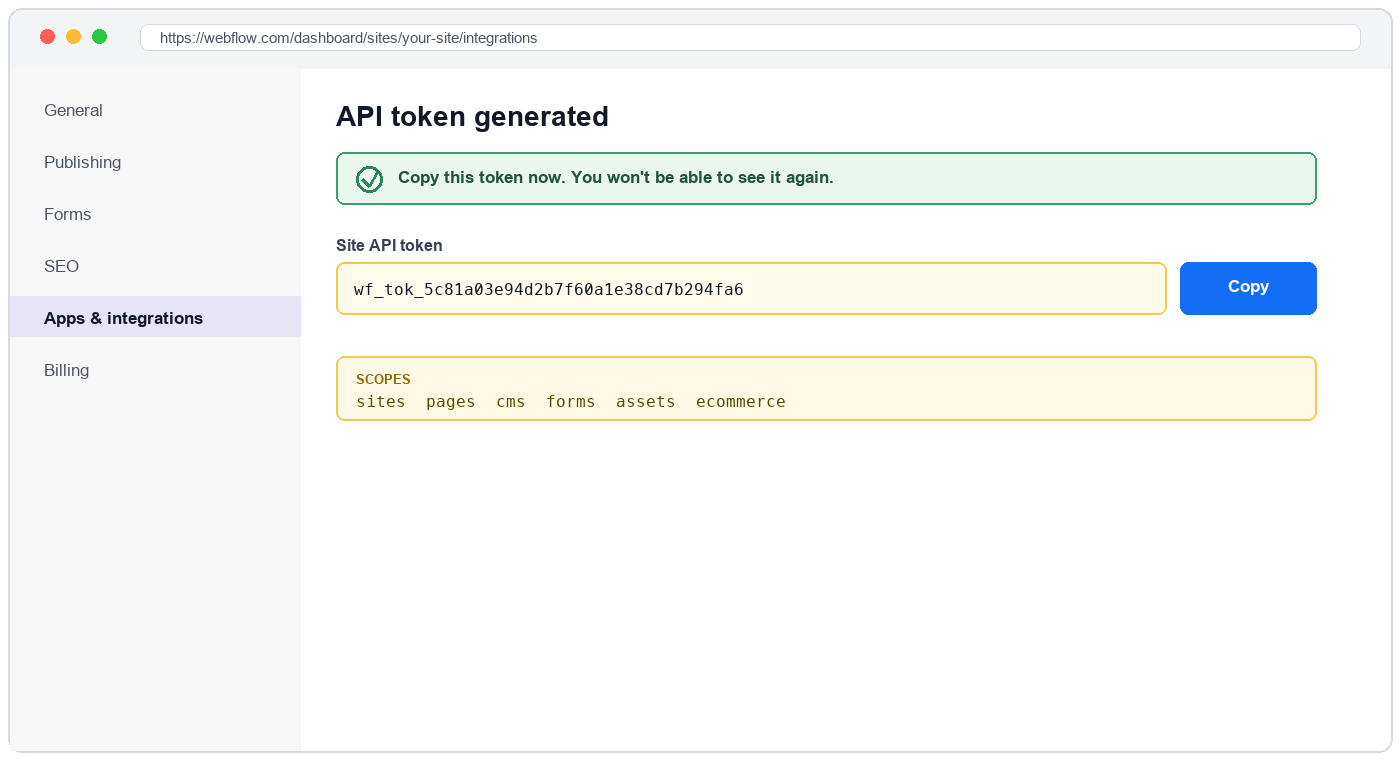
 The token is shown only once, at generation. Copy it now and store it in your password manager. If you lose it, delete the token and generate a new one.
 ### Scopes this token grants UnleashX
| Scope | Why UnleashX needs it |
| ------------------------------ | ------------------------------------------------- |
| `sites:read` | List sites and read site details. |
| `sites:write` | Publish the site. |
| `pages:read` | List pages and read page metadata and content. |
| `pages:write` | Update text and content nodes on a page. |
| `cms:read` | Read collections, their schemas, and their items. |
| `cms:write` | Create, update, delete, and publish CMS items. |
| `forms:read` | List forms and read their submissions. |
| `assets:read` / `assets:write` | List assets and register new uploads. |
| `ecommerce:read` | Read products and SKUs (ecommerce sites only). |
Grant only what the workflow actually uses. If your agent only drafts blog posts, `cms:read` + `cms:write` + `sites:read` is enough — leave the rest off.
## 4. Connect on UnleashX
Sign in at [https://www.tryunleashx.com](https://www.tryunleashx.com) and open the agent you want to connect.
In the agent, go to **Data Connectors** and find **Webflow**.
Click **Connect** / **Add** / **Configure**, paste the **site API token**, and give the connection an **Account Name** — useful when you connect more than one site.
Save. The status will switch to a **Connected** badge.
### Use Webflow in a Workflow
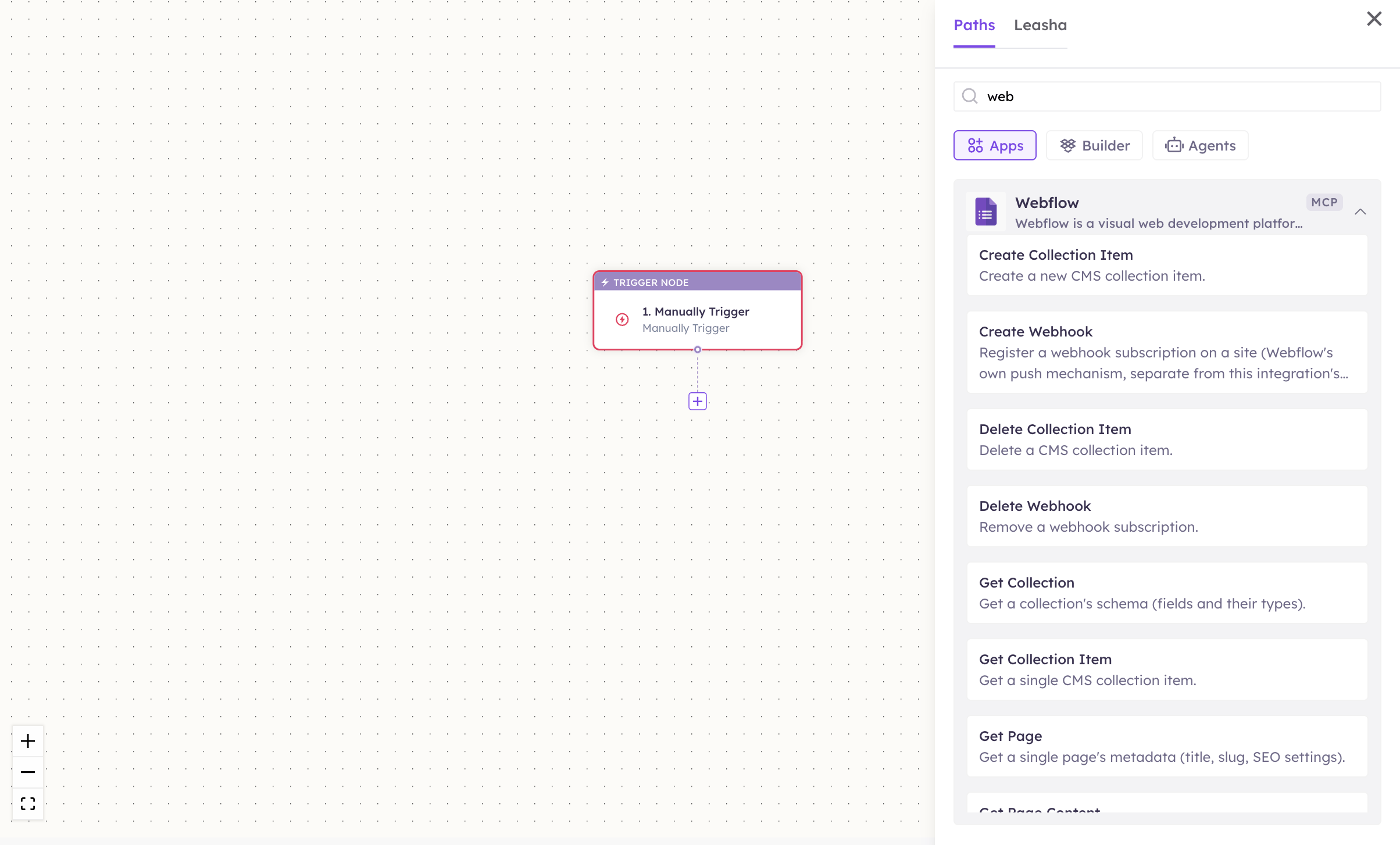
Once connected, you can add **Webflow** to any automation from the **Workflows** builder. Its triggers and tools appear in the Apps panel, marked with an **MCP** badge.
Open **Workflows → New Workflow**. On the canvas, click **+ Add Trigger**. In the **Paths** panel, open the **Apps** tab and select **Webflow** — its **Triggers** are listed underneath. Use the search box if you have many connectors.
Click the **+** below any node to add a step, then pick **Webflow** again — this time the panel lists its **Actions**.
### Scopes this token grants UnleashX
| Scope | Why UnleashX needs it |
| ------------------------------ | ------------------------------------------------- |
| `sites:read` | List sites and read site details. |
| `sites:write` | Publish the site. |
| `pages:read` | List pages and read page metadata and content. |
| `pages:write` | Update text and content nodes on a page. |
| `cms:read` | Read collections, their schemas, and their items. |
| `cms:write` | Create, update, delete, and publish CMS items. |
| `forms:read` | List forms and read their submissions. |
| `assets:read` / `assets:write` | List assets and register new uploads. |
| `ecommerce:read` | Read products and SKUs (ecommerce sites only). |
Grant only what the workflow actually uses. If your agent only drafts blog posts, `cms:read` + `cms:write` + `sites:read` is enough — leave the rest off.
## 4. Connect on UnleashX
Sign in at [https://www.tryunleashx.com](https://www.tryunleashx.com) and open the agent you want to connect.
In the agent, go to **Data Connectors** and find **Webflow**.
Click **Connect** / **Add** / **Configure**, paste the **site API token**, and give the connection an **Account Name** — useful when you connect more than one site.
Save. The status will switch to a **Connected** badge.
### Use Webflow in a Workflow
Once connected, you can add **Webflow** to any automation from the **Workflows** builder. Its triggers and tools appear in the Apps panel, marked with an **MCP** badge.
Open **Workflows → New Workflow**. On the canvas, click **+ Add Trigger**. In the **Paths** panel, open the **Apps** tab and select **Webflow** — its **Triggers** are listed underneath. Use the search box if you have many connectors.
Click the **+** below any node to add a step, then pick **Webflow** again — this time the panel lists its **Actions**.
 Fill in the fields for the trigger or action you picked. Required fields are marked with a red asterisk (\*).
Under **Selected account**, choose an already-connected account, or click **Add Account** to connect one now.
Click **Save**. Use **Test** to verify the step, then toggle **Publish** when the workflow is ready.
The steps are the same for every connector. For the full workflow builder guide, see [Using MCP in Workflows](/mcp/workflows).
## 5. Available tools
Most tools need a **site ID** or **collection ID**. Start from **List Sites** and **List Collections** — every later step takes an ID those return.
Names match the **Workflows** Apps panel, which lists them alphabetically; they're grouped here by what they act on. The **Tool ID** is what the agent calls behind the scenes.
**Sites**
| Tool | Tool ID | What it does | Required | Changes data? |
| ------------ | ---------------------- | --------------------------------------- | --------- | ------------- |
| List Sites | `webflow_list_sites` | Lists sites the token can access | — | No |
| Get Site | `webflow_get_site` | Gets a single site's details | `site_id` | No |
| Publish Site | `webflow_publish_site` | Publishes the site's current state live | `site_id` | ⚠️ Yes |
**Pages**
| Tool | Tool ID | What it does | Required | Changes data? |
| ------------------- | ----------------------------- | -------------------------------------------------- | ------------------ | ------------- |
| List Pages | `webflow_list_pages` | Lists a site's pages | `site_id` | No |
| Get Page | `webflow_get_page` | Gets a page's metadata (title, slug, SEO settings) | `page_id` | No |
| Get Page Content | `webflow_get_page_content` | Gets a page's content DOM (nodes and text) | `page_id` | No |
| Update Page Content | `webflow_update_page_content` | Updates text/content nodes on a page | `page_id`, `nodes` | ✏️ Yes |
**CMS collections**
| Tool | Tool ID | What it does | Required | Changes data? |
| ----------------------- | --------------------------------- | --------------------------------------------- | ---------------------------------------- | ------------- |
| List Collections | `webflow_list_collections` | Lists a site's CMS collections | `site_id` | No |
| Get Collection | `webflow_get_collection` | Gets a collection's schema (fields and types) | `collection_id` | No |
| List Collection Items | `webflow_list_collection_items` | Lists items in a collection, newest first | `collection_id` | No |
| Get Collection Item | `webflow_get_collection_item` | Gets a single item | `collection_id`, `item_id` | No |
| Create Collection Item | `webflow_create_collection_item` | Creates an item (draft or live) | `collection_id`, `field_data` | ✏️ Yes |
| Update Collection Item | `webflow_update_collection_item` | Updates an item's fields | `collection_id`, `item_id`, `field_data` | ✏️ Yes |
| Delete Collection Item | `webflow_delete_collection_item` | Deletes an item | `collection_id`, `item_id` | ⚠️ Yes |
| Publish Collection Item | `webflow_publish_collection_item` | Publishes staged items live | `collection_id`, `item_ids` | ⚠️ Yes |
A created or updated CMS item is **staged**, not live. Run **Publish Collection Item** (or **Publish Site**) to make it visible to visitors.
**Forms**
| Tool | Tool ID | What it does | Required | Changes data? |
| --------------------- | ------------------------------- | ------------------------------------- | -------------------- | ------------- |
| List Forms | `webflow_list_forms` | Lists forms defined on a site | `site_id` | No |
| List Form Submissions | `webflow_list_form_submissions` | Lists submissions received for a form | `site_id`, `form_id` | No |
**Assets**
| Tool | Tool ID | What it does | Required | Changes data? |
| ------------ | ---------------------- | ------------------------------------------------------------------------- | ----------------------------------- | ------------- |
| List Assets | `webflow_list_assets` | Lists images and files uploaded to a site | `site_id` | No |
| Upload Asset | `webflow_upload_asset` | Registers a file and returns a presigned upload spec to POST the bytes to | `site_id`, `file_name`, `file_hash` | ✏️ Yes |
**Upload Asset** is a two-step handshake: it registers the file with Webflow and returns an S3 presigned-upload spec, and the file bytes are POSTed there next. `file_hash` is the file's MD5, which Webflow uses to deduplicate.
**Ecommerce**
| Tool | Tool ID | What it does | Required | Changes data? |
| ------------- | ----------------------- | ---------------------------------- | ----------------------- | ------------- |
| List Products | `webflow_list_products` | Lists products with their SKUs | `site_id` | No |
| Get Product | `webflow_get_product` | Gets a single product and its SKUs | `site_id`, `product_id` | No |
**Webhooks**
| Tool | Tool ID | What it does | Required | Changes data? |
| -------------- | ------------------------ | --------------------------------------------------------------------------------------- | -------------------------------- | ------------- |
| List Webhooks | `webflow_list_webhooks` | Lists webhook subscriptions on a site | `site_id` | No |
| Create Webhook | `webflow_create_webhook` | Registers a webhook (e.g. `form_submission`, `site_publish`, `collection_item_created`) | `site_id`, `trigger_type`, `url` | ✏️ Yes |
| Delete Webhook | `webflow_delete_webhook` | Removes a webhook subscription | `webhook_id` | ⚠️ Yes |
**Triggers**
| Trigger | Trigger ID | Fires when | Required |
| ---------------------- | -------------------------------- | ----------------------------------------------- | -------------------- |
| On New Collection Item | `webflow_on_new_collection_item` | A CMS item is created in the watched collection | `collection_id` |
| On New Form Submission | `webflow_on_new_form_submission` | A submission arrives for the watched form | `site_id`, `form_id` |
These two triggers **poll** — they report what's new since the last check. That's separate from **Create Webhook**, which registers Webflow's own push notification to a callback URL of your choosing. Use the triggers to start an UnleashX workflow; use webhooks to notify an external system.
## 6. Example usage
**"Draft this week's release notes as a CMS item in the Blog collection."**
Runs **List Collections** → **Get Collection** (to see the field names) → **Create Collection Item** as a draft.
**"Publish everything staged in the Blog collection."**
Runs **List Collection Items** → **Publish Collection Item** with the staged IDs.
**"When someone submits the contact form, create the lead in HubSpot and notify Slack."**
A workflow starts on the **On New Form Submission** trigger and chains into your CRM and messaging connectors.
**"Fix the typo in the hero headline on the pricing page."**
Runs **List Pages** → **Get Page Content** to find the node, then **Update Page Content** → **Publish Site**.
## 7. Permissions & data access
**UnleashX CAN:**
* Read sites, pages, collections, items, forms, submissions, assets, and products.
* Create, update, delete, and publish CMS items.
* Update page text nodes and publish the site.
* Register assets and manage webhook subscriptions.
**UnleashX CANNOT:**
* Edit the site's design, layout, styles, or structure — that's the Designer.
* Do anything outside the scopes you ticked on the token.
* Reach sites the token wasn't generated for.
* Create or modify ecommerce products and orders (products are read-only here).
**To disconnect:** In UnleashX, open your agent → **Data Connectors** → **Webflow** → **Disconnect**. To fully revoke access, delete the token in **Site settings → Apps & integrations → API access**. Either action stops access immediately.
## 8. Troubleshooting
| Problem | What it means | How to fix it |
| -------------------------------------------- | ---------------------------------------------------------------------------------- | --------------------------------------------------------------------------------------- |
| `401 Unauthorized` | The token is wrong, or was deleted in site settings | Generate a new site API token and reconnect |
| `403 Forbidden` | The token is missing the scope that tool needs | Regenerate the token with the scope ticked — scopes can't be added to an existing token |
| `404 Not Found` | The ID belongs to a different site, or the item was deleted | Re-fetch IDs with **List Sites** / **List Collections** / **List Collection Items** |
| Changes don't appear on the live site | CMS writes are staged, not published | Run **Publish Collection Item**, or **Publish Site** |
| `409` / validation error on create or update | `field_data` doesn't match the collection's schema, or a required field is missing | Call **Get Collection** and match the field slugs and types exactly |
| CMS tools unavailable | The site's plan doesn't include the CMS | Upgrade the site plan in Webflow |
| A trigger fires for old records on first run | The first poll has no previous snapshot to compare against | Expected — subsequent polls only report what's genuinely new |
For general connector issues, see [/mcp/integrations](/mcp/integrations).
## 9. Frequently asked questions
**Is my site content stored by UnleashX?**
No. Tools call the Webflow Data API live with your token and return the result. UnleashX keeps only the bookkeeping a polling trigger needs to know what it has already seen.
**Can the agent redesign my site?**
No. It works on content — CMS items, page text, assets, publishing. Layout and styling stay in the Designer.
**Can I connect more than one site?**
Yes. Generate a token per site and add each as its own connection, using **Account Name** to tell them apart.
**Do I need a webhook, or a trigger?**
Use a **trigger** to start an UnleashX workflow. Use **Create Webhook** when an external system needs Webflow to notify it directly.
**How do I rotate the token?**
Generate a new token in **Site settings → Apps & integrations → API access**, update it in UnleashX, then delete the old one.
## 10. References
* Webflow Data API v2 reference: [https://developers.webflow.com/data/reference](https://developers.webflow.com/data/reference)
* Site API tokens: [https://developers.webflow.com/data/reference/authentication](https://developers.webflow.com/data/reference/authentication)
* Webflow CMS API: [https://developers.webflow.com/data/reference/cms](https://developers.webflow.com/data/reference/cms)
Fill in the fields for the trigger or action you picked. Required fields are marked with a red asterisk (\*).
Under **Selected account**, choose an already-connected account, or click **Add Account** to connect one now.
Click **Save**. Use **Test** to verify the step, then toggle **Publish** when the workflow is ready.
The steps are the same for every connector. For the full workflow builder guide, see [Using MCP in Workflows](/mcp/workflows).
## 5. Available tools
Most tools need a **site ID** or **collection ID**. Start from **List Sites** and **List Collections** — every later step takes an ID those return.
Names match the **Workflows** Apps panel, which lists them alphabetically; they're grouped here by what they act on. The **Tool ID** is what the agent calls behind the scenes.
**Sites**
| Tool | Tool ID | What it does | Required | Changes data? |
| ------------ | ---------------------- | --------------------------------------- | --------- | ------------- |
| List Sites | `webflow_list_sites` | Lists sites the token can access | — | No |
| Get Site | `webflow_get_site` | Gets a single site's details | `site_id` | No |
| Publish Site | `webflow_publish_site` | Publishes the site's current state live | `site_id` | ⚠️ Yes |
**Pages**
| Tool | Tool ID | What it does | Required | Changes data? |
| ------------------- | ----------------------------- | -------------------------------------------------- | ------------------ | ------------- |
| List Pages | `webflow_list_pages` | Lists a site's pages | `site_id` | No |
| Get Page | `webflow_get_page` | Gets a page's metadata (title, slug, SEO settings) | `page_id` | No |
| Get Page Content | `webflow_get_page_content` | Gets a page's content DOM (nodes and text) | `page_id` | No |
| Update Page Content | `webflow_update_page_content` | Updates text/content nodes on a page | `page_id`, `nodes` | ✏️ Yes |
**CMS collections**
| Tool | Tool ID | What it does | Required | Changes data? |
| ----------------------- | --------------------------------- | --------------------------------------------- | ---------------------------------------- | ------------- |
| List Collections | `webflow_list_collections` | Lists a site's CMS collections | `site_id` | No |
| Get Collection | `webflow_get_collection` | Gets a collection's schema (fields and types) | `collection_id` | No |
| List Collection Items | `webflow_list_collection_items` | Lists items in a collection, newest first | `collection_id` | No |
| Get Collection Item | `webflow_get_collection_item` | Gets a single item | `collection_id`, `item_id` | No |
| Create Collection Item | `webflow_create_collection_item` | Creates an item (draft or live) | `collection_id`, `field_data` | ✏️ Yes |
| Update Collection Item | `webflow_update_collection_item` | Updates an item's fields | `collection_id`, `item_id`, `field_data` | ✏️ Yes |
| Delete Collection Item | `webflow_delete_collection_item` | Deletes an item | `collection_id`, `item_id` | ⚠️ Yes |
| Publish Collection Item | `webflow_publish_collection_item` | Publishes staged items live | `collection_id`, `item_ids` | ⚠️ Yes |
A created or updated CMS item is **staged**, not live. Run **Publish Collection Item** (or **Publish Site**) to make it visible to visitors.
**Forms**
| Tool | Tool ID | What it does | Required | Changes data? |
| --------------------- | ------------------------------- | ------------------------------------- | -------------------- | ------------- |
| List Forms | `webflow_list_forms` | Lists forms defined on a site | `site_id` | No |
| List Form Submissions | `webflow_list_form_submissions` | Lists submissions received for a form | `site_id`, `form_id` | No |
**Assets**
| Tool | Tool ID | What it does | Required | Changes data? |
| ------------ | ---------------------- | ------------------------------------------------------------------------- | ----------------------------------- | ------------- |
| List Assets | `webflow_list_assets` | Lists images and files uploaded to a site | `site_id` | No |
| Upload Asset | `webflow_upload_asset` | Registers a file and returns a presigned upload spec to POST the bytes to | `site_id`, `file_name`, `file_hash` | ✏️ Yes |
**Upload Asset** is a two-step handshake: it registers the file with Webflow and returns an S3 presigned-upload spec, and the file bytes are POSTed there next. `file_hash` is the file's MD5, which Webflow uses to deduplicate.
**Ecommerce**
| Tool | Tool ID | What it does | Required | Changes data? |
| ------------- | ----------------------- | ---------------------------------- | ----------------------- | ------------- |
| List Products | `webflow_list_products` | Lists products with their SKUs | `site_id` | No |
| Get Product | `webflow_get_product` | Gets a single product and its SKUs | `site_id`, `product_id` | No |
**Webhooks**
| Tool | Tool ID | What it does | Required | Changes data? |
| -------------- | ------------------------ | --------------------------------------------------------------------------------------- | -------------------------------- | ------------- |
| List Webhooks | `webflow_list_webhooks` | Lists webhook subscriptions on a site | `site_id` | No |
| Create Webhook | `webflow_create_webhook` | Registers a webhook (e.g. `form_submission`, `site_publish`, `collection_item_created`) | `site_id`, `trigger_type`, `url` | ✏️ Yes |
| Delete Webhook | `webflow_delete_webhook` | Removes a webhook subscription | `webhook_id` | ⚠️ Yes |
**Triggers**
| Trigger | Trigger ID | Fires when | Required |
| ---------------------- | -------------------------------- | ----------------------------------------------- | -------------------- |
| On New Collection Item | `webflow_on_new_collection_item` | A CMS item is created in the watched collection | `collection_id` |
| On New Form Submission | `webflow_on_new_form_submission` | A submission arrives for the watched form | `site_id`, `form_id` |
These two triggers **poll** — they report what's new since the last check. That's separate from **Create Webhook**, which registers Webflow's own push notification to a callback URL of your choosing. Use the triggers to start an UnleashX workflow; use webhooks to notify an external system.
## 6. Example usage
**"Draft this week's release notes as a CMS item in the Blog collection."**
Runs **List Collections** → **Get Collection** (to see the field names) → **Create Collection Item** as a draft.
**"Publish everything staged in the Blog collection."**
Runs **List Collection Items** → **Publish Collection Item** with the staged IDs.
**"When someone submits the contact form, create the lead in HubSpot and notify Slack."**
A workflow starts on the **On New Form Submission** trigger and chains into your CRM and messaging connectors.
**"Fix the typo in the hero headline on the pricing page."**
Runs **List Pages** → **Get Page Content** to find the node, then **Update Page Content** → **Publish Site**.
## 7. Permissions & data access
**UnleashX CAN:**
* Read sites, pages, collections, items, forms, submissions, assets, and products.
* Create, update, delete, and publish CMS items.
* Update page text nodes and publish the site.
* Register assets and manage webhook subscriptions.
**UnleashX CANNOT:**
* Edit the site's design, layout, styles, or structure — that's the Designer.
* Do anything outside the scopes you ticked on the token.
* Reach sites the token wasn't generated for.
* Create or modify ecommerce products and orders (products are read-only here).
**To disconnect:** In UnleashX, open your agent → **Data Connectors** → **Webflow** → **Disconnect**. To fully revoke access, delete the token in **Site settings → Apps & integrations → API access**. Either action stops access immediately.
## 8. Troubleshooting
| Problem | What it means | How to fix it |
| -------------------------------------------- | ---------------------------------------------------------------------------------- | --------------------------------------------------------------------------------------- |
| `401 Unauthorized` | The token is wrong, or was deleted in site settings | Generate a new site API token and reconnect |
| `403 Forbidden` | The token is missing the scope that tool needs | Regenerate the token with the scope ticked — scopes can't be added to an existing token |
| `404 Not Found` | The ID belongs to a different site, or the item was deleted | Re-fetch IDs with **List Sites** / **List Collections** / **List Collection Items** |
| Changes don't appear on the live site | CMS writes are staged, not published | Run **Publish Collection Item**, or **Publish Site** |
| `409` / validation error on create or update | `field_data` doesn't match the collection's schema, or a required field is missing | Call **Get Collection** and match the field slugs and types exactly |
| CMS tools unavailable | The site's plan doesn't include the CMS | Upgrade the site plan in Webflow |
| A trigger fires for old records on first run | The first poll has no previous snapshot to compare against | Expected — subsequent polls only report what's genuinely new |
For general connector issues, see [/mcp/integrations](/mcp/integrations).
## 9. Frequently asked questions
**Is my site content stored by UnleashX?**
No. Tools call the Webflow Data API live with your token and return the result. UnleashX keeps only the bookkeeping a polling trigger needs to know what it has already seen.
**Can the agent redesign my site?**
No. It works on content — CMS items, page text, assets, publishing. Layout and styling stay in the Designer.
**Can I connect more than one site?**
Yes. Generate a token per site and add each as its own connection, using **Account Name** to tell them apart.
**Do I need a webhook, or a trigger?**
Use a **trigger** to start an UnleashX workflow. Use **Create Webhook** when an external system needs Webflow to notify it directly.
**How do I rotate the token?**
Generate a new token in **Site settings → Apps & integrations → API access**, update it in UnleashX, then delete the old one.
## 10. References
* Webflow Data API v2 reference: [https://developers.webflow.com/data/reference](https://developers.webflow.com/data/reference)
* Site API tokens: [https://developers.webflow.com/data/reference/authentication](https://developers.webflow.com/data/reference/authentication)
* Webflow CMS API: [https://developers.webflow.com/data/reference/cms](https://developers.webflow.com/data/reference/cms)