> ## Documentation Index
> Fetch the complete documentation index at: https://docs.unleashx.ai/llms.txt
> Use this file to discover all available pages before exploring further.
# Typeform
> Let your UnleashX agent read your Typeform forms and responses, and manage forms.
# Typeform
> **In one line:** Connect Typeform so your UnleashX agent can list your forms, pull responses, and create or update forms — all in plain language.
| | |
| ------------------ | --------------------------------------------------------------------------------------------------------------------- |
| **Category** | Forms & Surveys |
| **Authentication** | Personal access token |
| **Setup time** | \~2 minutes |
| **Difficulty** | Easy |
| **Best for** | Teams that collect data with Typeform and want an AI agent to read responses, summarize submissions, and manage forms |
## 1. Overview
Typeform is a form and survey builder known for its conversational, one-question-at-a-time experience. Your account holds the forms you've built and every response people submit.
Once connected to UnleashX, your agent can list your forms, read a form's structure, pull and summarize responses, create new forms, and manage webhooks so downstream automations fire when a response arrives. It works against your live Typeform account using a personal access token, so it acts with your own permissions.
Connecting Typeform to UnleashX turns your forms into a live data source your agent can act on. Instead of exporting a spreadsheet to see what people submitted, you ask your agent to pull the latest responses or summarize the results.
## 2. What you'll need
* A Typeform account.
* A **personal access token** generated from your account settings (see Section 3).
* An UnleashX account with access to **Data Connectors**.
You paste a **personal access token**. UnleashX sends it to the Typeform API as a `Bearer` credential.
## 3. Get your credentials
Typeform MCP authenticates with a **personal access token**.
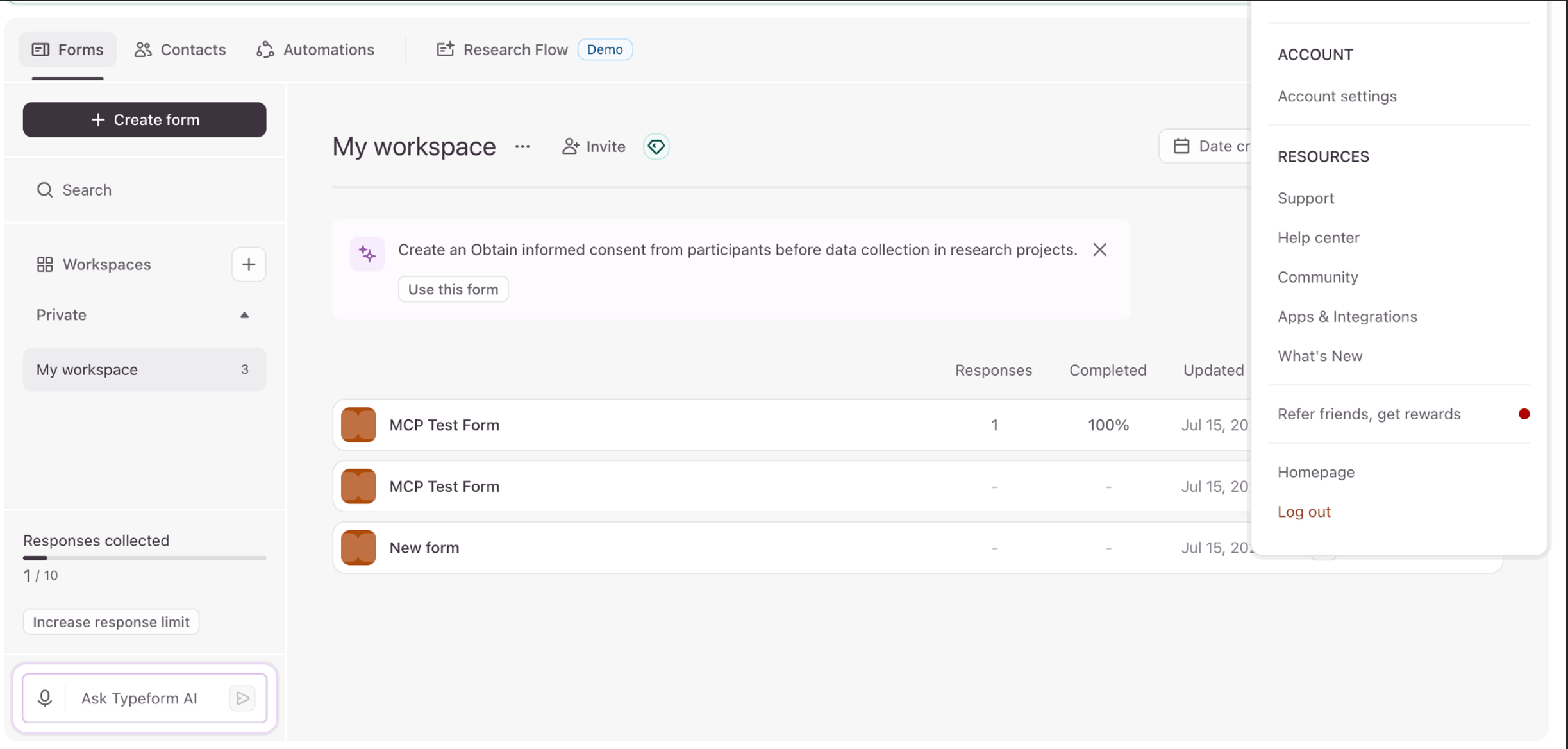
Sign in to Typeform and go to the admin portal.
On the top right, click your profile **icon** → **Account Settings**.
 In the left sidebar, click **Personal Tokens**.
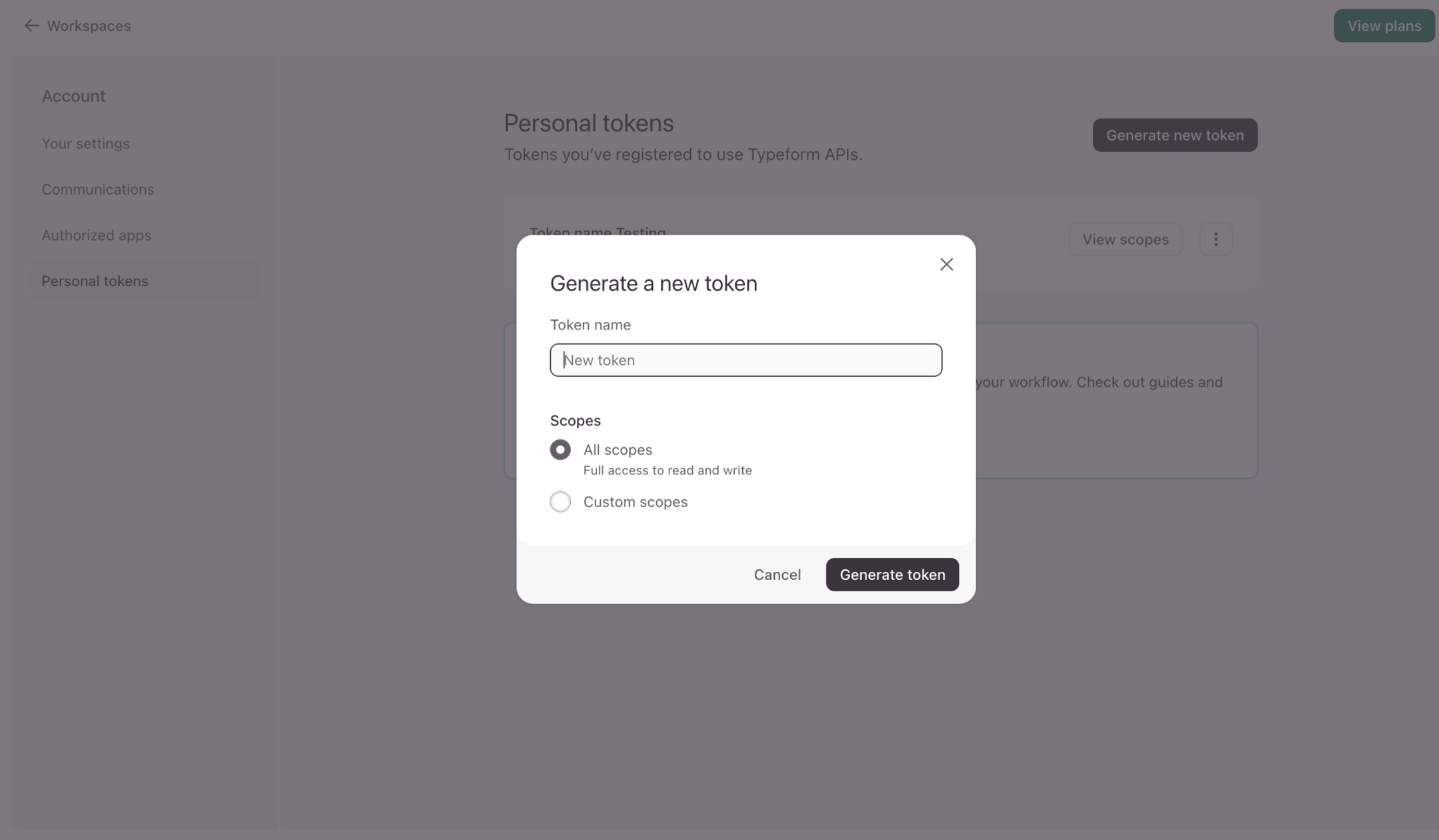
Click **Generate a new token**, give it a name (e.g. "UnleashX"), choose the scopes you want it to have, and generate it. Copy the token now — Typeform shows it only once.
In the left sidebar, click **Personal Tokens**.
Click **Generate a new token**, give it a name (e.g. "UnleashX"), choose the scopes you want it to have, and generate it. Copy the token now — Typeform shows it only once.
 Paste the token when connecting (Section 4).
A personal access token can act on your Typeform account within its scopes. Store it securely and delete it from Typeform if it's ever exposed.
### Permissions this token grants UnleashX
| Access | Why UnleashX needs it |
| --------------- | ------------------------------------------------------------- |
| Read forms | List and read your forms and their fields. |
| Manage forms | Create, update, and delete forms (if you grant write scopes). |
| Read responses | Fetch and summarize form submissions. |
| Manage webhooks | Create webhooks so workflows can trigger on new responses. |
## 4. Connect on UnleashX
Go to `https://www.tryunleashx.com` and open the agent you want to connect.
Inside the agent, go to **Data Connectors**.
Locate **Typeform** and click **Connect** (or **Add** / **Configure**).
Paste your **personal access token** and click **Connect**.
UnleashX validates the token and the Typeform connector shows a **Connected** badge.
### Use Typeform in a Workflow
Once connected, you can add **Typeform** to any automation from the **Workflows** builder. Its triggers and tools appear in the Apps panel, marked with an **MCP** badge.
Open **Workflows → New Workflow**. On the canvas, click **+ Add Trigger** (or the **+** below any node) to add a step.
Paste the token when connecting (Section 4).
A personal access token can act on your Typeform account within its scopes. Store it securely and delete it from Typeform if it's ever exposed.
### Permissions this token grants UnleashX
| Access | Why UnleashX needs it |
| --------------- | ------------------------------------------------------------- |
| Read forms | List and read your forms and their fields. |
| Manage forms | Create, update, and delete forms (if you grant write scopes). |
| Read responses | Fetch and summarize form submissions. |
| Manage webhooks | Create webhooks so workflows can trigger on new responses. |
## 4. Connect on UnleashX
Go to `https://www.tryunleashx.com` and open the agent you want to connect.
Inside the agent, go to **Data Connectors**.
Locate **Typeform** and click **Connect** (or **Add** / **Configure**).
Paste your **personal access token** and click **Connect**.
UnleashX validates the token and the Typeform connector shows a **Connected** badge.
### Use Typeform in a Workflow
Once connected, you can add **Typeform** to any automation from the **Workflows** builder. Its triggers and tools appear in the Apps panel, marked with an **MCP** badge.
Open **Workflows → New Workflow**. On the canvas, click **+ Add Trigger** (or the **+** below any node) to add a step.
 In the **Paths** panel, open the **Apps** tab and select **Typeform**. Use the search box if you have many connectors.
 Pick the trigger or action you want (for example, "new response"). Configure its fields — required fields are marked with a red asterisk (\*).
Under **Selected account**, choose an already-connected account, or click **Add Account** to connect one now.
Fill in the remaining fields and click **Save**. Use **Test** to verify the step, then toggle **Publish** when the workflow is ready.
The steps are the same for every connector. For the full workflow builder guide, see [Using MCP in Workflows](/mcp/workflows).
## 5. Available tools
| Tool | What it does | Changes data? |
| ---------------- | ---------------------------------------- | ------------- |
| List Forms | Lists the forms in your account. | No |
| Get Form | Retrieves a form's structure and fields. | No |
| Create Form | Creates a new form. | ✏️ Yes |
| Update Form | Updates an existing form. | ✏️ Yes |
| Delete Form | Deletes a form. | ⚠️ Yes |
| List Responses | Retrieves responses submitted to a form. | No |
| Get Response | Retrieves a single response. | No |
| Delete Responses | Deletes specified responses. | ⚠️ Yes |
| List Webhooks | Lists webhooks configured on a form. | No |
| Create Webhook | Creates a webhook on a form. | ✏️ Yes |
| Delete Webhook | Removes a webhook from a form. | ✏️ Yes |
| Get Workspaces | Lists the workspaces in your account. | No |
## 6. Example usage
**"How many people completed our onboarding survey this week? Summarize what they said."**
→ Runs List Responses on the form, then summarizes the submissions.
**"Create a webhook on the contact form so my workflow runs whenever someone submits it."**
→ Runs Create Webhook on the form pointing at your workflow.
## 7. Permissions & data access
**UnleashX can:**
* List and read your forms, fields, and responses.
* Create, update, and delete forms (with write scopes).
* Manage webhooks on your forms.
**UnleashX cannot:**
* Access forms or workspaces your token isn't scoped for.
* Change your Typeform account or billing settings.
**To disconnect:** In UnleashX, open **Data Connectors → Typeform → Disconnect**. Then delete the token in Typeform under **Account Settings → Personal Tokens**. Disconnecting and deleting the token removes access immediately.
## 8. Troubleshooting
| Problem | What it means | How to fix it |
| ------------------------- | ------------------------------------------ | --------------------------------------------------- |
| **401 Unauthorized** | The token is invalid or was deleted. | Generate a new personal access token and reconnect. |
| **403 Forbidden** | The token lacks the scope for that action. | Regenerate the token with the needed scopes. |
| **404 Not found** | The form ID is wrong or was deleted. | Have the agent list forms to find the correct ID. |
| **429 Too Many Requests** | You hit Typeform's rate limit. | Wait and retry; space out bulk requests. |
For general MCP issues, see [/mcp/integrations](/mcp/integrations).
## 9. Frequently asked questions
**Is my form data stored by UnleashX?**
No. UnleashX reads and writes through the Typeform API live per request; it doesn't keep a copy of your forms or responses.
**Can the agent delete forms or responses?**
Yes — tools marked ⚠️ make permanent changes and only work if your token has write scopes. Use them deliberately.
**Can multiple people connect Typeform?**
Yes. Each person generates their own personal access token and connects separately.
## 10. References
* Typeform API reference: [https://www.typeform.com/developers/](https://www.typeform.com/developers/)
* Create a personal access token: [https://www.typeform.com/developers/get-started/personal-access-token/](https://www.typeform.com/developers/get-started/personal-access-token/)
* Responses API: [https://www.typeform.com/developers/responses/](https://www.typeform.com/developers/responses/)
* Webhooks: [https://www.typeform.com/developers/webhooks/](https://www.typeform.com/developers/webhooks/)
Pick the trigger or action you want (for example, "new response"). Configure its fields — required fields are marked with a red asterisk (\*).
Under **Selected account**, choose an already-connected account, or click **Add Account** to connect one now.
Fill in the remaining fields and click **Save**. Use **Test** to verify the step, then toggle **Publish** when the workflow is ready.
The steps are the same for every connector. For the full workflow builder guide, see [Using MCP in Workflows](/mcp/workflows).
## 5. Available tools
| Tool | What it does | Changes data? |
| ---------------- | ---------------------------------------- | ------------- |
| List Forms | Lists the forms in your account. | No |
| Get Form | Retrieves a form's structure and fields. | No |
| Create Form | Creates a new form. | ✏️ Yes |
| Update Form | Updates an existing form. | ✏️ Yes |
| Delete Form | Deletes a form. | ⚠️ Yes |
| List Responses | Retrieves responses submitted to a form. | No |
| Get Response | Retrieves a single response. | No |
| Delete Responses | Deletes specified responses. | ⚠️ Yes |
| List Webhooks | Lists webhooks configured on a form. | No |
| Create Webhook | Creates a webhook on a form. | ✏️ Yes |
| Delete Webhook | Removes a webhook from a form. | ✏️ Yes |
| Get Workspaces | Lists the workspaces in your account. | No |
## 6. Example usage
**"How many people completed our onboarding survey this week? Summarize what they said."**
→ Runs List Responses on the form, then summarizes the submissions.
**"Create a webhook on the contact form so my workflow runs whenever someone submits it."**
→ Runs Create Webhook on the form pointing at your workflow.
## 7. Permissions & data access
**UnleashX can:**
* List and read your forms, fields, and responses.
* Create, update, and delete forms (with write scopes).
* Manage webhooks on your forms.
**UnleashX cannot:**
* Access forms or workspaces your token isn't scoped for.
* Change your Typeform account or billing settings.
**To disconnect:** In UnleashX, open **Data Connectors → Typeform → Disconnect**. Then delete the token in Typeform under **Account Settings → Personal Tokens**. Disconnecting and deleting the token removes access immediately.
## 8. Troubleshooting
| Problem | What it means | How to fix it |
| ------------------------- | ------------------------------------------ | --------------------------------------------------- |
| **401 Unauthorized** | The token is invalid or was deleted. | Generate a new personal access token and reconnect. |
| **403 Forbidden** | The token lacks the scope for that action. | Regenerate the token with the needed scopes. |
| **404 Not found** | The form ID is wrong or was deleted. | Have the agent list forms to find the correct ID. |
| **429 Too Many Requests** | You hit Typeform's rate limit. | Wait and retry; space out bulk requests. |
For general MCP issues, see [/mcp/integrations](/mcp/integrations).
## 9. Frequently asked questions
**Is my form data stored by UnleashX?**
No. UnleashX reads and writes through the Typeform API live per request; it doesn't keep a copy of your forms or responses.
**Can the agent delete forms or responses?**
Yes — tools marked ⚠️ make permanent changes and only work if your token has write scopes. Use them deliberately.
**Can multiple people connect Typeform?**
Yes. Each person generates their own personal access token and connects separately.
## 10. References
* Typeform API reference: [https://www.typeform.com/developers/](https://www.typeform.com/developers/)
* Create a personal access token: [https://www.typeform.com/developers/get-started/personal-access-token/](https://www.typeform.com/developers/get-started/personal-access-token/)
* Responses API: [https://www.typeform.com/developers/responses/](https://www.typeform.com/developers/responses/)
* Webhooks: [https://www.typeform.com/developers/webhooks/](https://www.typeform.com/developers/webhooks/)