> ## Documentation Index
> Fetch the complete documentation index at: https://docs.unleashx.ai/llms.txt
> Use this file to discover all available pages before exploring further.
# SurveyMonkey
> Let your UnleashX agent read your SurveyMonkey surveys, collectors, and responses.
# SurveyMonkey
> **In one line:** Connect SurveyMonkey so your UnleashX agent can list your surveys, pull responses, and summarize results — all in plain language.
| | |
| ------------------ | -------------------------------------------------------------------------------------------------------------------- |
| **Category** | Forms & Surveys |
| **Authentication** | Access token (app) |
| **Setup time** | \~4 minutes |
| **Difficulty** | Easy |
| **Best for** | Teams that run surveys in SurveyMonkey and want an AI agent to read responses, summarize feedback, and track results |
## 1. Overview
SurveyMonkey is a survey platform for collecting feedback at scale. Your account holds the surveys you've built, the collectors that distribute them, and every response respondents submit.
Once connected to UnleashX, your agent can list your surveys, read a survey's questions, pull responses through its collectors, and summarize the results. It works against your live SurveyMonkey account using an access token, so it acts with your own permissions.
Connecting SurveyMonkey to UnleashX turns your surveys into a live feedback source. Instead of exporting results manually, you ask your agent to pull the latest responses or summarize what respondents said.
## 2. What you'll need
* A SurveyMonkey account (a paid plan is required for full API access to responses).
* An **access token** generated from an app in the SurveyMonkey Developer Portal (see Section 3).
* An UnleashX account with access to **Data Connectors**.
You paste an **access token**. UnleashX sends it to the SurveyMonkey API as a `Bearer` credential.
The token acts with **your account's plan and permissions**. Access to responses and certain endpoints depends on your SurveyMonkey plan.
## 3. Get your credentials
SurveyMonkey works differently from most connectors: you don't generate a bare token from your account settings. Instead you **create an app** in the Developer Portal, and that app comes with an **access token** already bound to your own SurveyMonkey account. You copy that token into UnleashX.
The app is just a container for the credential — you never publish it or submit it for review.
### Step-by-step
Go to [developer.surveymonkey.com](https://developer.surveymonkey.com/) and sign in with your SurveyMonkey account. The top navigation shows **Home**, **My Apps**, **Docs**, **Status**, and **FAQ**.
Click **My Apps**. This lists any apps you've already created.
Click the green **Add a New App** button in the top-right. The **APP CREATION** dialog opens.
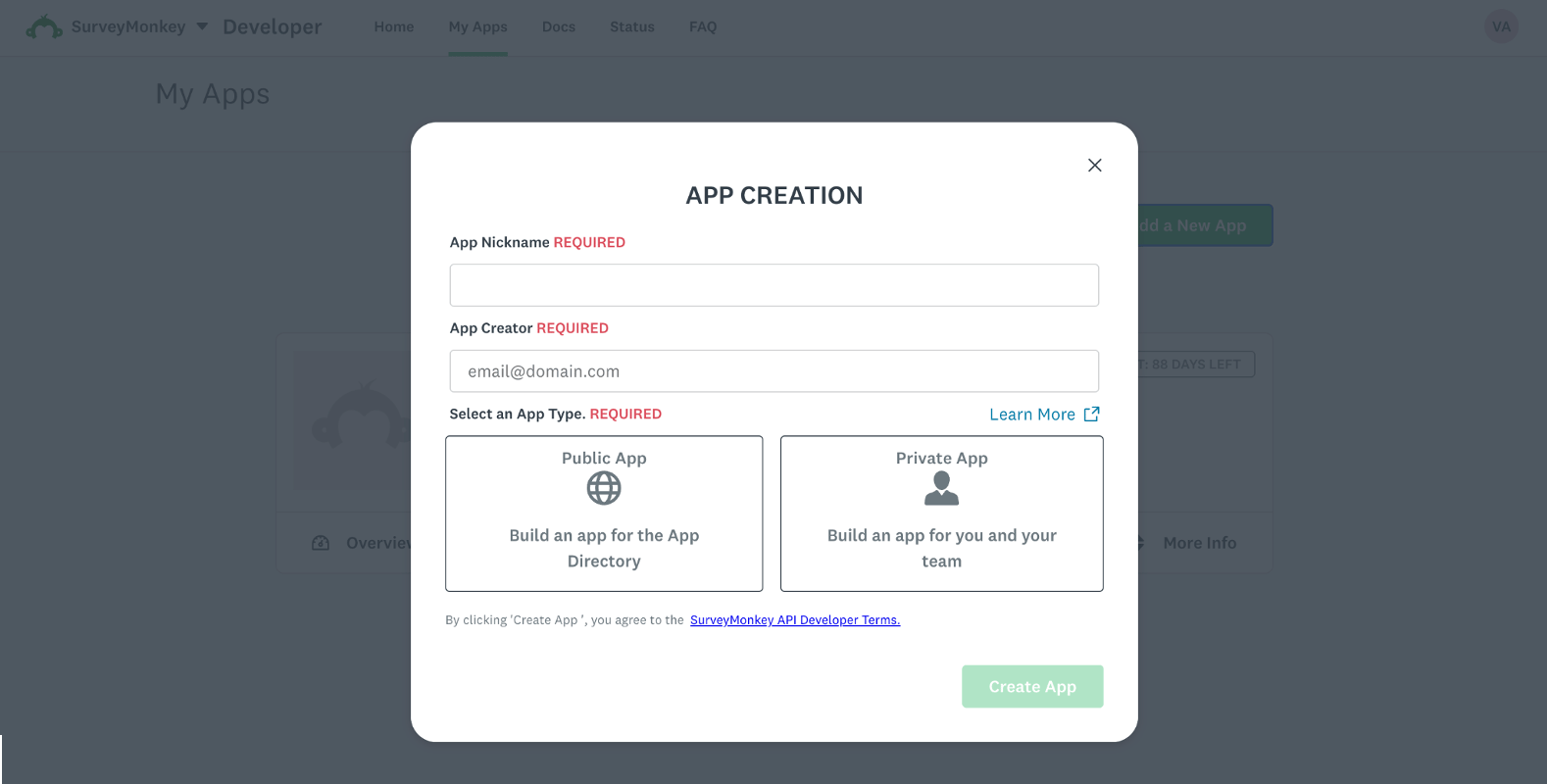 Three fields are required:
* **App Nickname** — a name for your own reference, e.g. `UnleashX`.
* **App Creator** — your email address.
* **App Type** — choose **Private App** ("Build an app for you and your team").
Pick **Private App**, not Public App. A private app works only against your own account and is ready immediately. A **Public App** is intended for listing in the SurveyMonkey App Directory and requires a review process you don't need.
Click **Create App**. The button stays greyed out until all three required fields are filled. Creating the app means accepting the SurveyMonkey API Developer Terms, linked in the dialog.
Once the app is created you'll be returned to **My Apps**. Open your new app and click **Settings**.
Scroll to the **Credentials** section. Alongside the Client ID and Secret you'll find your **Access Token** — copy it.
This token is already tied to your SurveyMonkey account, so there's no separate OAuth step to run.
Head to **Data Connectors → SurveyMonkey** in UnleashX and paste the token (full walkthrough in Section 4). UnleashX validates it on save.
### Good to know
**Watch the trial countdown.** Apps in the Developer Portal display a remaining-days badge (for example *88 DAYS LEFT*) on the app card. When that window lapses, the app's credentials can stop working and the connector will start returning `401 Unauthorized`.
If your agent suddenly loses access, check the app's status in **My Apps** before assuming the token was mistyped.
Your access token can read **every survey and response your account can see**. Store it securely, never commit it to git, and delete the app in the Developer Portal if the token is ever exposed — that invalidates the credential immediately.
**Response access depends on your plan.** Reading responses through the API generally requires a paid SurveyMonkey plan. On lower tiers the connection succeeds but response endpoints return `403` — see Section 8.
The token stays visible under **Settings → Credentials**, so unlike a one-time secret you can return and copy it again whenever you need it.
### Permissions this token grants UnleashX
| Access | Why UnleashX needs it |
| --------------- | ----------------------------------------------- |
| Read surveys | List and read your surveys and their questions. |
| Read collectors | List the collectors distributing a survey. |
| Read responses | Fetch and summarize responses. |
| View details | Read survey and response details for reporting. |
## 4. Connect on UnleashX
Go to `https://www.tryunleashx.com` and open the agent you want to connect.
Inside the agent, go to **Data Connectors**.
Locate **SurveyMonkey** and click **Connect** (or **Add** / **Configure**).
Paste your **access token** and click **Connect**.
UnleashX validates the token and the SurveyMonkey connector shows a **Connected** badge.
### Use SurveyMonkey in a Workflow
Once connected, you can add **SurveyMonkey** to any automation from the **Workflows** builder. Its triggers and tools appear in the Apps panel, marked with an **MCP** badge.
Open **Workflows → New Workflow**. On the canvas, click **+ Add Trigger** (or the **+** below any node) to add a step.
Three fields are required:
* **App Nickname** — a name for your own reference, e.g. `UnleashX`.
* **App Creator** — your email address.
* **App Type** — choose **Private App** ("Build an app for you and your team").
Pick **Private App**, not Public App. A private app works only against your own account and is ready immediately. A **Public App** is intended for listing in the SurveyMonkey App Directory and requires a review process you don't need.
Click **Create App**. The button stays greyed out until all three required fields are filled. Creating the app means accepting the SurveyMonkey API Developer Terms, linked in the dialog.
Once the app is created you'll be returned to **My Apps**. Open your new app and click **Settings**.
Scroll to the **Credentials** section. Alongside the Client ID and Secret you'll find your **Access Token** — copy it.
This token is already tied to your SurveyMonkey account, so there's no separate OAuth step to run.
Head to **Data Connectors → SurveyMonkey** in UnleashX and paste the token (full walkthrough in Section 4). UnleashX validates it on save.
### Good to know
**Watch the trial countdown.** Apps in the Developer Portal display a remaining-days badge (for example *88 DAYS LEFT*) on the app card. When that window lapses, the app's credentials can stop working and the connector will start returning `401 Unauthorized`.
If your agent suddenly loses access, check the app's status in **My Apps** before assuming the token was mistyped.
Your access token can read **every survey and response your account can see**. Store it securely, never commit it to git, and delete the app in the Developer Portal if the token is ever exposed — that invalidates the credential immediately.
**Response access depends on your plan.** Reading responses through the API generally requires a paid SurveyMonkey plan. On lower tiers the connection succeeds but response endpoints return `403` — see Section 8.
The token stays visible under **Settings → Credentials**, so unlike a one-time secret you can return and copy it again whenever you need it.
### Permissions this token grants UnleashX
| Access | Why UnleashX needs it |
| --------------- | ----------------------------------------------- |
| Read surveys | List and read your surveys and their questions. |
| Read collectors | List the collectors distributing a survey. |
| Read responses | Fetch and summarize responses. |
| View details | Read survey and response details for reporting. |
## 4. Connect on UnleashX
Go to `https://www.tryunleashx.com` and open the agent you want to connect.
Inside the agent, go to **Data Connectors**.
Locate **SurveyMonkey** and click **Connect** (or **Add** / **Configure**).
Paste your **access token** and click **Connect**.
UnleashX validates the token and the SurveyMonkey connector shows a **Connected** badge.
### Use SurveyMonkey in a Workflow
Once connected, you can add **SurveyMonkey** to any automation from the **Workflows** builder. Its triggers and tools appear in the Apps panel, marked with an **MCP** badge.
Open **Workflows → New Workflow**. On the canvas, click **+ Add Trigger** (or the **+** below any node) to add a step.
 In the **Paths** panel, open the **Apps** tab and select **SurveyMonkey**. Use the search box if you have many connectors.
 Pick the trigger or action you want (for example, "new response"). Configure its fields — required fields are marked with a red asterisk (\*).
Under **Selected account**, choose an already-connected account, or click **Add Account** to connect one now.
Fill in the remaining fields and click **Save**. Use **Test** to verify the step, then toggle **Publish** when the workflow is ready.
The steps are the same for every connector. For the full workflow builder guide, see [Using MCP in Workflows](/mcp/workflows).
## 5. Available tools
| Tool | What it does | Changes data? |
| -------------------- | ------------------------------------------------------- | ------------- |
| List Surveys | Lists the surveys in your account. | No |
| Get Survey | Retrieves a survey's details. | No |
| Get Survey Details | Retrieves a survey's full question structure. | No |
| List Collectors | Lists collectors for a survey. | No |
| Get Collector | Retrieves a collector's details. | No |
| List Responses | Lists responses for a survey or collector. | No |
| Get Response | Retrieves a single response with answers (bulk detail). | No |
| Get Survey Questions | Lists the questions in a survey. | No |
| Get Response Counts | Returns response/rollup counts for a survey. | No |
| Get Current User | Retrieves the connected account's details. | No |
The SurveyMonkey connector is read-focused — it reads surveys, collectors, and responses rather than modifying them.
## 6. Example usage
**"How many people finished our NPS survey, and what's the overall sentiment?"**
→ Runs List Responses (or Get Response Counts) for the survey, then summarizes the responses.
**"Pull the open-text answers from last week's feedback survey and group the themes."**
→ Runs List Responses / Get Response for the survey and summarizes the free-text answers by theme.
## 7. Permissions & data access
**UnleashX can:**
* List and read your surveys, questions, collectors, and responses.
* Retrieve response counts and details for reporting.
**UnleashX cannot:**
* Modify or delete surveys or responses.
* Access surveys your account/plan can't reach.
* Change your SurveyMonkey account or billing settings.
**To disconnect:** In UnleashX, open **Data Connectors → SurveyMonkey → Disconnect**. You can also revoke or delete the app in the SurveyMonkey Developer Portal. Disconnecting removes access immediately.
## 8. Troubleshooting
| Problem | What it means | How to fix it |
| --------------------------------- | ---------------------------------------------------------- | ------------------------------------------------------------------------------------------------------------ |
| **401 Unauthorized** | The access token is invalid or was revoked. | Copy a fresh token from the app's **Settings → Credentials** and reconnect. |
| **401 after working fine** | Your Developer Portal app's trial window has lapsed. | Check the days-remaining badge in **My Apps**; renew or recreate the app, then reconnect with the new token. |
| **403 Forbidden / plan required** | Your plan doesn't include that endpoint (often responses). | Upgrade your SurveyMonkey plan for full API access. |
| **404 Not found** | The survey/collector ID is wrong or was deleted. | Have the agent list surveys/collectors to find the correct ID. |
| **429 Too Many Requests** | You hit SurveyMonkey's rate/daily limit. | Wait for the window to reset and retry. |
For general MCP issues, see [/mcp/integrations](/mcp/integrations).
## 9. Frequently asked questions
**Is my survey data stored by UnleashX?**
No. UnleashX reads through the SurveyMonkey API live per request; it doesn't keep a copy of your surveys or responses.
**Why can't I read responses?**
Response access depends on your SurveyMonkey plan. Free/lower tiers restrict some API endpoints.
**Can the agent edit surveys?**
The connector is read-focused — it reads surveys and responses rather than creating or editing them.
## 10. References
* SurveyMonkey API documentation: [https://api.surveymonkey.com/v3/docs](https://api.surveymonkey.com/v3/docs)
* Developer Portal: [https://developer.surveymonkey.com/](https://developer.surveymonkey.com/)
* Getting started / access tokens: [https://developer.surveymonkey.com/api/v3/#getting-started](https://developer.surveymonkey.com/api/v3/#getting-started)
Pick the trigger or action you want (for example, "new response"). Configure its fields — required fields are marked with a red asterisk (\*).
Under **Selected account**, choose an already-connected account, or click **Add Account** to connect one now.
Fill in the remaining fields and click **Save**. Use **Test** to verify the step, then toggle **Publish** when the workflow is ready.
The steps are the same for every connector. For the full workflow builder guide, see [Using MCP in Workflows](/mcp/workflows).
## 5. Available tools
| Tool | What it does | Changes data? |
| -------------------- | ------------------------------------------------------- | ------------- |
| List Surveys | Lists the surveys in your account. | No |
| Get Survey | Retrieves a survey's details. | No |
| Get Survey Details | Retrieves a survey's full question structure. | No |
| List Collectors | Lists collectors for a survey. | No |
| Get Collector | Retrieves a collector's details. | No |
| List Responses | Lists responses for a survey or collector. | No |
| Get Response | Retrieves a single response with answers (bulk detail). | No |
| Get Survey Questions | Lists the questions in a survey. | No |
| Get Response Counts | Returns response/rollup counts for a survey. | No |
| Get Current User | Retrieves the connected account's details. | No |
The SurveyMonkey connector is read-focused — it reads surveys, collectors, and responses rather than modifying them.
## 6. Example usage
**"How many people finished our NPS survey, and what's the overall sentiment?"**
→ Runs List Responses (or Get Response Counts) for the survey, then summarizes the responses.
**"Pull the open-text answers from last week's feedback survey and group the themes."**
→ Runs List Responses / Get Response for the survey and summarizes the free-text answers by theme.
## 7. Permissions & data access
**UnleashX can:**
* List and read your surveys, questions, collectors, and responses.
* Retrieve response counts and details for reporting.
**UnleashX cannot:**
* Modify or delete surveys or responses.
* Access surveys your account/plan can't reach.
* Change your SurveyMonkey account or billing settings.
**To disconnect:** In UnleashX, open **Data Connectors → SurveyMonkey → Disconnect**. You can also revoke or delete the app in the SurveyMonkey Developer Portal. Disconnecting removes access immediately.
## 8. Troubleshooting
| Problem | What it means | How to fix it |
| --------------------------------- | ---------------------------------------------------------- | ------------------------------------------------------------------------------------------------------------ |
| **401 Unauthorized** | The access token is invalid or was revoked. | Copy a fresh token from the app's **Settings → Credentials** and reconnect. |
| **401 after working fine** | Your Developer Portal app's trial window has lapsed. | Check the days-remaining badge in **My Apps**; renew or recreate the app, then reconnect with the new token. |
| **403 Forbidden / plan required** | Your plan doesn't include that endpoint (often responses). | Upgrade your SurveyMonkey plan for full API access. |
| **404 Not found** | The survey/collector ID is wrong or was deleted. | Have the agent list surveys/collectors to find the correct ID. |
| **429 Too Many Requests** | You hit SurveyMonkey's rate/daily limit. | Wait for the window to reset and retry. |
For general MCP issues, see [/mcp/integrations](/mcp/integrations).
## 9. Frequently asked questions
**Is my survey data stored by UnleashX?**
No. UnleashX reads through the SurveyMonkey API live per request; it doesn't keep a copy of your surveys or responses.
**Why can't I read responses?**
Response access depends on your SurveyMonkey plan. Free/lower tiers restrict some API endpoints.
**Can the agent edit surveys?**
The connector is read-focused — it reads surveys and responses rather than creating or editing them.
## 10. References
* SurveyMonkey API documentation: [https://api.surveymonkey.com/v3/docs](https://api.surveymonkey.com/v3/docs)
* Developer Portal: [https://developer.surveymonkey.com/](https://developer.surveymonkey.com/)
* Getting started / access tokens: [https://developer.surveymonkey.com/api/v3/#getting-started](https://developer.surveymonkey.com/api/v3/#getting-started)