> ## Documentation Index
> Fetch the complete documentation index at: https://docs.unleashx.ai/llms.txt
> Use this file to discover all available pages before exploring further.
# Pipedrive
> Let your UnleashX agent manage deals, contacts, organizations, activities, and notes in Pipedrive.
# Pipedrive
> **In one line:** Connect Pipedrive so your UnleashX agent can find and update deals, manage contacts and organizations, log activities and notes, and keep your pipeline moving — all in plain language.
| | |
| ------------------ | --------------------------------------------------------------------------------------------------- |
| **Category** | CRM & Marketing |
| **Authentication** | Personal API token |
| **Setup time** | \~2 minutes |
| **Difficulty** | Easy |
| **Best for** | Sales teams that want an AI agent to manage deals, log activities, and update contacts in Pipedrive |
## 1. Overview
Pipedrive is a sales-focused CRM built around your pipeline. It's the system of record for deals, the people and organizations behind them, and the activities and notes that move each deal forward.
Once connected to UnleashX, your agent can find and update deals, move them between stages, create and update persons and organizations, schedule activities, add notes, and search across your CRM. It works against your live Pipedrive account using your personal API token, so it acts with your own permissions.
Connecting Pipedrive to UnleashX means your CRM updates itself as you talk. Instead of opening Pipedrive to log a call or advance a deal, you tell your agent and it makes the change — keeping the pipeline current without manual data entry.
## 2. What you'll need
* A Pipedrive account.
* Your **personal API token** (see Section 3).
* An UnleashX account with access to **Data Connectors**.
You paste a **personal API token**. UnleashX sends it to the Pipedrive API on each request.
Your token acts with **your Pipedrive permissions**. If your user can't see or edit certain deals or fields, the agent can't either.
## 3. Get your credentials
Pipedrive MCP authenticates with your **personal API token** — a single secret string tied to your Pipedrive user. Unlike most connectors, you don't create it: Pipedrive generates one for you automatically, and you simply copy the existing value.
### Step-by-step
Go to your Pipedrive account (`https://.pipedrive.com`) and sign in with the user whose permissions you want the agent to act with.
Click your **profile avatar** in the top-right corner of the toolbar to open the account menu.
Select **Personal preferences**. You'll land on **Settings → Personal preferences**, with a **MY ACCOUNT** list down the left (Personal preferences, Password and login, Email sync, Contact sync, Calendar sync, and so on).
At the top of the Personal preferences page there are three tabs: **Account**, **Your companies**, and **API**.
Click **API**. The page heading changes to **API**, and you'll see a **Your personal API token** field.
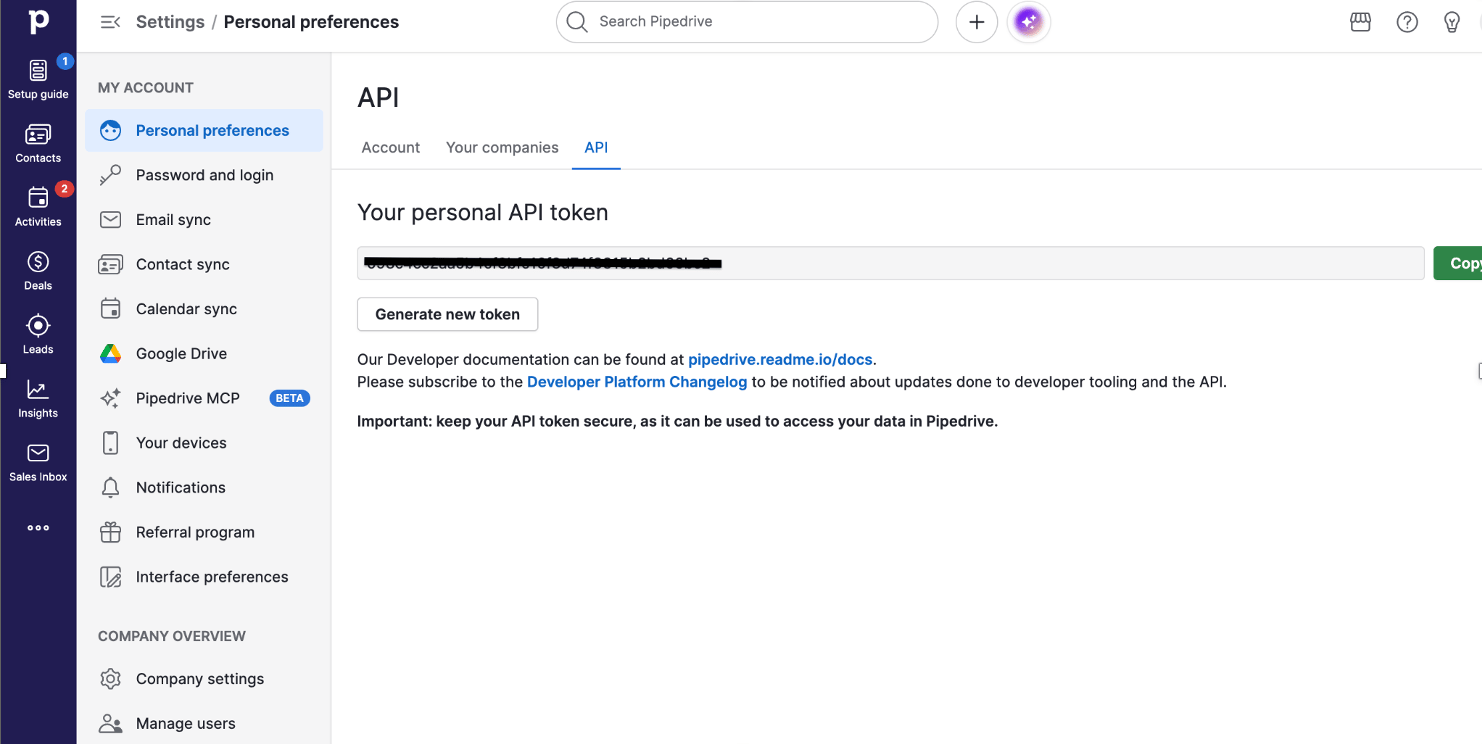 Your token is already there, partially masked. Click the green **Copy** button to the right of the field to copy the full value to your clipboard.
You don't need to generate anything — the existing token works straight away.
Head to **Data Connectors → Pipedrive** in UnleashX and paste the token (full walkthrough in Section 4). UnleashX validates it on save, so you'll know immediately if it pasted correctly.
### Good to know
**Your token doesn't expire and can be viewed again any time.** Unlike connectors that reveal a secret only once, Pipedrive keeps your personal API token on this page permanently — so if you lose it, just come back to **Personal preferences → API** and copy it again.
**"Generate new token" replaces your existing token.** The button below the field creates a fresh token and **immediately invalidates the old one**.
Only click it if your token has leaked. Anything already using the old token — UnleashX, scripts, other integrations — will start returning `401 Unauthorized` until you update each one with the new value.
As Pipedrive itself notes on this page: *keep your API token secure, as it can be used to access your data in Pipedrive.* The token carries **your full user permissions** — anyone holding it can read and modify every deal, contact, and organization you can. Never commit it to git or share it in chat.
Because the token is tied to your individual user, the agent inherits **your** visibility and edit rights. For a shared or automated setup, consider creating a dedicated Pipedrive user with exactly the permissions the agent should have, and connect using that user's token instead of your own.
### Permissions this token grants UnleashX
| Access | Why UnleashX needs it |
| ---------------------------------- | ------------------------------------------------- |
| Read/write deals | Find, create, update, and move deals. |
| Read/write persons & organizations | Manage contacts and companies. |
| Read/write activities | Schedule and complete calls, meetings, and tasks. |
| Read/write notes | Add and read notes on records. |
| Read pipelines & stages | Know your pipeline structure to move deals. |
## 4. Connect on UnleashX
Go to `https://www.tryunleashx.com` and open the agent you want to connect.
Inside the agent, go to **Data Connectors**.
Locate **Pipedrive** and click **Connect** (or **Add** / **Configure**).
Paste your **personal API token** and click **Connect**.
UnleashX validates the token and the Pipedrive connector shows a **Connected** badge.
### Use Pipedrive in a Workflow
Once connected, you can add **Pipedrive** to any automation from the **Workflows** builder. Its triggers and tools appear in the Apps panel, marked with an **MCP** badge.
Open **Workflows → New Workflow**. On the canvas, click **+ Add Trigger** (or the **+** below any node) to add a step.
Your token is already there, partially masked. Click the green **Copy** button to the right of the field to copy the full value to your clipboard.
You don't need to generate anything — the existing token works straight away.
Head to **Data Connectors → Pipedrive** in UnleashX and paste the token (full walkthrough in Section 4). UnleashX validates it on save, so you'll know immediately if it pasted correctly.
### Good to know
**Your token doesn't expire and can be viewed again any time.** Unlike connectors that reveal a secret only once, Pipedrive keeps your personal API token on this page permanently — so if you lose it, just come back to **Personal preferences → API** and copy it again.
**"Generate new token" replaces your existing token.** The button below the field creates a fresh token and **immediately invalidates the old one**.
Only click it if your token has leaked. Anything already using the old token — UnleashX, scripts, other integrations — will start returning `401 Unauthorized` until you update each one with the new value.
As Pipedrive itself notes on this page: *keep your API token secure, as it can be used to access your data in Pipedrive.* The token carries **your full user permissions** — anyone holding it can read and modify every deal, contact, and organization you can. Never commit it to git or share it in chat.
Because the token is tied to your individual user, the agent inherits **your** visibility and edit rights. For a shared or automated setup, consider creating a dedicated Pipedrive user with exactly the permissions the agent should have, and connect using that user's token instead of your own.
### Permissions this token grants UnleashX
| Access | Why UnleashX needs it |
| ---------------------------------- | ------------------------------------------------- |
| Read/write deals | Find, create, update, and move deals. |
| Read/write persons & organizations | Manage contacts and companies. |
| Read/write activities | Schedule and complete calls, meetings, and tasks. |
| Read/write notes | Add and read notes on records. |
| Read pipelines & stages | Know your pipeline structure to move deals. |
## 4. Connect on UnleashX
Go to `https://www.tryunleashx.com` and open the agent you want to connect.
Inside the agent, go to **Data Connectors**.
Locate **Pipedrive** and click **Connect** (or **Add** / **Configure**).
Paste your **personal API token** and click **Connect**.
UnleashX validates the token and the Pipedrive connector shows a **Connected** badge.
### Use Pipedrive in a Workflow
Once connected, you can add **Pipedrive** to any automation from the **Workflows** builder. Its triggers and tools appear in the Apps panel, marked with an **MCP** badge.
Open **Workflows → New Workflow**. On the canvas, click **+ Add Trigger** (or the **+** below any node) to add a step.
 In the **Paths** panel, open the **Apps** tab and select **Pipedrive**. Use the search box if you have many connectors.
 Pick the trigger or action you want (for example, "deal updated"). Configure its fields — required fields are marked with a red asterisk (\*).
Under **Selected account**, choose an already-connected account, or click **Add Account** to connect one now.
Fill in the remaining fields and click **Save**. Use **Test** to verify the step, then toggle **Publish** when the workflow is ready.
The steps are the same for every connector. For the full workflow builder guide, see [Using MCP in Workflows](/mcp/workflows).
## 5. Available tools
| Tool | What it does | Changes data? |
| ------------------- | ----------------------------------------------- | ------------- |
| List Deals | Lists deals (filter by stage, status, owner). | No |
| Get Deal | Retrieves a single deal by ID. | No |
| Create Deal | Creates a new deal. | ✏️ Yes |
| Update Deal | Updates a deal (stage, value, status, etc.). | ✏️ Yes |
| Delete Deal | Deletes a deal. | ⚠️ Yes |
| Search Deals | Searches deals by term. | No |
| List Persons | Lists persons (contacts). | No |
| Get Person | Retrieves a single person by ID. | No |
| Create Person | Creates a new person. | ✏️ Yes |
| Update Person | Updates a person. | ✏️ Yes |
| List Organizations | Lists organizations. | No |
| Create Organization | Creates a new organization. | ✏️ Yes |
| Update Organization | Updates an organization. | ✏️ Yes |
| List Activities | Lists activities. | No |
| Create Activity | Schedules an activity (call, meeting, task). | ✏️ Yes |
| Update Activity | Updates or completes an activity. | ✏️ Yes |
| Add Note | Adds a note to a deal, person, or organization. | ✏️ Yes |
| List Notes | Lists notes on a record. | No |
| List Pipelines | Lists pipelines. | No |
| List Stages | Lists stages in a pipeline. | No |
| Search Leads | Searches leads. | No |
| Create Lead | Creates a new lead. | ✏️ Yes |
## 6. Example usage
**"Create a deal for Acme Corp worth \$12,000 in the Sales pipeline and schedule a follow-up call for Friday."**
→ Runs Create Deal to add the deal, then Create Activity to schedule the call.
**"Move the Globex deal to Negotiation and add a note about the new pricing."**
→ Runs Search Deals to find it, Update Deal to change the stage, and Add Note for the pricing detail.
## 7. Permissions & data access
**UnleashX can:**
* Read, search, and list deals, persons, organizations, activities, and notes.
* Create and update deals, contacts, organizations, activities, and leads.
* Move deals between stages and add notes.
* Delete records where your permissions allow (marked ⚠️).
**UnleashX cannot:**
* Do anything your Pipedrive user permissions don't allow.
* Change your Pipedrive account or billing settings.
**To disconnect:** In UnleashX, open **Data Connectors → Pipedrive → Disconnect**. You can regenerate your token in Pipedrive under **Personal preferences → API** to invalidate the old one. Disconnecting removes access immediately.
## 8. Troubleshooting
| Problem | What it means | How to fix it |
| ------------------------- | ----------------------------------------------------- | ------------------------------------------------------------------------- |
| **401 Unauthorized** | The token is invalid or was regenerated. | Copy the current token from **Personal preferences → API** and reconnect. |
| **403 Forbidden** | Your user lacks permission for that record or action. | Ask your Pipedrive admin to adjust your permissions. |
| **404 Not found** | The deal/person ID is wrong or was deleted. | Have the agent search to find the correct record. |
| **429 Too Many Requests** | You hit Pipedrive's rate/token limit. | Wait and retry; space out bulk operations. |
For general MCP issues, see [/mcp/integrations](/mcp/integrations).
## 9. Frequently asked questions
**Is my CRM data stored by UnleashX?**
No. UnleashX reads and writes live through the Pipedrive API per request; it doesn't keep a copy.
**Can the agent delete deals?**
Yes — tools marked ⚠️ make permanent changes and only work if your permissions allow it. Use them deliberately.
**Can multiple team members connect Pipedrive?**
Yes. Each person uses their own personal API token, so the agent acts with that user's permissions.
## 10. References
* Pipedrive API documentation: [https://developers.pipedrive.com/docs/api/v1](https://developers.pipedrive.com/docs/api/v1)
* How to find your API token: [https://pipedrive.readme.io/docs/how-to-find-the-api-token](https://pipedrive.readme.io/docs/how-to-find-the-api-token)
* Rate limiting: [https://pipedrive.readme.io/docs/core-api-concepts-rate-limiting](https://pipedrive.readme.io/docs/core-api-concepts-rate-limiting)
Pick the trigger or action you want (for example, "deal updated"). Configure its fields — required fields are marked with a red asterisk (\*).
Under **Selected account**, choose an already-connected account, or click **Add Account** to connect one now.
Fill in the remaining fields and click **Save**. Use **Test** to verify the step, then toggle **Publish** when the workflow is ready.
The steps are the same for every connector. For the full workflow builder guide, see [Using MCP in Workflows](/mcp/workflows).
## 5. Available tools
| Tool | What it does | Changes data? |
| ------------------- | ----------------------------------------------- | ------------- |
| List Deals | Lists deals (filter by stage, status, owner). | No |
| Get Deal | Retrieves a single deal by ID. | No |
| Create Deal | Creates a new deal. | ✏️ Yes |
| Update Deal | Updates a deal (stage, value, status, etc.). | ✏️ Yes |
| Delete Deal | Deletes a deal. | ⚠️ Yes |
| Search Deals | Searches deals by term. | No |
| List Persons | Lists persons (contacts). | No |
| Get Person | Retrieves a single person by ID. | No |
| Create Person | Creates a new person. | ✏️ Yes |
| Update Person | Updates a person. | ✏️ Yes |
| List Organizations | Lists organizations. | No |
| Create Organization | Creates a new organization. | ✏️ Yes |
| Update Organization | Updates an organization. | ✏️ Yes |
| List Activities | Lists activities. | No |
| Create Activity | Schedules an activity (call, meeting, task). | ✏️ Yes |
| Update Activity | Updates or completes an activity. | ✏️ Yes |
| Add Note | Adds a note to a deal, person, or organization. | ✏️ Yes |
| List Notes | Lists notes on a record. | No |
| List Pipelines | Lists pipelines. | No |
| List Stages | Lists stages in a pipeline. | No |
| Search Leads | Searches leads. | No |
| Create Lead | Creates a new lead. | ✏️ Yes |
## 6. Example usage
**"Create a deal for Acme Corp worth \$12,000 in the Sales pipeline and schedule a follow-up call for Friday."**
→ Runs Create Deal to add the deal, then Create Activity to schedule the call.
**"Move the Globex deal to Negotiation and add a note about the new pricing."**
→ Runs Search Deals to find it, Update Deal to change the stage, and Add Note for the pricing detail.
## 7. Permissions & data access
**UnleashX can:**
* Read, search, and list deals, persons, organizations, activities, and notes.
* Create and update deals, contacts, organizations, activities, and leads.
* Move deals between stages and add notes.
* Delete records where your permissions allow (marked ⚠️).
**UnleashX cannot:**
* Do anything your Pipedrive user permissions don't allow.
* Change your Pipedrive account or billing settings.
**To disconnect:** In UnleashX, open **Data Connectors → Pipedrive → Disconnect**. You can regenerate your token in Pipedrive under **Personal preferences → API** to invalidate the old one. Disconnecting removes access immediately.
## 8. Troubleshooting
| Problem | What it means | How to fix it |
| ------------------------- | ----------------------------------------------------- | ------------------------------------------------------------------------- |
| **401 Unauthorized** | The token is invalid or was regenerated. | Copy the current token from **Personal preferences → API** and reconnect. |
| **403 Forbidden** | Your user lacks permission for that record or action. | Ask your Pipedrive admin to adjust your permissions. |
| **404 Not found** | The deal/person ID is wrong or was deleted. | Have the agent search to find the correct record. |
| **429 Too Many Requests** | You hit Pipedrive's rate/token limit. | Wait and retry; space out bulk operations. |
For general MCP issues, see [/mcp/integrations](/mcp/integrations).
## 9. Frequently asked questions
**Is my CRM data stored by UnleashX?**
No. UnleashX reads and writes live through the Pipedrive API per request; it doesn't keep a copy.
**Can the agent delete deals?**
Yes — tools marked ⚠️ make permanent changes and only work if your permissions allow it. Use them deliberately.
**Can multiple team members connect Pipedrive?**
Yes. Each person uses their own personal API token, so the agent acts with that user's permissions.
## 10. References
* Pipedrive API documentation: [https://developers.pipedrive.com/docs/api/v1](https://developers.pipedrive.com/docs/api/v1)
* How to find your API token: [https://pipedrive.readme.io/docs/how-to-find-the-api-token](https://pipedrive.readme.io/docs/how-to-find-the-api-token)
* Rate limiting: [https://pipedrive.readme.io/docs/core-api-concepts-rate-limiting](https://pipedrive.readme.io/docs/core-api-concepts-rate-limiting)