> ## Documentation Index
> Fetch the complete documentation index at: https://docs.unleashx.ai/llms.txt
> Use this file to discover all available pages before exploring further.
# PDF.co
> Let your UnleashX agent convert, generate, edit, and read PDFs — from a conversation or a workflow.
# PDF.co
> **In one line:** Connect PDF.co so your UnleashX agent can turn a PDF into text, CSV, JSON or images, build a PDF from a web page or HTML, merge, split, redact, password-protect, and pull structured data out of invoices and receipts.
| | |
| ------------------ | -------------------------------------------------------------------------------------------------------------- |
| **Category** | AI & Media |
| **Authentication** | API key |
| **Setup time** | \~2 minutes |
| **Difficulty** | Easy |
| **Best for** | Any workflow where a document arrives and something has to be read out of it, or a document has to be produced |
## 1. Overview
PDF.co is a document-processing API. You hand it a file URL and an operation; it does the work on its own infrastructure and hands back a URL to the result.
Once connected to UnleashX, your agent gets the whole document toolbox: convert a PDF to plain text, CSV, JSON, HTML or images; generate a PDF from raw HTML, a live web page, an Office file, or an image; merge, split, rotate, or delete pages; fill forms, add text or stamps at exact coordinates, and find-and-replace text; add or strip passwords; generate and read barcodes and QR codes; and parse an invoice or receipt into structured fields.
Connecting PDF.co to UnleashX is what lets a document actually enter a workflow — an invoice lands, the agent parses it into fields, and the next step files the data where it belongs. Or the other direction: a workflow finishes and hands the customer a generated PDF.
## 2. What you'll need
* A **PDF.co account** — the free tier is enough to test with.
* Your **PDF.co API key** from the dashboard.
* An UnleashX agent where you'll add the connector.
PDF.co operations consume **credits** from your account balance. Conversions of large documents cost more than small ones. Use **Get Account Balance** to check what's left.
## 3. Get your credentials
PDF.co authenticates with a single **API key**. There's no OAuth flow and nothing to install.
Go to [app.pdf.co](https://app.pdf.co/) and sign in, or create an account if you don't have one.
Your API key is shown on the dashboard's **API** section. Unlike most services, PDF.co lets you re-read this key later — it isn't a one-time reveal.
Copy it and keep it somewhere safe. If it's ever exposed, regenerate it from the same screen — the old value stops working immediately.
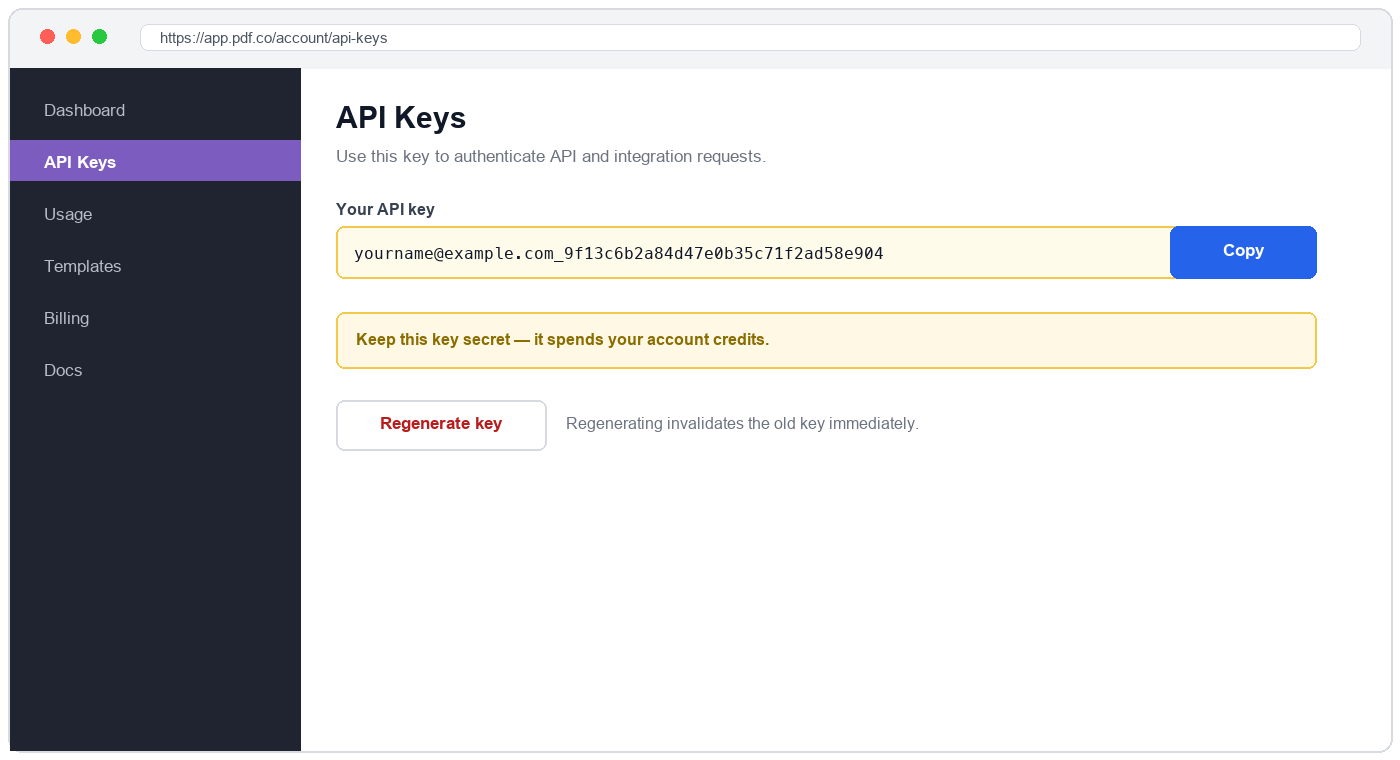 Add it in **Data Connectors → PDF.co** (full walkthrough in Section 4).
The API key spends your PDF.co credits. Never commit it to git, paste it into a ticket, or ship it in client-side code. Use a separate key per integration where your plan allows it, so one can be rotated without breaking the rest.
### Permissions this key grants UnleashX
| Access | Why UnleashX needs it |
| ------------------- | ----------------------------------------------------------------------------------------- |
| Upload files | Put a local or remote file into PDF.co's temporary storage so an operation can run on it. |
| Convert documents | Turn PDFs into text, CSV, JSON, HTML, or images, and other formats into PDF. |
| Edit documents | Merge, split, rotate, delete pages, fill forms, add text, find-and-replace. |
| Security operations | Add or remove PDF passwords. |
| Barcodes | Generate and decode barcodes and QR codes. |
| Document parsing | Extract structured fields and tables from invoices, receipts, and similar documents. |
| Account status | Read the remaining credit balance. |
Uploaded files live in PDF.co's temporary storage and are **auto-deleted after one hour**. Output URLs are equally temporary — download or forward the result within the same workflow rather than storing the link for later.
## 4. Connect on UnleashX
Sign in at [https://www.tryunleashx.com](https://www.tryunleashx.com) and open the agent you want to connect.
In the agent, go to **Data Connectors** and find **PDF.co**.
Click **Connect** / **Add** / **Configure**, paste your **API key**, and give the connection an **Account Name** — a label for your own reference inside UnleashX.
Save. The status will switch to a **Connected** badge.
### Use PDF.co in a Workflow
Once connected, you can add **PDF.co** to any automation from the **Workflows** builder. Its tools appear in the Apps panel, marked with an **MCP** badge.
Open **Workflows → New Workflow**. On the canvas, click the **+** below a node, then open the **Apps** tab in the **Paths** panel and select **PDF.co** — its **Actions** are listed underneath. Use the search box if you have many connectors.
Add it in **Data Connectors → PDF.co** (full walkthrough in Section 4).
The API key spends your PDF.co credits. Never commit it to git, paste it into a ticket, or ship it in client-side code. Use a separate key per integration where your plan allows it, so one can be rotated without breaking the rest.
### Permissions this key grants UnleashX
| Access | Why UnleashX needs it |
| ------------------- | ----------------------------------------------------------------------------------------- |
| Upload files | Put a local or remote file into PDF.co's temporary storage so an operation can run on it. |
| Convert documents | Turn PDFs into text, CSV, JSON, HTML, or images, and other formats into PDF. |
| Edit documents | Merge, split, rotate, delete pages, fill forms, add text, find-and-replace. |
| Security operations | Add or remove PDF passwords. |
| Barcodes | Generate and decode barcodes and QR codes. |
| Document parsing | Extract structured fields and tables from invoices, receipts, and similar documents. |
| Account status | Read the remaining credit balance. |
Uploaded files live in PDF.co's temporary storage and are **auto-deleted after one hour**. Output URLs are equally temporary — download or forward the result within the same workflow rather than storing the link for later.
## 4. Connect on UnleashX
Sign in at [https://www.tryunleashx.com](https://www.tryunleashx.com) and open the agent you want to connect.
In the agent, go to **Data Connectors** and find **PDF.co**.
Click **Connect** / **Add** / **Configure**, paste your **API key**, and give the connection an **Account Name** — a label for your own reference inside UnleashX.
Save. The status will switch to a **Connected** badge.
### Use PDF.co in a Workflow
Once connected, you can add **PDF.co** to any automation from the **Workflows** builder. Its tools appear in the Apps panel, marked with an **MCP** badge.
Open **Workflows → New Workflow**. On the canvas, click the **+** below a node, then open the **Apps** tab in the **Paths** panel and select **PDF.co** — its **Actions** are listed underneath. Use the search box if you have many connectors.
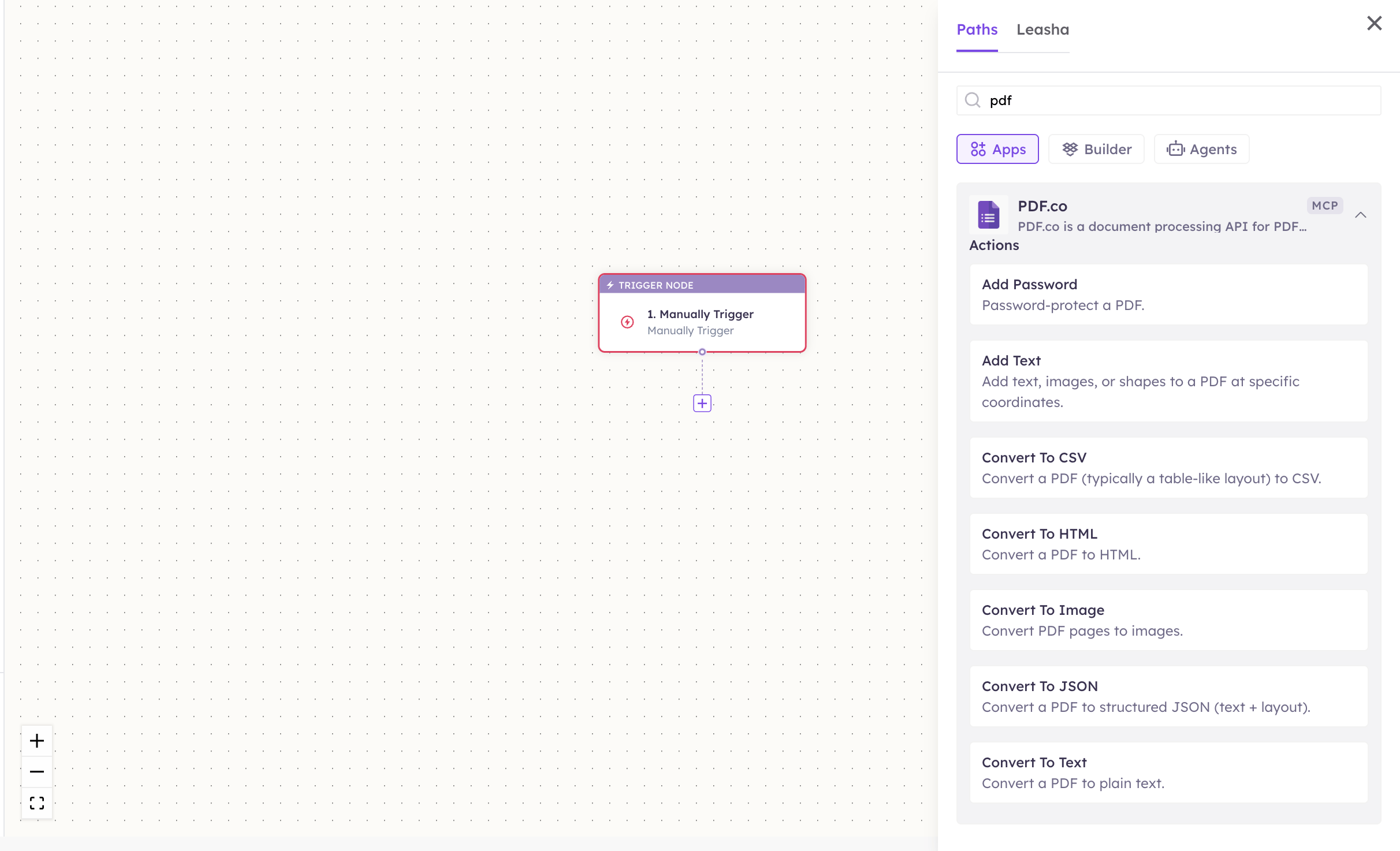 Choose the action from **Select Action**, then pick the connected account under **Select Account** — or click **Add Account** to connect one now.
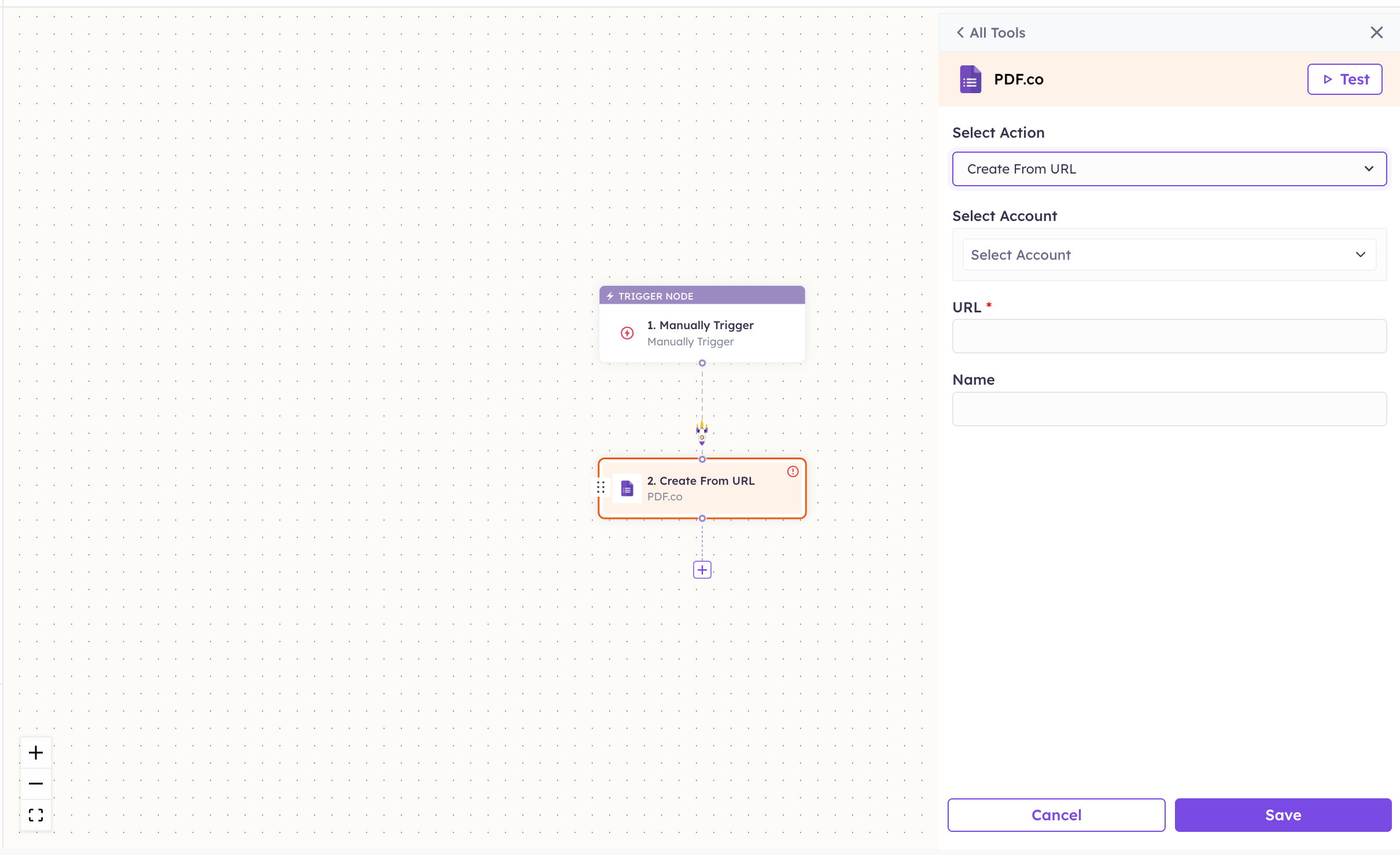 Complete the fields for the action you picked. Required fields are marked with a red asterisk (\*).
Click **Save**. Use **Test** to verify the step, then toggle **Publish** when the workflow is ready.
PDF.co is an **actions-only** connector — it has no triggers, because the PDF.co API has nothing to poll for new records. Start these workflows from another trigger (a new email with an attachment, a form submission, a schedule) and use PDF.co as a step.
The steps are the same for every connector. For the full workflow builder guide, see [Using MCP in Workflows](/mcp/workflows).
## 5. Available tools
Every PDF.co operation takes a **file URL**, not a file. If your file isn't already on a public URL, run **Upload File** or **Upload File From URL** first and pass the URL it returns into the next step.
Names match the **Workflows** Apps panel, which lists them alphabetically; they're grouped here by what they do. The **Tool ID** is what the agent calls behind the scenes.
**Getting a file in**
| Tool | Tool ID | What it does | Required | Changes data? |
| -------------------- | ---------------------------- | ---------------------------------------------------------------------- | ----------- | ------------- |
| Upload File | `pdfco_upload_file` | Uploads a local file to PDF.co's temporary storage and returns its URL | `file_path` | ✏️ Yes |
| Upload File From URL | `pdfco_upload_file_from_url` | Has PDF.co fetch a file from a public URL into temporary storage | `url` | ✏️ Yes |
**Converting a PDF to something else**
| Tool | Tool ID | What it does | Required | Changes data? |
| ---------------- | ------------------------ | --------------------------------------------------------------- | -------- | ------------- |
| Convert To Text | `pdfco_convert_to_text` | Converts a PDF to plain text | `url` | No |
| Convert To CSV | `pdfco_convert_to_csv` | Converts a PDF (typically a table-like layout) to CSV | `url` | No |
| Convert To JSON | `pdfco_convert_to_json` | Converts a PDF to structured JSON (text + layout) | `url` | No |
| Convert To HTML | `pdfco_convert_to_html` | Converts a PDF to HTML | `url` | No |
| Convert To Image | `pdfco_convert_to_image` | Converts PDF pages to images (`image_format` defaults to `jpg`) | `url` | No |
All five accept optional `pages` (e.g. `0-2,5`) and `password` for a protected source file, plus `name` for the output file.
**Creating a PDF**
| Tool | Tool ID | What it does | Required | Changes data? |
| ------------------ | -------------------------- | -------------------------------------------------- | -------- | ------------- |
| Create From HTML | `pdfco_create_from_html` | Generates a PDF from raw HTML markup | `html` | ✏️ Yes |
| Create From URL | `pdfco_create_from_url` | Generates a PDF by rendering a live web page | `url` | ✏️ Yes |
| Create From Office | `pdfco_create_from_office` | Converts DOC/DOCX/RTF/TXT/PPT/PPTX/XLS/XLSX to PDF | `url` | ✏️ Yes |
| Create From Image | `pdfco_create_from_image` | Converts JPG/PNG/TIFF to PDF | `url` | ✏️ Yes |
**Editing a PDF**
| Tool | Tool ID | What it does | Required | Changes data? |
| ------------------- | --------------------------- | ------------------------------------------------------ | ---------------------------------------- | ------------- |
| Merge | `pdfco_merge` | Merges multiple files into one PDF, in the given order | `urls` | ✏️ Yes |
| Split | `pdfco_split` | Splits a PDF into multiple files by page ranges | `url`, `pages` | ✏️ Yes |
| Fill Form | `pdfco_fill_form` | Fills an existing PDF form's fields | `url`, `fields` | ✏️ Yes |
| Add Text | `pdfco_add_text` | Adds text, images, or shapes at specific coordinates | `url`, `annotations` | ✏️ Yes |
| Search Replace Text | `pdfco_search_replace_text` | Finds and replaces text throughout a PDF | `url`, `search_string`, `replace_string` | ✏️ Yes |
| Delete Pages | `pdfco_delete_pages` | Deletes specific pages | `url`, `pages` | ✏️ Yes |
| Rotate Pages | `pdfco_rotate_pages` | Rotates pages by an angle | `url`, `angle` | ✏️ Yes |
**Security**
| Tool | Tool ID | What it does | Required | Changes data? |
| --------------- | ----------------------- | ------------------------------------------------------------------ | ----------------- | ------------- |
| Add Password | `pdfco_add_password` | Password-protects a PDF | `url`, `password` | ✏️ Yes |
| Remove Password | `pdfco_remove_password` | Removes password protection (you must supply the current password) | `url`, `password` | ✏️ Yes |
**Barcodes**
| Tool | Tool ID | What it does | Required | Changes data? |
| ---------------- | ------------------------ | -------------------------------------------------------------------------- | -------- | ------------- |
| Generate Barcode | `pdfco_generate_barcode` | Generates a barcode or QR code image (`barcode_type` defaults to `QRCode`) | `value` | ✏️ Yes |
| Read Barcode | `pdfco_read_barcode` | Detects and decodes barcodes/QR codes in an image or PDF | `url` | No |
**Reading and account**
| Tool | Tool ID | What it does | Required | Changes data? |
| ------------------- | --------------------------- | ------------------------------------------------------------------------------------------------------------------- | -------- | ------------- |
| Get PDF Info | `pdfco_get_pdf_info` | Returns page count, security permissions, and document properties | `url` | No |
| Parse Document | `pdfco_parse_document` | Extracts structured fields and tables from an invoice, receipt, or order — AI-based unless you pass a `template_id` | `url` | No |
| Get Job Status | `pdfco_get_job_status` | Checks an asynchronous background job | `job_id` | No |
| Get Account Balance | `pdfco_get_account_balance` | Returns the remaining credit balance | — | No |
## 6. Example usage
**"Pull the line items out of this invoice and put them in the sheet."**
Runs **Upload File From URL** → **Parse Document**, then hands the fields to your Google Sheets step.
**"Turn our pricing page into a PDF and email it to the customer."**
Runs **Create From URL** on the page, then passes the result URL to your email connector.
**"Split this 200-page report into one file per section and password-protect each one."**
Runs **Split** with page ranges → **Add Password** on each output.
**"Read the QR code on this scanned delivery note."**
Runs **Read Barcode** on the uploaded scan.
## 7. Permissions & data access
**UnleashX CAN:**
* Upload files to PDF.co's temporary storage and run operations on them.
* Convert, generate, edit, merge, split, and redact documents.
* Add and remove PDF passwords, and generate or read barcodes.
* Parse documents into structured data and read your credit balance.
**UnleashX CANNOT:**
* Reach files that aren't uploaded or publicly accessible by URL.
* Change your PDF.co account settings, plan, or billing.
* Recover a document whose temporary URL has expired.
**To disconnect:** In UnleashX, open your agent → **Data Connectors** → **PDF.co** → **Disconnect**. To fully revoke access, regenerate or delete the API key in the PDF.co dashboard. Either action stops access immediately.
## 8. Troubleshooting
| Problem | What it means | How to fix it |
| ------------------------------------------------------------ | ----------------------------------------------------------------------------------------- | ----------------------------------------------------------------------- |
| `401 Unauthorized` | The API key is wrong, or was regenerated in the dashboard | Copy the current key from PDF.co and reconnect |
| Operation returns an error with a message, not an HTTP error | PDF.co reports business-logic failures (bad URL, unsupported format) in the response body | Read the message — it usually names the bad input |
| "File not found" on a URL that worked earlier | Temporary storage auto-deletes after one hour | Re-upload the file inside the same workflow run |
| Credit / balance errors | The account is out of credits | Check **Get Account Balance** and top up the PDF.co plan |
| A conversion returns an empty result | The source PDF is a scan with no text layer | Convert to image and run [OCR](/mcp/ocr), or use **Parse Document** |
| A long conversion times out | The job ran in async mode | Use **Get Job Status** with the returned `jobId` to poll for completion |
For general connector issues, see [/mcp/integrations](/mcp/integrations).
## 9. Frequently asked questions
**Does UnleashX store my documents?**
No. Files go to PDF.co's temporary storage and are deleted automatically after an hour. UnleashX passes URLs through; it doesn't keep copies.
**Can I process a file that isn't public?**
Yes — use **Upload File** to push it into PDF.co's storage first, then use the URL it returns.
**Why are there no triggers?**
PDF.co is a stateless request/response API with nothing to poll for new records, so there's no "on new document" event. Start the workflow from whatever delivers the document — an inbox, a form, a schedule.
**What does a run cost?**
It consumes PDF.co credits, priced by operation and document size. Check the balance with **Get Account Balance**.
**Is this the same as OCR?**
No. PDF.co reads text that's already in the file and can parse structured documents. For scanned images with no text layer, see the [OCR](/mcp/ocr) connector.
## 10. References
* PDF.co API documentation: [https://developer.pdf.co/](https://developer.pdf.co/)
* PDF.co dashboard: [https://app.pdf.co/](https://app.pdf.co/)
* Document parser templates: [https://developer.pdf.co/api/document-parser/](https://developer.pdf.co/api/document-parser/)
Complete the fields for the action you picked. Required fields are marked with a red asterisk (\*).
Click **Save**. Use **Test** to verify the step, then toggle **Publish** when the workflow is ready.
PDF.co is an **actions-only** connector — it has no triggers, because the PDF.co API has nothing to poll for new records. Start these workflows from another trigger (a new email with an attachment, a form submission, a schedule) and use PDF.co as a step.
The steps are the same for every connector. For the full workflow builder guide, see [Using MCP in Workflows](/mcp/workflows).
## 5. Available tools
Every PDF.co operation takes a **file URL**, not a file. If your file isn't already on a public URL, run **Upload File** or **Upload File From URL** first and pass the URL it returns into the next step.
Names match the **Workflows** Apps panel, which lists them alphabetically; they're grouped here by what they do. The **Tool ID** is what the agent calls behind the scenes.
**Getting a file in**
| Tool | Tool ID | What it does | Required | Changes data? |
| -------------------- | ---------------------------- | ---------------------------------------------------------------------- | ----------- | ------------- |
| Upload File | `pdfco_upload_file` | Uploads a local file to PDF.co's temporary storage and returns its URL | `file_path` | ✏️ Yes |
| Upload File From URL | `pdfco_upload_file_from_url` | Has PDF.co fetch a file from a public URL into temporary storage | `url` | ✏️ Yes |
**Converting a PDF to something else**
| Tool | Tool ID | What it does | Required | Changes data? |
| ---------------- | ------------------------ | --------------------------------------------------------------- | -------- | ------------- |
| Convert To Text | `pdfco_convert_to_text` | Converts a PDF to plain text | `url` | No |
| Convert To CSV | `pdfco_convert_to_csv` | Converts a PDF (typically a table-like layout) to CSV | `url` | No |
| Convert To JSON | `pdfco_convert_to_json` | Converts a PDF to structured JSON (text + layout) | `url` | No |
| Convert To HTML | `pdfco_convert_to_html` | Converts a PDF to HTML | `url` | No |
| Convert To Image | `pdfco_convert_to_image` | Converts PDF pages to images (`image_format` defaults to `jpg`) | `url` | No |
All five accept optional `pages` (e.g. `0-2,5`) and `password` for a protected source file, plus `name` for the output file.
**Creating a PDF**
| Tool | Tool ID | What it does | Required | Changes data? |
| ------------------ | -------------------------- | -------------------------------------------------- | -------- | ------------- |
| Create From HTML | `pdfco_create_from_html` | Generates a PDF from raw HTML markup | `html` | ✏️ Yes |
| Create From URL | `pdfco_create_from_url` | Generates a PDF by rendering a live web page | `url` | ✏️ Yes |
| Create From Office | `pdfco_create_from_office` | Converts DOC/DOCX/RTF/TXT/PPT/PPTX/XLS/XLSX to PDF | `url` | ✏️ Yes |
| Create From Image | `pdfco_create_from_image` | Converts JPG/PNG/TIFF to PDF | `url` | ✏️ Yes |
**Editing a PDF**
| Tool | Tool ID | What it does | Required | Changes data? |
| ------------------- | --------------------------- | ------------------------------------------------------ | ---------------------------------------- | ------------- |
| Merge | `pdfco_merge` | Merges multiple files into one PDF, in the given order | `urls` | ✏️ Yes |
| Split | `pdfco_split` | Splits a PDF into multiple files by page ranges | `url`, `pages` | ✏️ Yes |
| Fill Form | `pdfco_fill_form` | Fills an existing PDF form's fields | `url`, `fields` | ✏️ Yes |
| Add Text | `pdfco_add_text` | Adds text, images, or shapes at specific coordinates | `url`, `annotations` | ✏️ Yes |
| Search Replace Text | `pdfco_search_replace_text` | Finds and replaces text throughout a PDF | `url`, `search_string`, `replace_string` | ✏️ Yes |
| Delete Pages | `pdfco_delete_pages` | Deletes specific pages | `url`, `pages` | ✏️ Yes |
| Rotate Pages | `pdfco_rotate_pages` | Rotates pages by an angle | `url`, `angle` | ✏️ Yes |
**Security**
| Tool | Tool ID | What it does | Required | Changes data? |
| --------------- | ----------------------- | ------------------------------------------------------------------ | ----------------- | ------------- |
| Add Password | `pdfco_add_password` | Password-protects a PDF | `url`, `password` | ✏️ Yes |
| Remove Password | `pdfco_remove_password` | Removes password protection (you must supply the current password) | `url`, `password` | ✏️ Yes |
**Barcodes**
| Tool | Tool ID | What it does | Required | Changes data? |
| ---------------- | ------------------------ | -------------------------------------------------------------------------- | -------- | ------------- |
| Generate Barcode | `pdfco_generate_barcode` | Generates a barcode or QR code image (`barcode_type` defaults to `QRCode`) | `value` | ✏️ Yes |
| Read Barcode | `pdfco_read_barcode` | Detects and decodes barcodes/QR codes in an image or PDF | `url` | No |
**Reading and account**
| Tool | Tool ID | What it does | Required | Changes data? |
| ------------------- | --------------------------- | ------------------------------------------------------------------------------------------------------------------- | -------- | ------------- |
| Get PDF Info | `pdfco_get_pdf_info` | Returns page count, security permissions, and document properties | `url` | No |
| Parse Document | `pdfco_parse_document` | Extracts structured fields and tables from an invoice, receipt, or order — AI-based unless you pass a `template_id` | `url` | No |
| Get Job Status | `pdfco_get_job_status` | Checks an asynchronous background job | `job_id` | No |
| Get Account Balance | `pdfco_get_account_balance` | Returns the remaining credit balance | — | No |
## 6. Example usage
**"Pull the line items out of this invoice and put them in the sheet."**
Runs **Upload File From URL** → **Parse Document**, then hands the fields to your Google Sheets step.
**"Turn our pricing page into a PDF and email it to the customer."**
Runs **Create From URL** on the page, then passes the result URL to your email connector.
**"Split this 200-page report into one file per section and password-protect each one."**
Runs **Split** with page ranges → **Add Password** on each output.
**"Read the QR code on this scanned delivery note."**
Runs **Read Barcode** on the uploaded scan.
## 7. Permissions & data access
**UnleashX CAN:**
* Upload files to PDF.co's temporary storage and run operations on them.
* Convert, generate, edit, merge, split, and redact documents.
* Add and remove PDF passwords, and generate or read barcodes.
* Parse documents into structured data and read your credit balance.
**UnleashX CANNOT:**
* Reach files that aren't uploaded or publicly accessible by URL.
* Change your PDF.co account settings, plan, or billing.
* Recover a document whose temporary URL has expired.
**To disconnect:** In UnleashX, open your agent → **Data Connectors** → **PDF.co** → **Disconnect**. To fully revoke access, regenerate or delete the API key in the PDF.co dashboard. Either action stops access immediately.
## 8. Troubleshooting
| Problem | What it means | How to fix it |
| ------------------------------------------------------------ | ----------------------------------------------------------------------------------------- | ----------------------------------------------------------------------- |
| `401 Unauthorized` | The API key is wrong, or was regenerated in the dashboard | Copy the current key from PDF.co and reconnect |
| Operation returns an error with a message, not an HTTP error | PDF.co reports business-logic failures (bad URL, unsupported format) in the response body | Read the message — it usually names the bad input |
| "File not found" on a URL that worked earlier | Temporary storage auto-deletes after one hour | Re-upload the file inside the same workflow run |
| Credit / balance errors | The account is out of credits | Check **Get Account Balance** and top up the PDF.co plan |
| A conversion returns an empty result | The source PDF is a scan with no text layer | Convert to image and run [OCR](/mcp/ocr), or use **Parse Document** |
| A long conversion times out | The job ran in async mode | Use **Get Job Status** with the returned `jobId` to poll for completion |
For general connector issues, see [/mcp/integrations](/mcp/integrations).
## 9. Frequently asked questions
**Does UnleashX store my documents?**
No. Files go to PDF.co's temporary storage and are deleted automatically after an hour. UnleashX passes URLs through; it doesn't keep copies.
**Can I process a file that isn't public?**
Yes — use **Upload File** to push it into PDF.co's storage first, then use the URL it returns.
**Why are there no triggers?**
PDF.co is a stateless request/response API with nothing to poll for new records, so there's no "on new document" event. Start the workflow from whatever delivers the document — an inbox, a form, a schedule.
**What does a run cost?**
It consumes PDF.co credits, priced by operation and document size. Check the balance with **Get Account Balance**.
**Is this the same as OCR?**
No. PDF.co reads text that's already in the file and can parse structured documents. For scanned images with no text layer, see the [OCR](/mcp/ocr) connector.
## 10. References
* PDF.co API documentation: [https://developer.pdf.co/](https://developer.pdf.co/)
* PDF.co dashboard: [https://app.pdf.co/](https://app.pdf.co/)
* Document parser templates: [https://developer.pdf.co/api/document-parser/](https://developer.pdf.co/api/document-parser/)