> ## Documentation Index
> Fetch the complete documentation index at: https://docs.unleashx.ai/llms.txt
> Use this file to discover all available pages before exploring further.
# LinkedIn
> Let your UnleashX agent publish posts to LinkedIn on your behalf.
# LinkedIn
> **In one line:** Connect LinkedIn so your UnleashX agent can publish a post — announcement, update, thought piece — straight from a workflow.
| | |
| ------------------ | ------------------------------------------------------------------- |
| **Category** | Social & Web |
| **Authentication** | OAuth (LinkedIn sign-in) |
| **Setup time** | \~3 minutes |
| **Difficulty** | Easy |
| **Best for** | Teams automating content distribution and announcements to LinkedIn |
## 1. Overview
LinkedIn is the professional social network where most B2B announcements, hiring posts, and thought-leadership content land.
Once connected to UnleashX, your agent can create a post on the connected account. It works against LinkedIn's API using your authorized sign-in, so the post appears exactly as if you'd published it yourself.
Connecting LinkedIn to UnleashX means publishing becomes the last step in a workflow rather than a separate chore: draft a summary from a report, get it approved, and post it — without leaving the flow.
Looking to manage **ad campaigns** rather than publish content? That's a different connector — see [LinkedIn Ads](/mcp/linkedin-ads).
## 2. What you'll need
* A LinkedIn account (or a Company Page you administer, if posting as the organization).
* Permission to authorize third-party apps on that account.
* An UnleashX account with access to **Data Connectors**.
Posts published through the API are **real, public posts**. Put an approval step in front of the publish node if a human should review the copy first — there's no draft state to fall back on.
## 3. Get your credentials
LinkedIn uses **OAuth 2.0**. You do **not** create or paste an API key. UnleashX redirects you to LinkedIn, you sign in once, and LinkedIn issues an access token to UnleashX automatically.
In your agent's **Data Connectors**, find **LinkedIn** and click **Connect** (see Section 4).
Choose the account that should publish the posts.
Click **Allow** to grant access and return to UnleashX.
There is no key to copy. Access is granted by your LinkedIn sign-in and can be revoked anytime under **LinkedIn Settings → Data privacy → Permitted services**.
**Scopes UnleashX requests for LinkedIn:**
| Scope | Why UnleashX needs it |
| ----------------- | ---------------------------------------------------------- |
| `w_member_social` | Publish posts on behalf of the connected member. |
| `openid` | Sign-in / identity verification. |
| `profile` | Read your basic profile so posts are attributed correctly. |
| `email` | Identify which account is connected. |
LinkedIn access tokens expire on a fixed schedule (typically 60 days). If posting starts failing with a `401`, reconnect the connector.
## 4. Connect on UnleashX
Sign in at [https://www.tryunleashx.com](https://www.tryunleashx.com) and open your agent.
In the agent, open **Data Connectors**.
Locate **LinkedIn** and click **Connect** / **Add** / **Configure**.
Click **Authorize**, sign in to LinkedIn, and approve the requested permissions.
You'll return to UnleashX and the connector status will show a **Connected** badge.
### Use LinkedIn in a Workflow
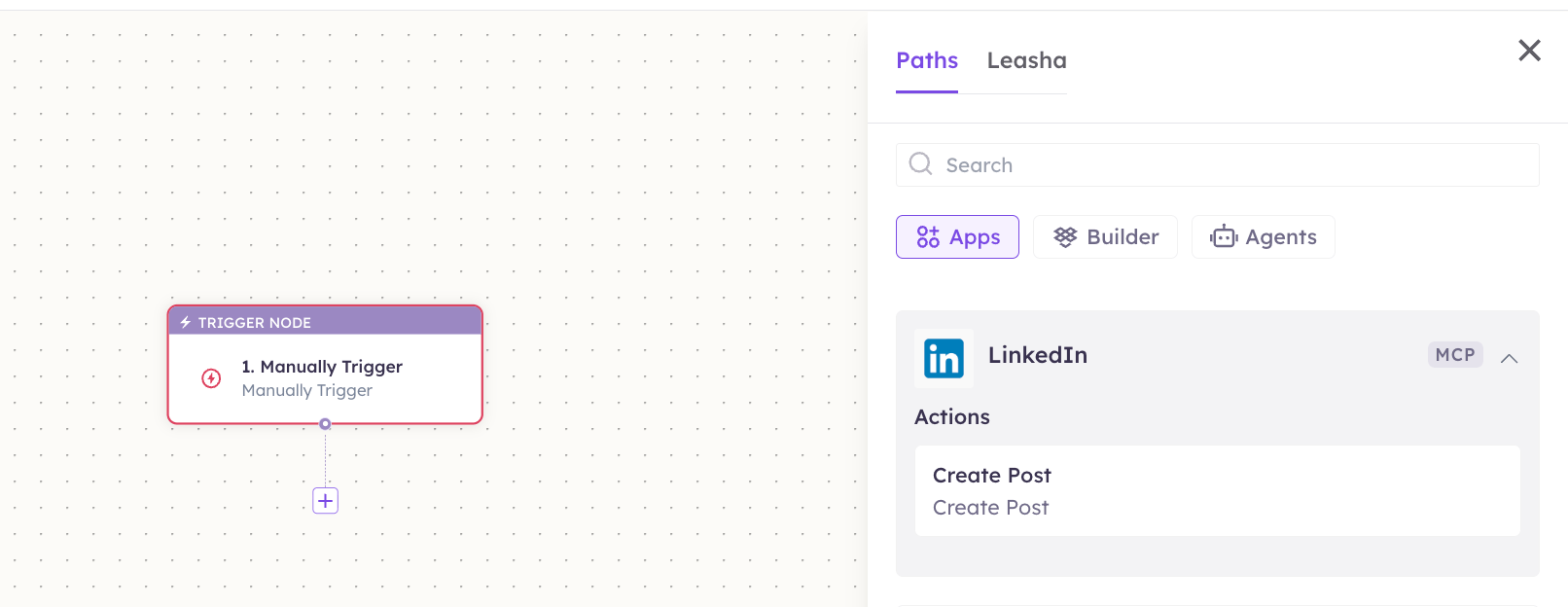
Once connected, you can add **LinkedIn** to any automation from the **Workflows** builder. Its tools appear in the Apps panel, marked with an **MCP** badge.
Open **Workflows → New Workflow**. On the canvas, click **+ Add Trigger**. In the **Paths** panel, open the **Apps** tab and select **LinkedIn** — its **Triggers** are listed underneath. Use the search box if you have many connectors.
Click the **+** below any node to add a step, then pick **LinkedIn** again — this time the panel lists its **Actions**.
 Fill in the fields for the trigger or action you picked. Required fields are marked with a red asterisk (\*).
Under **Selected account**, choose an already-connected account, or click **Add Account** to connect one now.
Click **Save**. Use **Test** to verify the step, then toggle **Publish** when the workflow is ready.
The steps are the same for every connector. For the full workflow builder guide, see [Using MCP in Workflows](/mcp/workflows).
## 5. Available tools
| Tool | What it does | Changes data? |
| ----------- | ------------------------------------------------------ | ------------- |
| Create Post | Publishes a post to LinkedIn on the connected account. | ✏️ Yes |
## 6. Example usage
> **"Post this on LinkedIn: 'We just shipped v2 of our workflow builder — here's what changed…'"**
>
> Runs **Create Post**.
> **"When a new case study is published on our blog, post the summary and link to LinkedIn."**
>
> A workflow chains the blog trigger into **Create Post**.
## 7. Permissions & data access
**UnleashX can:**
* Publish posts on the connected LinkedIn account.
* Read your basic profile to attribute those posts.
**UnleashX cannot:**
* Read your feed, connections, or messages.
* Comment on, like, or delete posts.
* Manage LinkedIn ad campaigns — see [LinkedIn Ads](/mcp/linkedin-ads).
* Change your LinkedIn account settings or password.
**To disconnect:** In UnleashX, open **Data Connectors → LinkedIn → Disconnect**, or revoke under **LinkedIn Settings → Data privacy → Permitted services**. Revoking takes effect immediately.
## 8. Troubleshooting
| Problem | What it means | How to fix it |
| --------------------------- | ------------------------------------------------------------ | --------------------------------------------------- |
| `401 Unauthorized` | The access token expired — LinkedIn tokens are time-limited. | Reconnect LinkedIn in **Data Connectors**. |
| `403 Forbidden` | The `w_member_social` scope wasn't granted. | Re-authorize and approve all requested permissions. |
| `422 Unprocessable Entity` | The post body was empty or exceeded the character limit. | Shorten the text and retry. |
| **Duplicate post rejected** | LinkedIn blocks identical content posted back to back. | Vary the copy, or wait before re-posting. |
| `429 Too Many Requests` | You hit LinkedIn's daily posting limit. | Slow down and retry the next day. |
For general connector issues, see [/mcp/integrations](/mcp/integrations).
## 9. Frequently asked questions
**Does UnleashX store my LinkedIn content?**
No. Posts are published through LinkedIn's API per request; UnleashX doesn't keep a copy.
**Can the agent post to a Company Page?**
Only if the connected account administers that Page and the authorization covers it. Otherwise posts publish to the member profile.
**Can the agent delete a post it published?**
No. Delete it in LinkedIn directly.
**Why did my connection stop working after a couple of months?**
LinkedIn access tokens expire on a fixed schedule. Reconnect to issue a fresh one.
## 10. References
* [LinkedIn Marketing API documentation](https://learn.microsoft.com/en-us/linkedin/marketing/)
* [Share on LinkedIn API](https://learn.microsoft.com/en-us/linkedin/consumer/integrations/self-serve/share-on-linkedin)
* [LinkedIn permitted services settings](https://www.linkedin.com/psettings/permitted-services)
Fill in the fields for the trigger or action you picked. Required fields are marked with a red asterisk (\*).
Under **Selected account**, choose an already-connected account, or click **Add Account** to connect one now.
Click **Save**. Use **Test** to verify the step, then toggle **Publish** when the workflow is ready.
The steps are the same for every connector. For the full workflow builder guide, see [Using MCP in Workflows](/mcp/workflows).
## 5. Available tools
| Tool | What it does | Changes data? |
| ----------- | ------------------------------------------------------ | ------------- |
| Create Post | Publishes a post to LinkedIn on the connected account. | ✏️ Yes |
## 6. Example usage
> **"Post this on LinkedIn: 'We just shipped v2 of our workflow builder — here's what changed…'"**
>
> Runs **Create Post**.
> **"When a new case study is published on our blog, post the summary and link to LinkedIn."**
>
> A workflow chains the blog trigger into **Create Post**.
## 7. Permissions & data access
**UnleashX can:**
* Publish posts on the connected LinkedIn account.
* Read your basic profile to attribute those posts.
**UnleashX cannot:**
* Read your feed, connections, or messages.
* Comment on, like, or delete posts.
* Manage LinkedIn ad campaigns — see [LinkedIn Ads](/mcp/linkedin-ads).
* Change your LinkedIn account settings or password.
**To disconnect:** In UnleashX, open **Data Connectors → LinkedIn → Disconnect**, or revoke under **LinkedIn Settings → Data privacy → Permitted services**. Revoking takes effect immediately.
## 8. Troubleshooting
| Problem | What it means | How to fix it |
| --------------------------- | ------------------------------------------------------------ | --------------------------------------------------- |
| `401 Unauthorized` | The access token expired — LinkedIn tokens are time-limited. | Reconnect LinkedIn in **Data Connectors**. |
| `403 Forbidden` | The `w_member_social` scope wasn't granted. | Re-authorize and approve all requested permissions. |
| `422 Unprocessable Entity` | The post body was empty or exceeded the character limit. | Shorten the text and retry. |
| **Duplicate post rejected** | LinkedIn blocks identical content posted back to back. | Vary the copy, or wait before re-posting. |
| `429 Too Many Requests` | You hit LinkedIn's daily posting limit. | Slow down and retry the next day. |
For general connector issues, see [/mcp/integrations](/mcp/integrations).
## 9. Frequently asked questions
**Does UnleashX store my LinkedIn content?**
No. Posts are published through LinkedIn's API per request; UnleashX doesn't keep a copy.
**Can the agent post to a Company Page?**
Only if the connected account administers that Page and the authorization covers it. Otherwise posts publish to the member profile.
**Can the agent delete a post it published?**
No. Delete it in LinkedIn directly.
**Why did my connection stop working after a couple of months?**
LinkedIn access tokens expire on a fixed schedule. Reconnect to issue a fresh one.
## 10. References
* [LinkedIn Marketing API documentation](https://learn.microsoft.com/en-us/linkedin/marketing/)
* [Share on LinkedIn API](https://learn.microsoft.com/en-us/linkedin/consumer/integrations/self-serve/share-on-linkedin)
* [LinkedIn permitted services settings](https://www.linkedin.com/psettings/permitted-services)