> ## Documentation Index
> Fetch the complete documentation index at: https://docs.unleashx.ai/llms.txt
> Use this file to discover all available pages before exploring further.
# Instantly
> Let your UnleashX agent manage cold-email campaigns, leads, and outreach events in Instantly.
# Instantly
> **In one line:** Connect Instantly so your UnleashX agent can create and manage cold-email campaigns, add and update leads, tag campaigns, and keep your outreach moving — all in plain language.
| | |
| ------------------ | ------------------------------------------------------------------------------------------------------------------------------ |
| **Category** | Sales & Outreach |
| **Authentication** | API key |
| **Setup time** | \~2 minutes |
| **Difficulty** | Easy |
| **Best for** | Sales and growth teams that want an AI agent to run cold-email campaigns, manage leads, and track outreach events in Instantly |
## 1. Overview
Instantly is a cold-email outreach platform. It's where you build sending campaigns, load and manage your leads, warm up mailboxes, and track how prospects respond across your sequences.
Once connected to UnleashX, your agent can list and inspect campaigns, create new ones, update or pause existing campaigns, add and manage leads, move leads into campaigns, and tag campaigns for organization. It works against your live Instantly workspace using your API key, so it respects your account's data and limits.
Connecting Instantly to UnleashX means your outreach runs from a conversation. Instead of opening Instantly to spin up a campaign or import a lead, you tell your agent and it makes the change — cutting the manual steps while keeping your pipeline current.
## 2. What you'll need
* An Instantly account.
* An **API key** from your Instantly settings (see Section 3).
* An UnleashX account with access to **Data Connectors**.
You paste an **API key**. UnleashX sends it to the Instantly API as an authorization credential on every request.
Sending cold email is subject to your Instantly plan's sending limits and your connected mailboxes' warm-up status. Creating a campaign doesn't override those limits — scope your sends to what your account and deliverability allow.
## 3. Get your credentials
Instantly MCP authenticates with an **API key** — a single secret string you generate once in your Instantly settings and paste into UnleashX. There's no OAuth flow and nothing to install.
### Step-by-step
Go to [app.instantly.ai](https://app.instantly.ai/) and sign in. If you don't have an account yet, sign up first.
Click your **profile avatar** at the bottom of the left sidebar to open the account menu, then click **Settings**.
At the top of Settings, open the **Integrations** tab. The left-hand panel there has three sections: **Integrations**, **Webhooks**, and **API Keys**.
In that left-hand panel, click **API Keys**. Keep **Version 2** selected — Version 1 is deprecated. Any keys you've already created are listed here.
Click **Create API Key**, then fill in the form:
* **Name** — a label that tells you where the key is used, for example **UnleashX**. It doesn't affect what the key can do, but it matters later when you need to know which key to revoke.
* **Scopes** — the permissions the key carries. Select the scopes covering campaigns, leads, and events (see the table below), or select **`all:all`** to grant full access.
Click **Create**.
Scopes **cannot be changed after the key is created**. If you pick too narrow a set, you'll have to delete the key and create a new one. Note also that `all:all` grants full access to every Instantly API endpoint — convenient, but only use it if you're comfortable with that.
Instantly displays the key **once**. Copy it right away and paste it somewhere safe (a password manager, or straight into the UnleashX connector).
If you navigate away before copying, the key is gone for good — you can't reveal it again. In that case, just delete it from the list and create a new one.
Head to **Data Connectors → Instantly** in UnleashX and paste the key (full walkthrough in Section 4). UnleashX validates it immediately, so you'll know right away if it was copied correctly.
### Good to know
Use a **separate key per integration**. A dedicated key can be revoked on its own if it leaks, without breaking every other tool that uses your Instantly account.
Your API key grants full access to your Instantly account through the API. Treat it like a password:
* Never commit it to git, paste it in a ticket, or share it in chat.
* Use a separate key per integration so you can revoke one without disrupting the rest.
* If it's ever exposed, delete it in **Settings → Integrations → API Keys** and create a replacement — revoking is instant.
**Lost your key?** There's no way to view an existing key again. Delete the old one under **Settings → Integrations → API Keys**, create a new one, then reconnect the connector in UnleashX with the new value.
### Permissions this key grants UnleashX
| Access | Why UnleashX needs it |
| ---------------- | ------------------------------------------------------------- |
| Read campaigns | List and inspect your cold-email campaigns. |
| Manage campaigns | Create, update, and delete campaigns, and add tags. |
| Read leads | List the leads in your campaigns and workspace. |
| Manage leads | Create leads, update lead status, and add leads to campaigns. |
| Read events | Receive campaign and outreach events (opens, replies, etc.). |
## 4. Connect on UnleashX
Go to [https://www.tryunleashx.com](https://www.tryunleashx.com) and open the agent you want to connect.
Inside the agent, go to **Data Connectors**.
Locate **Instantly** and click **Connect** (or **Add** / **Configure**).
Paste your **API key** and click **Connect**.
UnleashX validates the key and the Instantly connector shows a **Connected** badge.
### Use Instantly in a Workflow
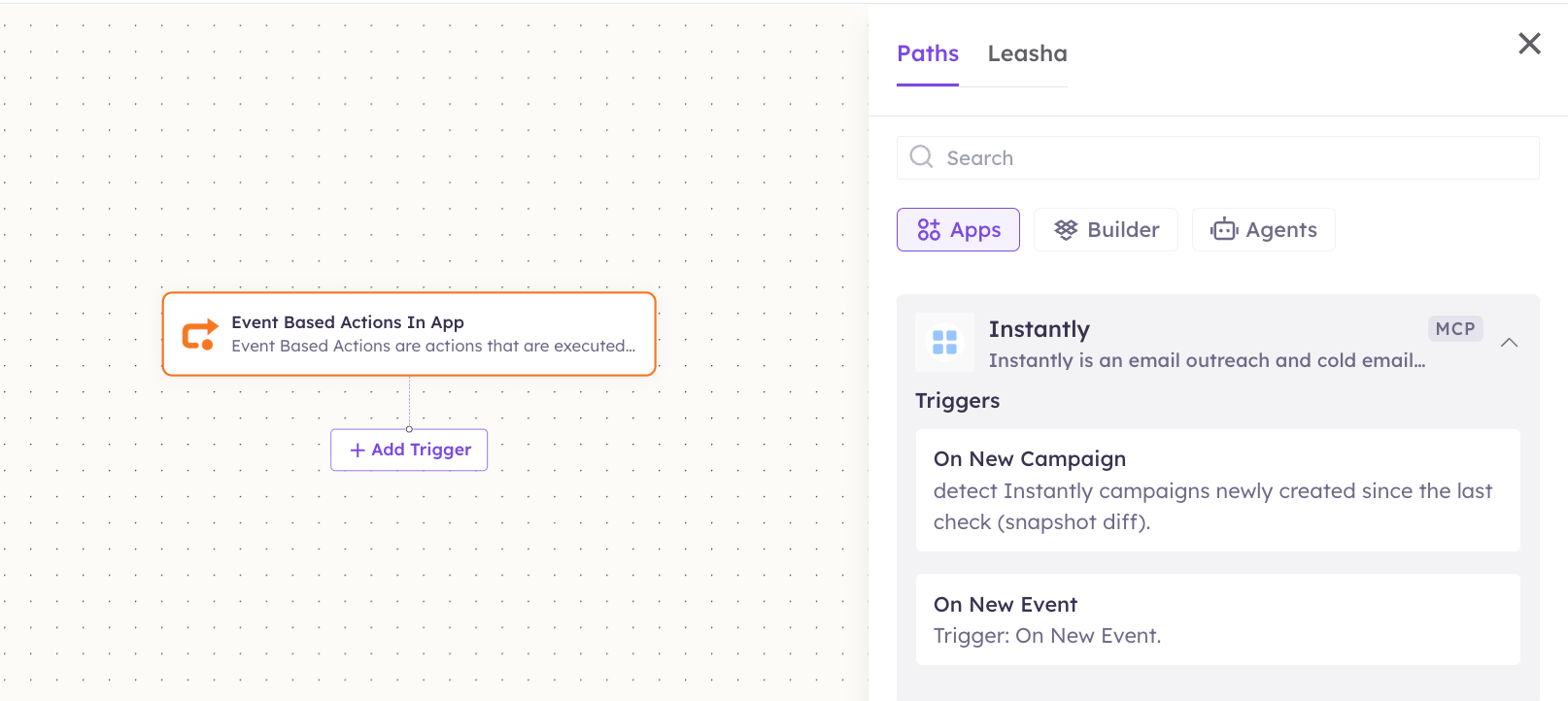
Once connected, you can add **Instantly** to any automation from the **Workflows** builder. Its triggers and tools appear in the Apps panel, marked with an **MCP** badge.
Open **Workflows → New Workflow**. On the canvas, click **+ Add Trigger**. In the **Paths** panel, open the **Apps** tab and select **Instantly** — its **Triggers** are listed underneath. Use the search box if you have many connectors.
 Click the **+** below any node to add a step, then pick **Instantly** again — this time the panel lists its **Actions**.
Fill in the fields for the trigger or action you picked. Required fields are marked with a red asterisk (\*).
Under **Selected account**, choose an already-connected account, or click **Add Account** to connect one now.
Click **Save**. Use **Test** to verify the step, then toggle **Publish** when the workflow is ready.
The steps are the same for every connector. For the full workflow builder guide, see [Using MCP in Workflows](/mcp/workflows).
## 5. Available tools
| Tool | What it does | Changes data? |
| -------------------- | --------------------------------------- | ------------- |
| List Campaigns | Lists your cold-email campaigns. | No |
| Get Campaign | Retrieves a single campaign by ID. | No |
| Create Campaign | Creates a new cold-email campaign. | ✏️ Yes |
| Update Campaign | Updates an existing campaign. | ✏️ Yes |
| Delete Campaign | Deletes a specified campaign. | ⚠️ Yes |
| List Leads | Lists leads in a campaign or workspace. | No |
| Create Lead | Adds a new lead. | ✏️ Yes |
| Update Lead Status | Changes a lead's status. | ✏️ Yes |
| Add Tags To Campaign | Adds tags to a campaign. | ✏️ Yes |
| Add Lead To Campaign | Adds a lead to a campaign. | ✏️ Yes |
### Available triggers
| Trigger | Fires when |
| --------------- | ------------------------------------------------------------ |
| On New Campaign | A new campaign is created in your Instantly workspace. |
| On New Event | A new outreach event (such as an open or reply) is recorded. |
## 6. Example usage
**"Create a new cold-email campaign called Q3 Outbound and add [jane@acme.com](mailto:jane@acme.com) as a lead."**
→ Runs Create Campaign to set up the campaign, then Create Lead (and Add Lead To Campaign) to load the prospect.
**"Mark the lead from Globex as replied and tag the Q3 Outbound campaign as 'priority'."**
→ Runs Update Lead Status to set the lead to replied, then Add Tags To Campaign to tag the campaign.
## 7. Permissions & data access
**UnleashX can:**
* Read and list campaigns and leads.
* Create and update campaigns, and add tags to them.
* Create leads, update lead status, and add leads to campaigns.
* Delete campaigns where your account allows (this tool is clearly marked ⚠️).
**UnleashX cannot:**
* Do anything your Instantly plan or account doesn't permit.
* Send email beyond your plan's sending limits or your mailboxes' warm-up status.
* Change your Instantly account password or billing settings.
**To disconnect:** In UnleashX, open **Data Connectors → Instantly → Disconnect**. Then revoke the key in Instantly under **Settings → Integrations → API Keys**. Disconnecting and revoking removes access immediately.
## 8. Troubleshooting
| Problem | What it means | How to fix it |
| ------------------------- | --------------------------------------------------------- | ---------------------------------------------------- |
| **401 Unauthorized** | The API key is invalid or was revoked. | Create a new key and reconnect. |
| **403 Forbidden** | Your Instantly plan doesn't allow that action. | Check your plan, or upgrade, then retry. |
| **429 Too Many Requests** | You hit the API rate limit. | Slow down requests and retry after a short wait. |
| **Campaign not sending** | Mailboxes aren't warmed up or sending limits are reached. | Check mailbox warm-up and daily limits in Instantly. |
| **Lead not added** | The lead already exists or the campaign ID is wrong. | Confirm the campaign and check for duplicate leads. |
For general MCP issues, see [/mcp/integrations](/mcp/integrations).
## 9. Frequently asked questions
**Does UnleashX store my leads or campaign data?**
No. UnleashX reads and writes your records live through the Instantly API per request; it doesn't keep a copy of your leads or campaigns.
**Can the agent actually send cold email?**
It manages campaigns and leads. Actual sending still runs through Instantly under your plan's limits and your mailboxes' warm-up status.
**Can the agent delete a campaign?**
Yes — the Delete Campaign tool (marked ⚠️) makes a permanent change in Instantly. Use it deliberately.
**Where do I find my API key again?**
You can't view an existing key. Delete the old one in **Settings → Integrations → API Keys**, create a new one, and reconnect.
## 10. References
* Instantly API documentation: [https://developer.instantly.ai/](https://developer.instantly.ai/)
* Instantly app / settings: [https://app.instantly.ai/](https://app.instantly.ai/)
* Instantly help center: [https://help.instantly.ai/](https://help.instantly.ai/)
Click the **+** below any node to add a step, then pick **Instantly** again — this time the panel lists its **Actions**.
Fill in the fields for the trigger or action you picked. Required fields are marked with a red asterisk (\*).
Under **Selected account**, choose an already-connected account, or click **Add Account** to connect one now.
Click **Save**. Use **Test** to verify the step, then toggle **Publish** when the workflow is ready.
The steps are the same for every connector. For the full workflow builder guide, see [Using MCP in Workflows](/mcp/workflows).
## 5. Available tools
| Tool | What it does | Changes data? |
| -------------------- | --------------------------------------- | ------------- |
| List Campaigns | Lists your cold-email campaigns. | No |
| Get Campaign | Retrieves a single campaign by ID. | No |
| Create Campaign | Creates a new cold-email campaign. | ✏️ Yes |
| Update Campaign | Updates an existing campaign. | ✏️ Yes |
| Delete Campaign | Deletes a specified campaign. | ⚠️ Yes |
| List Leads | Lists leads in a campaign or workspace. | No |
| Create Lead | Adds a new lead. | ✏️ Yes |
| Update Lead Status | Changes a lead's status. | ✏️ Yes |
| Add Tags To Campaign | Adds tags to a campaign. | ✏️ Yes |
| Add Lead To Campaign | Adds a lead to a campaign. | ✏️ Yes |
### Available triggers
| Trigger | Fires when |
| --------------- | ------------------------------------------------------------ |
| On New Campaign | A new campaign is created in your Instantly workspace. |
| On New Event | A new outreach event (such as an open or reply) is recorded. |
## 6. Example usage
**"Create a new cold-email campaign called Q3 Outbound and add [jane@acme.com](mailto:jane@acme.com) as a lead."**
→ Runs Create Campaign to set up the campaign, then Create Lead (and Add Lead To Campaign) to load the prospect.
**"Mark the lead from Globex as replied and tag the Q3 Outbound campaign as 'priority'."**
→ Runs Update Lead Status to set the lead to replied, then Add Tags To Campaign to tag the campaign.
## 7. Permissions & data access
**UnleashX can:**
* Read and list campaigns and leads.
* Create and update campaigns, and add tags to them.
* Create leads, update lead status, and add leads to campaigns.
* Delete campaigns where your account allows (this tool is clearly marked ⚠️).
**UnleashX cannot:**
* Do anything your Instantly plan or account doesn't permit.
* Send email beyond your plan's sending limits or your mailboxes' warm-up status.
* Change your Instantly account password or billing settings.
**To disconnect:** In UnleashX, open **Data Connectors → Instantly → Disconnect**. Then revoke the key in Instantly under **Settings → Integrations → API Keys**. Disconnecting and revoking removes access immediately.
## 8. Troubleshooting
| Problem | What it means | How to fix it |
| ------------------------- | --------------------------------------------------------- | ---------------------------------------------------- |
| **401 Unauthorized** | The API key is invalid or was revoked. | Create a new key and reconnect. |
| **403 Forbidden** | Your Instantly plan doesn't allow that action. | Check your plan, or upgrade, then retry. |
| **429 Too Many Requests** | You hit the API rate limit. | Slow down requests and retry after a short wait. |
| **Campaign not sending** | Mailboxes aren't warmed up or sending limits are reached. | Check mailbox warm-up and daily limits in Instantly. |
| **Lead not added** | The lead already exists or the campaign ID is wrong. | Confirm the campaign and check for duplicate leads. |
For general MCP issues, see [/mcp/integrations](/mcp/integrations).
## 9. Frequently asked questions
**Does UnleashX store my leads or campaign data?**
No. UnleashX reads and writes your records live through the Instantly API per request; it doesn't keep a copy of your leads or campaigns.
**Can the agent actually send cold email?**
It manages campaigns and leads. Actual sending still runs through Instantly under your plan's limits and your mailboxes' warm-up status.
**Can the agent delete a campaign?**
Yes — the Delete Campaign tool (marked ⚠️) makes a permanent change in Instantly. Use it deliberately.
**Where do I find my API key again?**
You can't view an existing key. Delete the old one in **Settings → Integrations → API Keys**, create a new one, and reconnect.
## 10. References
* Instantly API documentation: [https://developer.instantly.ai/](https://developer.instantly.ai/)
* Instantly app / settings: [https://app.instantly.ai/](https://app.instantly.ai/)
* Instantly help center: [https://help.instantly.ai/](https://help.instantly.ai/)