> ## Documentation Index
> Fetch the complete documentation index at: https://docs.unleashx.ai/llms.txt
> Use this file to discover all available pages before exploring further.
# Hyperbrowser
> Let your UnleashX agent browse, scrape, crawl, and extract data from any website with Hyperbrowser.
# Hyperbrowser
> **In one line:** Connect Hyperbrowser so your UnleashX agent can open web pages, scrape and crawl sites, take screenshots, and extract structured data — all in plain language.
| | |
| ------------------ | -------------------------------------------------------------------------------------------------------------- |
| **Category** | Dev Tools & Automation |
| **Authentication** | API key |
| **Setup time** | \~2 minutes |
| **Difficulty** | Easy |
| **Best for** | Teams that need an AI agent to read live websites, gather data from pages, and automate browser tasks at scale |
## 1. Overview
Hyperbrowser is a cloud platform for running headless browsers at scale. It handles the hard parts of web automation — proxies, CAPTCHAs, sessions, and rendering — so you can scrape pages, crawl sites, and extract clean data without managing infrastructure.
Once connected to UnleashX, your agent can fetch and read a web page, scrape its content as clean markdown or HTML, crawl a whole site, capture screenshots, and extract structured data using a schema. It runs against Hyperbrowser's cloud browsers using your API key.
Connecting Hyperbrowser to UnleashX gives your agent eyes on the live web. Instead of being limited to what it already knows, it can pull the current contents of any public page and turn it into data you can use in a conversation or workflow.
## 2. What you'll need
* A Hyperbrowser account.
* An **API key** from your Hyperbrowser dashboard (see Section 3).
* An UnleashX account with access to **Data Connectors**.
You paste an **API key**. UnleashX sends it to the Hyperbrowser API as an `x-api-key` header.
Scraping and crawling consume Hyperbrowser **credits** and are subject to your plan's limits. Broad crawls can use credits quickly — scope crawls to the pages you actually need.
## 3. Get your credentials
Hyperbrowser MCP authenticates with an **API key** — a single secret string you generate once in the Hyperbrowser dashboard and paste into UnleashX. There's no OAuth flow and nothing to install.
### Step-by-step
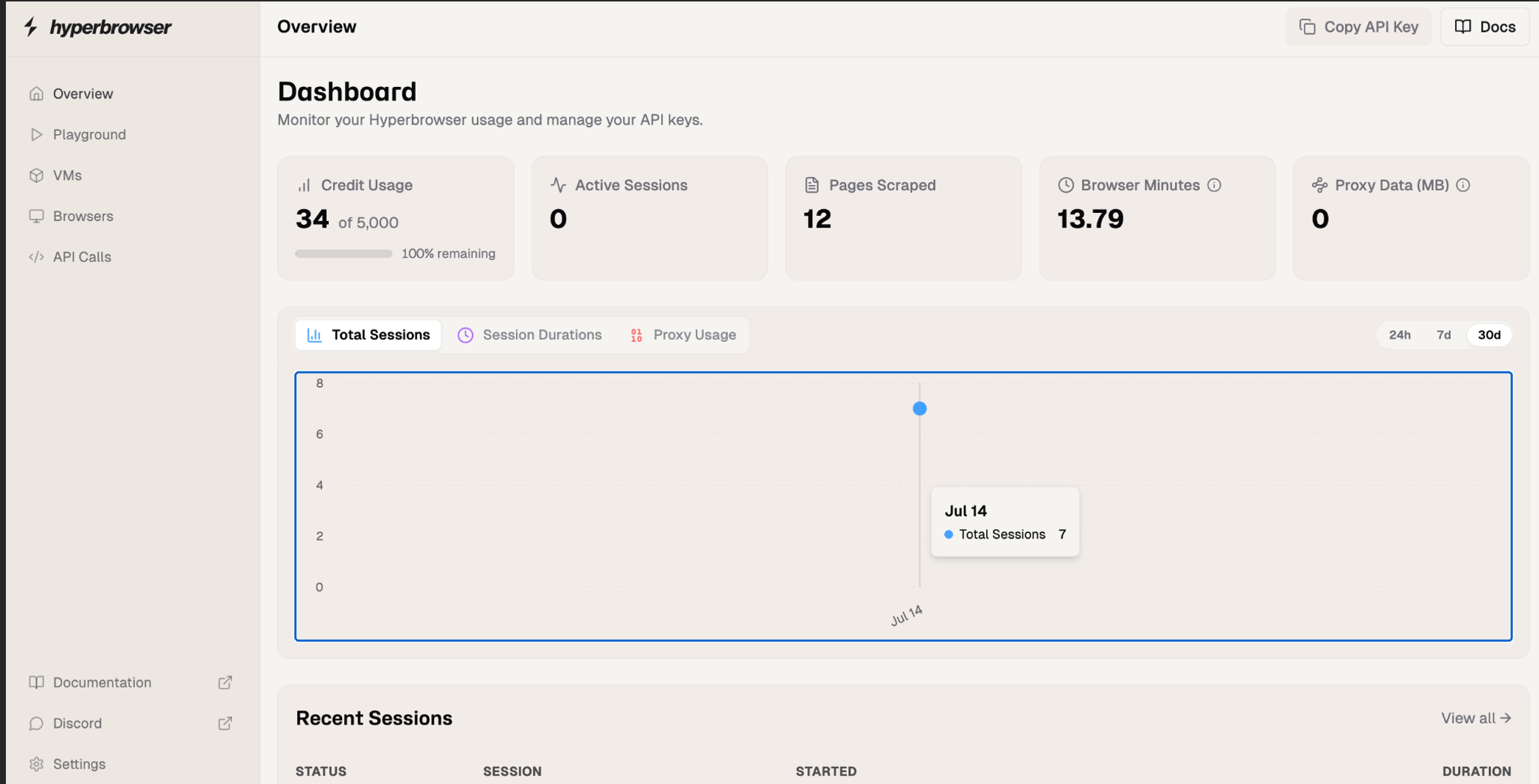
Go to [app.hyperbrowser.ai](https://app.hyperbrowser.ai/) and sign in. If you don't have an account yet, sign up first — the free tier includes credits (the dashboard shows your balance, e.g. **34 of 5,000**), which is plenty to test the connector.
You'll land on the **Overview** page.
In the **left sidebar**, scroll to the bottom and click **Settings**. It sits below **Documentation** and **Discord**, beneath the main nav items (Overview, Playground, VMs, Browsers, API Calls).
 Settings opens with a row of tabs across the top: **Account**, **API Keys**, **Billing**, **Static IPs**, and **Verification**.
Click **API Keys**. The page is titled *"API Keys — Create and revoke keys for the Hyperbrowser API."* Any keys you've already created are listed here.
Settings opens with a row of tabs across the top: **Account**, **API Keys**, **Billing**, **Static IPs**, and **Verification**.
Click **API Keys**. The page is titled *"API Keys — Create and revoke keys for the Hyperbrowser API."* Any keys you've already created are listed here.
 Click the black **Generate key** button in the top-right of the API Keys page.
Give it a name that tells you where it's used — for example **UnleashX**. The name is only a label for you; it doesn't affect what the key can do. A clear name matters later, when you need to know which key to revoke.
Hyperbrowser displays the key **once**. Copy it right away and paste it somewhere safe (a password manager, or straight into the UnleashX connector).
If you navigate away before copying, the key is gone for good — you can't reveal it again. In that case, just delete it from the list and generate a new one.
Head to **Data Connectors → Hyperbrowser** in UnleashX and paste the key (full walkthrough in Section 4). UnleashX validates it immediately, so you'll know right away if it was copied correctly.
### Good to know
**Faster route:** the **Copy API Key** button in the top-right of the **Overview** page copies your existing key without opening Settings at all.
For UnleashX, prefer **Generate key** instead — a dedicated key can be revoked on its own if it leaks, without breaking every other integration using your main key.
Your API key **spends your Hyperbrowser credits** and grants full access to the API. Treat it like a password:
* Never commit it to git, paste it in a ticket, or share it in chat.
* Use a separate key per integration so you can revoke one without disrupting the rest.
* If it's ever exposed, delete it under **Settings → API Keys** and generate a replacement — revoking is instant.
**Lost your key?** There's no way to view an existing key again. Delete the old one under **Settings → API Keys**, click **Generate key** to create a new one, then reconnect the connector in UnleashX with the new value.
### Permissions this key grants UnleashX
| Access | Why UnleashX needs it |
| ------------------- | ----------------------------------------------------- |
| Scrape pages | Fetch and clean the content of a URL. |
| Crawl sites | Follow links and collect content across a site. |
| Extract data | Pull structured data from pages using a schema. |
| Capture screenshots | Render and screenshot a page. |
| Manage sessions | Start and stop browser sessions for multi-step tasks. |
## 4. Connect on UnleashX
Go to `https://www.tryunleashx.com` and open the agent you want to connect.
Inside the agent, go to **Data Connectors**.
Locate **Hyperbrowser** and click **Connect** (or **Add** / **Configure**).
Paste your **API key** and click **Connect**.
UnleashX validates the key and the Hyperbrowser connector shows a **Connected** badge.
### Use Hyperbrowser in a Workflow
Once connected, you can add **Hyperbrowser** to any automation from the **Workflows** builder. Its tools appear in the Apps panel, marked with an **MCP** badge.
Open **Workflows → New Workflow**. On the canvas, click **+ Add Trigger** (or the **+** below any node) to add a step.
Click the black **Generate key** button in the top-right of the API Keys page.
Give it a name that tells you where it's used — for example **UnleashX**. The name is only a label for you; it doesn't affect what the key can do. A clear name matters later, when you need to know which key to revoke.
Hyperbrowser displays the key **once**. Copy it right away and paste it somewhere safe (a password manager, or straight into the UnleashX connector).
If you navigate away before copying, the key is gone for good — you can't reveal it again. In that case, just delete it from the list and generate a new one.
Head to **Data Connectors → Hyperbrowser** in UnleashX and paste the key (full walkthrough in Section 4). UnleashX validates it immediately, so you'll know right away if it was copied correctly.
### Good to know
**Faster route:** the **Copy API Key** button in the top-right of the **Overview** page copies your existing key without opening Settings at all.
For UnleashX, prefer **Generate key** instead — a dedicated key can be revoked on its own if it leaks, without breaking every other integration using your main key.
Your API key **spends your Hyperbrowser credits** and grants full access to the API. Treat it like a password:
* Never commit it to git, paste it in a ticket, or share it in chat.
* Use a separate key per integration so you can revoke one without disrupting the rest.
* If it's ever exposed, delete it under **Settings → API Keys** and generate a replacement — revoking is instant.
**Lost your key?** There's no way to view an existing key again. Delete the old one under **Settings → API Keys**, click **Generate key** to create a new one, then reconnect the connector in UnleashX with the new value.
### Permissions this key grants UnleashX
| Access | Why UnleashX needs it |
| ------------------- | ----------------------------------------------------- |
| Scrape pages | Fetch and clean the content of a URL. |
| Crawl sites | Follow links and collect content across a site. |
| Extract data | Pull structured data from pages using a schema. |
| Capture screenshots | Render and screenshot a page. |
| Manage sessions | Start and stop browser sessions for multi-step tasks. |
## 4. Connect on UnleashX
Go to `https://www.tryunleashx.com` and open the agent you want to connect.
Inside the agent, go to **Data Connectors**.
Locate **Hyperbrowser** and click **Connect** (or **Add** / **Configure**).
Paste your **API key** and click **Connect**.
UnleashX validates the key and the Hyperbrowser connector shows a **Connected** badge.
### Use Hyperbrowser in a Workflow
Once connected, you can add **Hyperbrowser** to any automation from the **Workflows** builder. Its tools appear in the Apps panel, marked with an **MCP** badge.
Open **Workflows → New Workflow**. On the canvas, click **+ Add Trigger** (or the **+** below any node) to add a step.
 In the **Paths** panel, open the **Apps** tab and select **Hyperbrowser**. Use the search box if you have many connectors.
 Pick the action you want (for example, "scrape page"). Configure its fields — required fields are marked with a red asterisk (\*).
Under **Selected account**, choose an already-connected account, or click **Add Account** to connect one now.
Fill in the remaining fields and click **Save**. Use **Test** to verify the step, then toggle **Publish** when the workflow is ready.
The steps are the same for every connector. For the full workflow builder guide, see [Using MCP in Workflows](/mcp/workflows).
## 5. Available tools
| Tool | What it does | Changes data? |
| ---------------- | --------------------------------------------------------------- | ------------- |
| Scrape Page | Fetches a URL and returns clean content (markdown/HTML). | No |
| Crawl Site | Crawls a site from a starting URL and returns page content. | No |
| Extract Data | Extracts structured data from one or more pages using a schema. | No |
| Screenshot | Renders a page and returns a screenshot. | No |
| Get Page Content | Returns the rendered HTML/text of a page. | No |
| Start Session | Starts a cloud browser session. | ✏️ Yes |
| Get Session | Retrieves the status of a session. | No |
| Stop Session | Stops a running session. | ✏️ Yes |
| List Sessions | Lists your recent browser sessions. | No |
These tools read external websites; they don't change your own data. They do consume Hyperbrowser credits.
## 6. Example usage
**"Scrape our competitor's pricing page and tell me their plan tiers and prices."**
→ Runs Scrape Page on the URL, then reads the pricing tiers from the returned content.
**"Crawl the docs site and extract every page title and its URL."**
→ Runs Crawl Site from the docs root, then Extract Data with a schema for title + URL.
## 7. Permissions & data access
**UnleashX can:**
* Fetch, scrape, and crawl public web pages.
* Extract structured data and capture screenshots.
* Start, inspect, and stop cloud browser sessions.
**UnleashX cannot:**
* Access pages behind logins it doesn't have credentials for.
* Bypass a site's access controls or terms of use.
* Exceed your Hyperbrowser plan's credit/rate limits.
**To disconnect:** In UnleashX, open **Data Connectors → Hyperbrowser → Disconnect**. Then revoke the key in the Hyperbrowser dashboard under **Settings → API Keys**. Disconnecting and revoking removes access immediately.
## 8. Troubleshooting
| Problem | What it means | How to fix it |
| --------------------------------- | ----------------------------------------------------------- | -------------------------------------------------------- |
| **401 Unauthorized** | The API key is invalid or was revoked. | Generate a new key and reconnect. |
| **402 / credits exhausted** | Your plan's credits are used up. | Top up or upgrade your Hyperbrowser plan. |
| **429 Too Many Requests** | You hit the rate limit. | Slow down requests or reduce crawl breadth. |
| **Timeout / page failed to load** | The target site was slow or blocked the request. | Retry, or narrow the scrape to the specific page needed. |
| **Empty content** | The page rendered nothing scrapeable (heavy JS or blocked). | Try a screenshot or a session-based fetch. |
For general MCP issues, see [/mcp/integrations](/mcp/integrations).
## 9. Frequently asked questions
**Does UnleashX store scraped content?**
No. Content is fetched live per request and returned to your agent; UnleashX doesn't keep a copy.
**Can it scrape sites that require login?**
Only if you provide a session with valid credentials. It won't bypass authentication on its own.
**Will crawling cost me?**
Yes — scraping and crawling consume Hyperbrowser credits. Scope crawls to what you need.
**Is scraping allowed?**
Respect each site's terms of service and robots rules. You're responsible for how the agent uses the tool.
## 10. References
* Hyperbrowser documentation: [https://docs.hyperbrowser.ai/](https://docs.hyperbrowser.ai/)
* API reference: [https://docs.hyperbrowser.ai/reference/api-reference](https://docs.hyperbrowser.ai/reference/api-reference)
* Dashboard / API keys: [https://app.hyperbrowser.ai/](https://app.hyperbrowser.ai/)
Pick the action you want (for example, "scrape page"). Configure its fields — required fields are marked with a red asterisk (\*).
Under **Selected account**, choose an already-connected account, or click **Add Account** to connect one now.
Fill in the remaining fields and click **Save**. Use **Test** to verify the step, then toggle **Publish** when the workflow is ready.
The steps are the same for every connector. For the full workflow builder guide, see [Using MCP in Workflows](/mcp/workflows).
## 5. Available tools
| Tool | What it does | Changes data? |
| ---------------- | --------------------------------------------------------------- | ------------- |
| Scrape Page | Fetches a URL and returns clean content (markdown/HTML). | No |
| Crawl Site | Crawls a site from a starting URL and returns page content. | No |
| Extract Data | Extracts structured data from one or more pages using a schema. | No |
| Screenshot | Renders a page and returns a screenshot. | No |
| Get Page Content | Returns the rendered HTML/text of a page. | No |
| Start Session | Starts a cloud browser session. | ✏️ Yes |
| Get Session | Retrieves the status of a session. | No |
| Stop Session | Stops a running session. | ✏️ Yes |
| List Sessions | Lists your recent browser sessions. | No |
These tools read external websites; they don't change your own data. They do consume Hyperbrowser credits.
## 6. Example usage
**"Scrape our competitor's pricing page and tell me their plan tiers and prices."**
→ Runs Scrape Page on the URL, then reads the pricing tiers from the returned content.
**"Crawl the docs site and extract every page title and its URL."**
→ Runs Crawl Site from the docs root, then Extract Data with a schema for title + URL.
## 7. Permissions & data access
**UnleashX can:**
* Fetch, scrape, and crawl public web pages.
* Extract structured data and capture screenshots.
* Start, inspect, and stop cloud browser sessions.
**UnleashX cannot:**
* Access pages behind logins it doesn't have credentials for.
* Bypass a site's access controls or terms of use.
* Exceed your Hyperbrowser plan's credit/rate limits.
**To disconnect:** In UnleashX, open **Data Connectors → Hyperbrowser → Disconnect**. Then revoke the key in the Hyperbrowser dashboard under **Settings → API Keys**. Disconnecting and revoking removes access immediately.
## 8. Troubleshooting
| Problem | What it means | How to fix it |
| --------------------------------- | ----------------------------------------------------------- | -------------------------------------------------------- |
| **401 Unauthorized** | The API key is invalid or was revoked. | Generate a new key and reconnect. |
| **402 / credits exhausted** | Your plan's credits are used up. | Top up or upgrade your Hyperbrowser plan. |
| **429 Too Many Requests** | You hit the rate limit. | Slow down requests or reduce crawl breadth. |
| **Timeout / page failed to load** | The target site was slow or blocked the request. | Retry, or narrow the scrape to the specific page needed. |
| **Empty content** | The page rendered nothing scrapeable (heavy JS or blocked). | Try a screenshot or a session-based fetch. |
For general MCP issues, see [/mcp/integrations](/mcp/integrations).
## 9. Frequently asked questions
**Does UnleashX store scraped content?**
No. Content is fetched live per request and returned to your agent; UnleashX doesn't keep a copy.
**Can it scrape sites that require login?**
Only if you provide a session with valid credentials. It won't bypass authentication on its own.
**Will crawling cost me?**
Yes — scraping and crawling consume Hyperbrowser credits. Scope crawls to what you need.
**Is scraping allowed?**
Respect each site's terms of service and robots rules. You're responsible for how the agent uses the tool.
## 10. References
* Hyperbrowser documentation: [https://docs.hyperbrowser.ai/](https://docs.hyperbrowser.ai/)
* API reference: [https://docs.hyperbrowser.ai/reference/api-reference](https://docs.hyperbrowser.ai/reference/api-reference)
* Dashboard / API keys: [https://app.hyperbrowser.ai/](https://app.hyperbrowser.ai/)