> ## Documentation Index
> Fetch the complete documentation index at: https://docs.unleashx.ai/llms.txt
> Use this file to discover all available pages before exploring further.
# Google Meet
> Let your UnleashX agent create Google Meet video meetings from a conversation.
# Google Meet
> **In one line:** Connect Google Meet so your UnleashX agent can spin up video meetings — with the right time, attendees, and a join link — without opening Calendar.
| | |
| ------------------ | -------------------------------------------------------------------------------- |
| **Category** | Communication |
| **Authentication** | OAuth (Google sign-in) |
| **Setup time** | \~2 minutes |
| **Difficulty** | Easy |
| **Best for** | Teams that want an AI agent to schedule video calls as part of a larger workflow |
## 1. Overview
Google Meet is Google's video-conferencing service. Meetings are created as Google Calendar events with a Meet conference attached, which is how the join link gets generated and shared with attendees.
Once connected to UnleashX, your agent can create a meeting — setting the title, start and end time, time zone, and attendee list — and return the Meet join link. Because the meeting lands on your calendar, invitees are notified the same way they would be for any other event.
Connecting Google Meet to UnleashX means scheduling becomes one step in a bigger flow: a lead replies, a ticket escalates, a form comes in — and the agent books the call without you switching apps.
## 2. What you'll need
Any personal Google account or a Google Workspace account with Meet enabled.
You must be able to complete the Google sign-in and approve the requested permissions.
An agent in your UnleashX workspace where you'll add the Google Meet connector.
On a managed Google Workspace account, your admin may need to allow UnleashX before authorization succeeds.
## 3. Get your credentials
Google Meet uses **Google OAuth 2.0**. You do **not** create or paste an API key. UnleashX redirects you to Google, you sign in once, and Google issues an access token to UnleashX automatically.
In your agent's **Data Connectors**, find **Google Meet** and click **Connect** (see Section 4).
Choose the Google account whose calendar the meetings should be created on.
Click **Allow** to grant access and return to UnleashX.
There is no key to copy. Access is granted by your Google sign-in and can be revoked anytime at your [Google Account permissions page](https://myaccount.google.com/permissions).
**Scopes UnleashX requests for Google Meet:**
| Scope | Why UnleashX needs it |
| -------------------------------------------------- | ----------------------------------------------------------- |
| `https://www.googleapis.com/auth/calendar` | Create the calendar event that carries the Meet conference. |
| `https://www.googleapis.com/auth/calendar.events` | Set the meeting's title, time, and attendees. |
| `https://www.googleapis.com/auth/userinfo.email` | Identify which account is connected. |
| `https://www.googleapis.com/auth/userinfo.profile` | Read your basic profile (name, picture). |
| `openid` | Sign-in / identity verification. |
## 4. Connect on UnleashX
Sign in at [https://www.tryunleashx.com](https://www.tryunleashx.com) and open your agent.
In the agent, open **Data Connectors**.
Locate **Google Meet** and click **Connect** / **Add** / **Configure**.
Click **Authorize**, sign in with Google, and approve the requested permissions.
You'll return to UnleashX and the connector status will show a **Connected** badge.
### Use Google Meet in a Workflow
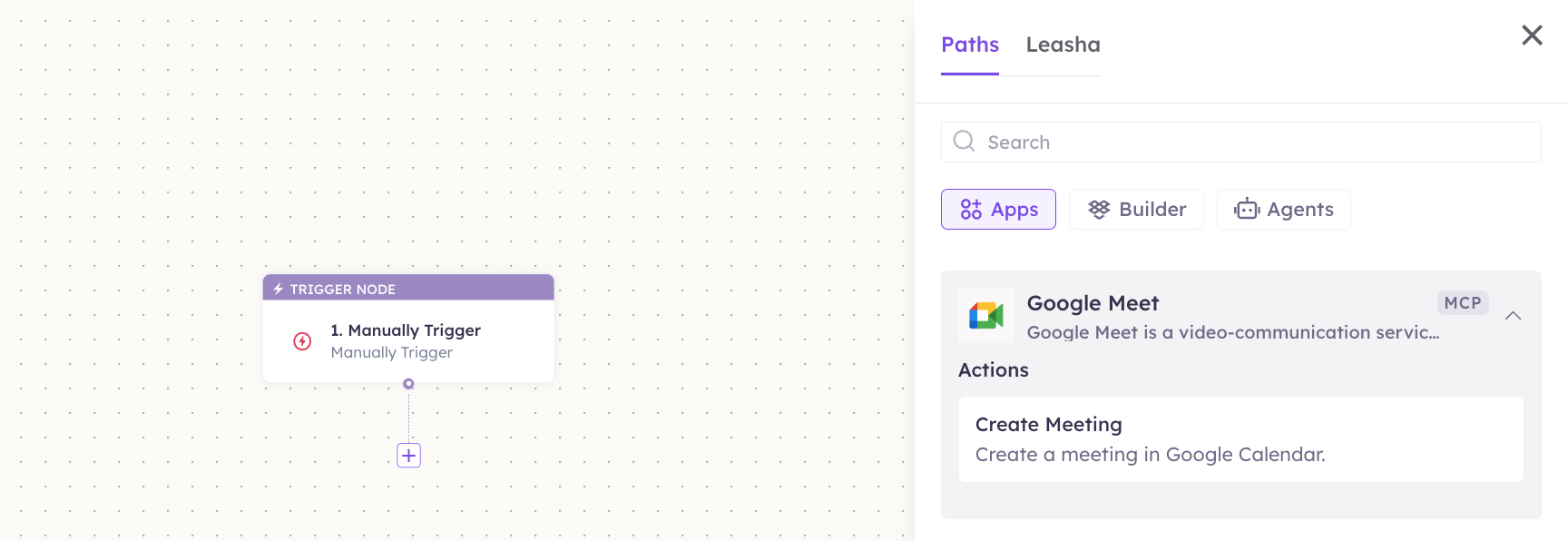
Once connected, you can add **Google Meet** to any automation from the **Workflows** builder. Its tools appear in the Apps panel, marked with an **MCP** badge.
Open **Workflows → New Workflow**. On the canvas, click **+ Add Trigger**. In the **Paths** panel, open the **Apps** tab and select **Google Meet** — its **Triggers** are listed underneath. Use the search box if you have many connectors.
Click the **+** below any node to add a step, then pick **Google Meet** again — this time the panel lists its **Actions**.
 Fill in the fields for the trigger or action you picked. Required fields are marked with a red asterisk (\*).
Under **Selected account**, choose an already-connected account, or click **Add Account** to connect one now.
Click **Save**. Use **Test** to verify the step, then toggle **Publish** when the workflow is ready.
The steps are the same for every connector. For the full workflow builder guide, see [Using MCP in Workflows](/mcp/workflows).
## 5. Available tools
| Tool | What it does | Changes data? |
| -------------- | ----------------------------------------------------------------------------------------------- | ------------- |
| Create Meeting | Creates a meeting in Google Calendar with a Meet conference attached and returns the join link. | ✏️ Yes |
Need to look up, reschedule, or cancel the meeting afterwards? Connect [Google Calendar](/mcp/google-calendar) — the Meet event is a calendar event, so the Calendar tools operate on it directly.
## 6. Example usage
> **"Set up a 30-minute Google Meet with [jane@acme.com](mailto:jane@acme.com) tomorrow at 3pm IST called 'Onboarding call'."**
>
> Runs **Create Meeting** and returns the Meet join link.
> **"When a demo request form comes in, book a 45-minute Meet with the requester for the next open slot."**
>
> A workflow chains the form trigger into **Create Meeting**.
## 7. Permissions & data access
**UnleashX can:**
* Create meetings on the connected Google account's calendar.
* Set the title, start/end time, time zone, and attendee list.
* Return the generated Meet join link.
**UnleashX cannot:**
* Join, record, or transcribe meetings.
* Access Gmail, Drive, or other Google services unless connected separately.
* Change your Google account settings or password.
**To disconnect:** In UnleashX, open **Data Connectors → Google Meet → Disconnect**, or revoke at [https://myaccount.google.com/permissions](https://myaccount.google.com/permissions). Revoking takes effect immediately.
## 8. Troubleshooting
| Problem | What it means | How to fix it |
| ---------------------------------- | ------------------------------------------------------------- | ----------------------------------------------------------------------------------- |
| `401 Unauthorized` | The access token is missing or expired. | Reconnect Google Meet in **Data Connectors**. |
| `403 Forbidden` | Missing scope, or your Workspace policy blocks Meet creation. | Re-authorize all scopes; check with your Workspace admin. |
| **No Meet link on the event** | The event was created without a conference request. | Recreate the meeting through **Create Meeting** rather than a plain calendar event. |
| **Wrong meeting time** | The time zone wasn't set, so the default was used. | Pass an explicit time zone (for example `Asia/Kolkata`). |
| **Attendees didn't get an invite** | Attendee emails were missing or misspelled. | Confirm the attendee list before running the step. |
For general connector issues, see [/mcp/integrations](/mcp/integrations).
## 9. Frequently asked questions
**Does UnleashX store my meeting data?**
No. It creates the meeting through Google's API in real time; it doesn't keep a copy.
**Can the agent join or record a call?**
No. It creates meetings only.
**Can multiple team members connect Google Meet?**
Yes. Each person authorizes their own Google account, and meetings are created on that account's calendar.
**Do I also need Google Calendar connected?**
Not to create a meeting. Connect Calendar if you also want the agent to find, update, or cancel meetings.
## 10. References
* [Google Meet REST API](https://developers.google.com/meet/api/guides/overview)
* [Creating events with Meet conferencing (Calendar API)](https://developers.google.com/workspace/calendar/api/guides/create-events)
* [Manage third-party access to your Google Account](https://myaccount.google.com/permissions)
Fill in the fields for the trigger or action you picked. Required fields are marked with a red asterisk (\*).
Under **Selected account**, choose an already-connected account, or click **Add Account** to connect one now.
Click **Save**. Use **Test** to verify the step, then toggle **Publish** when the workflow is ready.
The steps are the same for every connector. For the full workflow builder guide, see [Using MCP in Workflows](/mcp/workflows).
## 5. Available tools
| Tool | What it does | Changes data? |
| -------------- | ----------------------------------------------------------------------------------------------- | ------------- |
| Create Meeting | Creates a meeting in Google Calendar with a Meet conference attached and returns the join link. | ✏️ Yes |
Need to look up, reschedule, or cancel the meeting afterwards? Connect [Google Calendar](/mcp/google-calendar) — the Meet event is a calendar event, so the Calendar tools operate on it directly.
## 6. Example usage
> **"Set up a 30-minute Google Meet with [jane@acme.com](mailto:jane@acme.com) tomorrow at 3pm IST called 'Onboarding call'."**
>
> Runs **Create Meeting** and returns the Meet join link.
> **"When a demo request form comes in, book a 45-minute Meet with the requester for the next open slot."**
>
> A workflow chains the form trigger into **Create Meeting**.
## 7. Permissions & data access
**UnleashX can:**
* Create meetings on the connected Google account's calendar.
* Set the title, start/end time, time zone, and attendee list.
* Return the generated Meet join link.
**UnleashX cannot:**
* Join, record, or transcribe meetings.
* Access Gmail, Drive, or other Google services unless connected separately.
* Change your Google account settings or password.
**To disconnect:** In UnleashX, open **Data Connectors → Google Meet → Disconnect**, or revoke at [https://myaccount.google.com/permissions](https://myaccount.google.com/permissions). Revoking takes effect immediately.
## 8. Troubleshooting
| Problem | What it means | How to fix it |
| ---------------------------------- | ------------------------------------------------------------- | ----------------------------------------------------------------------------------- |
| `401 Unauthorized` | The access token is missing or expired. | Reconnect Google Meet in **Data Connectors**. |
| `403 Forbidden` | Missing scope, or your Workspace policy blocks Meet creation. | Re-authorize all scopes; check with your Workspace admin. |
| **No Meet link on the event** | The event was created without a conference request. | Recreate the meeting through **Create Meeting** rather than a plain calendar event. |
| **Wrong meeting time** | The time zone wasn't set, so the default was used. | Pass an explicit time zone (for example `Asia/Kolkata`). |
| **Attendees didn't get an invite** | Attendee emails were missing or misspelled. | Confirm the attendee list before running the step. |
For general connector issues, see [/mcp/integrations](/mcp/integrations).
## 9. Frequently asked questions
**Does UnleashX store my meeting data?**
No. It creates the meeting through Google's API in real time; it doesn't keep a copy.
**Can the agent join or record a call?**
No. It creates meetings only.
**Can multiple team members connect Google Meet?**
Yes. Each person authorizes their own Google account, and meetings are created on that account's calendar.
**Do I also need Google Calendar connected?**
Not to create a meeting. Connect Calendar if you also want the agent to find, update, or cancel meetings.
## 10. References
* [Google Meet REST API](https://developers.google.com/meet/api/guides/overview)
* [Creating events with Meet conferencing (Calendar API)](https://developers.google.com/workspace/calendar/api/guides/create-events)
* [Manage third-party access to your Google Account](https://myaccount.google.com/permissions)