> ## Documentation Index
> Fetch the complete documentation index at: https://docs.unleashx.ai/llms.txt
> Use this file to discover all available pages before exploring further.
# Google Maps
> Search places, geocode addresses, get directions, and look up timezones and elevation from your UnleashX agent.
# Google Maps
> **In one line:** Give your UnleashX agent location superpowers — find places, convert addresses to coordinates, calculate routes and travel times, and look up timezones and elevation.
| | |
| ------------------ | ---------------------------------------------------------------------------------------------------------------------------------- |
| **Category** | Productivity |
| **Authentication** | API Key (Google Maps Platform) |
| **Setup time** | \~5 minutes |
| **Difficulty** | Easy |
| **Best for** | Agents that need geographic context — finding nearby businesses, validating addresses, planning routes, or estimating travel time. |
## 1. Overview
Google Maps Platform is Google's suite of location services. It can find places by name or keyword, turn an address into latitude/longitude (geocoding) and back again, calculate driving/walking/transit routes, estimate travel times and distances, and answer questions about timezones, roads, and ground elevation.
Once you connect Google Maps to UnleashX, your agent can answer location-aware questions and enrich its workflows with real geographic data. It can find the nearest open store, confirm a customer's address, tell a caller how long the drive will take, or look up the local time at a destination.
Connecting Google Maps is great for booking, delivery, dispatch, and concierge-style agents. Instead of guessing, the agent uses Google's live map data to give accurate places, directions, and times. All Google Maps tools here are **read-only** — they look things up and never change your data.
## 2. What you'll need
* A **Google Cloud** account ([console.cloud.google.com](https://console.cloud.google.com)).
* A Google Cloud **project** with **billing enabled** (Maps Platform requires a billing account, though it includes a generous free tier).
* Permission to create credentials (typically **Editor** / **Owner** or a role with `serviceusage` and credential access).
* The relevant **Maps Platform APIs enabled**: Places API, Geocoding API, Directions API, Distance Matrix API, Time Zone API, Roads API, and Elevation API.
If you can't enable APIs or create keys, ask a Google Cloud project admin to create a Maps Platform API key for you. Connecting only needs the API key string.
## 3. Get your credentials
Google Maps MCP authenticates with a single **Maps Platform API key** — a string that looks like `AIzaSyXXXXXXXXXXXXXXXXXXXXXXXXXXXXX`. Getting one takes five steps in the Google Cloud Console: create a project, turn on billing, enable the APIs you need, create the key, and restrict it.
### Step 1 — Create or select a Google Cloud project
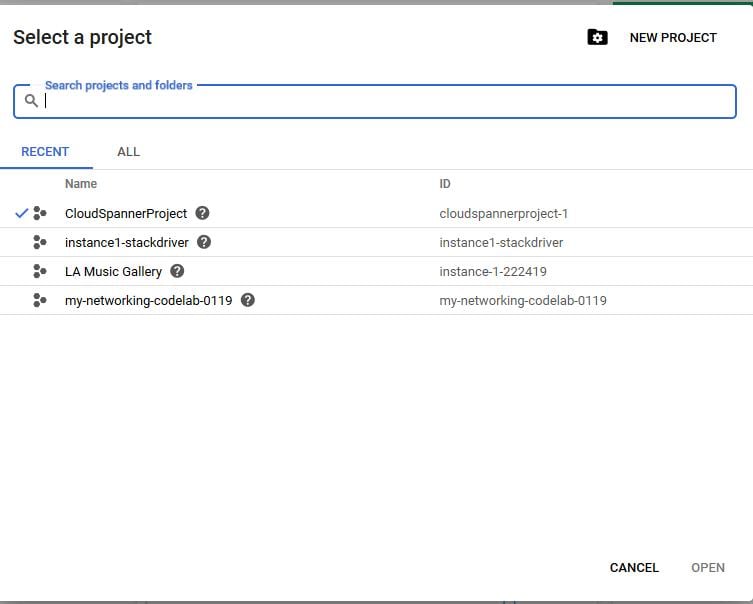
Sign in at the [Google Cloud Console](https://console.cloud.google.com) with your Google account. Click the **project dropdown** at the top of the page, then choose **New Project**.
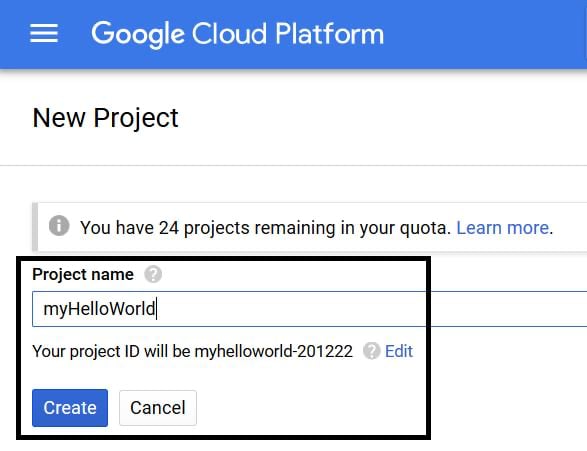
 Give the project a name (for example `myHelloWorld` or `my-maps-agent`). Google generates a **Project ID** automatically — note that it **cannot be changed later**. Click **Create**.
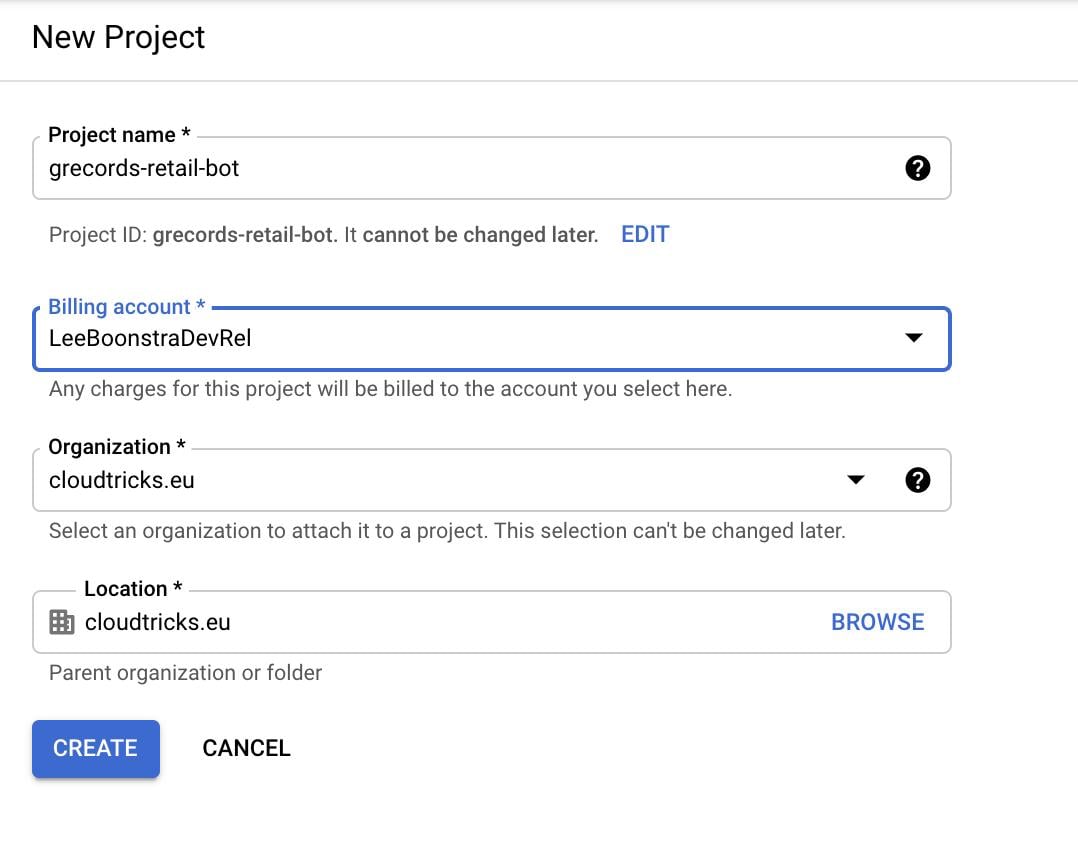
 If your account belongs to an organization, you can also pick the **billing account** and **organization** while creating the project.
 ### Step 2 — Enable billing
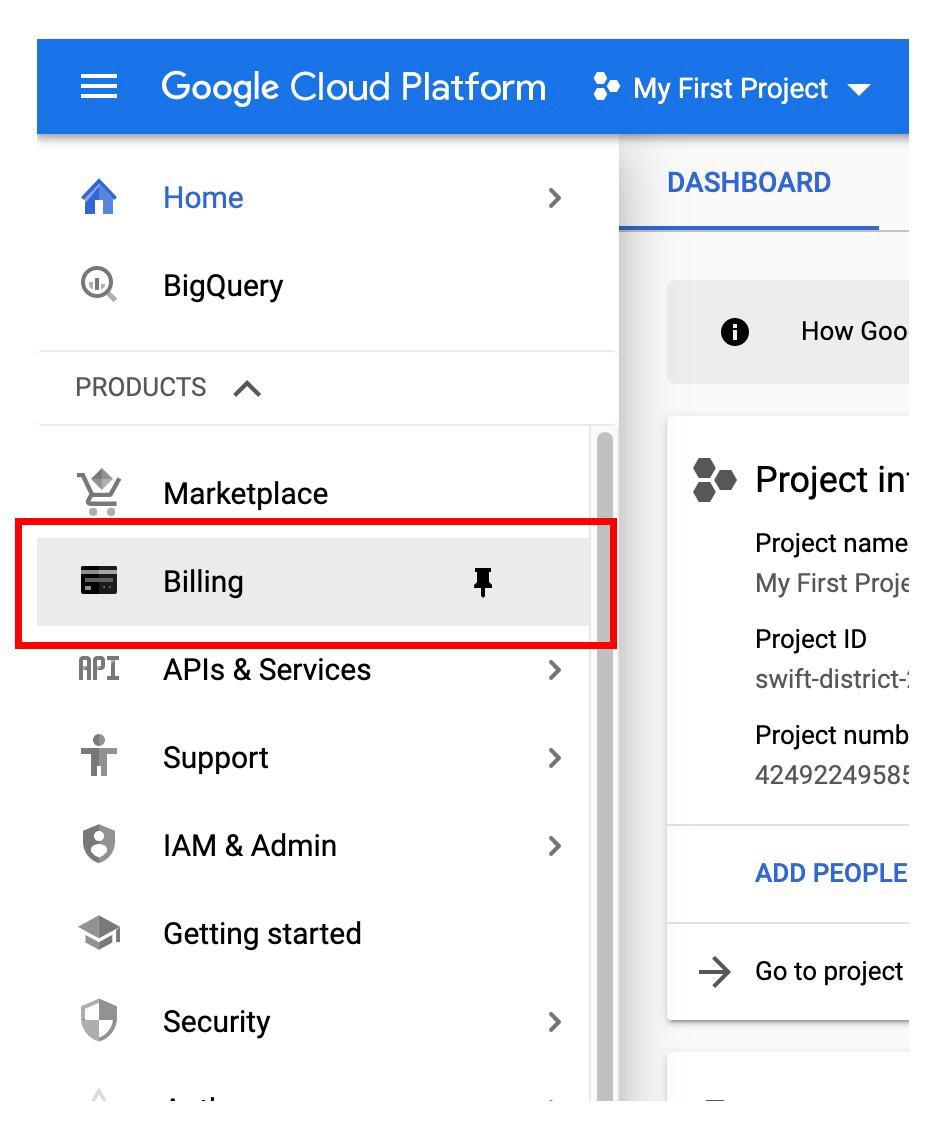
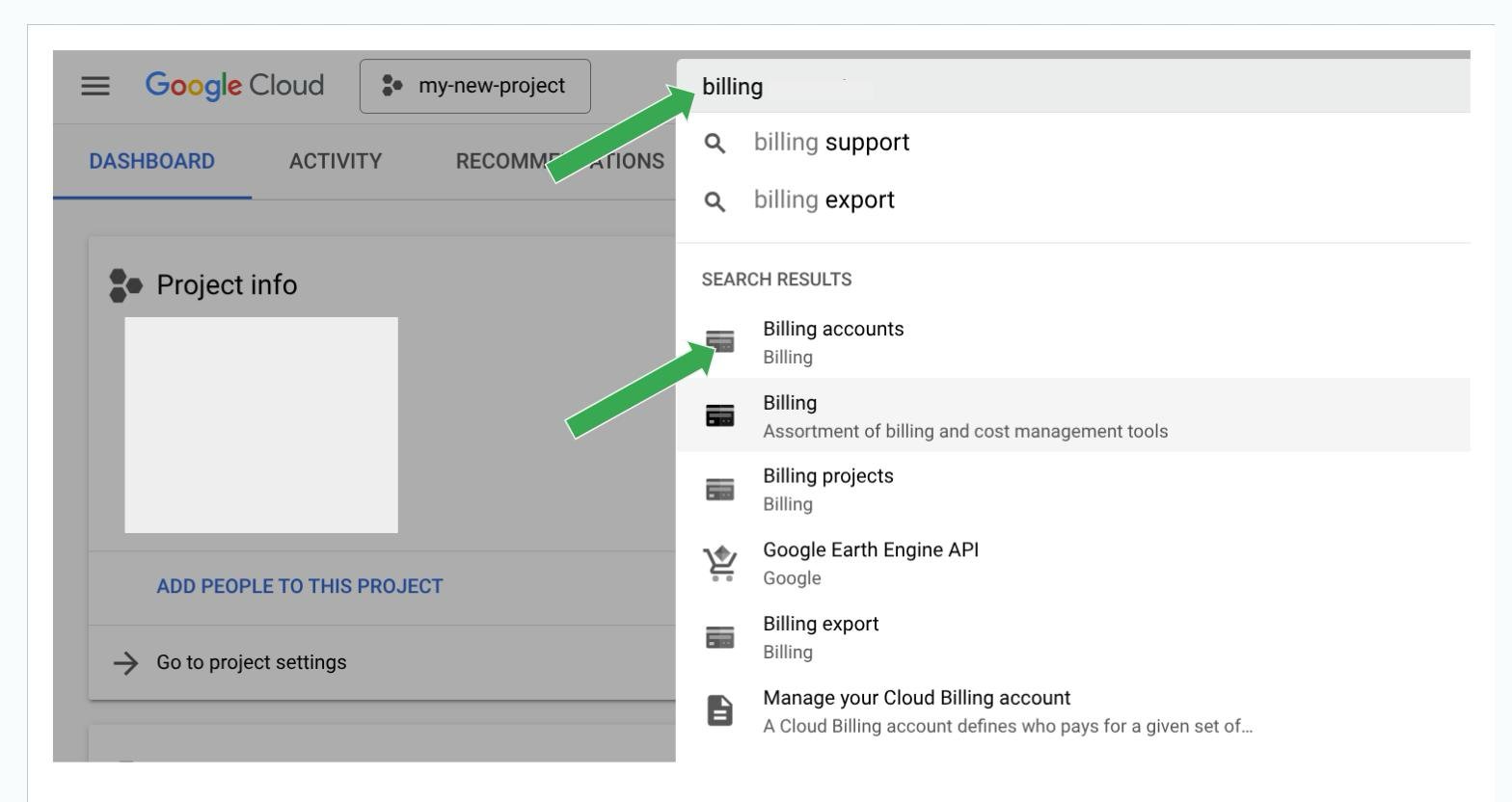
Google Maps Platform **requires a billing account**, even though it includes a generous monthly free credit. Open the menu (☰) and go to **Billing**, or just type "billing" into the search bar at the top.
### Step 2 — Enable billing
Google Maps Platform **requires a billing account**, even though it includes a generous monthly free credit. Open the menu (☰) and go to **Billing**, or just type "billing" into the search bar at the top.
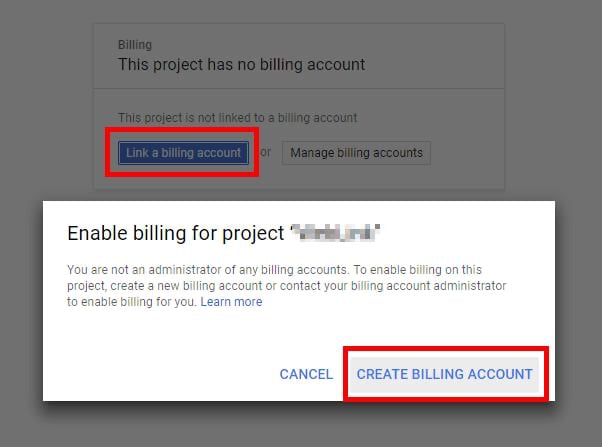
 If the project isn't linked to a billing account yet, click **Link a billing account** → **Create billing account**, and add a credit/debit card.
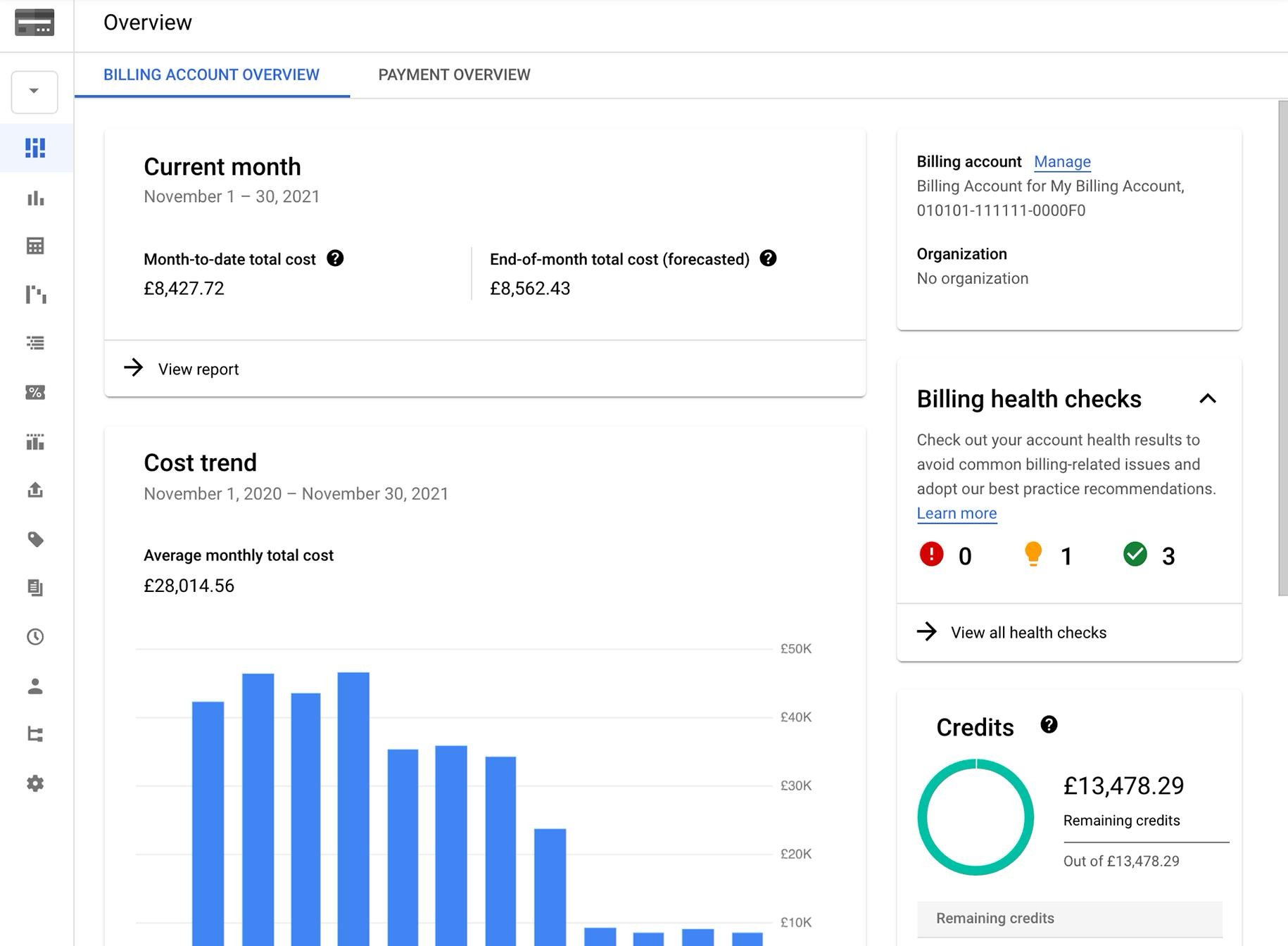
 Once billing is active, the **Billing account overview** shows your current spend, forecast, and any remaining free credits.
 Google usually provides a monthly free usage credit, but a billing account must still be attached or every Maps API call returns `REQUEST_DENIED`.
### Step 3 — Enable the required APIs
Go to **APIs & Services → Library** and enable each API your agent will use. Search for the API, open it, and click **Enable**.
Google usually provides a monthly free usage credit, but a billing account must still be attached or every Maps API call returns `REQUEST_DENIED`.
### Step 3 — Enable the required APIs
Go to **APIs & Services → Library** and enable each API your agent will use. Search for the API, open it, and click **Enable**.
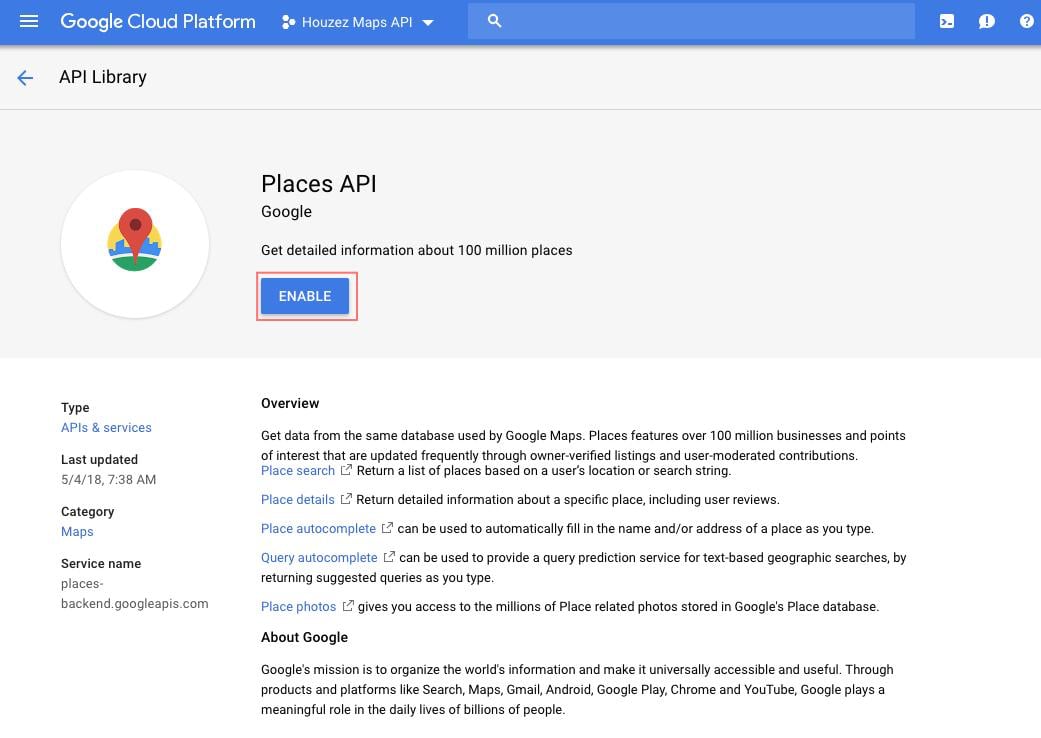
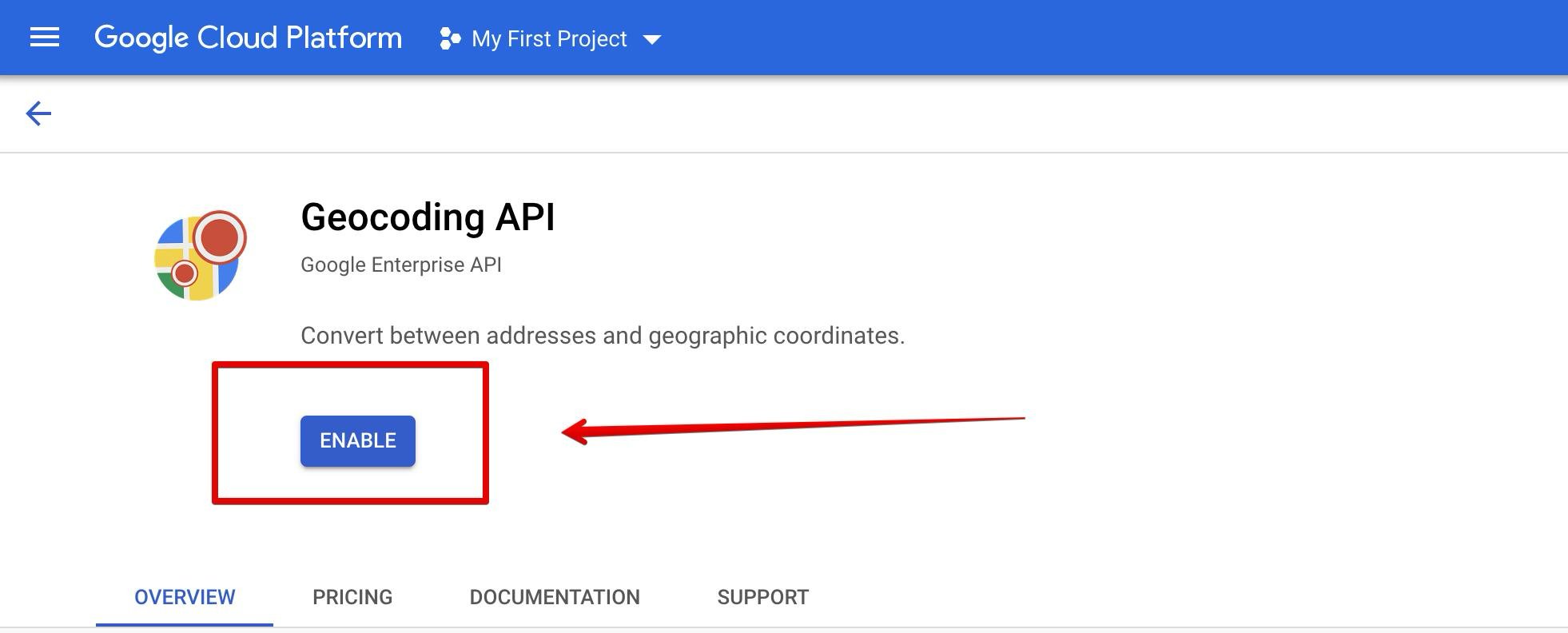 For full UnleashX functionality, enable all of these: **Places API**, **Geocoding API**, **Directions API**, **Distance Matrix API**, **Time Zone API**, **Roads API**, and **Elevation API**. At minimum, the three below cover most agent use cases:
| You want to… | Enable this API |
| ----------------------------------------------- | ------------------------------------------------ |
| Find nearby businesses / autocomplete addresses | **Places API** |
| Convert addresses ↔ latitude/longitude | **Geocoding API** |
| Display a map on a website | **Maps JavaScript API** |
| Get routes & directions | **Directions API** (or the newer **Routes API**) |
If an API isn't enabled, the matching tool will fail with `REQUEST_DENIED`. Enable it in the Library and retry.
### Step 4 — Create the API key
Open **APIs & Services → Credentials** (from the Maps Platform docs you can also click **Go to the Credentials page**).
For full UnleashX functionality, enable all of these: **Places API**, **Geocoding API**, **Directions API**, **Distance Matrix API**, **Time Zone API**, **Roads API**, and **Elevation API**. At minimum, the three below cover most agent use cases:
| You want to… | Enable this API |
| ----------------------------------------------- | ------------------------------------------------ |
| Find nearby businesses / autocomplete addresses | **Places API** |
| Convert addresses ↔ latitude/longitude | **Geocoding API** |
| Display a map on a website | **Maps JavaScript API** |
| Get routes & directions | **Directions API** (or the newer **Routes API**) |
If an API isn't enabled, the matching tool will fail with `REQUEST_DENIED`. Enable it in the Library and retry.
### Step 4 — Create the API key
Open **APIs & Services → Credentials** (from the Maps Platform docs you can also click **Go to the Credentials page**).
 Click **Create credentials → API key**. Google generates the key string immediately.
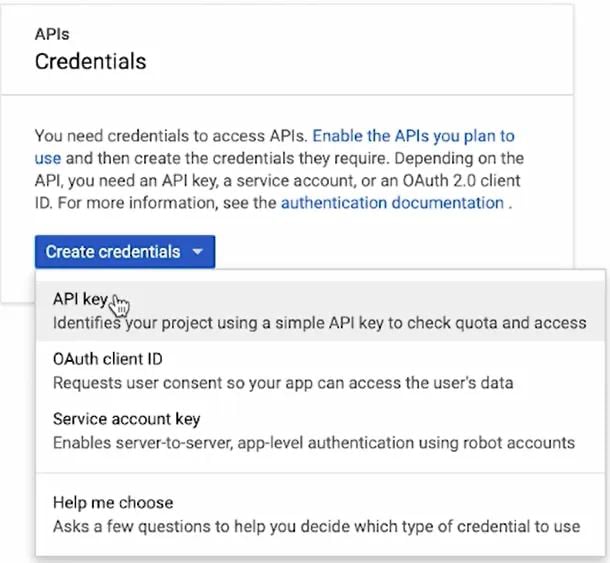
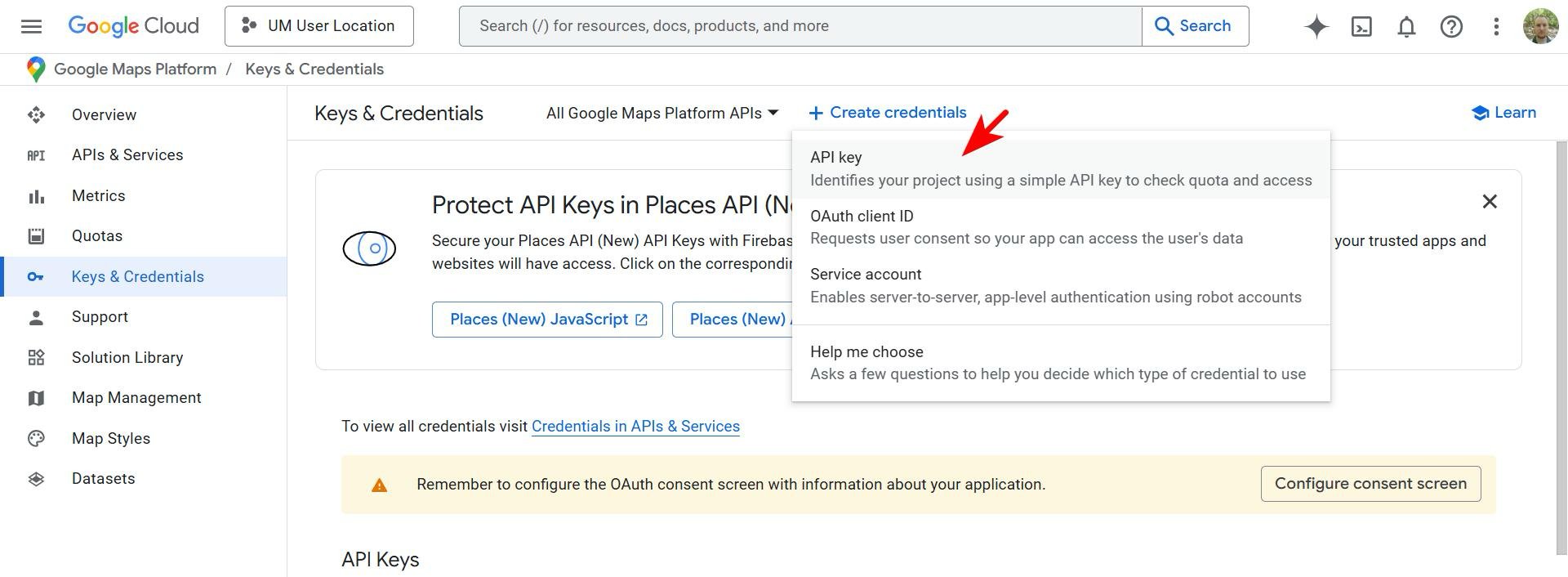 The **Credentials** page lists API keys, OAuth 2.0 Client IDs, and service accounts. For Maps MCP you only need a plain **API key** — not an OAuth client ID or service account.
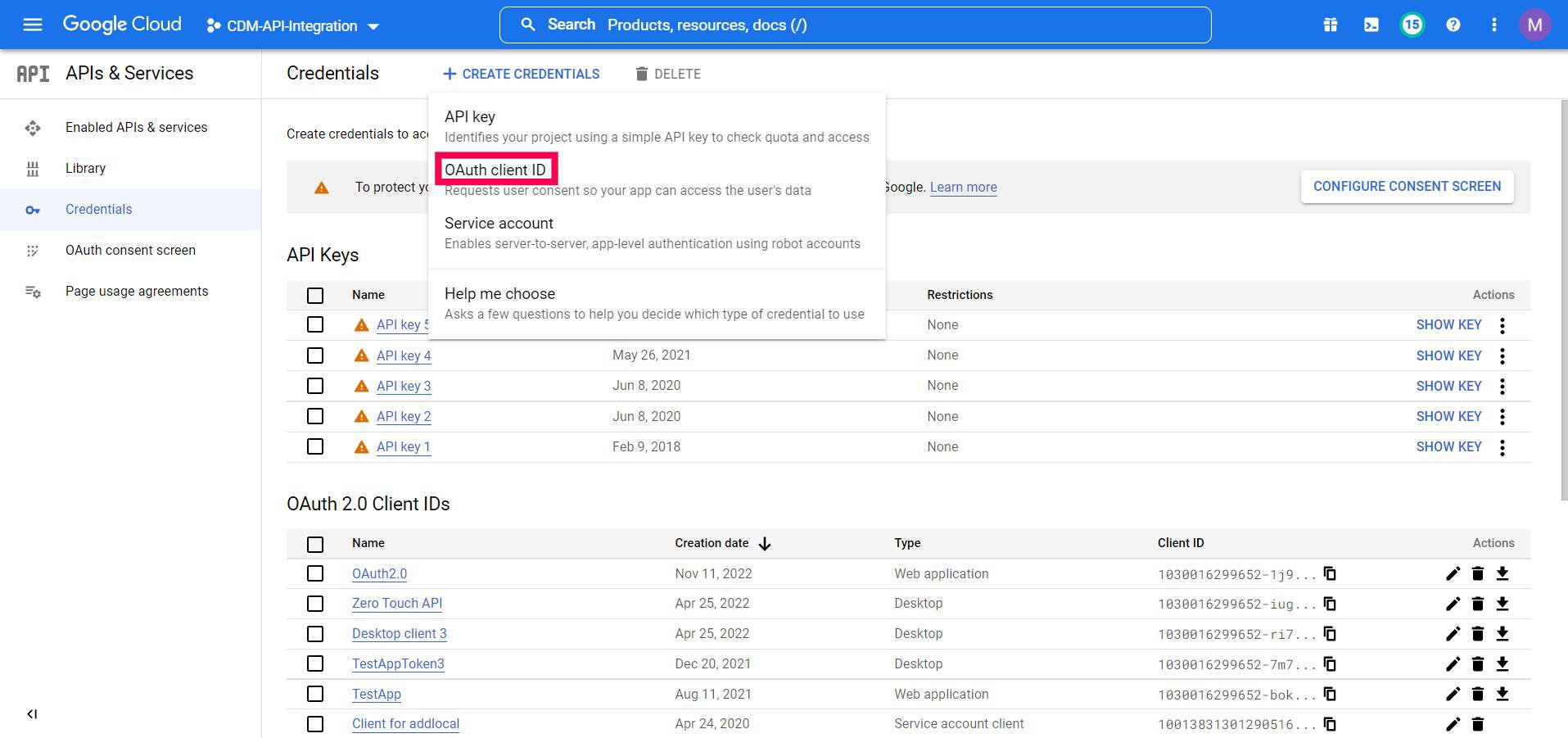 Treat the API key like a password. Copy it now and store it securely. For safety, restrict the key (next step) so it can't be misused if it ever leaks.
### Step 5 — Restrict the key (recommended)
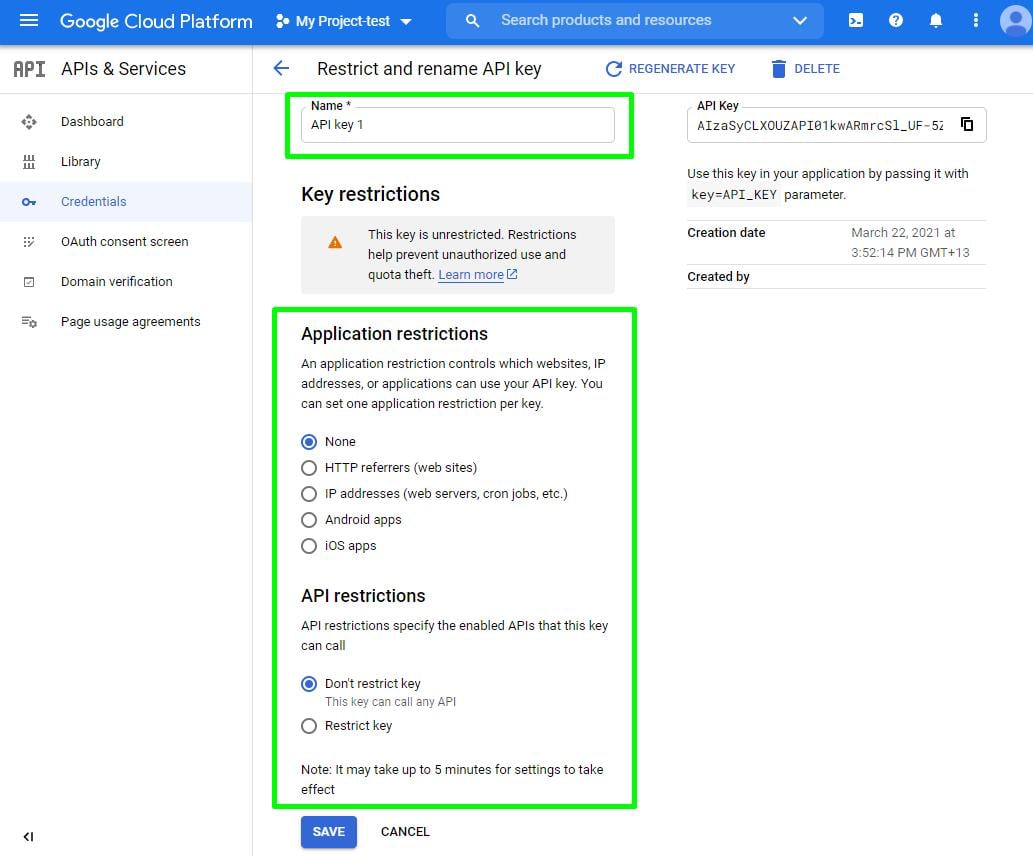
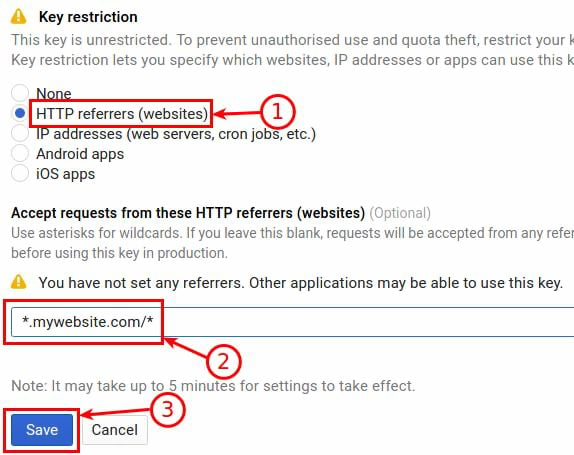
Click the newly created key to open its settings. Restrictions prevent quota theft and unauthorized use.
**Application restrictions** — limit *who* can use the key:
* For **websites** (frontend Maps JavaScript): choose **HTTP referrers** and add your domains, e.g. `https://yourdomain.com/*` and `https://www.yourdomain.com/*`.
* For **backend servers** (the typical UnleashX/MCP case): choose **IP addresses** and add your server IP. If your server IP isn't fixed, leave it as **None** and rely on the API restrictions below.
Treat the API key like a password. Copy it now and store it securely. For safety, restrict the key (next step) so it can't be misused if it ever leaks.
### Step 5 — Restrict the key (recommended)
Click the newly created key to open its settings. Restrictions prevent quota theft and unauthorized use.
**Application restrictions** — limit *who* can use the key:
* For **websites** (frontend Maps JavaScript): choose **HTTP referrers** and add your domains, e.g. `https://yourdomain.com/*` and `https://www.yourdomain.com/*`.
* For **backend servers** (the typical UnleashX/MCP case): choose **IP addresses** and add your server IP. If your server IP isn't fixed, leave it as **None** and rely on the API restrictions below.
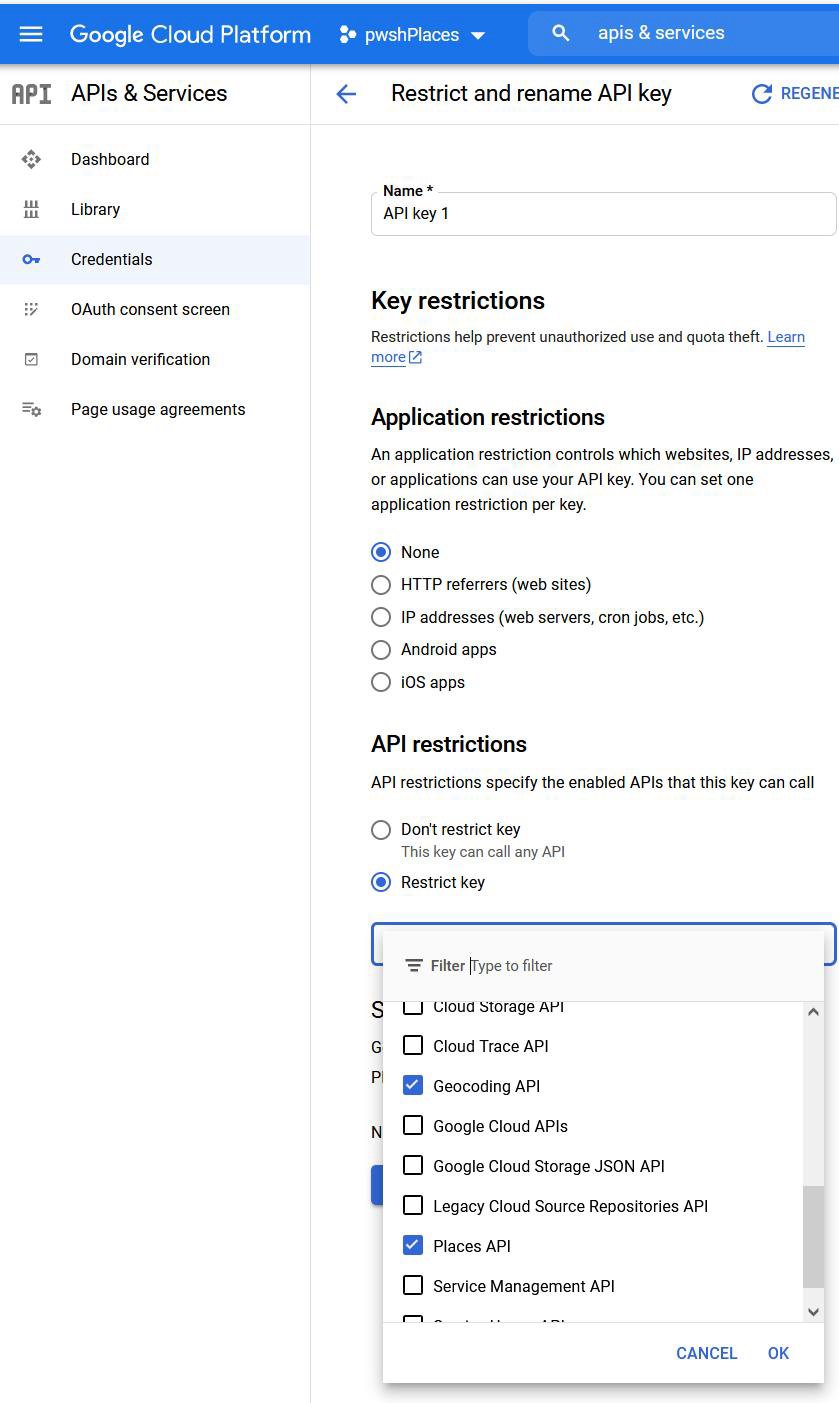
 **API restrictions** — limit *which* APIs the key can call. Select **Restrict key**, then tick only the APIs you enabled in Step 3.
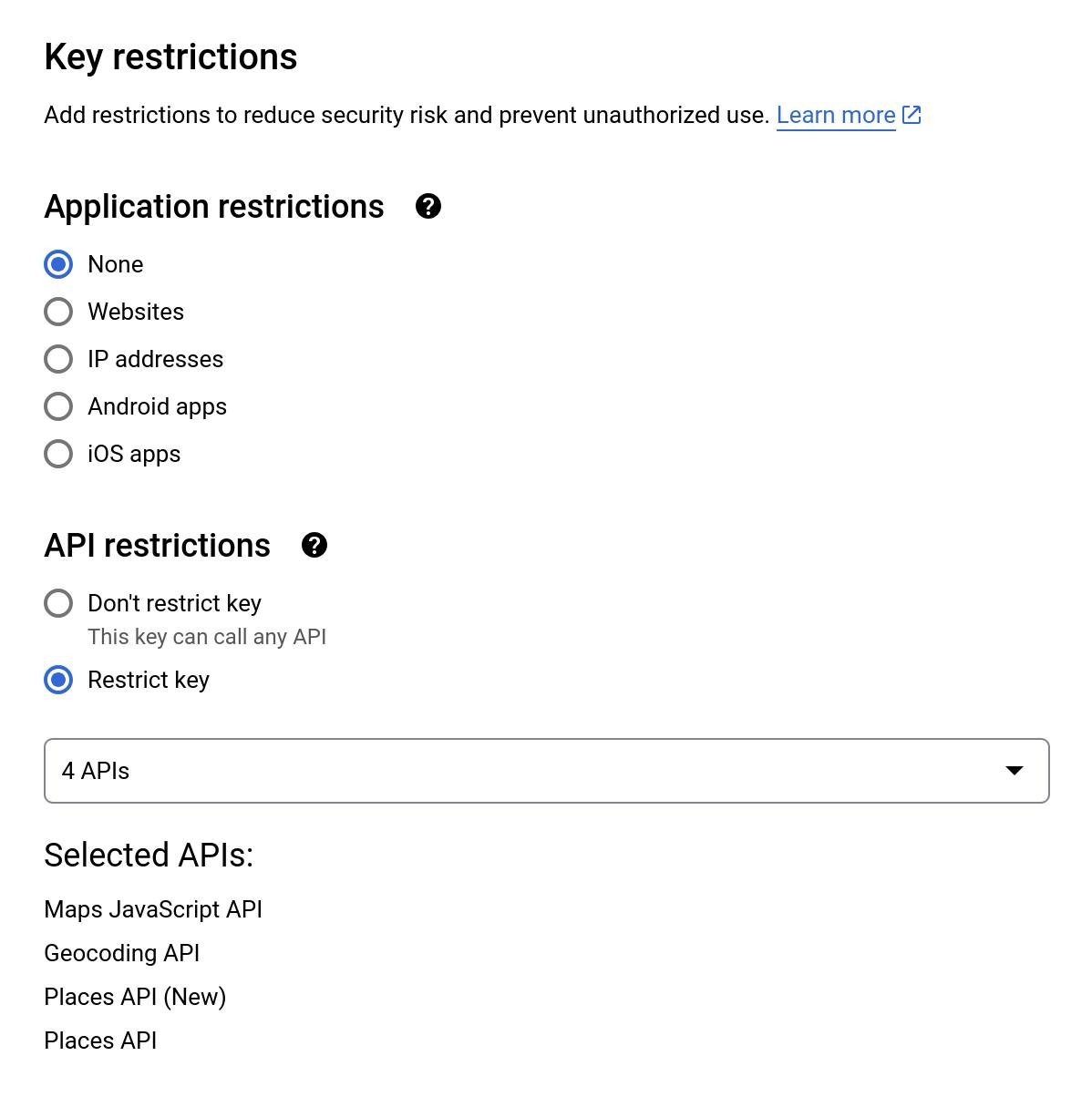
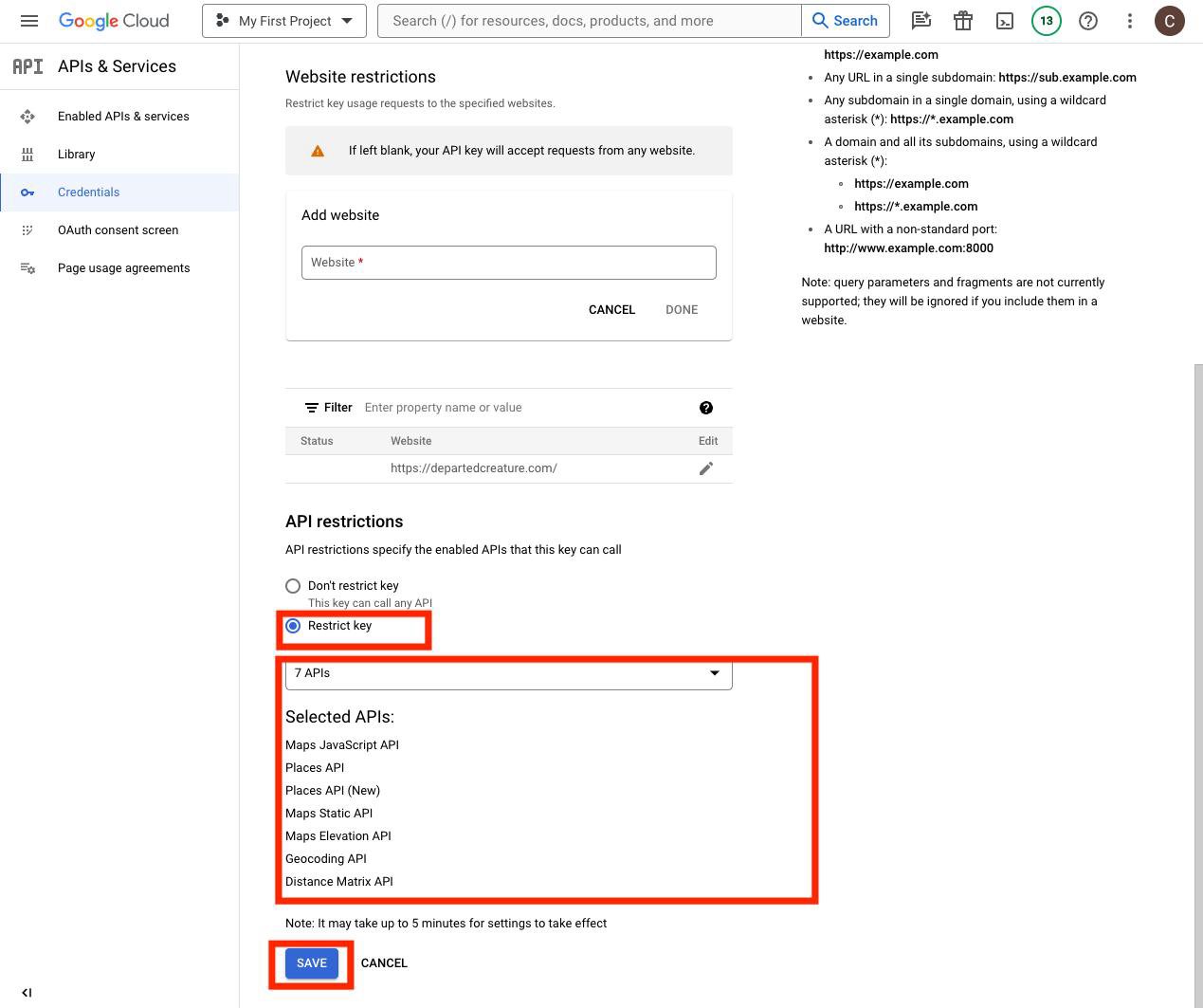 Click **Save**. Changes can take up to **5 minutes** to take effect. Your restricted key is now ready to paste into UnleashX (Section 4).
### Permissions / APIs this key uses
| API | Plain-English reason UnleashX needs it |
| ------------------- | ----------------------------------------------- |
| Places API | Search for places and fetch place details. |
| Geocoding API | Convert addresses ↔ coordinates. |
| Directions API | Calculate routes between points. |
| Distance Matrix API | Estimate travel times and distances. |
| Time Zone API | Look up the local timezone for a location. |
| Roads API | Snap GPS points to the nearest roads. |
| Elevation API | Get ground elevation for coordinates or a path. |
## 4. Connect on UnleashX
Sign in at [tryunleashx.com](https://www.tryunleashx.com) and open the agent you want to give Google Maps access to.
Open **Data Connectors** and find **Google Maps** in the list.
Click **Connect** / **Add** / **Configure** and paste your Maps Platform **API key** (sent as the `api-key` / `api_key` credential). Authenticate once.
When the key works, the status changes to a **Connected** badge. Your agent can now use the Google Maps tools below.
### Use Google Maps in a Workflow
Once connected, you can add **Google Maps** to any automation from the **Workflows** builder. Its triggers and tools appear in the Apps panel, marked with an **MCP** badge.
Open **Workflows → New Workflow**. On the canvas, click **+ Add Trigger** (or the **+** below any node) to add a step.
Click **Save**. Changes can take up to **5 minutes** to take effect. Your restricted key is now ready to paste into UnleashX (Section 4).
### Permissions / APIs this key uses
| API | Plain-English reason UnleashX needs it |
| ------------------- | ----------------------------------------------- |
| Places API | Search for places and fetch place details. |
| Geocoding API | Convert addresses ↔ coordinates. |
| Directions API | Calculate routes between points. |
| Distance Matrix API | Estimate travel times and distances. |
| Time Zone API | Look up the local timezone for a location. |
| Roads API | Snap GPS points to the nearest roads. |
| Elevation API | Get ground elevation for coordinates or a path. |
## 4. Connect on UnleashX
Sign in at [tryunleashx.com](https://www.tryunleashx.com) and open the agent you want to give Google Maps access to.
Open **Data Connectors** and find **Google Maps** in the list.
Click **Connect** / **Add** / **Configure** and paste your Maps Platform **API key** (sent as the `api-key` / `api_key` credential). Authenticate once.
When the key works, the status changes to a **Connected** badge. Your agent can now use the Google Maps tools below.
### Use Google Maps in a Workflow
Once connected, you can add **Google Maps** to any automation from the **Workflows** builder. Its triggers and tools appear in the Apps panel, marked with an **MCP** badge.
Open **Workflows → New Workflow**. On the canvas, click **+ Add Trigger** (or the **+** below any node) to add a step.
 In the **Paths** panel, open the **Apps** tab and select **Google Maps**. Use the search box if you have many connectors.
 Pick the trigger or action you want. Configure its fields — required fields are marked with a red asterisk (\*).
Under **Selected account**, choose an already-connected account, or click **Add Account** to connect one now.
Fill in the remaining fields and click **Save**. Use **Test** to verify the step, then toggle **Publish** when the workflow is ready.
The steps are the same for every connector. For the full workflow builder guide, see [Using MCP in Workflows](/mcp/workflows).
## 5. Available tools
This server exposes **14 tools**. All Google Maps tools are **read-only** (they look up data and never change anything in your account).
| Tool name | What it does | Changes data? |
| ------------------------------ | --------------------------------------------------------------------------------- | ------------- |
| **Search Nearby** | Find places near a location, with radius/rating/open-now filters. | No |
| **Get Place Details** | Get full details for a place by place ID. | No |
| **Geocode** | Convert an address into coordinates. | No |
| **Reverse Geocode** | Convert coordinates back into an address. | No |
| **Distance Matrix** | Calculate travel time/distance between many origins and destinations. | No |
| **Directions** | Get a route between an origin and destination. | No |
| **Elevation** | Get ground elevation for a list of coordinates. | No |
| **Search Places** | Search places by text query (with optional location bias). | No |
| **Search Place Details** | Search places and enrich each with detailed info (phone, hours, website, rating). | No |
| **Get Place Details (Single)** | Get details for a single place by place ID. | No |
| **Get Directions** | Get directions with optional waypoints and travel mode. | No |
| **Get Timezone** | Look up the timezone for a location and timestamp. | No |
| **Get Roads** | Snap a path of points to the nearest roads. | No |
| **Get Elevation** | Get elevation for places/coordinates, optionally sampled along a path. | No |
There are two families of tools with overlapping capabilities. Your agent picks whichever best fits the request — both run read-only lookups against Google Maps Platform.
## 6. Example usage
**"Find coffee shops within 1 km of MG Road, Bengaluru that are open now and rated 4+."**
→ Runs **Search Nearby** (geocodes the location, then filters by radius, open-now, and minimum rating).
**"How long does it take to drive from Indiranagar to Bangalore Airport right now?"**
→ Runs **Directions** (or **Distance Matrix**) to estimate the route and travel time.
## 7. Permissions & data access
**UnleashX can:**
* Search for places and fetch place details (name, address, phone, hours, rating, website).
* Geocode and reverse-geocode addresses and coordinates.
* Calculate routes, travel times, and distances.
* Look up timezones, snap points to roads, and get elevation.
**UnleashX cannot:**
* Create, edit, or delete anything in Google Maps — every tool is read-only.
* Access your personal Google Maps history, saved places, or Timeline.
* Change your Google Cloud project, billing, or API settings.
**How to disconnect:** In your agent's **Data Connectors**, open Google Maps and choose **Disconnect** to stop UnleashX from using the key immediately. To fully revoke access, **delete or regenerate** the API key in **APIs & Services → Credentials**.
## 8. Troubleshooting
| Problem | What it means | How to fix it |
| ------------------------------------------ | ----------------------------------------------------------------------------------- | -------------------------------------------------------------------------------------------------------------------- |
| `401 Unauthorized` / "API key is required" | No valid API key was provided. | Reconnect Google Maps with a valid Maps Platform API key. |
| `REQUEST_DENIED` / 403 | The API isn't enabled, billing is off, or the key is restricted away from that API. | Enable the needed API in **APIs & Services → Library**, confirm billing is on, and check the key's API restrictions. |
| `OVER_QUERY_LIMIT` / 429 | You've hit your usage quota or rate limit. | Wait, raise your quota, or enable billing/upgrade in Google Cloud. |
| `ZERO_RESULTS` | The query was valid but no places/routes matched. | Broaden the search, increase the radius, or check the spelling of the address. |
| "Invalid coordinate format" | A location wasn't a recognizable address or `lat,lng` pair. | Provide a real address or coordinates as `latitude,longitude`. |
For general connector issues, see [/mcp/integrations](/mcp/integrations).
## 9. Frequently asked questions
**Does this cost money?**
Google Maps Platform is billed by usage, but includes a substantial monthly free tier. Light agent use often stays within it; heavy use may incur charges from Google (not UnleashX).
**Is any data changed in my account?**
No. Every tool here is read-only — it only looks up location information.
**Can I use one key across multiple agents?**
Yes. The same Maps Platform API key can be connected to multiple agents. For security, restrict the key to only the APIs you use.
**Why did a tool fail with "REQUEST\_DENIED"?**
Usually the specific API (e.g. Directions API) isn't enabled for your project, or your key is restricted away from it. Enable the API and adjust the key restrictions.
## 10. References
* [Google Cloud Console — Credentials](https://console.cloud.google.com/apis/credentials)
* [Google Maps Platform documentation](https://developers.google.com/maps/documentation)
* [Get an API key](https://developers.google.com/maps/documentation/javascript/get-api-key)
* [API key best practices & restrictions](https://developers.google.com/maps/api-security-best-practices)
* [Places API](https://developers.google.com/maps/documentation/places/web-service/overview)
* [Maps Platform pricing](https://mapsplatform.google.com/pricing/)
Pick the trigger or action you want. Configure its fields — required fields are marked with a red asterisk (\*).
Under **Selected account**, choose an already-connected account, or click **Add Account** to connect one now.
Fill in the remaining fields and click **Save**. Use **Test** to verify the step, then toggle **Publish** when the workflow is ready.
The steps are the same for every connector. For the full workflow builder guide, see [Using MCP in Workflows](/mcp/workflows).
## 5. Available tools
This server exposes **14 tools**. All Google Maps tools are **read-only** (they look up data and never change anything in your account).
| Tool name | What it does | Changes data? |
| ------------------------------ | --------------------------------------------------------------------------------- | ------------- |
| **Search Nearby** | Find places near a location, with radius/rating/open-now filters. | No |
| **Get Place Details** | Get full details for a place by place ID. | No |
| **Geocode** | Convert an address into coordinates. | No |
| **Reverse Geocode** | Convert coordinates back into an address. | No |
| **Distance Matrix** | Calculate travel time/distance between many origins and destinations. | No |
| **Directions** | Get a route between an origin and destination. | No |
| **Elevation** | Get ground elevation for a list of coordinates. | No |
| **Search Places** | Search places by text query (with optional location bias). | No |
| **Search Place Details** | Search places and enrich each with detailed info (phone, hours, website, rating). | No |
| **Get Place Details (Single)** | Get details for a single place by place ID. | No |
| **Get Directions** | Get directions with optional waypoints and travel mode. | No |
| **Get Timezone** | Look up the timezone for a location and timestamp. | No |
| **Get Roads** | Snap a path of points to the nearest roads. | No |
| **Get Elevation** | Get elevation for places/coordinates, optionally sampled along a path. | No |
There are two families of tools with overlapping capabilities. Your agent picks whichever best fits the request — both run read-only lookups against Google Maps Platform.
## 6. Example usage
**"Find coffee shops within 1 km of MG Road, Bengaluru that are open now and rated 4+."**
→ Runs **Search Nearby** (geocodes the location, then filters by radius, open-now, and minimum rating).
**"How long does it take to drive from Indiranagar to Bangalore Airport right now?"**
→ Runs **Directions** (or **Distance Matrix**) to estimate the route and travel time.
## 7. Permissions & data access
**UnleashX can:**
* Search for places and fetch place details (name, address, phone, hours, rating, website).
* Geocode and reverse-geocode addresses and coordinates.
* Calculate routes, travel times, and distances.
* Look up timezones, snap points to roads, and get elevation.
**UnleashX cannot:**
* Create, edit, or delete anything in Google Maps — every tool is read-only.
* Access your personal Google Maps history, saved places, or Timeline.
* Change your Google Cloud project, billing, or API settings.
**How to disconnect:** In your agent's **Data Connectors**, open Google Maps and choose **Disconnect** to stop UnleashX from using the key immediately. To fully revoke access, **delete or regenerate** the API key in **APIs & Services → Credentials**.
## 8. Troubleshooting
| Problem | What it means | How to fix it |
| ------------------------------------------ | ----------------------------------------------------------------------------------- | -------------------------------------------------------------------------------------------------------------------- |
| `401 Unauthorized` / "API key is required" | No valid API key was provided. | Reconnect Google Maps with a valid Maps Platform API key. |
| `REQUEST_DENIED` / 403 | The API isn't enabled, billing is off, or the key is restricted away from that API. | Enable the needed API in **APIs & Services → Library**, confirm billing is on, and check the key's API restrictions. |
| `OVER_QUERY_LIMIT` / 429 | You've hit your usage quota or rate limit. | Wait, raise your quota, or enable billing/upgrade in Google Cloud. |
| `ZERO_RESULTS` | The query was valid but no places/routes matched. | Broaden the search, increase the radius, or check the spelling of the address. |
| "Invalid coordinate format" | A location wasn't a recognizable address or `lat,lng` pair. | Provide a real address or coordinates as `latitude,longitude`. |
For general connector issues, see [/mcp/integrations](/mcp/integrations).
## 9. Frequently asked questions
**Does this cost money?**
Google Maps Platform is billed by usage, but includes a substantial monthly free tier. Light agent use often stays within it; heavy use may incur charges from Google (not UnleashX).
**Is any data changed in my account?**
No. Every tool here is read-only — it only looks up location information.
**Can I use one key across multiple agents?**
Yes. The same Maps Platform API key can be connected to multiple agents. For security, restrict the key to only the APIs you use.
**Why did a tool fail with "REQUEST\_DENIED"?**
Usually the specific API (e.g. Directions API) isn't enabled for your project, or your key is restricted away from it. Enable the API and adjust the key restrictions.
## 10. References
* [Google Cloud Console — Credentials](https://console.cloud.google.com/apis/credentials)
* [Google Maps Platform documentation](https://developers.google.com/maps/documentation)
* [Get an API key](https://developers.google.com/maps/documentation/javascript/get-api-key)
* [API key best practices & restrictions](https://developers.google.com/maps/api-security-best-practices)
* [Places API](https://developers.google.com/maps/documentation/places/web-service/overview)
* [Maps Platform pricing](https://mapsplatform.google.com/pricing/)