> ## Documentation Index
> Fetch the complete documentation index at: https://docs.unleashx.ai/llms.txt
> Use this file to discover all available pages before exploring further.
# Fire Crawl
> Let your UnleashX agent crawl, scrape, and search websites, turning pages into clean structured data.
# Fire Crawl
> **In one line:** Connect Fire Crawl so your UnleashX agent can crawl a whole site, scrape a single page, extract structured data, and search what it has already indexed — in plain language.
| | |
| ------------------ | ---------------------------------------------------------------------------------------------- |
| **Category** | Dev Tools & Automation |
| **Authentication** | API key |
| **Setup time** | \~2 minutes |
| **Difficulty** | Easy |
| **Best for** | Research, competitive monitoring, and feeding live web content into an agent or knowledge base |
## 1. Overview
Fire Crawl is a web scraping and crawling platform. It handles the messy parts — rendering JavaScript, following links, stripping boilerplate — and returns clean content you can actually use.
Once connected to UnleashX, your agent can kick off a crawl across a site, check that crawl's status, scrape a single page, extract readable content or structured fields from a URL, and search previously crawled content. Crawls run asynchronously, so a large site is started once and polled for results.
Connecting Fire Crawl to UnleashX means your agent can work from the live web rather than only what it was given: pull a competitor's pricing page, harvest a docs site into a knowledge base, or check whether a page changed.
## 2. What you'll need
* A Fire Crawl account.
* An **API key** from your Fire Crawl dashboard (see Section 3).
* An UnleashX account with access to **Data Connectors**.
You paste an **API key**. UnleashX sends it to the Fire Crawl API as an authorization credential on every request.
Crawling consumes **credits** on your Fire Crawl plan, and a whole-site crawl can burn through them fast. Scope crawls with a page limit and a URL pattern rather than pointing at a large domain root.
Only crawl sites you're allowed to. Respect `robots.txt`, each site's terms of service, and any applicable data-protection rules — that responsibility sits with you, not the connector.
## 3. Get your credentials
Fire Crawl authenticates with an **API key** — a single secret string you generate once in your dashboard and paste into UnleashX. There's no OAuth flow and nothing to install.
Go to [firecrawl.dev](https://www.firecrawl.dev/) and sign in. If you don't have an account yet, sign up first.
In the dashboard, open **API Keys**. Any keys you've already created are listed here.
Click **Create API Key**. Give it a name that tells you where it's used — for example **UnleashX**. The name is only a label for you; it doesn't affect what the key can do. A clear name matters later, when you need to know which key to revoke.
Fire Crawl displays the key so you can copy it. Copy it right away and paste it somewhere safe (a password manager, or straight into the UnleashX connector).
Head to **Data Connectors → Fire Crawl** in UnleashX and paste the key (full walkthrough in Section 4). UnleashX validates it immediately, so you'll know right away if it was copied correctly.
### Good to know
Use a **separate key per integration**. A dedicated key can be revoked on its own if it leaks, without breaking every other tool that uses your Fire Crawl account.
Your API key **spends your Fire Crawl credits**. Treat it like a password:
* Never commit it to git, paste it in a ticket, or share it in chat.
* Use a separate key per integration so you can revoke one without disrupting the rest.
* If it's ever exposed, delete it in the Fire Crawl dashboard and create a replacement — revoking is instant.
### Permissions this key grants UnleashX
| Access | Why UnleashX needs it |
| ---------------------- | -------------------------------------------------- |
| Start crawls | Crawl a site and index its pages. |
| Read crawl status | Check progress and collect results. |
| Scrape pages | Fetch a single page's content. |
| Extract content | Pull readable text, metadata, or links from a URL. |
| Search indexed content | Search pages already crawled. |
## 4. Connect on UnleashX
Go to [https://www.tryunleashx.com](https://www.tryunleashx.com) and open the agent you want to connect.
Inside the agent, go to **Data Connectors**.
Locate **Fire Crawl** and click **Connect** (or **Add** / **Configure**).
Paste your **API key** and click **Connect**.
UnleashX validates the key and the Fire Crawl connector shows a **Connected** badge.
### Use Fire Crawl in a Workflow
Once connected, you can add **Fire Crawl** to any automation from the **Workflows** builder. Its tools appear in the Apps panel, marked with an **MCP** badge.
Open **Workflows → New Workflow**. On the canvas, click **+ Add Trigger**. In the **Paths** panel, open the **Apps** tab and select **Fire Crawl** — its **Triggers** are listed underneath. Use the search box if you have many connectors.
Click the **+** below any node to add a step, then pick **Fire Crawl** again — this time the panel lists its **Actions**.
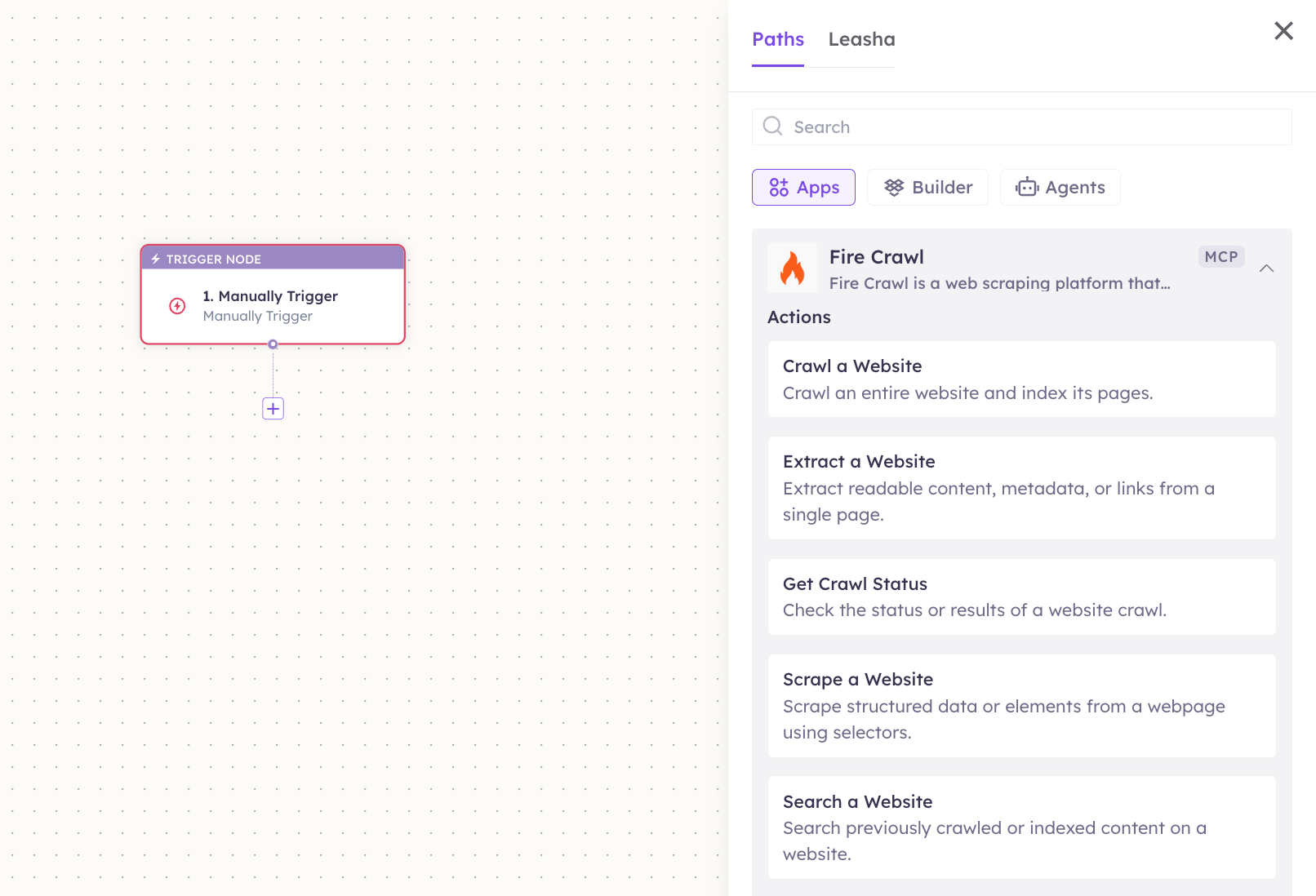 Fill in the fields for the trigger or action you picked. Required fields are marked with a red asterisk (\*).
Under **Selected account**, choose an already-connected account, or click **Add Account** to connect one now.
Click **Save**. Use **Test** to verify the step, then toggle **Publish** when the workflow is ready.
The steps are the same for every connector. For the full workflow builder guide, see [Using MCP in Workflows](/mcp/workflows).
## 5. Available tools
| Tool | What it does | Changes data? |
| ----------------- | ------------------------------------------------------------------- | ------------------- |
| Crawl a Website | Crawls an entire website and indexes its pages. | No (external fetch) |
| Extract a Website | Extracts readable content, metadata, or links from a single page. | No |
| Get Crawl Status | Checks the status or results of a website crawl. | No |
| Scrape a Website | Scrapes structured data or elements from a webpage using selectors. | No |
| Search a Website | Searches previously crawled or indexed content on a website. | No |
**Crawl a Website** is asynchronous. It returns a job ID; use **Get Crawl Status** to poll until the crawl finishes and the pages are available.
## 6. Example usage
> **"Crawl docs.acme.com and tell me every page that mentions 'rate limit'."**
>
> Runs **Crawl a Website**, polls **Get Crawl Status**, then **Search a Website**.
> **"Pull the pricing table off competitor.com/pricing."**
>
> Runs **Scrape a Website** with selectors for the pricing table.
## 7. Permissions & data access
**UnleashX can:**
* Start crawls and check their status.
* Scrape and extract content from URLs you specify.
* Search content already crawled under your account.
**UnleashX cannot:**
* Bypass a site's authentication, paywall, or bot protection.
* Exceed your Fire Crawl plan's credit or rate limits.
* Change your Fire Crawl account settings or billing.
**To disconnect:** In UnleashX, open **Data Connectors → Fire Crawl → Disconnect**. Then delete the key in the Fire Crawl dashboard. Disconnecting and revoking removes access immediately.
## 8. Troubleshooting
| Problem | What it means | How to fix it |
| -------------------------------- | ------------------------------------------------ | ----------------------------------------------------------------------- |
| `401 Unauthorized` | The API key is invalid or was revoked. | Create a new key and reconnect. |
| `402 / credits exhausted` | Your plan's crawl credits are used up. | Top up or upgrade your Fire Crawl plan. |
| `429 Too Many Requests` | You hit the API rate limit. | Slow down requests and retry after a short wait. |
| **Crawl stuck at "in progress"** | A large site is still being processed. | Keep polling **Get Crawl Status**; lower the page limit next time. |
| **Empty or partial content** | The page renders client-side or blocks scrapers. | Retry with JavaScript rendering enabled, or scrape a specific selector. |
| **Search returns nothing** | The site hasn't been crawled yet. | Run **Crawl a Website** first, then search. |
For general connector issues, see [/mcp/integrations](/mcp/integrations).
## 9. Frequently asked questions
**Does UnleashX store the crawled pages?**
No. Results are returned through the Fire Crawl API per request. If you want to keep them, write them into a knowledge base or a storage connector as a workflow step.
**Will crawling cost me?**
Yes — crawls and scrapes consume Fire Crawl credits. Scope crawls with a page limit.
**Can it crawl pages behind a login?**
Not through these tools. Fire Crawl fetches publicly reachable pages.
**How long does a crawl take?**
It depends on site size and your plan's concurrency. Poll **Get Crawl Status** rather than assuming a fixed wait.
## 10. References
* [Fire Crawl documentation](https://docs.firecrawl.dev/)
* [Fire Crawl API reference](https://docs.firecrawl.dev/api-reference/introduction)
* [Fire Crawl dashboard](https://www.firecrawl.dev/app)
Fill in the fields for the trigger or action you picked. Required fields are marked with a red asterisk (\*).
Under **Selected account**, choose an already-connected account, or click **Add Account** to connect one now.
Click **Save**. Use **Test** to verify the step, then toggle **Publish** when the workflow is ready.
The steps are the same for every connector. For the full workflow builder guide, see [Using MCP in Workflows](/mcp/workflows).
## 5. Available tools
| Tool | What it does | Changes data? |
| ----------------- | ------------------------------------------------------------------- | ------------------- |
| Crawl a Website | Crawls an entire website and indexes its pages. | No (external fetch) |
| Extract a Website | Extracts readable content, metadata, or links from a single page. | No |
| Get Crawl Status | Checks the status or results of a website crawl. | No |
| Scrape a Website | Scrapes structured data or elements from a webpage using selectors. | No |
| Search a Website | Searches previously crawled or indexed content on a website. | No |
**Crawl a Website** is asynchronous. It returns a job ID; use **Get Crawl Status** to poll until the crawl finishes and the pages are available.
## 6. Example usage
> **"Crawl docs.acme.com and tell me every page that mentions 'rate limit'."**
>
> Runs **Crawl a Website**, polls **Get Crawl Status**, then **Search a Website**.
> **"Pull the pricing table off competitor.com/pricing."**
>
> Runs **Scrape a Website** with selectors for the pricing table.
## 7. Permissions & data access
**UnleashX can:**
* Start crawls and check their status.
* Scrape and extract content from URLs you specify.
* Search content already crawled under your account.
**UnleashX cannot:**
* Bypass a site's authentication, paywall, or bot protection.
* Exceed your Fire Crawl plan's credit or rate limits.
* Change your Fire Crawl account settings or billing.
**To disconnect:** In UnleashX, open **Data Connectors → Fire Crawl → Disconnect**. Then delete the key in the Fire Crawl dashboard. Disconnecting and revoking removes access immediately.
## 8. Troubleshooting
| Problem | What it means | How to fix it |
| -------------------------------- | ------------------------------------------------ | ----------------------------------------------------------------------- |
| `401 Unauthorized` | The API key is invalid or was revoked. | Create a new key and reconnect. |
| `402 / credits exhausted` | Your plan's crawl credits are used up. | Top up or upgrade your Fire Crawl plan. |
| `429 Too Many Requests` | You hit the API rate limit. | Slow down requests and retry after a short wait. |
| **Crawl stuck at "in progress"** | A large site is still being processed. | Keep polling **Get Crawl Status**; lower the page limit next time. |
| **Empty or partial content** | The page renders client-side or blocks scrapers. | Retry with JavaScript rendering enabled, or scrape a specific selector. |
| **Search returns nothing** | The site hasn't been crawled yet. | Run **Crawl a Website** first, then search. |
For general connector issues, see [/mcp/integrations](/mcp/integrations).
## 9. Frequently asked questions
**Does UnleashX store the crawled pages?**
No. Results are returned through the Fire Crawl API per request. If you want to keep them, write them into a knowledge base or a storage connector as a workflow step.
**Will crawling cost me?**
Yes — crawls and scrapes consume Fire Crawl credits. Scope crawls with a page limit.
**Can it crawl pages behind a login?**
Not through these tools. Fire Crawl fetches publicly reachable pages.
**How long does a crawl take?**
It depends on site size and your plan's concurrency. Poll **Get Crawl Status** rather than assuming a fixed wait.
## 10. References
* [Fire Crawl documentation](https://docs.firecrawl.dev/)
* [Fire Crawl API reference](https://docs.firecrawl.dev/api-reference/introduction)
* [Fire Crawl dashboard](https://www.firecrawl.dev/app)