> ## Documentation Index
> Fetch the complete documentation index at: https://docs.unleashx.ai/llms.txt
> Use this file to discover all available pages before exploring further.
# Facebook
> Let your UnleashX agent send Messenger replies — text, images, video, audio, and files — from your Facebook Page.
# Facebook
> **In one line:** Connect Facebook so your UnleashX agent can reply to people in Messenger from your Page — sending text, images, video, audio, or files without you opening the inbox.
| | |
| ------------------ | --------------------------------------------------------------------------- |
| **Category** | Communication |
| **Authentication** | OAuth (Facebook login) + Page access |
| **Setup time** | \~5 minutes |
| **Difficulty** | Medium |
| **Best for** | Support and sales teams handling Facebook Messenger conversations at volume |
## 1. Overview
Facebook Messenger is where a lot of customer conversation actually happens — questions about a product, order updates, support requests — all landing in your Page inbox.
Once connected to UnleashX, your agent can send messages to a Messenger conversation on behalf of your Page: plain text, an image, a video, an audio clip, or a file attachment. It works against the Messenger Platform using your Page's access, so it respects Meta's messaging rules.
Connecting Facebook to UnleashX means your agent can answer, follow up, and send collateral in the channel the customer already chose, instead of pushing them to email.
## 2. What you'll need
* A **Facebook Page** (Messenger works from a Page, not a personal profile).
* An admin role on that Page, or permission to authorize apps for it.
* An UnleashX account with access to **Data Connectors**.
You connect a **Page**, not your personal account. During authorization, pick the Page whose Messenger inbox the agent should send from.
Meta enforces a **24-hour messaging window**: outside 24 hours from the user's last message, you can only send using an approved message tag. Sends outside the window without a valid tag are rejected by Meta, not by UnleashX.
## 3. Get your credentials
Facebook uses **Meta OAuth**. You do **not** create or paste an API key. UnleashX redirects you to Facebook, you sign in and select a Page, and Meta issues a Page access token to UnleashX automatically.
In your agent's **Data Connectors**, find **Facebook** and click **Connect** (see Section 4).
Sign in with an account that administers the Page.
Choose the Page whose Messenger conversations the agent should handle. If you manage several, select only the ones you want connected.
Click **Continue** to grant access and return to UnleashX.
There is no key to copy. Access is granted by your Facebook login and can be revoked anytime under **Facebook Settings → Business Integrations**.
**Permissions UnleashX requests for Facebook:**
| Permission | Why UnleashX needs it |
| ----------------------- | ------------------------------------------------------- |
| `pages_show_list` | List the Pages you administer so you can pick one. |
| `pages_messaging` | Send messages in Messenger conversations from the Page. |
| `pages_manage_metadata` | Maintain the Page's messaging subscription. |
| `public_profile` | Identify which account authorized the connection. |
## 4. Connect on UnleashX
Sign in at [https://www.tryunleashx.com](https://www.tryunleashx.com) and open your agent.
In the agent, open **Data Connectors**.
Locate **Facebook** and click **Connect** / **Add** / **Configure**.
Click **Authorize**, sign in, select your Page, and approve the requested permissions.
You'll return to UnleashX and the connector status will show a **Connected** badge.
### Use Facebook in a Workflow
Once connected, you can add **Facebook** to any automation from the **Workflows** builder. Its tools appear in the Apps panel, marked with an **MCP** badge.
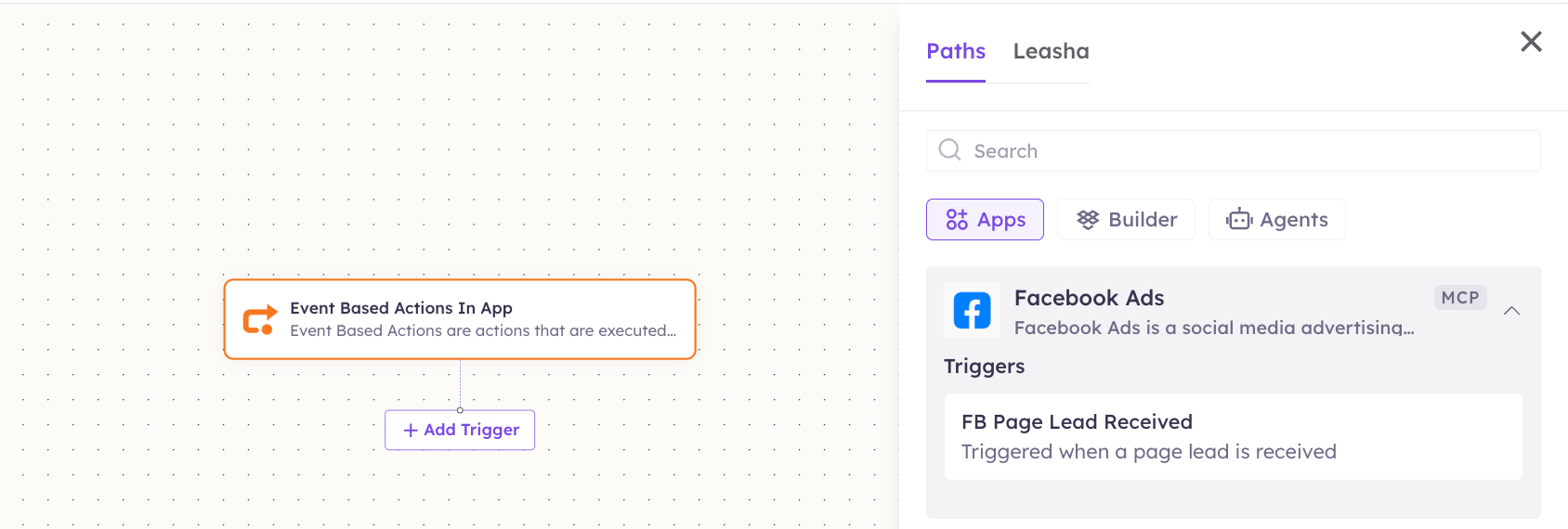
Open **Workflows → New Workflow**. On the canvas, click **+ Add Trigger**. In the **Paths** panel, open the **Apps** tab and select **Facebook** — its **Triggers** are listed underneath. Use the search box if you have many connectors.
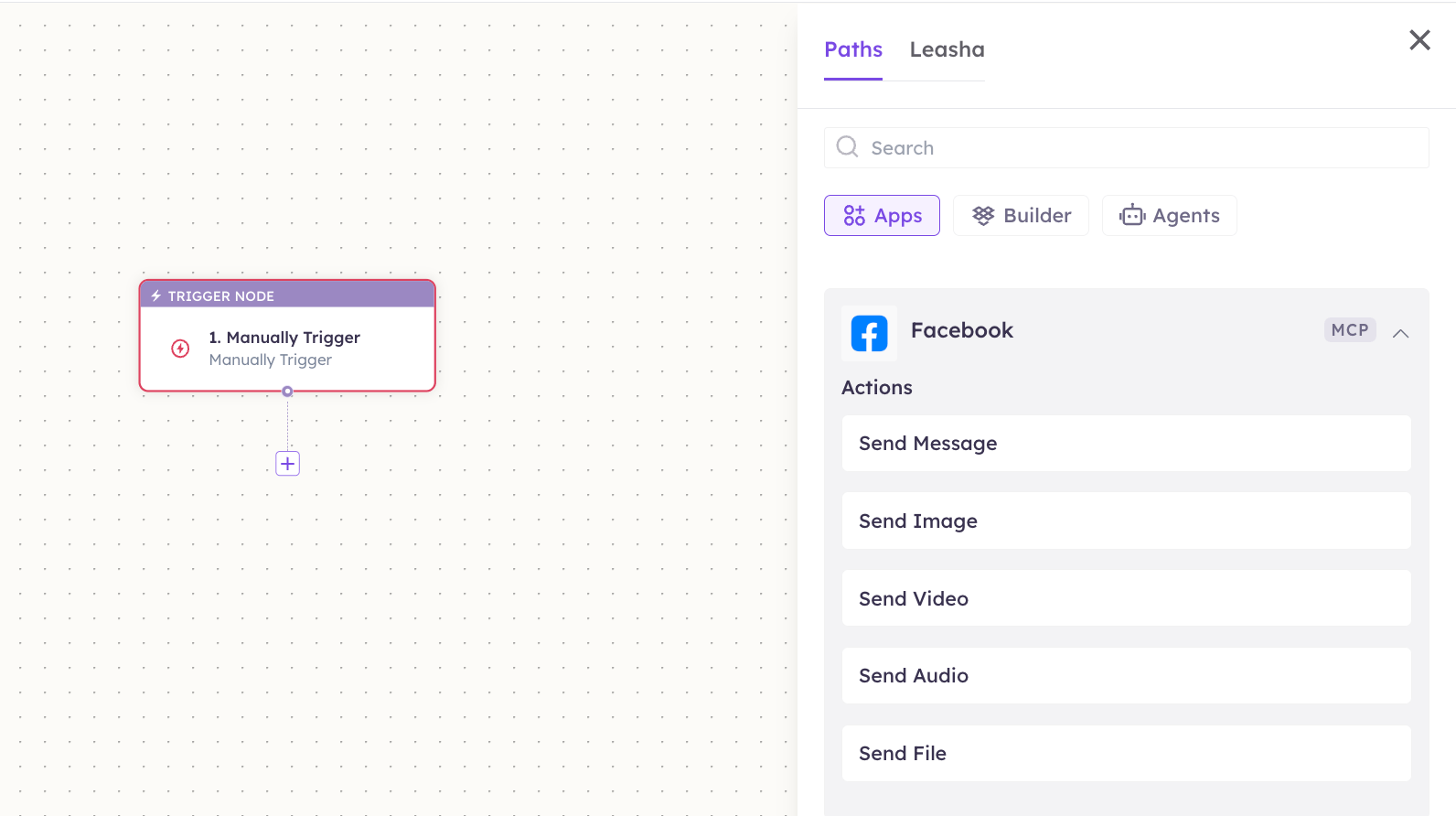
 Click the **+** below any node to add a step, then pick **Facebook** again — this time the panel lists its **Actions**.
 Fill in the fields for the trigger or action you picked. Required fields are marked with a red asterisk (\*).
Under **Selected account**, choose an already-connected account, or click **Add Account** to connect one now.
Click **Save**. Use **Test** to verify the step, then toggle **Publish** when the workflow is ready.
The steps are the same for every connector. For the full workflow builder guide, see [Using MCP in Workflows](/mcp/workflows).
## 5. Available tools
| Tool | What it does | Changes data? |
| ------------ | ------------------------------------------------- | ------------- |
| Send Message | Sends a text message to a Messenger conversation. | ✏️ Yes |
| Send Image | Sends an image attachment. | ✏️ Yes |
| Send Video | Sends a video attachment. | ✏️ Yes |
| Send Audio | Sends an audio attachment. | ✏️ Yes |
| Send File | Sends a file attachment. | ✏️ Yes |
Every send targets a recipient by their **page-scoped ID (PSID)** — the ID Messenger assigns a person for your Page. It isn't their profile ID, and it differs per Page.
### Available triggers
| Trigger | Fires when |
| --------------------- | -------------------------------------------------------------- |
| FB Page Lead Received | A lead is submitted through a lead form on your Facebook Page. |
Lead forms are a Facebook Ads/Page feature. To receive leads, the form must be published on the connected Page and your app authorized to read them.
## 6. Example usage
> **"Reply to that Messenger thread with our shipping policy and attach the returns PDF."**
>
> Runs **Send Message**, then **Send File**.
> **"When a customer asks for the setup guide, send them the walkthrough video."**
>
> A workflow routes the message and runs **Send Video**.
## 7. Permissions & data access
**UnleashX can:**
* Send text, image, video, audio, and file messages from the connected Page.
* Receive leads submitted through your Page's lead forms.
**UnleashX cannot:**
* Post to your Page timeline, or comment on posts.
* Message people who haven't messaged your Page first.
* Send outside Meta's 24-hour messaging window without an approved tag.
* Access your personal Facebook profile, friends, or Ads account.
**To disconnect:** In UnleashX, open **Data Connectors → Facebook → Disconnect**. Then remove the app under **Facebook Settings → Business Integrations**. Disconnecting and revoking removes access immediately.
## 8. Troubleshooting
| Problem | What it means | How to fix it |
| ------------------------------------ | -------------------------------------------------- | ------------------------------------------------------------ |
| `190 Invalid OAuth access token` | The Page token expired or the Page admin changed. | Reconnect Facebook in **Data Connectors**. |
| `10 / 200 Permission denied` | A required permission wasn't granted for the Page. | Re-authorize and confirm the Page is selected. |
| **"Outside allowed window"** | More than 24 hours since the user's last message. | Use an approved message tag, or wait for the user to reply. |
| **Attachment rejected** | The file type or size exceeds Meta's limits. | Check Meta's attachment limits and re-send a supported file. |
| **Message sent to the wrong person** | A profile ID was used instead of the PSID. | Use the page-scoped ID from the incoming conversation. |
For general connector issues, see [/mcp/integrations](/mcp/integrations).
## 9. Frequently asked questions
**Does UnleashX store my Messenger conversations?**
No. It sends through Meta's API per request; it doesn't keep a copy of your inbox.
**Can the agent post to my Page timeline?**
No. These tools cover Messenger sends only.
**Can I connect more than one Page?**
Yes. Connect each Page as its own account and pick the right one per workflow step.
**Why can't the agent message a specific customer?**
Messenger is reply-only — the person has to message your Page first, and the 24-hour window has to be open.
## 10. References
* [Messenger Platform documentation](https://developers.facebook.com/docs/messenger-platform)
* [Send API reference](https://developers.facebook.com/docs/messenger-platform/reference/send-api)
* [Messaging window and message tags](https://developers.facebook.com/docs/messenger-platform/policy/policy-overview)
* [Facebook Business Integrations settings](https://www.facebook.com/settings?tab=business_tools)
Fill in the fields for the trigger or action you picked. Required fields are marked with a red asterisk (\*).
Under **Selected account**, choose an already-connected account, or click **Add Account** to connect one now.
Click **Save**. Use **Test** to verify the step, then toggle **Publish** when the workflow is ready.
The steps are the same for every connector. For the full workflow builder guide, see [Using MCP in Workflows](/mcp/workflows).
## 5. Available tools
| Tool | What it does | Changes data? |
| ------------ | ------------------------------------------------- | ------------- |
| Send Message | Sends a text message to a Messenger conversation. | ✏️ Yes |
| Send Image | Sends an image attachment. | ✏️ Yes |
| Send Video | Sends a video attachment. | ✏️ Yes |
| Send Audio | Sends an audio attachment. | ✏️ Yes |
| Send File | Sends a file attachment. | ✏️ Yes |
Every send targets a recipient by their **page-scoped ID (PSID)** — the ID Messenger assigns a person for your Page. It isn't their profile ID, and it differs per Page.
### Available triggers
| Trigger | Fires when |
| --------------------- | -------------------------------------------------------------- |
| FB Page Lead Received | A lead is submitted through a lead form on your Facebook Page. |
Lead forms are a Facebook Ads/Page feature. To receive leads, the form must be published on the connected Page and your app authorized to read them.
## 6. Example usage
> **"Reply to that Messenger thread with our shipping policy and attach the returns PDF."**
>
> Runs **Send Message**, then **Send File**.
> **"When a customer asks for the setup guide, send them the walkthrough video."**
>
> A workflow routes the message and runs **Send Video**.
## 7. Permissions & data access
**UnleashX can:**
* Send text, image, video, audio, and file messages from the connected Page.
* Receive leads submitted through your Page's lead forms.
**UnleashX cannot:**
* Post to your Page timeline, or comment on posts.
* Message people who haven't messaged your Page first.
* Send outside Meta's 24-hour messaging window without an approved tag.
* Access your personal Facebook profile, friends, or Ads account.
**To disconnect:** In UnleashX, open **Data Connectors → Facebook → Disconnect**. Then remove the app under **Facebook Settings → Business Integrations**. Disconnecting and revoking removes access immediately.
## 8. Troubleshooting
| Problem | What it means | How to fix it |
| ------------------------------------ | -------------------------------------------------- | ------------------------------------------------------------ |
| `190 Invalid OAuth access token` | The Page token expired or the Page admin changed. | Reconnect Facebook in **Data Connectors**. |
| `10 / 200 Permission denied` | A required permission wasn't granted for the Page. | Re-authorize and confirm the Page is selected. |
| **"Outside allowed window"** | More than 24 hours since the user's last message. | Use an approved message tag, or wait for the user to reply. |
| **Attachment rejected** | The file type or size exceeds Meta's limits. | Check Meta's attachment limits and re-send a supported file. |
| **Message sent to the wrong person** | A profile ID was used instead of the PSID. | Use the page-scoped ID from the incoming conversation. |
For general connector issues, see [/mcp/integrations](/mcp/integrations).
## 9. Frequently asked questions
**Does UnleashX store my Messenger conversations?**
No. It sends through Meta's API per request; it doesn't keep a copy of your inbox.
**Can the agent post to my Page timeline?**
No. These tools cover Messenger sends only.
**Can I connect more than one Page?**
Yes. Connect each Page as its own account and pick the right one per workflow step.
**Why can't the agent message a specific customer?**
Messenger is reply-only — the person has to message your Page first, and the 24-hour window has to be open.
## 10. References
* [Messenger Platform documentation](https://developers.facebook.com/docs/messenger-platform)
* [Send API reference](https://developers.facebook.com/docs/messenger-platform/reference/send-api)
* [Messaging window and message tags](https://developers.facebook.com/docs/messenger-platform/policy/policy-overview)
* [Facebook Business Integrations settings](https://www.facebook.com/settings?tab=business_tools)