> ## Documentation Index
> Fetch the complete documentation index at: https://docs.unleashx.ai/llms.txt
> Use this file to discover all available pages before exploring further.
# Close CRM
> Let your UnleashX agent manage Close leads, contacts, opportunities, tasks and activities.
# Close CRM
> **In one line:** Connect Close so your UnleashX agent can create and update leads and contacts, move opportunities through the pipeline, log notes and tasks, and start a workflow the moment a new lead lands.
| | |
| ------------------ | ---------------------------------------------------------------------------------------------------------------------------------- |
| **Category** | CRM & Marketing |
| **Authentication** | API key |
| **Setup time** | \~3 minutes |
| **Difficulty** | Easy |
| **Best for** | Sales teams on Close who want an agent doing the data entry — logging calls, creating follow-ups, and keeping the pipeline current |
## 1. Overview
Close is a sales CRM built around the **lead**, which is the company record. Each lead holds **contacts** (people), **opportunities** (deals with a value and a status), **tasks**, and **activities** — notes, calls and emails.
Once connected to UnleashX, your agent can search and manage leads and contacts, create and move opportunities, create and complete tasks, log notes and emails, read calls, and look up the organisation's users, pipelines, statuses and custom field definitions. It can also read Close's change feed directly.
Four polling triggers let a workflow start on its own — a new lead, contact, opportunity or task.
Connecting Close to UnleashX means the CRM stops depending on someone remembering to update it: a call ends and the note is logged, a form comes in and the lead exists with the right status, a deal closes and the next task is already assigned.
## 2. What you'll need
* A **Close account** with access to **Settings → Developer**.
* An **API key** from that page.
* An UnleashX agent where you'll add the connector.
An API key inherits the permissions of the user it belongs to. Create it on an account that can see the leads your workflows need.
## 3. Get your credentials
Close authenticates with an **API key**. There's no OAuth flow.
Go to [app.close.com](https://app.close.com/) and sign in.
Go to **Settings → Developer → API Keys**.
Create a new API key and name it something you'll recognise later — for example "UnleashX".
Copy the key now and store it in your password manager. If you lose it, delete the key and create a new one.
### Access this key grants UnleashX
| Access | Why UnleashX needs it |
| ----------------- | -------------------------------------------------------------- |
| Leads | Search, read, create, update and delete leads |
| Contacts | Search, read, create, update and delete contacts |
| Opportunities | Read, create, update and delete opportunities |
| Tasks | Read, create and update tasks |
| Activities | Read calls and emails; log notes and email activities |
| Organisation data | Read users, pipelines, statuses and custom field definitions |
| Event log | Read the change feed that powers the lead and contact triggers |
The key can **delete** leads, and deleting a lead takes its contacts and activities with it. Grant it deliberately and keep delete steps out of workflows that run unattended.
## 4. Connect on UnleashX
Sign in at [https://www.tryunleashx.com](https://www.tryunleashx.com) and open the agent you want to connect.
In the agent, go to **Data Connectors** and find **Close CRM**.
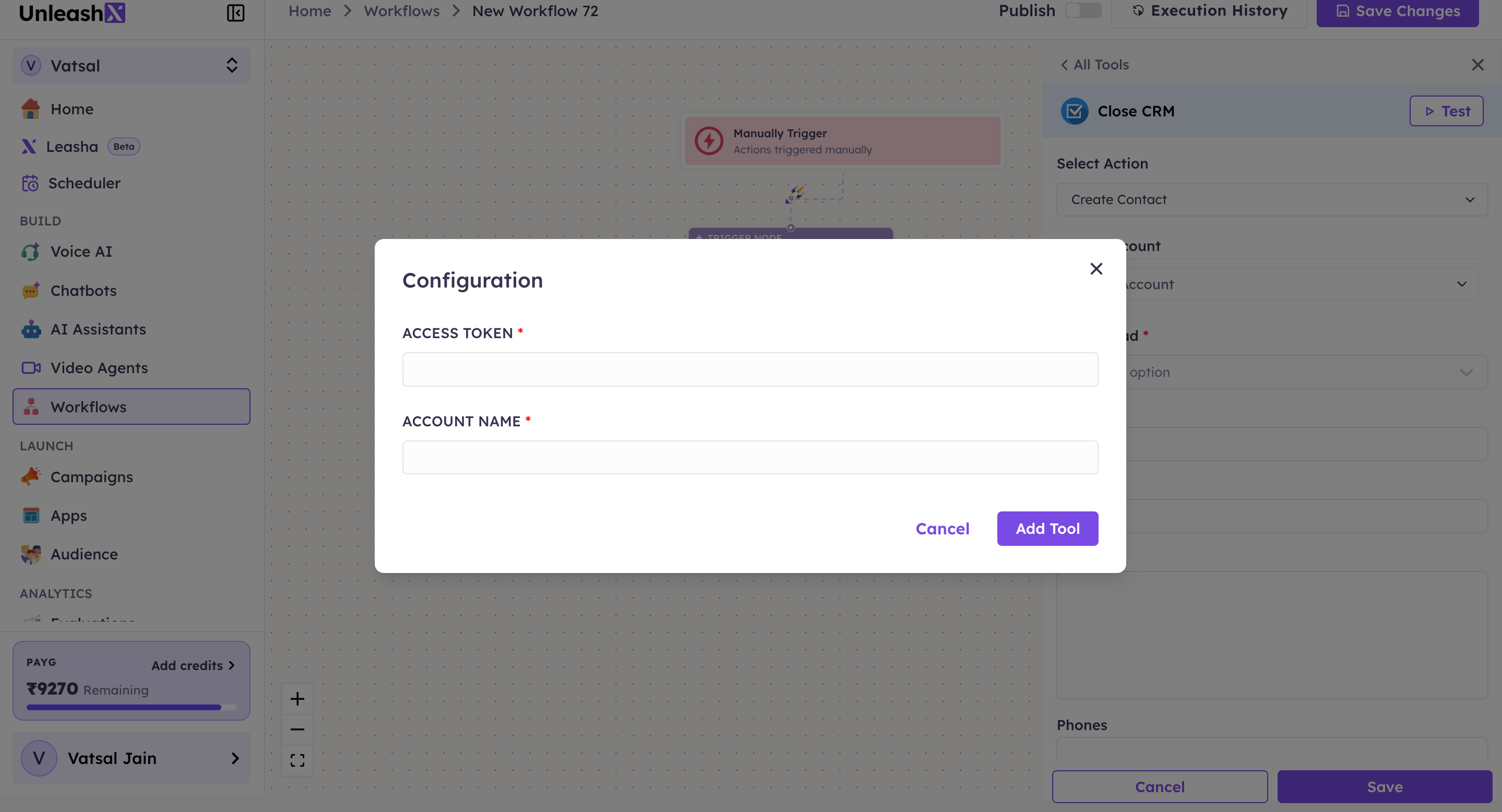
Click **Connect** / **Add** / **Configure** and complete both fields:
| Field | What to enter |
| ---------------- | ------------------------------------------- |
| **Access Token** | The Close API key from Section 3 |
| **Account Name** | A label for this connection inside UnleashX |
Then click **Add Tool**.
 Save, then run **Get Me** once — it returns the user and organisation the key belongs to, which is the quickest way to confirm you connected the right account.
### Use Close CRM in a Workflow
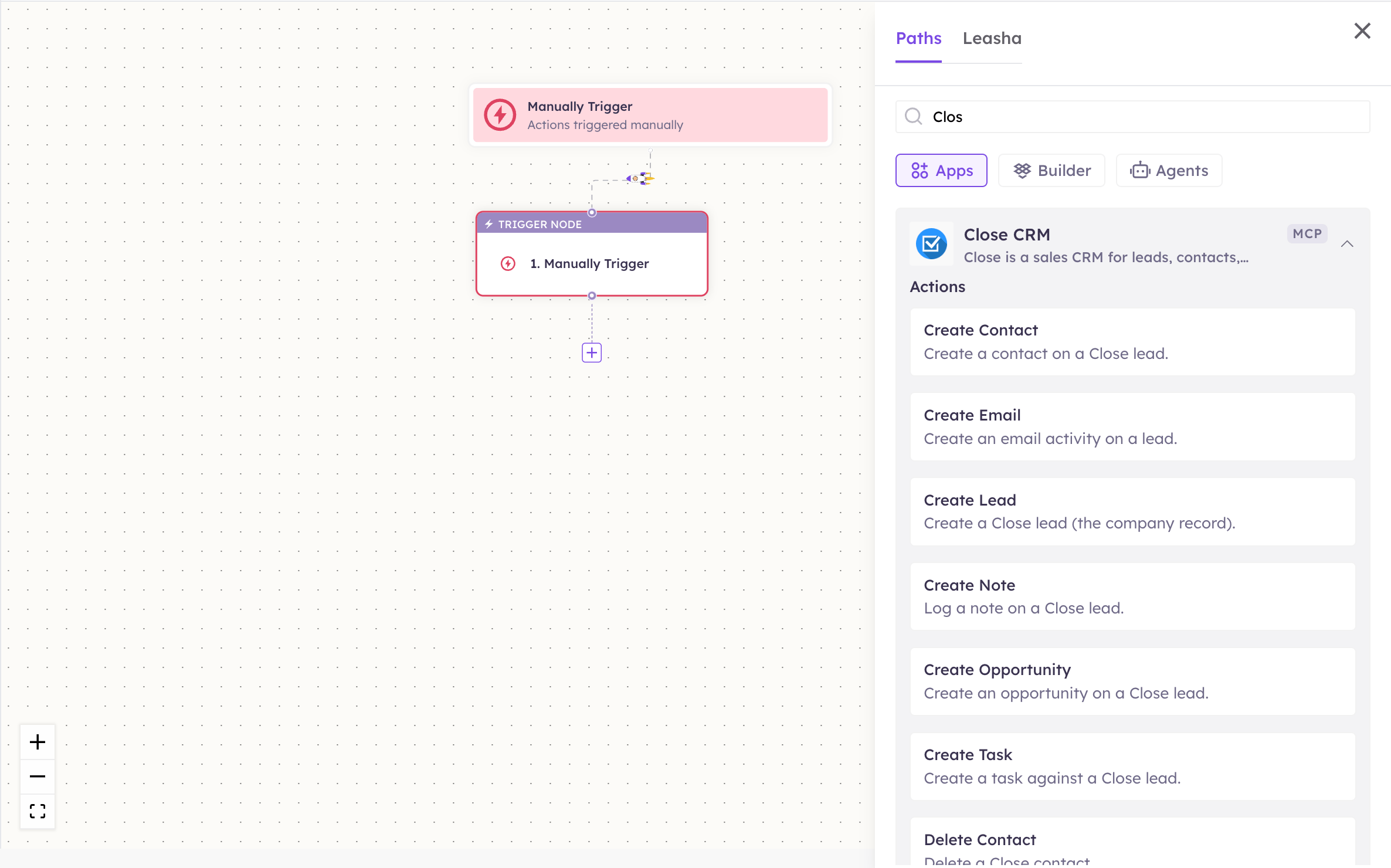
Once connected, you can add **Close CRM** to any automation from the **Workflows** builder. Its triggers and tools appear in the Apps panel, marked with an **MCP** badge.
Open **Workflows → New Workflow**. On the canvas, click the **+** below a node, then open the **Apps** tab in the **Paths** panel and select **Close CRM** — its **Actions** are listed underneath. Use the search box if you have many connectors.
Save, then run **Get Me** once — it returns the user and organisation the key belongs to, which is the quickest way to confirm you connected the right account.
### Use Close CRM in a Workflow
Once connected, you can add **Close CRM** to any automation from the **Workflows** builder. Its triggers and tools appear in the Apps panel, marked with an **MCP** badge.
Open **Workflows → New Workflow**. On the canvas, click the **+** below a node, then open the **Apps** tab in the **Paths** panel and select **Close CRM** — its **Actions** are listed underneath. Use the search box if you have many connectors.
 Choose the action from **Select Action**, then pick the connected account under **Select Account** — or click **Add Account** to connect one now.
Required fields are marked with a red asterisk (\*). Most steps need a **Lead Id** — get it from **List Leads** or from the trigger that started the workflow.
Click **Save**. Use **Test** to verify the step, then toggle **Publish** when the workflow is ready.
The steps are the same for every connector. For the full workflow builder guide, see [Using MCP in Workflows](/mcp/workflows).
## 5. Available tools
**Updates are partial.** Supply only the fields you want changed and the rest are left alone — you never have to send a whole record back to edit one field.
Names match the **Workflows** Apps panel, which lists them alphabetically; they're grouped here by what they act on. The **Tool ID** is what the agent calls behind the scenes.
**Leads**
| Tool | Tool ID | What it does | Required | Changes data? |
| ----------- | ---------------------- | --------------------------------------------------- | --------- | ------------- |
| List Leads | `closecrm_list_leads` | Lists leads, optionally narrowed by a search query | — | No |
| Get Lead | `closecrm_get_lead` | One lead by id | `lead_id` | No |
| Create Lead | `closecrm_create_lead` | Creates a lead (the company record) | — | ✏️ Yes |
| Update Lead | `closecrm_update_lead` | Updates only the fields you supply | `lead_id` | ✏️ Yes |
| Delete Lead | `closecrm_delete_lead` | Deletes a lead **with its contacts and activities** | `lead_id` | ⚠️ Yes |
**Contacts**
| Tool | Tool ID | What it does | Required | Changes data? |
| -------------- | ------------------------- | ------------------------------------------------- | ------------ | ------------- |
| List Contacts | `closecrm_list_contacts` | Lists contacts, optionally only those on one lead | — | No |
| Get Contact | `closecrm_get_contact` | One contact by id | `contact_id` | No |
| Create Contact | `closecrm_create_contact` | Creates a contact on a lead | `lead_id` | ✏️ Yes |
| Update Contact | `closecrm_update_contact` | Updates only the fields you supply | `contact_id` | ✏️ Yes |
| Delete Contact | `closecrm_delete_contact` | Deletes a contact | `contact_id` | ⚠️ Yes |
**Opportunities**
| Tool | Tool ID | What it does | Required | Changes data? |
| ------------------ | ----------------------------- | ------------------------------------------------------- | ---------------- | ------------- |
| List Opportunities | `closecrm_list_opportunities` | Lists opportunities, filterable by lead, status or user | — | No |
| Get Opportunity | `closecrm_get_opportunity` | One opportunity by id | `opportunity_id` | No |
| Create Opportunity | `closecrm_create_opportunity` | Creates an opportunity on a lead | `lead_id` | ✏️ Yes |
| Update Opportunity | `closecrm_update_opportunity` | Updates it, including moving it to another status | `opportunity_id` | ✏️ Yes |
| Delete Opportunity | `closecrm_delete_opportunity` | Deletes an opportunity | `opportunity_id` | ⚠️ Yes |
**Tasks**
| Tool | Tool ID | What it does | Required | Changes data? |
| ----------- | ---------------------- | ------------------------------------------------------- | ----------------- | ------------- |
| List Tasks | `closecrm_list_tasks` | Lists tasks, filterable by lead, assignee or completion | — | No |
| Get Task | `closecrm_get_task` | One task by id | `task_id` | No |
| Create Task | `closecrm_create_task` | Creates a task against a lead | `lead_id`, `text` | ✏️ Yes |
| Update Task | `closecrm_update_task` | Updates it, including marking it complete | `task_id` | ✏️ Yes |
**Activities**
| Tool | Tool ID | What it does | Required | Changes data? |
| ------------ | ----------------------- | -------------------------------------------------------- | ----------------- | ------------- |
| List Notes | `closecrm_list_notes` | Lists note activities | — | No |
| Create Note | `closecrm_create_note` | Logs a note on a lead | `lead_id`, `note` | ✏️ Yes |
| List Calls | `closecrm_list_calls` | Lists call activities | — | No |
| List Emails | `closecrm_list_emails` | Lists email activities | — | No |
| Create Email | `closecrm_create_email` | Creates an email activity (`status` defaults to `draft`) | `lead_id` | ✏️ Yes |
**Organisation and configuration**
| Tool | Tool ID | What it does | Required | Changes data? |
| ------------------------- | ------------------------------------ | ------------------------------------------------------------------------ | -------- | ------------- |
| Get Me | `closecrm_get_me` | The user and organisation the API key belongs to | — | No |
| List Users | `closecrm_list_users` | Users in the Close organisation | — | No |
| List Pipelines | `closecrm_list_pipelines` | Opportunity pipelines and their stages | — | No |
| List Lead Statuses | `closecrm_list_lead_statuses` | Lead statuses — the source for `status_id` on lead actions | — | No |
| List Opportunity Statuses | `closecrm_list_opportunity_statuses` | Opportunity statuses — the source for `status_id` on opportunity actions | — | No |
| List Custom Fields | `closecrm_list_custom_fields` | Lead custom field definitions, so you know the ids to write to | — | No |
| List Events | `closecrm_list_events` | Close's change feed — every create, update and delete | — | No |
Anything taking a `status_id` needs a real id, not a status name. Fetch them once with **List Lead Statuses** or **List Opportunity Statuses** and reuse them in the workflow.
**Triggers**
| Trigger | Trigger ID | Fires when |
| ------------------ | ----------------------------- | -------------------------------------------------------- |
| On New Lead | `closecrm_on_new_lead` | A lead is created |
| On New Contact | `closecrm_on_new_contact` | A contact is created |
| On New Opportunity | `closecrm_on_new_opportunity` | An opportunity is created, optionally filtered by status |
| On New Task | `closecrm_on_new_task` | A task is created, optionally filtered by assignee |
Close's lead and contact endpoints support no ordering and no date filter, so polling them newest-first is impossible. **On New Lead** and **On New Contact** read the **change feed** instead, which does filter properly. Opportunities and tasks have native ordering and use it directly. Either way you get the new records — the mechanism just differs.
## 6. Example usage
**"Create a lead for Acme Corp with Jane as the contact."**
Runs **Create Lead**, then **Create Contact** against the returned lead id.
**"Move the Acme deal to Negotiation and set it to ₹4,00,000."**
Runs **List Opportunity Statuses** for the id, then **Update Opportunity**.
**"Log a note on that lead and remind me to follow up Friday."**
Runs **Create Note** and **Create Task** with a due date.
**"When a new lead comes in, enrich it and assign a first-touch task."**
A workflow starts on **On New Lead**, enriches via your data connector, then runs **Update Lead** and **Create Task**.
## 7. Permissions & data access
**UnleashX CAN:**
* Search, read, create, update and delete leads, contacts and opportunities.
* Create and complete tasks, log notes and email activities, and read calls.
* Read users, pipelines, statuses, custom field definitions and the change feed.
* Start workflows on new leads, contacts, opportunities and tasks.
**UnleashX CANNOT:**
* Do anything the key's own user can't do in Close.
* Place calls or actually send email — **Create Email** records an activity, it isn't a send.
* Reach any Close organisation other than the key's.
**To disconnect:** In UnleashX, open your agent → **Data Connectors** → **Close CRM** → **Disconnect**. To fully revoke access, delete the key in **Settings → Developer → API Keys**.
## 8. Troubleshooting
| Problem | What it means | How to fix it |
| -------------------------------------------- | -------------------------------------------------- | ------------------------------------------------------------------------- |
| `401 Unauthorized` | The key is wrong or was deleted | Create a new key in **Settings → Developer** and reconnect |
| `403 Forbidden` | The key's user can't see or change that record | Use a key from an account with the right permissions |
| A status change is rejected | A status **name** was sent where an **id** belongs | Fetch the id with **List Lead Statuses** or **List Opportunity Statuses** |
| Only 200 records come back | Close caps the page size at 200 | Page through with `skip`, don't raise `limit` |
| An update wiped a field | A field was sent explicitly as empty | Updates are partial — omit a field entirely to leave it alone |
| Deleting a lead removed more than expected | Lead deletes cascade to contacts and activities | Delete the contact instead when the company should stay |
| A trigger fires for old records on first run | The first poll has no previous snapshot | Expected — later polls only report what's genuinely new |
For general connector issues, see [/mcp/integrations](/mcp/integrations).
## 9. Frequently asked questions
**Is my CRM data stored by UnleashX?**
No. Tools call the Close API live with your key. UnleashX keeps only the bookkeeping a polling trigger needs to know what it has already seen.
**What's a lead versus a contact?**
In Close, the lead is the company and contacts are the people on it. Every contact belongs to a lead.
**Does Create Email send an email?**
No. It records an email activity on the lead. Use an email connector to actually send.
**How do I find custom field ids?**
**List Custom Fields** returns the lead custom field definitions and their ids.
**Can I connect more than one Close organisation?**
Yes. Add a key per organisation and tell them apart by **Account Name**.
## 10. References
* Close API reference: [https://developer.close.com/](https://developer.close.com/)
* API keys (Settings → Developer): [https://app.close.com/settings/developer/api-keys/](https://app.close.com/settings/developer/api-keys/)
* Close event log: [https://developer.close.com/resources/event-log/](https://developer.close.com/resources/event-log/)
Choose the action from **Select Action**, then pick the connected account under **Select Account** — or click **Add Account** to connect one now.
Required fields are marked with a red asterisk (\*). Most steps need a **Lead Id** — get it from **List Leads** or from the trigger that started the workflow.
Click **Save**. Use **Test** to verify the step, then toggle **Publish** when the workflow is ready.
The steps are the same for every connector. For the full workflow builder guide, see [Using MCP in Workflows](/mcp/workflows).
## 5. Available tools
**Updates are partial.** Supply only the fields you want changed and the rest are left alone — you never have to send a whole record back to edit one field.
Names match the **Workflows** Apps panel, which lists them alphabetically; they're grouped here by what they act on. The **Tool ID** is what the agent calls behind the scenes.
**Leads**
| Tool | Tool ID | What it does | Required | Changes data? |
| ----------- | ---------------------- | --------------------------------------------------- | --------- | ------------- |
| List Leads | `closecrm_list_leads` | Lists leads, optionally narrowed by a search query | — | No |
| Get Lead | `closecrm_get_lead` | One lead by id | `lead_id` | No |
| Create Lead | `closecrm_create_lead` | Creates a lead (the company record) | — | ✏️ Yes |
| Update Lead | `closecrm_update_lead` | Updates only the fields you supply | `lead_id` | ✏️ Yes |
| Delete Lead | `closecrm_delete_lead` | Deletes a lead **with its contacts and activities** | `lead_id` | ⚠️ Yes |
**Contacts**
| Tool | Tool ID | What it does | Required | Changes data? |
| -------------- | ------------------------- | ------------------------------------------------- | ------------ | ------------- |
| List Contacts | `closecrm_list_contacts` | Lists contacts, optionally only those on one lead | — | No |
| Get Contact | `closecrm_get_contact` | One contact by id | `contact_id` | No |
| Create Contact | `closecrm_create_contact` | Creates a contact on a lead | `lead_id` | ✏️ Yes |
| Update Contact | `closecrm_update_contact` | Updates only the fields you supply | `contact_id` | ✏️ Yes |
| Delete Contact | `closecrm_delete_contact` | Deletes a contact | `contact_id` | ⚠️ Yes |
**Opportunities**
| Tool | Tool ID | What it does | Required | Changes data? |
| ------------------ | ----------------------------- | ------------------------------------------------------- | ---------------- | ------------- |
| List Opportunities | `closecrm_list_opportunities` | Lists opportunities, filterable by lead, status or user | — | No |
| Get Opportunity | `closecrm_get_opportunity` | One opportunity by id | `opportunity_id` | No |
| Create Opportunity | `closecrm_create_opportunity` | Creates an opportunity on a lead | `lead_id` | ✏️ Yes |
| Update Opportunity | `closecrm_update_opportunity` | Updates it, including moving it to another status | `opportunity_id` | ✏️ Yes |
| Delete Opportunity | `closecrm_delete_opportunity` | Deletes an opportunity | `opportunity_id` | ⚠️ Yes |
**Tasks**
| Tool | Tool ID | What it does | Required | Changes data? |
| ----------- | ---------------------- | ------------------------------------------------------- | ----------------- | ------------- |
| List Tasks | `closecrm_list_tasks` | Lists tasks, filterable by lead, assignee or completion | — | No |
| Get Task | `closecrm_get_task` | One task by id | `task_id` | No |
| Create Task | `closecrm_create_task` | Creates a task against a lead | `lead_id`, `text` | ✏️ Yes |
| Update Task | `closecrm_update_task` | Updates it, including marking it complete | `task_id` | ✏️ Yes |
**Activities**
| Tool | Tool ID | What it does | Required | Changes data? |
| ------------ | ----------------------- | -------------------------------------------------------- | ----------------- | ------------- |
| List Notes | `closecrm_list_notes` | Lists note activities | — | No |
| Create Note | `closecrm_create_note` | Logs a note on a lead | `lead_id`, `note` | ✏️ Yes |
| List Calls | `closecrm_list_calls` | Lists call activities | — | No |
| List Emails | `closecrm_list_emails` | Lists email activities | — | No |
| Create Email | `closecrm_create_email` | Creates an email activity (`status` defaults to `draft`) | `lead_id` | ✏️ Yes |
**Organisation and configuration**
| Tool | Tool ID | What it does | Required | Changes data? |
| ------------------------- | ------------------------------------ | ------------------------------------------------------------------------ | -------- | ------------- |
| Get Me | `closecrm_get_me` | The user and organisation the API key belongs to | — | No |
| List Users | `closecrm_list_users` | Users in the Close organisation | — | No |
| List Pipelines | `closecrm_list_pipelines` | Opportunity pipelines and their stages | — | No |
| List Lead Statuses | `closecrm_list_lead_statuses` | Lead statuses — the source for `status_id` on lead actions | — | No |
| List Opportunity Statuses | `closecrm_list_opportunity_statuses` | Opportunity statuses — the source for `status_id` on opportunity actions | — | No |
| List Custom Fields | `closecrm_list_custom_fields` | Lead custom field definitions, so you know the ids to write to | — | No |
| List Events | `closecrm_list_events` | Close's change feed — every create, update and delete | — | No |
Anything taking a `status_id` needs a real id, not a status name. Fetch them once with **List Lead Statuses** or **List Opportunity Statuses** and reuse them in the workflow.
**Triggers**
| Trigger | Trigger ID | Fires when |
| ------------------ | ----------------------------- | -------------------------------------------------------- |
| On New Lead | `closecrm_on_new_lead` | A lead is created |
| On New Contact | `closecrm_on_new_contact` | A contact is created |
| On New Opportunity | `closecrm_on_new_opportunity` | An opportunity is created, optionally filtered by status |
| On New Task | `closecrm_on_new_task` | A task is created, optionally filtered by assignee |
Close's lead and contact endpoints support no ordering and no date filter, so polling them newest-first is impossible. **On New Lead** and **On New Contact** read the **change feed** instead, which does filter properly. Opportunities and tasks have native ordering and use it directly. Either way you get the new records — the mechanism just differs.
## 6. Example usage
**"Create a lead for Acme Corp with Jane as the contact."**
Runs **Create Lead**, then **Create Contact** against the returned lead id.
**"Move the Acme deal to Negotiation and set it to ₹4,00,000."**
Runs **List Opportunity Statuses** for the id, then **Update Opportunity**.
**"Log a note on that lead and remind me to follow up Friday."**
Runs **Create Note** and **Create Task** with a due date.
**"When a new lead comes in, enrich it and assign a first-touch task."**
A workflow starts on **On New Lead**, enriches via your data connector, then runs **Update Lead** and **Create Task**.
## 7. Permissions & data access
**UnleashX CAN:**
* Search, read, create, update and delete leads, contacts and opportunities.
* Create and complete tasks, log notes and email activities, and read calls.
* Read users, pipelines, statuses, custom field definitions and the change feed.
* Start workflows on new leads, contacts, opportunities and tasks.
**UnleashX CANNOT:**
* Do anything the key's own user can't do in Close.
* Place calls or actually send email — **Create Email** records an activity, it isn't a send.
* Reach any Close organisation other than the key's.
**To disconnect:** In UnleashX, open your agent → **Data Connectors** → **Close CRM** → **Disconnect**. To fully revoke access, delete the key in **Settings → Developer → API Keys**.
## 8. Troubleshooting
| Problem | What it means | How to fix it |
| -------------------------------------------- | -------------------------------------------------- | ------------------------------------------------------------------------- |
| `401 Unauthorized` | The key is wrong or was deleted | Create a new key in **Settings → Developer** and reconnect |
| `403 Forbidden` | The key's user can't see or change that record | Use a key from an account with the right permissions |
| A status change is rejected | A status **name** was sent where an **id** belongs | Fetch the id with **List Lead Statuses** or **List Opportunity Statuses** |
| Only 200 records come back | Close caps the page size at 200 | Page through with `skip`, don't raise `limit` |
| An update wiped a field | A field was sent explicitly as empty | Updates are partial — omit a field entirely to leave it alone |
| Deleting a lead removed more than expected | Lead deletes cascade to contacts and activities | Delete the contact instead when the company should stay |
| A trigger fires for old records on first run | The first poll has no previous snapshot | Expected — later polls only report what's genuinely new |
For general connector issues, see [/mcp/integrations](/mcp/integrations).
## 9. Frequently asked questions
**Is my CRM data stored by UnleashX?**
No. Tools call the Close API live with your key. UnleashX keeps only the bookkeeping a polling trigger needs to know what it has already seen.
**What's a lead versus a contact?**
In Close, the lead is the company and contacts are the people on it. Every contact belongs to a lead.
**Does Create Email send an email?**
No. It records an email activity on the lead. Use an email connector to actually send.
**How do I find custom field ids?**
**List Custom Fields** returns the lead custom field definitions and their ids.
**Can I connect more than one Close organisation?**
Yes. Add a key per organisation and tell them apart by **Account Name**.
## 10. References
* Close API reference: [https://developer.close.com/](https://developer.close.com/)
* API keys (Settings → Developer): [https://app.close.com/settings/developer/api-keys/](https://app.close.com/settings/developer/api-keys/)
* Close event log: [https://developer.close.com/resources/event-log/](https://developer.close.com/resources/event-log/)